Pricing strategy
What each pricing strategy option means, how it sets the sales price on quotes, and when an MSP should use markup versus RRP discount.
Written By Bram Fofana
Last updated About 2 hours ago
A pricing strategy tells Salesbuildr how to turn cost and list price into the sell price your team sees in the catalog and on new quote lines.
There are two independent ways to arrive at a sell price:
- Markup-based — start from your cost and add profit. Cost 100 with a 20% markup sells at 120.
- RRP discount-based — start from the recommended retail price (RRP / MSRP) and take a discount off that list. RRP 200 with a 10% RRP discount sells at 180.
Pricing strategy preference decides which of those formulas to use, which one to fall back to, and how they can cap each other. It does not change rounding — that is a separate setting on the same page.
Where to configure it
- Go to Settings → Financial → Pricing Rules.
- Set Default markup/margin for categories and Default RRP discount for categories so products without their own percentages still have a value to use.
- Choose Pricing strategy preference.
- Click Save.
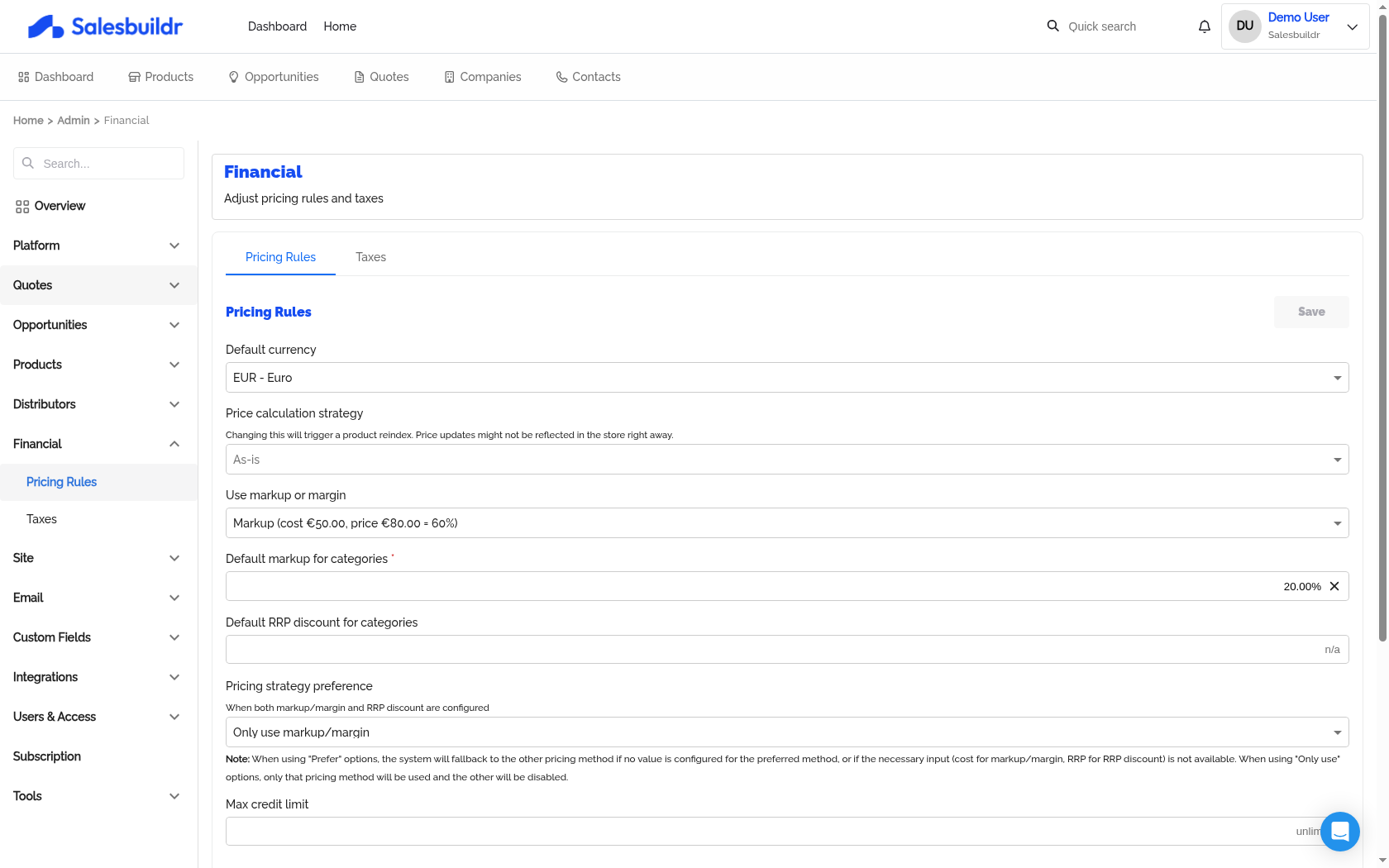
Settings > Financial > Pricing Rules — Mar 1, 2026, 6:15 PM UTC
The dropdown hint reads When both markup/margin and RRP discount are configured. Prefer options still fall back when the preferred method is missing an input (cost for markup, RRP for discount). Only-use options never switch to the other method.
You also need percentages in the right places — tenant defaults on this page, category defaults under Categories, or a value on the product. Strategy without a markup or RRP discount (and without an explicit sell price) cannot produce a price.
Related settings on the same page
For currency, rounding examples, taxes, and credit limit, see Financial.
How the sales price is calculated
When a product does not have a manually entered sell price, Salesbuildr builds up to two candidate prices, then the strategy picks one:
- Markup-based price = cost + (cost × markup %). Needs a cost and a markup percentage.
- Discount-based price = RRP − (RRP × RRP discount %). Needs an RRP and an RRP discount percentage.
That catalog sell price is what appears on the product and what is copied onto a new quote line when a sales rep adds the product. Changing the strategy later does not rewrite prices already sitting on existing quotes — those lines keep the sell price they were given when they were added. To pick up the new strategy, add the product again on a draft quote (or replace the line).
Where markup % and RRP discount % come from
Before the strategy runs, Salesbuildr resolves each percentage in this order:
- A value typed on the product (Pricing on the product detail page)
- The product's category default
- The tenant default on Settings → Financial → Pricing Rules
Important: typing a value on one field on the product stops the other field from inheriting. If you set markup on the product, category and tenant RRP discounts are ignored for that product. If you set RRP discount on the product, inherited markup is ignored. That prevents a mix of a number you chose and a silent default from producing a surprise price.
RRP itself comes from:
- The RRP (MSRP) field on the product, if you entered one, otherwise
- The distributor feed's recommended retail price for the selected distributor
Cost comes from the product's cost field, or from the selected distributor feed when cost is left empty (see Dynamic Pricing).
Product-level price overrides
A sell price typed on the product always wins. The strategy is skipped entirely for that product — markup and RRP discount are then derived for display from the price you entered.
Use an explicit sell price for a locked catalog price (a special bid, a service you always sell at a round number, or a PSA-synced price you do not want recalculated). Clear the sell price, cost, and markup together when you want the distributor feed and your strategy to take over again.
On Only use RRP discount, the markup field on the product is read-only because markup is not used. On Only use markup/margin, the RRP discount field is read-only. Category tables hide the unused column the same way.
Customer-specific pricing books and discount groups still apply when the product is added to a quote for that customer. They override the catalog sell price for that quote; they do not change the tenant strategy.
The six options
If nothing is selected, Salesbuildr behaves as Prefer markup/margin.
Prefer markup/margin
Use the markup-based price. If there is no cost or no markup, fall back to the RRP discount-based price.
Use when: most of the catalog is cost-plus (hardware from distributors, labour, managed services) but some items only have a vendor list price. This is the usual MSP default.
Prefer RRP discount
Use the discount-based price. If there is no RRP or no RRP discount, fall back to cost plus markup.
Use when: you sell from vendor price lists or discount tiers (for example “15% off RRP”) and still want a safety net for products that never carry a list price.
Only use markup/margin
Always use cost plus markup. RRP discount is never used, even if it is filled in.
Needs cost and a markup percentage. Products with no cost get no calculated sell price.
Use when: every product you sell has a known cost and you never want list-price discounting to move the number.
Only use RRP discount
Always use RRP minus discount. Markup is never used, even if it is filled in.
Needs an RRP and an RRP discount percentage. Products with no RRP get no calculated sell price.
Use when: you quote exclusively from recommended retail (retail-style or vendor-mandated list pricing) and must not fall back to cost-plus.
RRP discount with minimum markup floor
Start from the RRP discount price, but never sell below the markup-based price.
- If the discounted price is higher than or equal to the markup price → use the discount.
- If the discounted price would undercut the markup price → use the markup price as a floor.
If only one of the two prices can be calculated, that one is used.
Use when: you advertise a discount off RRP but still need a minimum margin. Example: cost 100 (20% markup → 120), RRP 200 (40% off → 120 is fine; 50% off → 100 would be lifted back to 120).
Markup/margin with maximum RRP discount ceiling
Start from the markup-based price, but never sell above the RRP discount price, and never below cost.
- If markup is at or below the discounted RRP → use markup.
- If markup would exceed the discounted RRP → cap at the discounted RRP.
- The sell price is always at least cost.
If only one of the two prices can be calculated, that one is used (still not below cost).
Use when: you price from cost but must not quote above the vendor's recommended retail after discount. Useful when a high category markup would otherwise put sell price over RRP.
How this shows up on quotes
When a sales rep adds a product, the line's sell price is the catalog price produced by the current strategy (then pricing books, discount groups, and any edit the rep makes on the line).
On the quote you will see:
- The sell price on the line — this is what the customer pays.
- An RRP under the sell price when RRP (MSRP) is filled in on the product, plus a discount % when sell is below that RRP.
- Markup / margin for quote managers, calculated from cost and the line's sell price.
Editing a line lets you type a different sell price, cost, or markup for that quote only. That change stays on the quote; it does not rewrite the product in the catalog.
Why a quote line shows n/a for RRP
When you edit a quote line, Product RRP can show n/a. That field is the recommended retail price from the selected distributor. It is n/a when that feed did not publish a list price — typical for labour, many managed services, and products that exist only in your PSA.
That is a different field from RRP (MSRP) on the product:
- Product RRP on the quote line = distributor list price. n/a means the feed has none.
- RRP (MSRP) on the product = a list price you typed. The quote can still show that amount under the sell price, and the strategy can still use it, even when Product RRP is n/a.
Without either source of RRP, the discount-based formula cannot run. What happens next depends on the strategy:
On the product, RRP Discount can also show n/a when you have typed a sell price or markup but there is still no RRP — there is nothing to measure a discount against. That is expected, not an error.
To give the product an RRP the strategy can use:
- Open the product → Pricing.
- Enter RRP (MSRP), or select a distributor that publishes a list price (the field placeholder shows From distributor when a feed RRP exists).
- Save. New quote lines pick up the catalog sell price. Existing lines keep whatever they already stored.
If your catalog is mostly services without list prices, n/a is normal — prefer a markup-based strategy rather than trying to fill RRP on every item.
Practical guidance for MSPs
- Start with Prefer markup/margin unless your commercial model is “discount off vendor RRP.”
- Put category defaults on the families that differ (hardware vs professional services vs cloud). Use the tenant default as the catch-all, not as the only control.
- Use RRP discount with minimum markup floor when sales is allowed to discount off list but finance needs a margin floor.
- Use Markup/margin with maximum RRP discount ceiling when cost-plus would otherwise quote above the vendor's recommended retail.
- Avoid Only use RRP discount unless every sellable product truly has a list price — otherwise catalog and quote prices go blank.
- Do not type a sell price on the product “just in case.” That locks the price and turns off the strategy until you clear it.
- After you change strategy, check a new quote line — not an old one — to confirm the sell price you expect.
See also
- Financial — all Pricing Rules, rounding, and tax settings
- Product Detail — cost, sell price, RRP, and markup on a product
- Categories — per-category markup and RRP discount defaults
- Dynamic Pricing — distributor cost feeding markup-based sell prices
- Quote Editor — how line prices appear on a proposal
- Understand pricing & margin — onboarding video
Was this helpful?
Still need help? Ask the team