Fulfillment Tickets
Post-sale ticket creation from approved quotes, PSA-specific behavior, and HaloPSA sales orders.
Written By Victor Raessen
Last updated 3 days ago
When a quote is approved, create a post-sale ticket to trigger fulfillment in your PSA — or a sales order for HaloPSA.
Post-sale tickets
When a quote is approved, you can create a post-sale ticket to trigger fulfillment in your PSA. The ticket represents the work needed to deliver the products and services sold on the quote.
How it works by PSA
Creating a post-sale ticket
Open an approved quote
Click Create Ticket (or Create Sales Order for HaloPSA)
Select which line items to include in the ticket. On Autotask, only product lines can be added as ticket charges. Service and labour lines still appear in the dialog, greyed out under Not added as ticket charges, with the reason shown next to each row. Add services to an Autotask contract from the quote sidebar instead (Add items to contract). Labour lines set estimated hours on the ticket; they are not ticket charges. Product add-ons under a service or labour parent remain selectable. ConnectWise still offers only product lines as charges and does not list those disabled service or labour rows. HaloPSA Create Sales Order lets you select every line that has a linked product.
For Autotask/ConnectWise: set estimated hours and due date
For HaloPSA: optionally set a title and date
Confirm — the ticket is created in both Salesbuildr and your PSA
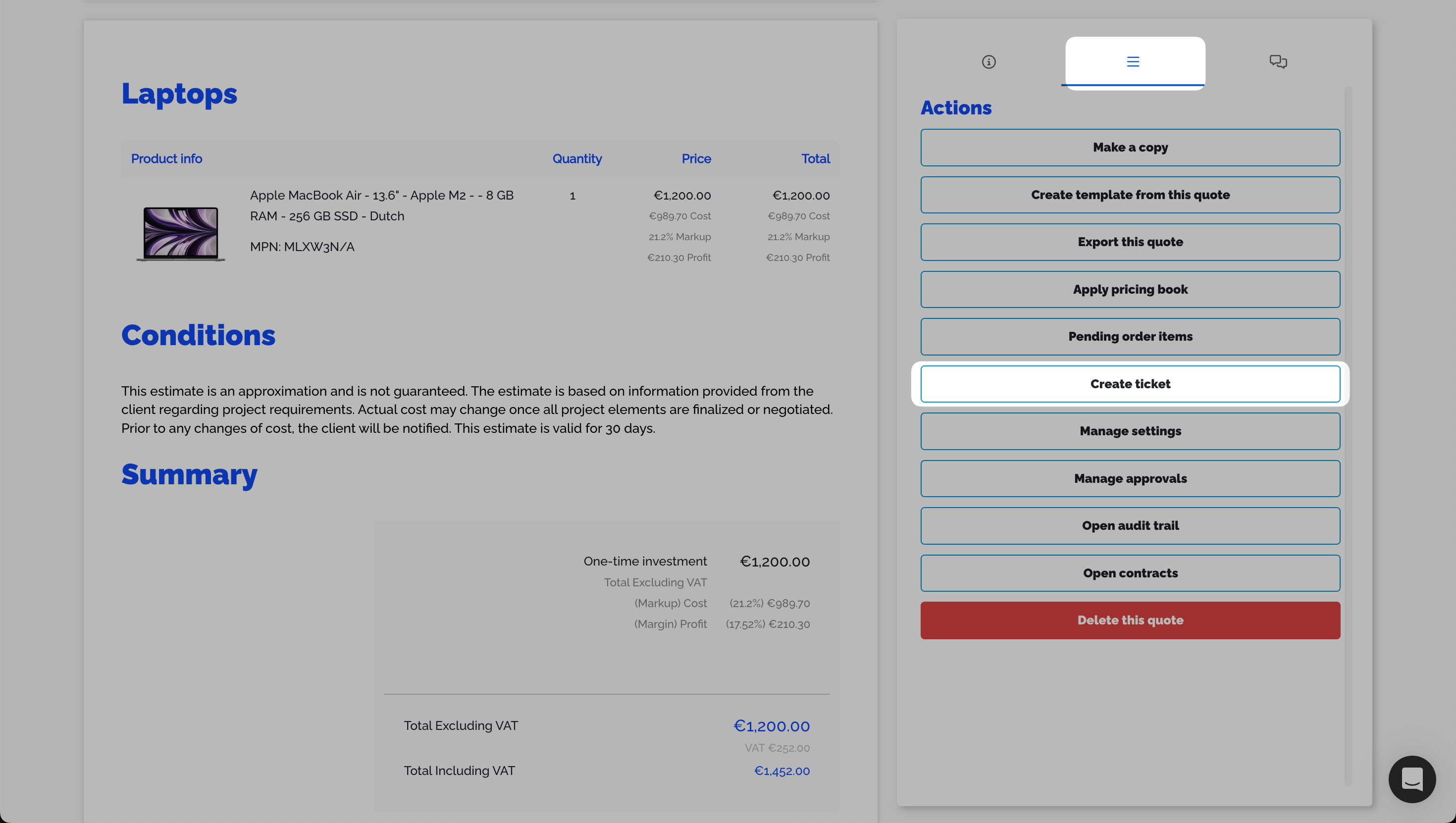
Approved quote with Create ticket button in the right-hand actions panel Feb 20, 2026
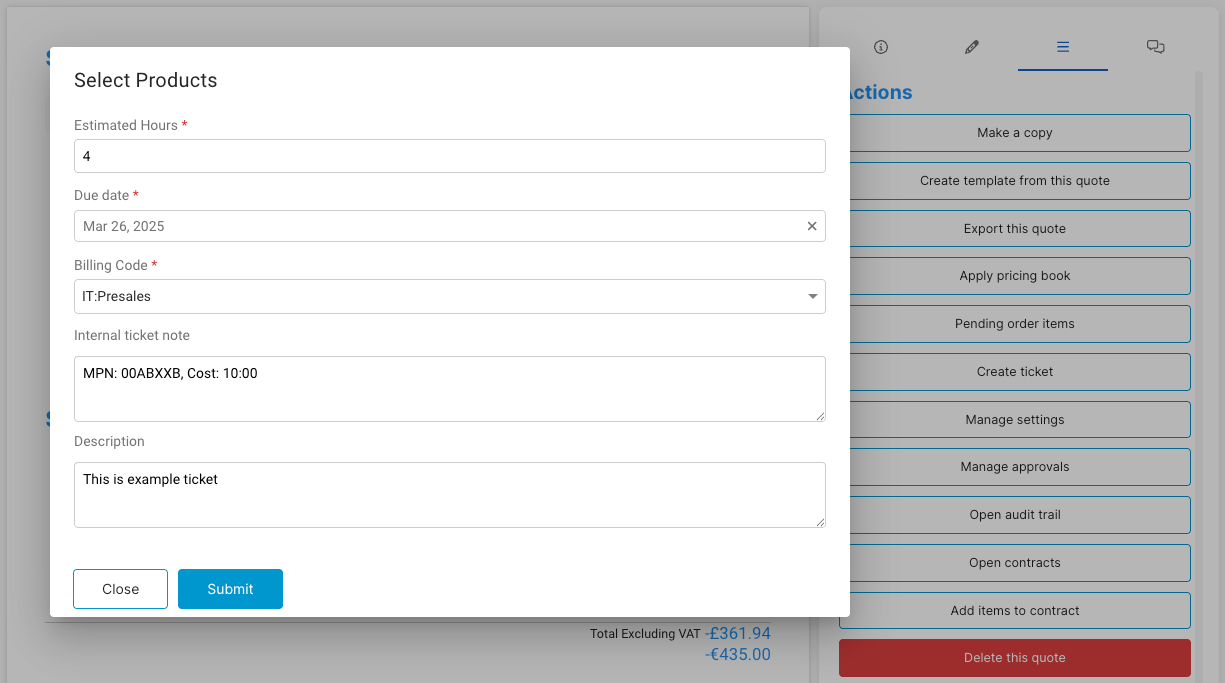
Select Products dialog with estimated hours, due date, billing code, and internal note fields Feb 20, 2026
On Autotask, if one product line fails to sync as a ticket charge, the other selected products, quote shipping, the internal note, and the Quote Link attachment still sync. Fix the failed product (listing or Autotask product mapping) and retry that line — you do not need to recreate the whole ticket.
Multiple post-sale tickets can be created from a single approved quote. After creating the first ticket, the Create Ticket button remains available so you can create additional tickets with a different line item selection.
PO number handling: If a PO number is set on the quote before approval, it carries through to the ticket when the ticket is created. If no PO number is set, the ticket's PO number field is sent empty.
Ticket charge statuses (Autotask)
Ticket charges in Autotask move through these statuses:
Configuration
Configure post-sale ticket defaults in your PSA integration settings:
Autotask: Enable ticket creation, set default billing code, issue type, sub-issue type, ticket category, priority, queue, and source. Optionally add days to the due date.

Autotask ticket configuration with priority, category, queue, source, issue type, billing code, and due date settings Feb 20, 2026
ConnectWise: Enable ticket creation, set default board, board status, board type, subtype, SLA, impact, priority, and estimated hours.
For how ticket creation affects the linked opportunity's pipeline stage, see Opportunity stage mapping.
HaloPSA sales orders
For HaloPSA customers, post-sale tickets are created as sales orders rather than service tickets. A sales order in Halo represents the products and services that need to be fulfilled from an approved quote.
Creating a sales order
Open an approved quote
Click Create Sales Order
Select the line items to include — products, services, labour, bundle products, and enabled add-ons (including labour add-ons under a service or labour parent) appear as separate rows
Optionally add a title, date, and internal note
Confirm — the sales order is created in HaloPSA

Approved quote with Create sales order button highlighted in the actions panel Feb 20, 2026

Select Products dialog for sales order with title, date, and internal note fields Feb 20, 2026

Quote detail showing linked sales order with reference number after creation Feb 20, 2026
The sales order includes:
Line items mapped to HaloPSA product IDs
PO number (if set on the quote)
Link back to the originating quote
Internal notes (added as a CRM note in Halo)
Important: Every selected line must map to a HaloPSA product. If a selected product is not linked to HaloPSA, sales order sync fails and no incomplete sales order is created. Sync or link those products first, then retry.
Viewing approved quotes
Navigate to the quotes list and filter by Approved status to see all quotes ready for ticket or sales order creation.

Quote list filtered to show approved quotes with status badges and financial summaries Feb 20, 2026

Salesbuildr dashboard showing an approved quote detail panel with account notes Feb 20, 2026
See also
Procurement — Post-Sale
After Onboarding — Getting Started
Companies — Companies
About Salesbuildr — Getting Started
Was this helpful?
Still need help? Ask the team