Users & Access
User management, roles, permissions, approval workflows.
Written By Victor Raessen
Last updated 3 days ago
Users & Permissions
Control who can access Salesbuildr and what they can do. The permissions system lets you define roles with specific access levels, ensuring sales reps see what they need while managers and admins have broader control.
User types
Salesbuildr distinguishes between two types of users:
Internal users are managed from the admin panel. External users are managed as contacts within their company records (see Companies and Contacts).
User management
Viewing users
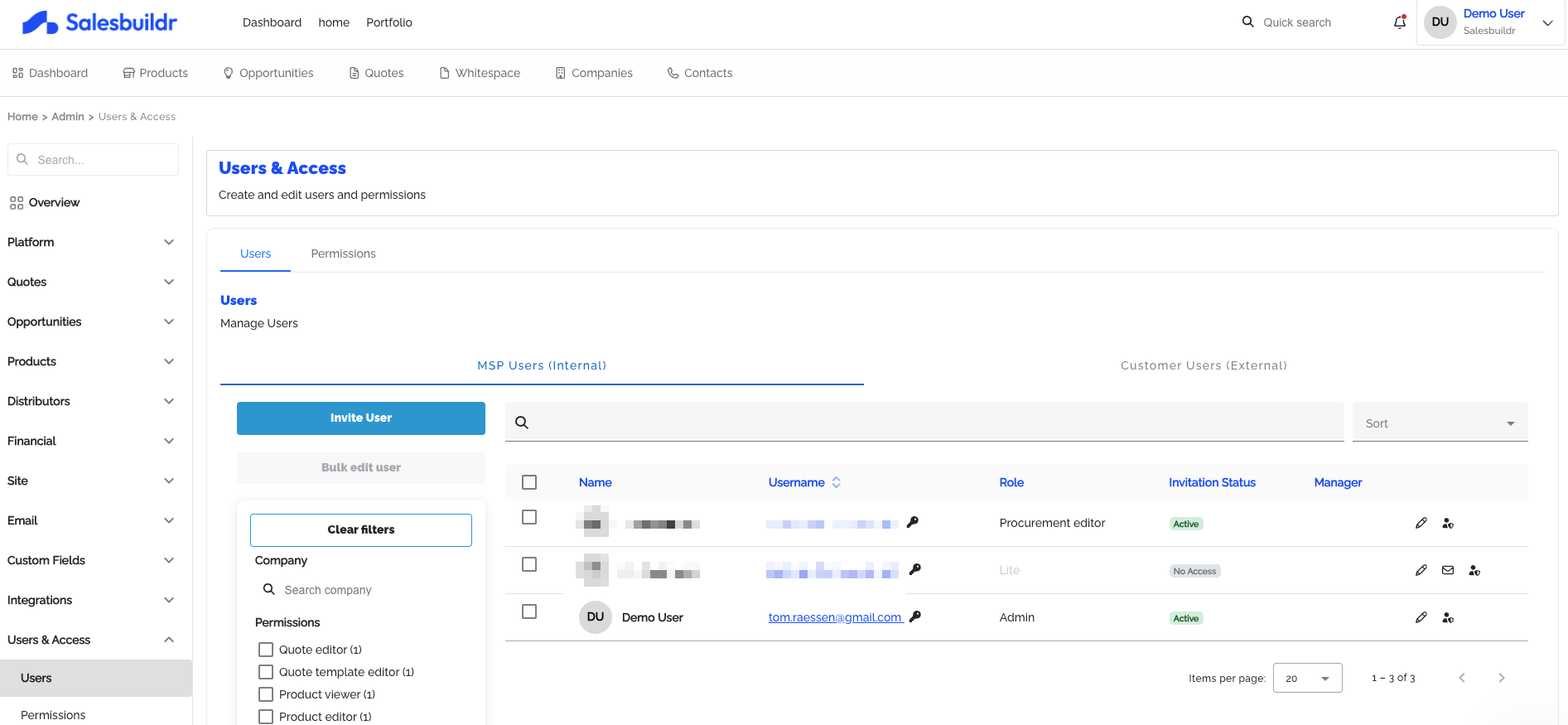
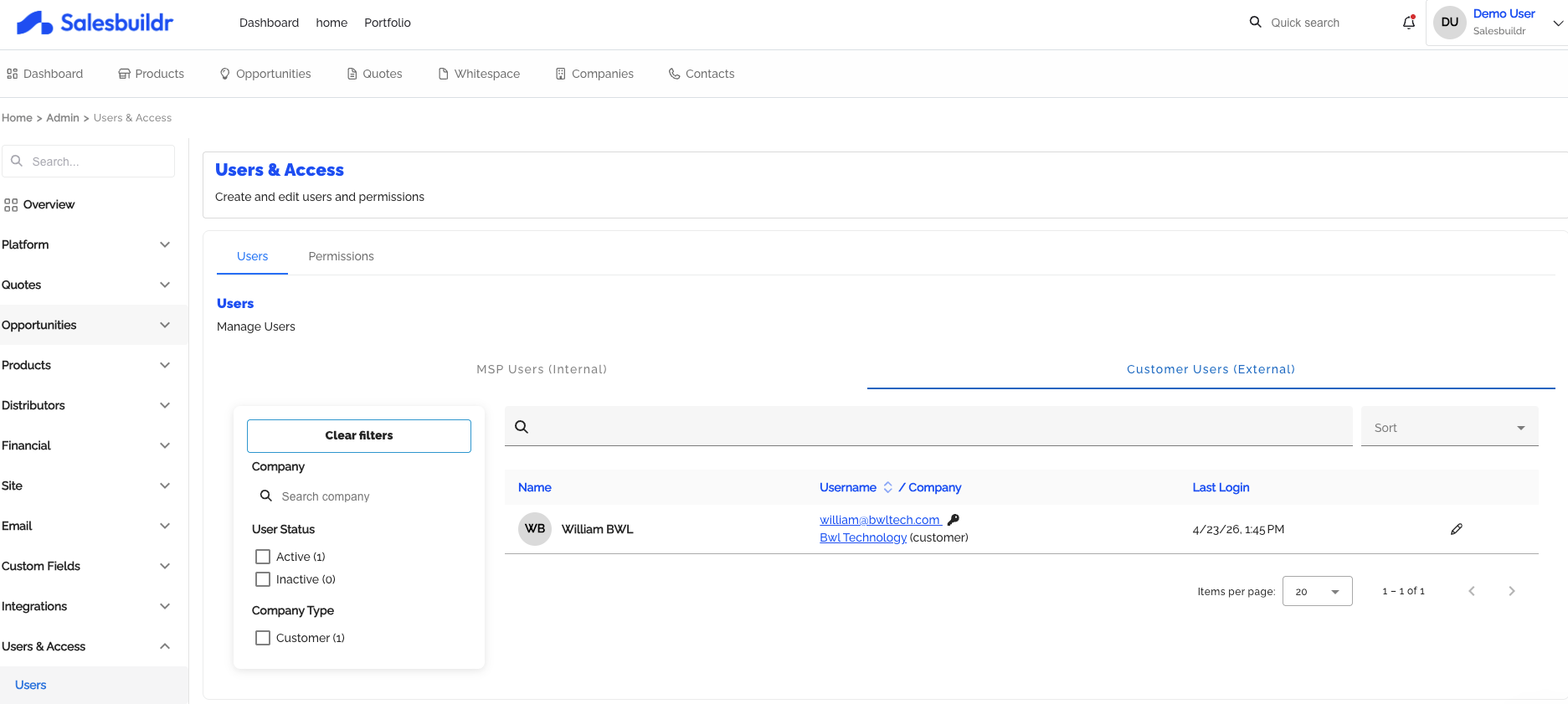
Navigate to Settings > Users & Access > Users to see all users. The page has two tabs:
MSP Users — Your internal team. Shows name, email, role, invitation status, primary manager, and actions
Customer Users — External contacts with portal access. Shows name, email/company, and last login
Inviting users
To invite a new internal user:
Click Invite User
Select a contact from your company's contact list
Confirm or override the email address
Assign initial roles (if the permissions feature is enabled)
Send the invitation
The user receives an email with an activation link. Invitation statuses are tracked: active, invitation sent, pending setup, or no access.
Billing-Only and Restricted-Access Users
Adding a Billing-Only or Restricted-Access User (Including MS SSO Environments)
If you need to give someone access to Salesbuildr solely for billing purposes (e.g. to pay invoices) without granting them full platform access, note the following:
Salesbuildr user seats are tied to a login identity. If your account uses Microsoft Single Sign-On (SSO), each user must authenticate with their own Microsoft account — credentials cannot be shared.
A billing-only user still requires their own Salesbuildr user invite sent to the Microsoft email address they will use to sign in.
To request a billing-only account or discuss restricted-role access, contact the Salesbuildr Billing team directly at billing@salesbuildr.com (or via your account's support channel), as seat permissions for non-platform users may be handled outside the standard invite flow.
Troubleshooting Login Issues in Autotask-Connected Accounts
If users are having trouble logging in and your PSA (e.g. Autotask) contains duplicate company records:
Ensure the invite is sent to the exact email address the user will authenticate with.
Users must log in with the same email used in the invite — mismatches between Autotask contact records and invite emails will cause access failures.
If duplicate company entries exist in Autotask, work with your Salesbuildr admin to un-list duplicate entries so only the active MSP company is visible in Salesbuildr. Contact support if you cannot resolve duplicate company conflicts yourself.
User detail page
Click a user to view their detail page, which includes:
Identity provider — Sign-in method (Google, Microsoft, or password), activation status
Status — Active or inactive toggle
Roles — Assigned roles and permissions
Profile — Name, email, avatar, creation date, last login
Managers — Primary and secondary manager assignments (requires advanced approval feature)
Company — Company assignment and verification status
External IDs — PSA integration identifiers
Authentication
Users sign in using one of three methods:
Google SSO — Sign in with a Google account
Microsoft SSO — Sign in with a Microsoft account
Password — Email and password authentication
A single user can have multiple sign-in providers linked to their account.
Deactivating users
Admins can deactivate users by toggling their status to inactive. Deactivated users cannot sign in but their data (quotes, opportunities) is preserved. Users can be reactivated at any time.
Managing Admin Users and License Counts
If an admin user is temporarily unavailable (e.g. on long-term leave), you can disable their account and promote another user to admin without consuming an additional licence seat:
1. Go to Settings → Users.2. Locate the active admin you want to disable and toggle their account to Inactive.3. Locate the user you want to promote and set their role to Admin.4. The total number of active licences in use will remain unchanged.
> Note: Only Salesbuildr Support can perform this action on your behalf if you do not have another active admin to make the change. Contact [support@salesbuildr.com](mailto:support@salesbuildr.com).
Roles
Salesbuildr uses a role-based access control system. Every internal user has one or more roles that determine what they can do.
Default roles
Admins can promote any user to Admin by navigating to their user detail page and toggling the admin switch.
Permissions
The permissions feature enables granular, role-based access control beyond the default Admin/User model.
Note: Permissions is a feature that is only available in our Premium plan. Without it, users are either Admin (full access) or base user.
Available permissions
Salesbuildr has 9 permissions that follow a resource-action pattern. Procurement editor and Whitespace viewer only appear on the Permissions page when those features are enabled for your account:
Built-in User role
On plans with the permissions feature, User is a built-in role (shown with a Not editable marker). It cannot be edited or deleted. Assign it like any other role.
User includes quote editor, quote template editor, product editor, product viewer, and company editor. If whitespace is enabled for the tenant, it also includes whitespace viewer. If procurement is enabled for the tenant, it also includes procurement editor. It does not include products importer or pricing book editor.
When you create a custom role, Procurement editor and Whitespace viewer only appear in the permission list if those features are enabled for the tenant.
If a custom role already includes one of those permissions and the feature is later turned off, the role stays in the list. A warning icon next to the role name names the permissions that are not available, for example "Not available for this tenant: Procurement editor". Those permissions are left out of the Permissions column. Open the role to edit it: a permission that is already selected still appears, with the same warning, so you can clear it. A permission that is not selected stays hidden. Clear the checkbox and save to remove it, or leave it checked to keep it. Keeping it does not turn the feature on. The warning goes away when the feature is enabled again, or after you clear the permission and save.
If you need a different mix of permissions, create a custom role and assign that instead of changing User.
People who already had the standard User access before permissions was turned on keep that access automatically.
Viewer license
The Viewer license is a built-in role that grants read-only access to products, including browsing the distributor Marketplace tab. Like User, it cannot be edited or deleted. Users with only the Viewer license are not counted against your user licenses (PREMIUM ONLY). Importing products from the Marketplace still requires the Product editor permission.
Creating custom roles
Navigate to Settings > Users & Access > Permissions to create role-permission mappings:
Click New role permissions mapping
Enter a role name (e.g., "Sales Manager", "Product Specialist")
Check the permissions this role should have
Save
Each role can have any combination of the 9 permissions. Users can be assigned multiple roles — their effective permissions are the union of all assigned roles.
Assigning roles to users
Navigate to Settings > Users & Access > Users
Open a user's detail page
Under Roles, check the roles you want to assign
Save
Bulk role assignment
Select multiple MSP users from the user list and click Bulk Edit to assign roles (and managers) to all selected users at once.
Manager hierarchy
When the advanced approval workflow feature is enabled, you can assign primary and secondary managers to users. This supports the approval routing system where quotes can be automatically routed to a user's manager for approval.
Setup
Enable the Advanced Approval Workflow feature for your account
Navigate to a user's detail page
Under Managers, select:
Primary manager — The user's direct manager
Secondary manager — A backup or additional manager
Save
Managers can be bulk-assigned across multiple users.
How managers are used
Quote approvals — Advanced approval rules can route quotes to the quote owner's manager (see Quotes)
Reporting — Manager relationships help organize your team hierarchy
User list — The primary manager is shown as a column in the MSP users table
Restricting opportunity access
For organizations that want to limit visibility between sales reps, the Restrict opportunity access setting (under opportunity configuration) ensures non-admin users can only see opportunities and quotes they own.
When disabled (default), all users with the quote editor permission can see all opportunities and quotes.
Lines of business and teams
If your PSA supports lines of business or teams, they sync to Salesbuildr automatically:
Lines of business — Imported from ConnectWise or Autotask. Users and opportunities can be associated with a line of business
Opportunity teams — HaloPSA-specific. Managed at Settings > Opportunities > Opportunity Teams. Users and opportunities can be assigned to teams
These are used for filtering and organizing your pipeline by team or business unit.
See also
Opportunities — Settings
Distributors — Settings
Email — Settings
After Onboarding — Getting Started
Was this helpful?
Still need help? Ask the team