Platform
Account settings, authentication, dashboard configuration, and miscellaneous platform options.
Written By Victor Raessen
Last updated About 2 months ago
Platform Settings
Core platform configuration that controls how your Salesbuildr account behaves. Navigate to Settings > Platform.
Account
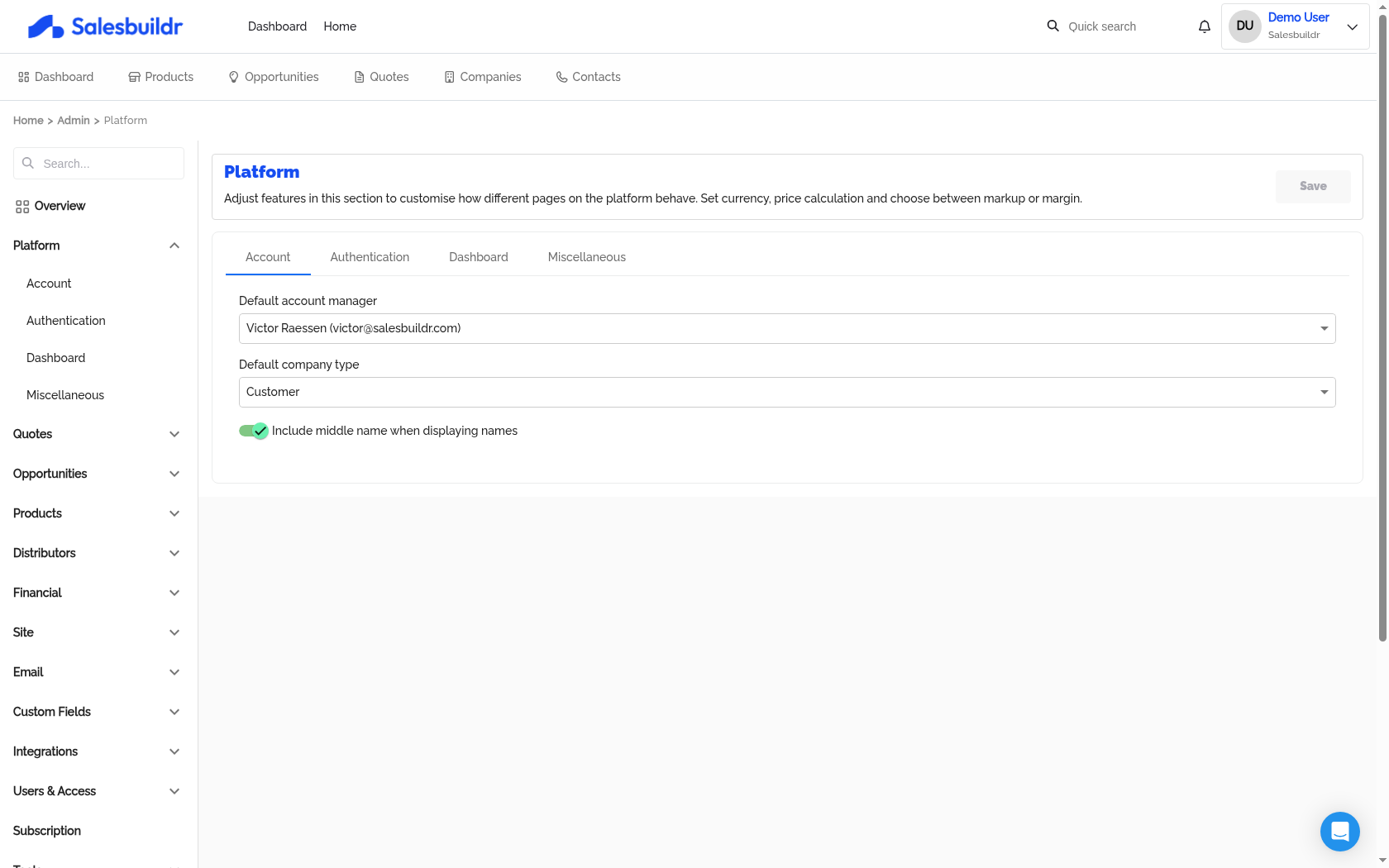
Platform Account tab — default account manager, company type, and name display settings — Mar 1, 2026, 1:00 PM UTC
Authentication
Navigate to Settings > Platform, then select the Authentication tab to configure login security settings for your Salesbuildr tenant.
The Authentication tab is only visible when authentication configuration is available for your tenant.
MSP Domains
Enter your company's email domain(s) to restrict access to invited users only.
Users who try to log in with an email address matching one of these domains will require a Salesbuildr invitation — they cannot self-register. Enter domain names without the @ symbol (e.g. company.com, not @company.com).
This protects your tenant if your domain is known to customers. Contacts and external users with different domains are unaffected.
Session timeout
Select how long a logged-in user's session remains active before they are automatically signed out. Options: 15 min, 30 min, 1 hour, 2 hours (default), 1 day, 1 week, 2 weeks.
Auth providers (SSO)
The Auth providers table lists the available login methods for your tenant. Toggle each provider on or off to control which sign-in options appear on the login page.
Providers typically include SSO integrations configured for your organization (e.g. Microsoft Entra ID / Azure AD, Google Workspace). The list of available providers is determined by your Salesbuildr subscription and any SSO integrations already set up.
When a provider is disabled, users cannot use that method to sign in — they must use email/password or another enabled provider.
To add a new SSO provider, contact Salesbuildr support. SSO setup requires configuration at the identity provider level.
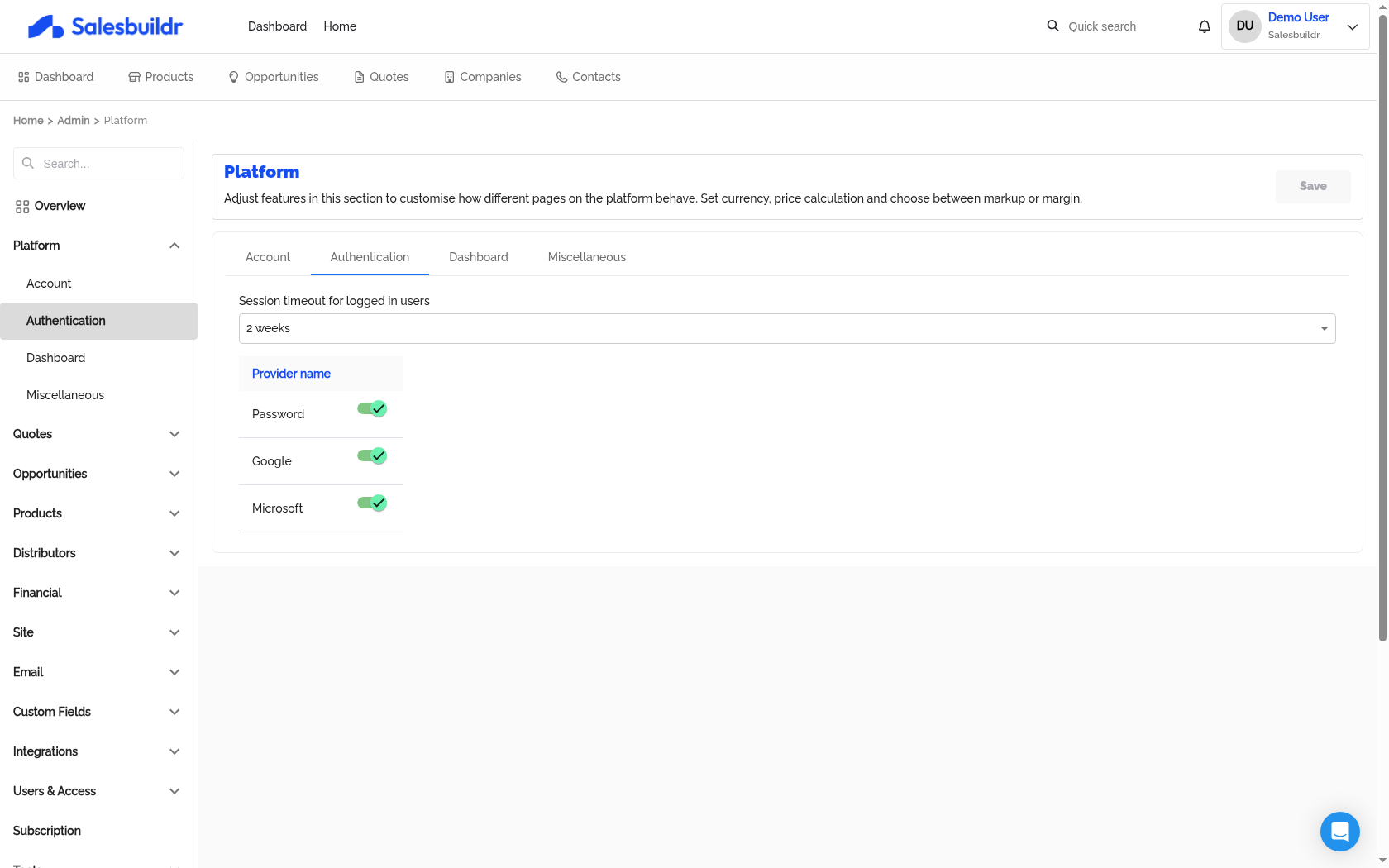
Platform Authentication tab — session timeout, and Password/Google/Microsoft provider toggles — Mar 1, 2026, 1:00 PM UTC
Dashboard
Navigate to Settings > Platform, then select the Dashboard tab to configure what appears on the Salesbuildr dashboard for your team.
Dashboard toggles
Custom dashboard tiles
Custom dashboard tiles are additional shortcut cards that appear on the dashboard. Use them to surface key links or KPI data for your team — for example, a link to your ticketing queue, a company intranet page, or a custom field metric.
Click Create dashboard tile to open the tile editor. Each tile has:
Tiles are listed in the table below the Create button. The table shows each tile's icon, name, whether a whitelist is active, and the link or custom field ID. Use the edit icon to update a tile or the delete icon to remove it.

Platform Dashboard tab — article visibility, welcome message toggle, and custom dashboard tiles — Mar 1, 2026, 1:00 PM UTC
Miscellaneous

Platform Miscellaneous tab — system languages, PDF timezone, and user/device calculation strategy — Mar 1, 2026, 1:00 PM UTC
For currency, rounding, markup/margin, and discount configuration, see Financial.
How to Change the Default Account Manager in Salesbuildr
The Default Account Manager in Salesbuildr acts as a fallback contact assigned to accounts when no specific account manager has been designated. If this default is set to the wrong person — for example, a former employee or the wrong team member — you can easily update it through your platform settings.
Why This Matters
The Default Account Manager ensures that every account always has a point of contact assigned. If a customer's account doesn't have a specific manager set, Salesbuildr will fall back to this default. Keeping this set to the right person helps ensure quotes, communications, and account ownership are correctly attributed.
How to Change the Default Account Manager
Follow these steps to update the Default Account Manager:
Log in to your Salesbuildr account.
Navigate to Settings in the main navigation.
Select Platform from the settings menu.
Click on Account.
Locate the Default Account Manager dropdown field.
Click the dropdown and use the search field to find the correct user by their email address.
Select the appropriate user from the search results.
Click Save to apply your changes.
Tips and Notes
💡 Tip: Use the email address search within the dropdown to quickly locate the right user, especially if your team has a large number of users in the system.
✅ Important: Always make sure to click Save after making your selection. If you navigate away from the page before saving, your changes will not be applied.
🔍 Note: Only users who have been added to your Salesbuildr platform will appear in the dropdown. If the person you're looking for doesn't appear, check that their account has been created under your platform's user settings.
Frequently Asked Questions
Does changing the Default Account Manager update existing accounts? No. Changing the Default Account Manager only affects accounts that do not already have a specific account manager assigned. Accounts with an existing account manager assigned directly will not be changed.
Who can change the Default Account Manager? This setting is typically available to users with administrator-level access in Salesbuildr. If you don't see the Settings option, contact your platform administrator.
If you continue to experience issues updating the Default Account Manager, or if the correct user does not appear in the dropdown, please reach out to the Salesbuildr support team for further assistance.
See also
Email — Settings
Subscription — Settings
HaloPSA Setup — PSA Setup Guides
Was this helpful?
Still need help? Ask the team