Pipeline & Importing
Opportunity overview, list and swimlane views, filtering, sorting, PSA imports, and sync behavior.
Written By Victor Raessen
Last updated About 2 months ago
View, filter, and sort your sales pipeline, and import opportunities from your PSA.
The opportunity overview page
On the dashboard, navigate to Opportunities to see the opportunities you have created.
You can view your opportunities in two ways:
List view — a sortable, filterable table (default)
Swimlane view — a Kanban board grouped by pipeline stage, with drag-and-drop support
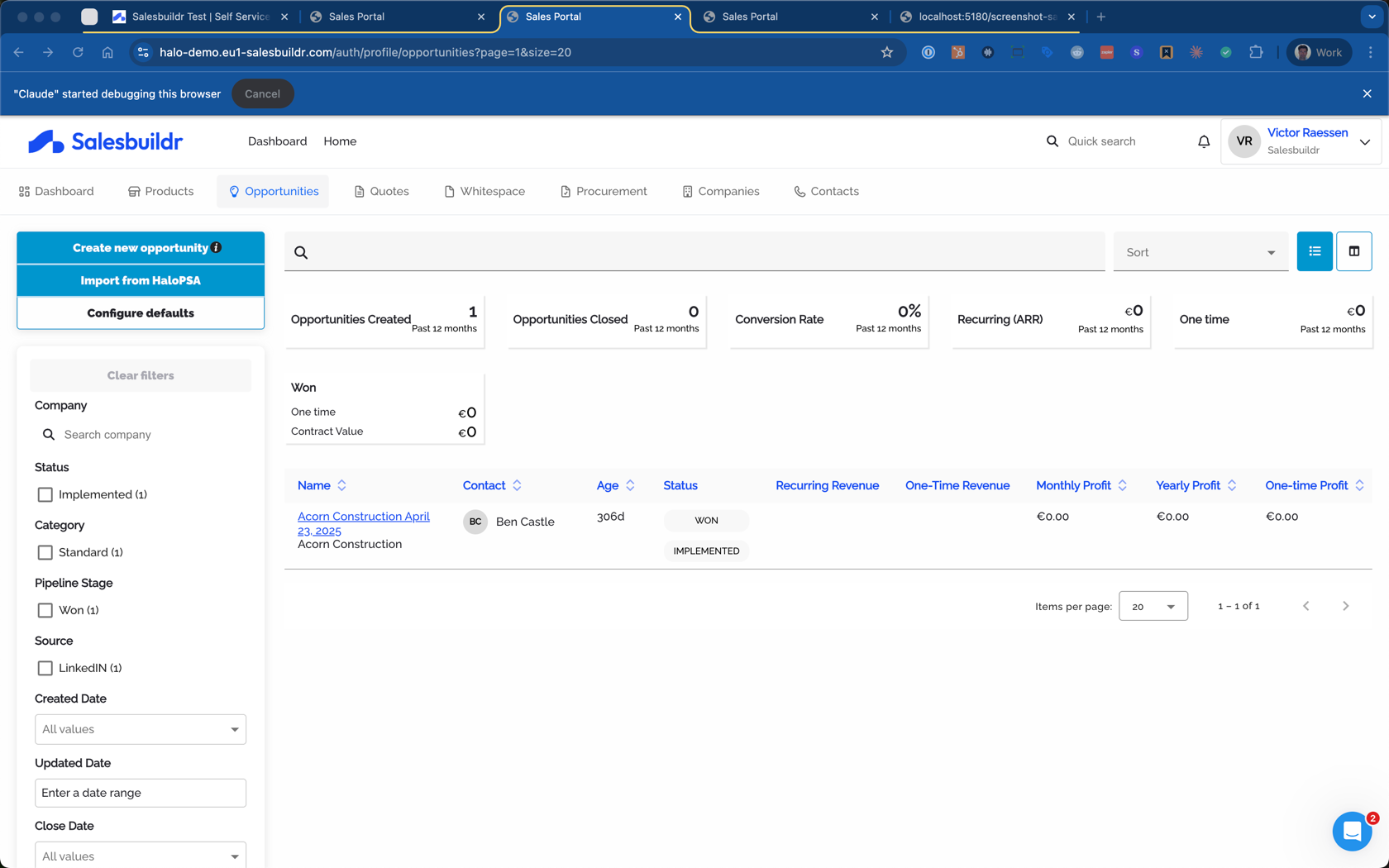
Toggle between views using the icons in the top-right corner of the page.
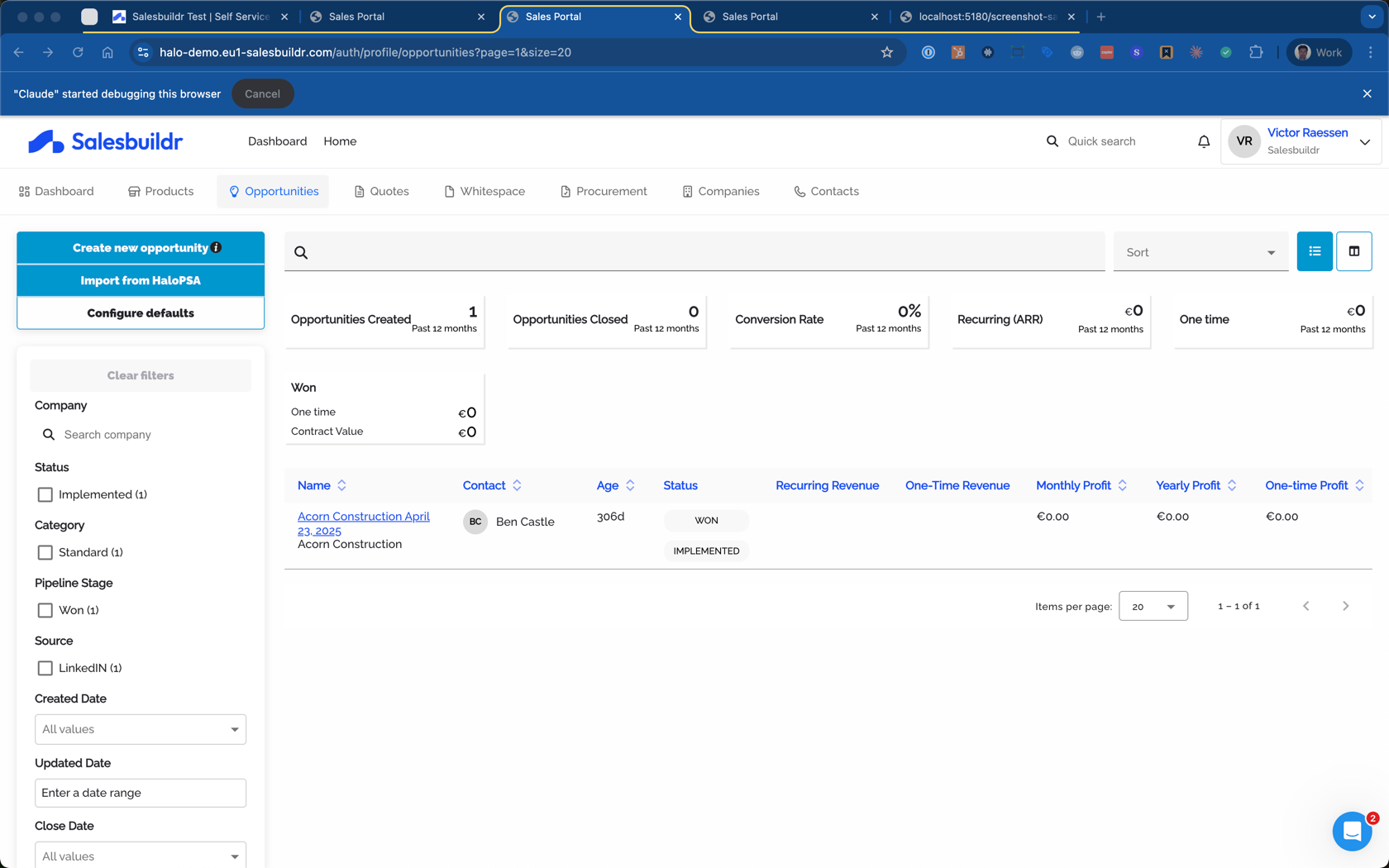
The overview page shows key pipeline metrics at the top, filter options in the left sidebar, and a table of your opportunities.
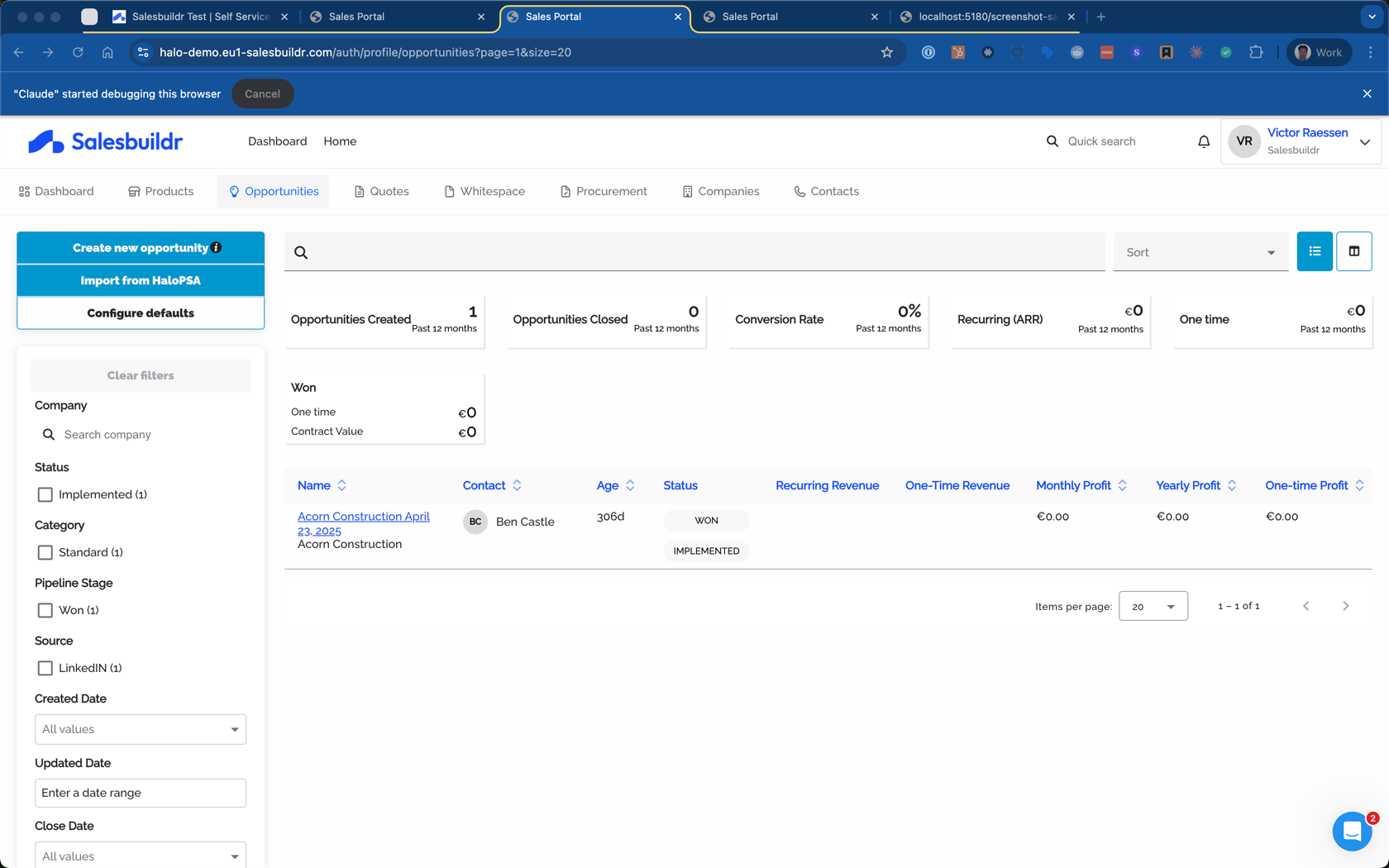
Opportunity overview in list view showing pipeline metrics, filters, and the opportunity table Feb 24, 2026
The list view shows the following columns:
Name (and PSA ID, with external link to your PSA)
Contact
Age
Status (pipeline stage + opportunity status)
Recurring Revenue
One-Time Revenue
Monthly Profit
Yearly Profit
One-time Profit
Admin note: Administrators also see a Sync State column showing the synchronization status with your PSA.
Above the table, you'll see key metrics: Opportunities Created, Opportunities Closed, Conversion Rate, Recurring ARR, One-Time Revenue, and a breakdown by pipeline stage.
Swimlane (Kanban) view
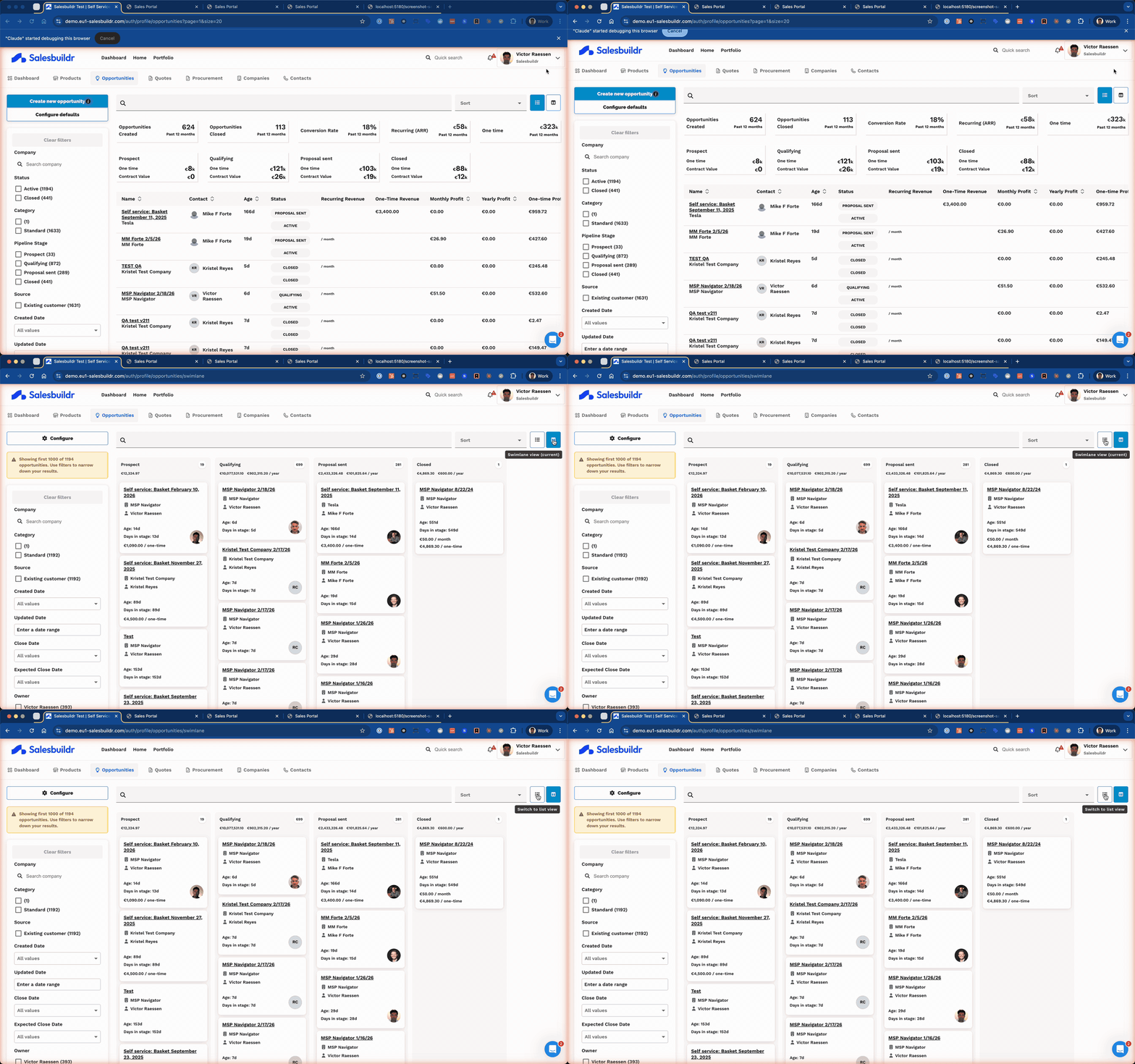
The swimlane view displays your opportunities as cards organized by pipeline stage. Drag and drop cards between columns to update their stage.
Each card shows the opportunity name, company, contact, owner, age, days in stage, and revenue. Drag and drop cards between columns to update the pipeline stage (only works for active opportunities). The swimlane loads a maximum of 1,000 opportunities — use filters to narrow results if you have more. Administrators can click the Configure button to select which pipeline stages appear as columns.
Swimlane view with opportunity cards organized by pipeline stage Feb 24, 2026
Toggle between list and swimlane view Feb 24, 2026
Filter opportunities
You can filter opportunities using the left sidebar, based on:
Company
Status
Category
Pipeline Stage
Source
Loss Reason
Created Date
Updated Date
Close Date
Expected Close Date
Owner
Manager
Owner Company
Sort opportunities
In the top-right section, you can sort opportunities by:
Name
Last updated
Age
Contact
Expected close date
Monthly Profit
Yearly Profit
One-time Profit
Sort dropdown showing available sort options like Name, Last updated, and Age Feb 24, 2026
Importing opportunities
Importing from Autotask
Salesbuildr automatically imports newly created opportunities from Autotask every hour.
Older opportunities can be imported manually by clicking Import from Autotask and searching for the opportunity you want to import.
The Autotask overview shows pipeline stages imported from your Autotask configuration and displays the Autotask opportunity ID next to each entry.
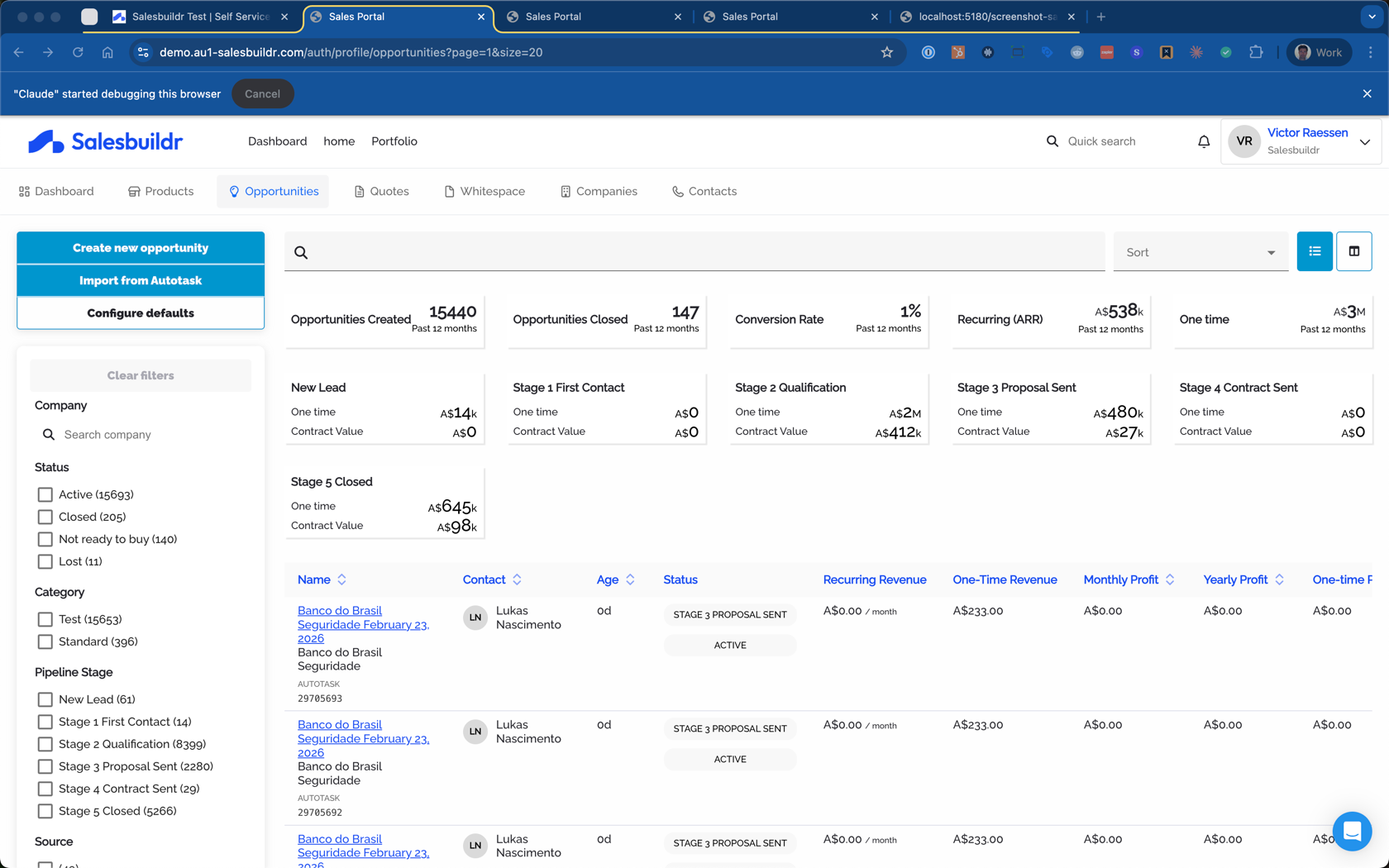
Autotask opportunities overview with Import from Autotask button and Autotask IDs Feb 24, 2026
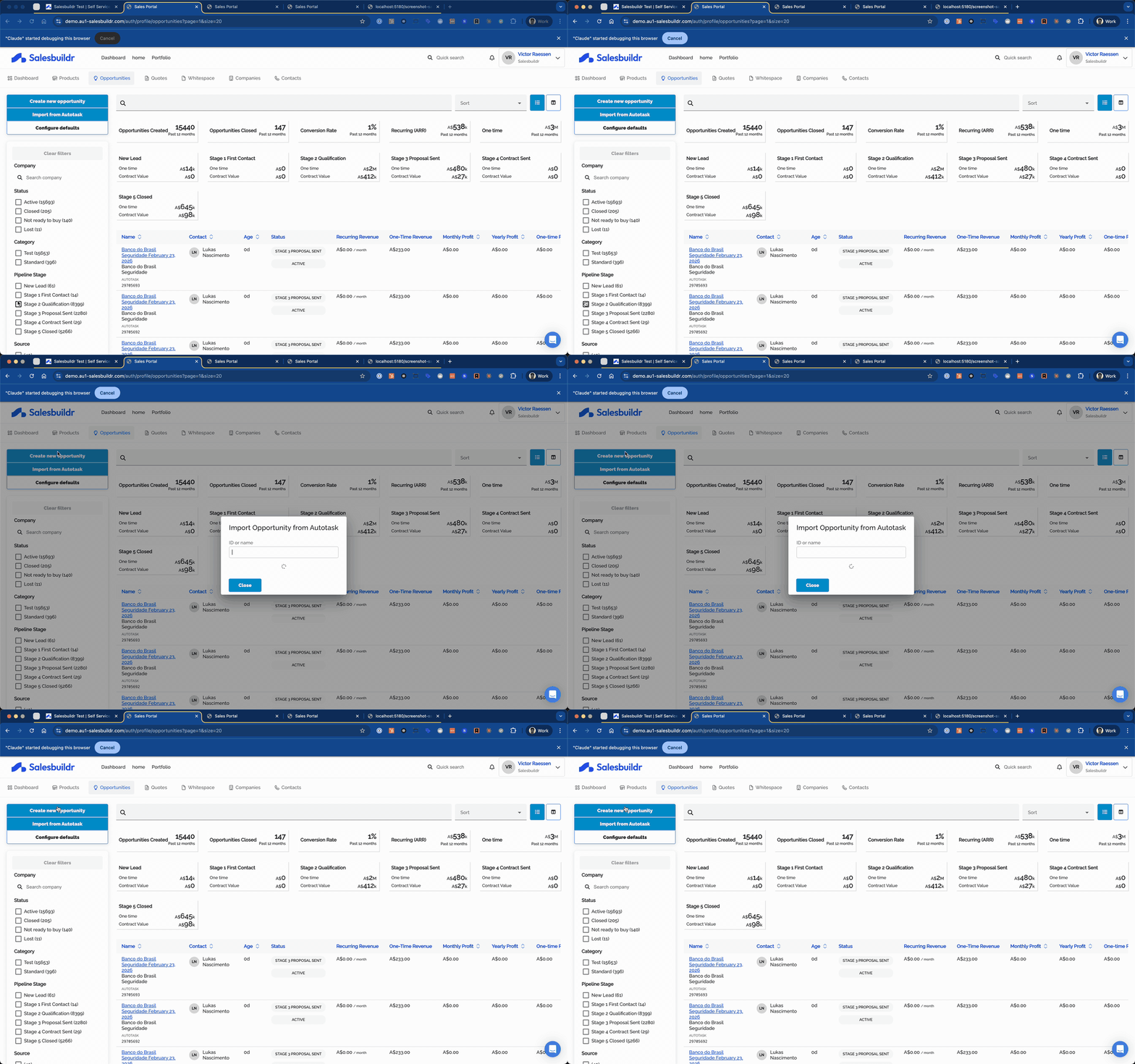
Import from Autotask dialog Feb 24, 2026
Importing from ConnectWise
You can import opportunities from ConnectWise by clicking Import from ConnectWise. Search by ID or name, then import individually or in bulk.
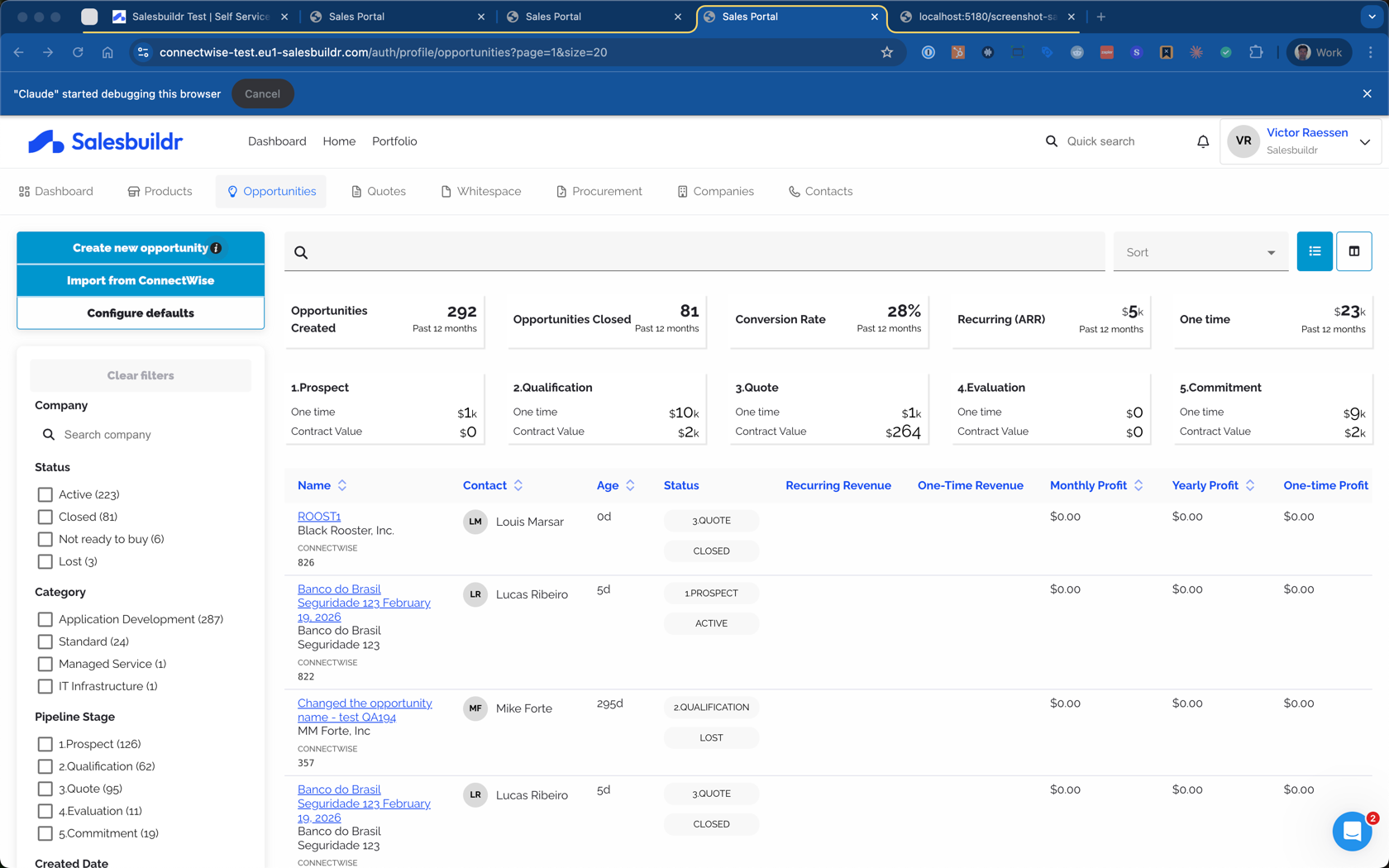
ConnectWise opportunities overview with Import from ConnectWise button Feb 24, 2026
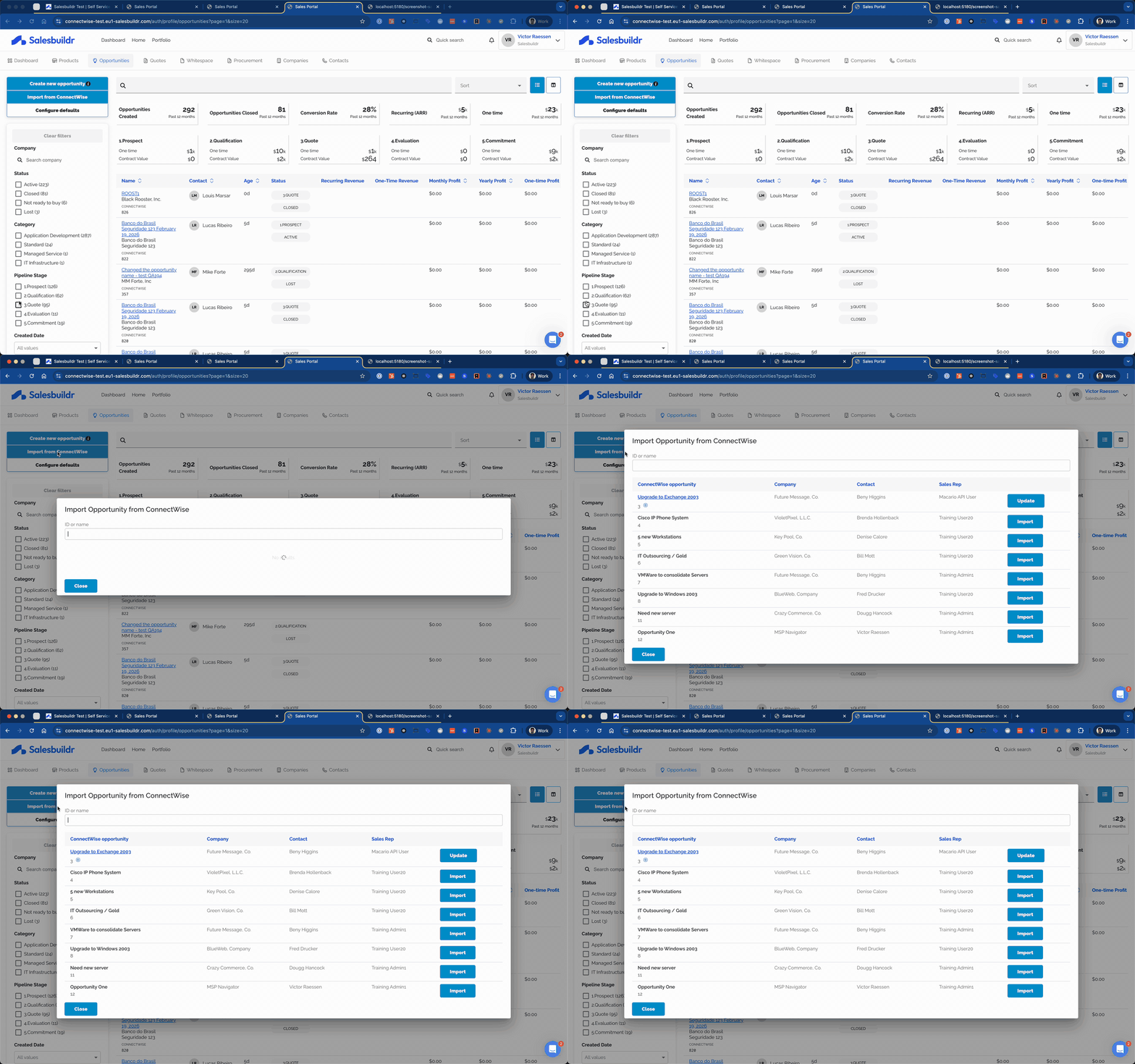
Import from ConnectWise dialog Feb 24, 2026
Importing from HaloPSA
Click Import from Halo to search for and import opportunities from HaloPSA. The import dialog lets you search by name and import opportunities one at a time.
When importing from Halo, Salesbuildr will also import any missing companies and contacts that are referenced by the opportunity.
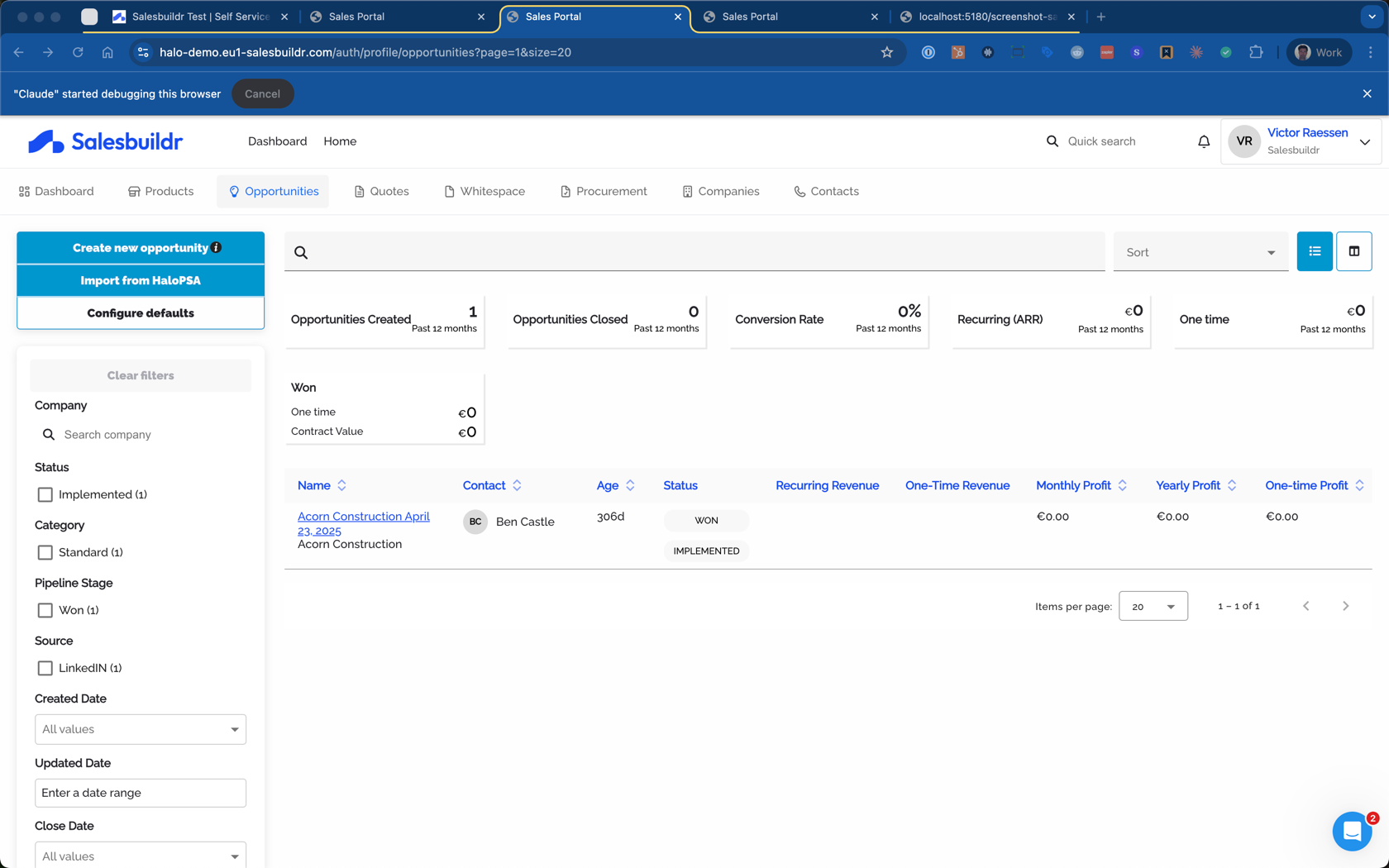
HaloPSA opportunities overview with Import from HaloPSA button Feb 24, 2026
Import from HaloPSA dialog Feb 24, 2026
Updating opportunities from your PSA
Autotask
Salesbuildr will automatically fetch updates for opportunities that have been set to status closed in Autotask (this check runs every hour). Changes to non-closed opportunities in Autotask are not automatically synced. Use the Fetch updates from Autotask button on the opportunity detail page to manually pull the latest data.
ConnectWise and HaloPSA
ConnectWise and HaloPSA opportunities are synchronized bidirectionally. Changes made in your PSA are reflected in Salesbuildr automatically.Importing from HubSpot
If you have a HubSpot connection, click Import from Hubspot to search for and import HubSpot deals as opportunities. The import dialog lets you search by deal name and import deals one at a time.
>
Why PSA Opportunities Aren't Appearing in Salesbuildr
If an opportunity created in ConnectWise or Autotask isn't showing up in Salesbuildr, it's likely being skipped during the sync because one or more required fields can't be matched to an existing record in Salesbuildr. This article explains what Salesbuildr checks for during the import and what to fix when an opportunity is missing.
ConnectWise: Reasons an Opportunity May Be Skipped
Salesbuildr will skip a ConnectWise opportunity if any of the following cannot be resolved:
Primary sales rep — The opportunity has no primary sales rep assigned in ConnectWise, or the assigned rep doesn't have a matching Salesbuildr user account linked to their ConnectWise ID.
Contact — The opportunity has no contact ID in ConnectWise, or there is no matching contact in Salesbuildr for that ConnectWise contact ID.
Company — The opportunity has no company ID in ConnectWise, or there is no matching company in Salesbuildr for that ConnectWise company ID. Salesbuildr looks up the company by ConnectWise ID and skips only one company type: the Manufacturer company type configured under Settings → Integrations → ConnectWise → Companies → Company type mapping (defaults to the Salesbuildr type named Manufacturer when unset). All other company types — including Customer, Prospect, Vendor, Partner, and MSP — can link to an imported opportunity as long as the company has been imported into Salesbuildr with that ConnectWise ID. If the company exists in ConnectWise but not in Salesbuildr (for example because its ConnectWise type is not mapped, its status is filtered out, or import has not run yet), the opportunity is skipped with "Company not found" even though the type itself is not on an exclusion list.
Pipeline stage — The opportunity has no stage ID in ConnectWise, or that stage hasn't been mapped to a field value in Salesbuildr.
Opportunity status — The ConnectWise status isn't included in your opportunity status configuration, or the status hasn't been mapped to a corresponding Salesbuildr status.
Autotask: Reasons an Opportunity May Be Skipped
Salesbuildr will skip an Autotask opportunity if any of the following cannot be resolved:
Owner — The opportunity has no owner resource ID in Autotask, or there is no matching Salesbuildr user linked to that Autotask ID.
Contact — The opportunity has a contact ID in Autotask, but no matching person in Salesbuildr is linked to that Autotask contact ID.
Company — The opportunity has no company ID in Autotask, or there is no matching company in Salesbuildr linked to that Autotask company ID.
Pipeline stage — If the stage is set to a non-zero value, there is no matching pipeline stage in Salesbuildr for that Autotask stage ID. If the stage is set to 0, Salesbuildr has no default or first pipeline stage configured.
How to Fix Sync Issues
If an opportunity is being skipped, check the following:
Users: Confirm that each sales rep or owner in your PSA has a linked Salesbuildr user account with the correct external identifier set.
Contacts and companies: Make sure contacts and companies exist in Salesbuildr and are properly linked to their PSA counterparts.
Pipeline stages: Review your pipeline stage configuration in Salesbuildr and ensure all active PSA stages are mapped.
Opportunity statuses (ConnectWise only): Check your ConnectWise opportunity status configuration in Salesbuildr and confirm each relevant status has an import mapping assigned.
Tip: After making changes, trigger a manual sync to check whether the opportunity now imports correctly.
If you've checked all of the above and the opportunity still isn't appearing, contact Salesbuildr support with the opportunity name and PSA for further investigation.
See also
Opportunities — Opportunities
Managing Opportunities — Opportunities
Fulfillment Tickets — Post-Sale
Opportunities — Settings
Autotask Configuration — Integrations
Was this helpful?
Still need help? Ask the team