Quote Templates
Create and manage quote templates — layout, settings, marketplace, and the settings hierarchy.
Written By Victor Raessen
Last updated 3 days ago
Quote templates define the structure, styling, and default content of every proposal you send. Build them once and reuse across all quotes — with full control over layout, typography, colors, cover pages, reusable content blocks, and language localization.
When a sales rep creates a quote, they select a template — the template's widgets, styling, and settings carry over automatically.
Template and widget strategy
A well-structured library uses templates for the 90% and widgets for the 10%.
Most of your quotes in a given category are roughly the same — same structure, same core services, same layout. That's your template. The exceptions — a different service, an add-on scope, a project-specific section — are your widgets.
This means you need very few templates. The variation happens at the widget level, not the template level.
Managed services example: Your MSA template covers the standard stack: backup, RMM, and EDR. When a customer wants MDR instead of EDR, you don't create a separate template — you swap out the EDR widget for an MDR widget.
Projects example: One project template with a simple intro and closing. All your project types — Microsoft migrations, network refreshes, deployments — are saved as individual widgets. When quoting a project, you add the relevant widget to that single template.
The result is a small, maintainable template library combined with a rich widget library that handles every variation.
Settings hierarchy
Quote settings follow a four-level cascade:
Company defaults — Global settings that apply to all new quotes (set at Settings > Quotes)
Template — Default settings, layout, and content for a type of quote
Quote — Per-quote overrides that apply only to that proposal
Widget — Inline overrides at the individual content block level
Settings flow downward: quotes inherit from their template, and can override only what they need. This keeps output consistent while allowing flexibility per deal.
What a template includes
Widgets — Pre-configured content blocks in a specific order
Styling — Colors, fonts, margins, letterhead images, and page numbering (see Styling & Covers)
Cover page — A linked cover page template with branded design
Quote settings — Default values for payment terms, contract duration, currency, leasing, signature requirements, and display options
Attachments — Files attached to every quote using this template
Labels — Custom label overrides for UI text
Localization — Primary language and additional available languages
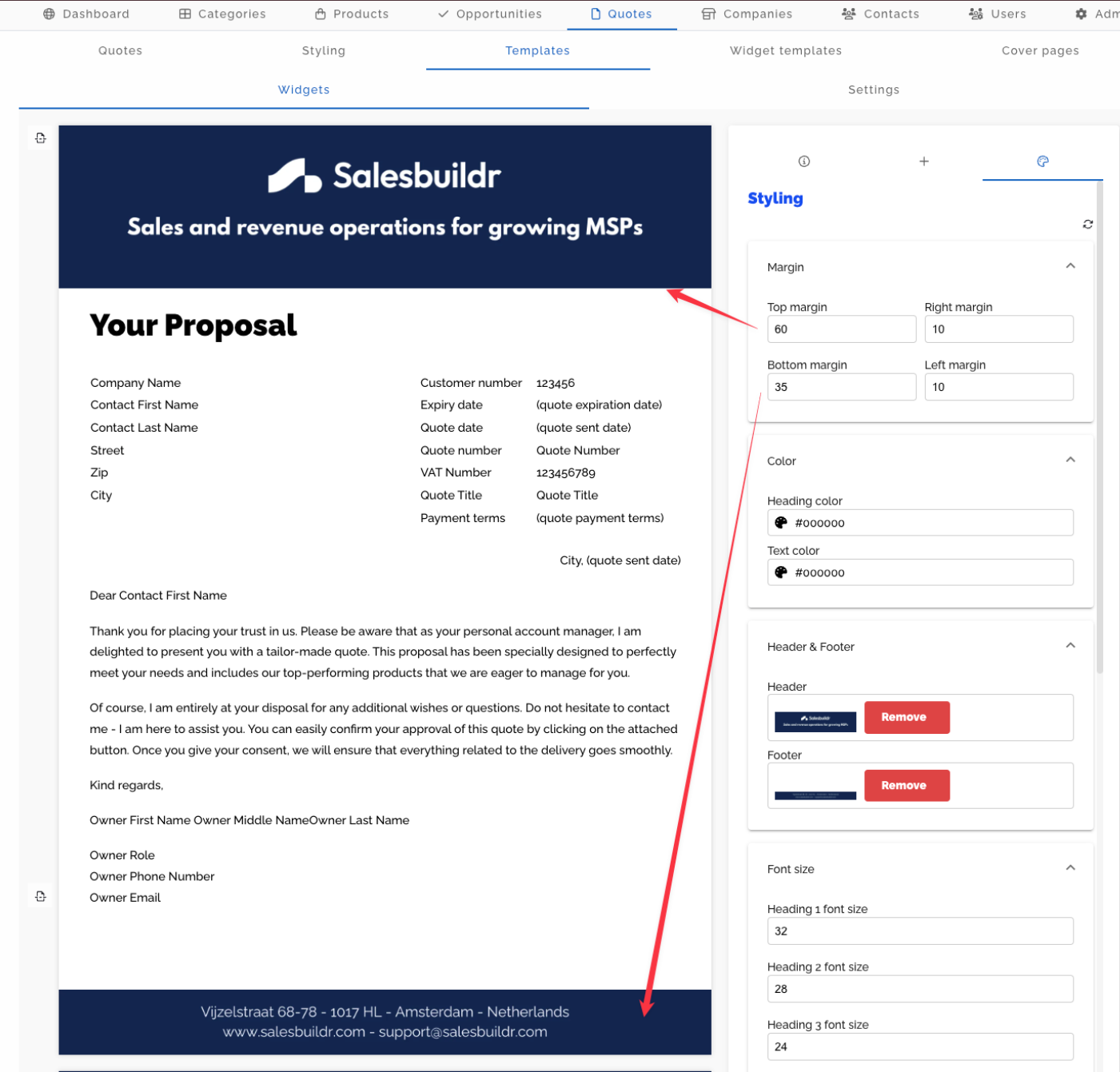
Quote template editor showing widgets layout, right-hand styling panel with margin and font controls, and live preview Feb 20, 2026
The template editor uses the same side-pane icon tabs as the live quote editor. Open the info tab (circle icon) for template name, labels, and actions such as copy/paste and PDF preview. Open the styling tab (palette icon) for margins, fonts, colors, and cover settings. Open the settings tab (cog icon) for default quote settings such as payment terms, currency, display toggles, and localization — these defaults apply to every quote created from the template.
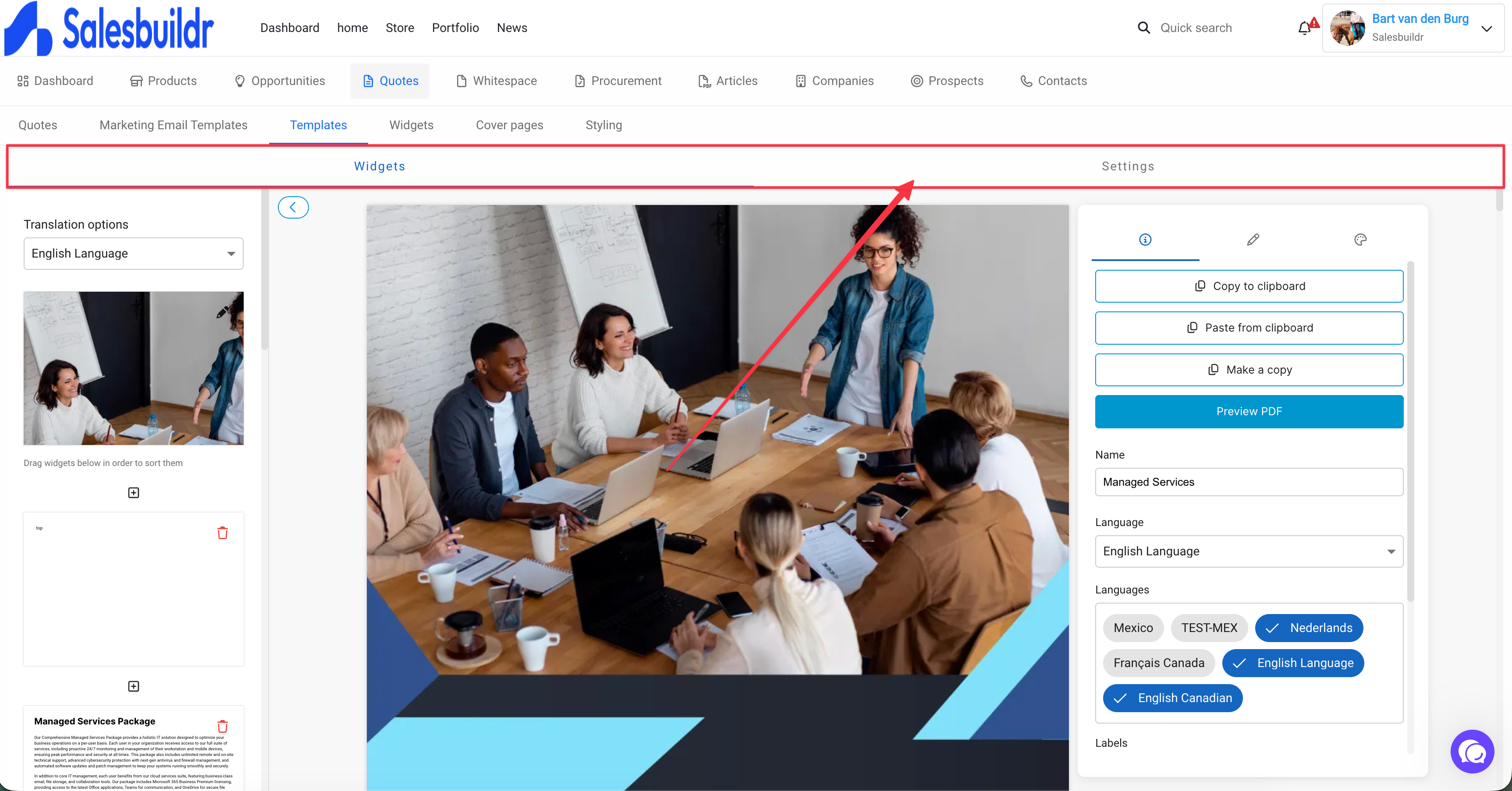
Previous layout with separate page-level Widgets and Settings tabs (Aug 2026)
See Styling for full styling configuration options.
Locking Widgets in Templates to Prevent Removal
Salesbuildr allows template administrators to lock widgets so that account managers cannot remove them when creating a quote from the template. This is particularly important for compliance-sensitive content such as terms and conditions, mandatory attachments, or legal disclaimers.
How to Lock a Widget
Open the template in the template editor.
Select the widget you want to protect.
Click the lock icon on the widget. A locked widget will display a padlock indicator.
Expected Behavior
Once a widget is locked at the template level, account managers editing a quote derived from that template will not be able to remove or reorder the locked widget.
The lock is enforced at the quote-creation stage — the widget will appear with a lock indicator and the remove/delete action will be unavailable.
Note: A bug existed in earlier versions of Salesbuildr where locked widgets could still be removed during quote editing despite the lock icon being visible in the template. This has been resolved. If you are on an older version and observe locked widgets still being removable, contact support to confirm your instance is up to date.
Use Case: Compliance and Mandatory Terms
If your organisation requires that general terms and conditions or compliance attachments always appear in every quote, lock those widgets in your base template. This prevents accidental or deliberate omission by account managers without administrator intervention.
Creating and managing templates
Navigate to Quotes > Templates to view your template library. From here you can:
Create a new template or copy an existing one
Create from a quote — Open any quote's actions menu and select Create template from this quote
Reorder templates by dragging
Review usage — The Usage (12m) column shows how many quotes were created from each template in the last twelve months. Click the column header to sort by usage (highest or lowest first). Counts update when a quote is created from the template; hover the info icon next to the column name for a reminder.
Edit a template to modify its widgets, settings, and styling
Delete templates you no longer need
Preview a template as a PDF before using it
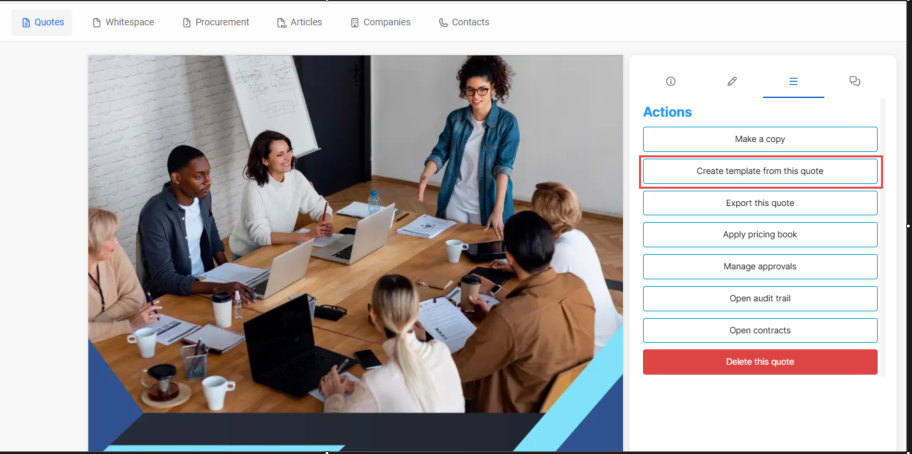
Quote actions menu showing Create template from this quote, Export, Apply pricing book, and other options Feb 20, 2026
Keep your template library focused — a few foundational templates (e.g., hardware, project, managed services) combined with widget templates for variations works better than dozens of specialized templates.
Template marketplace
The template marketplace provides pre-built templates you can import into your library. Browse marketplace templates at Quotes > Templates > Marketplace and click Copy to Library to add one to your tenant.
Note: The marketplace is a feature that must be enabled for your account.
Configuring defaults at each level
- Company defaults — Global settings that apply to all new quotes
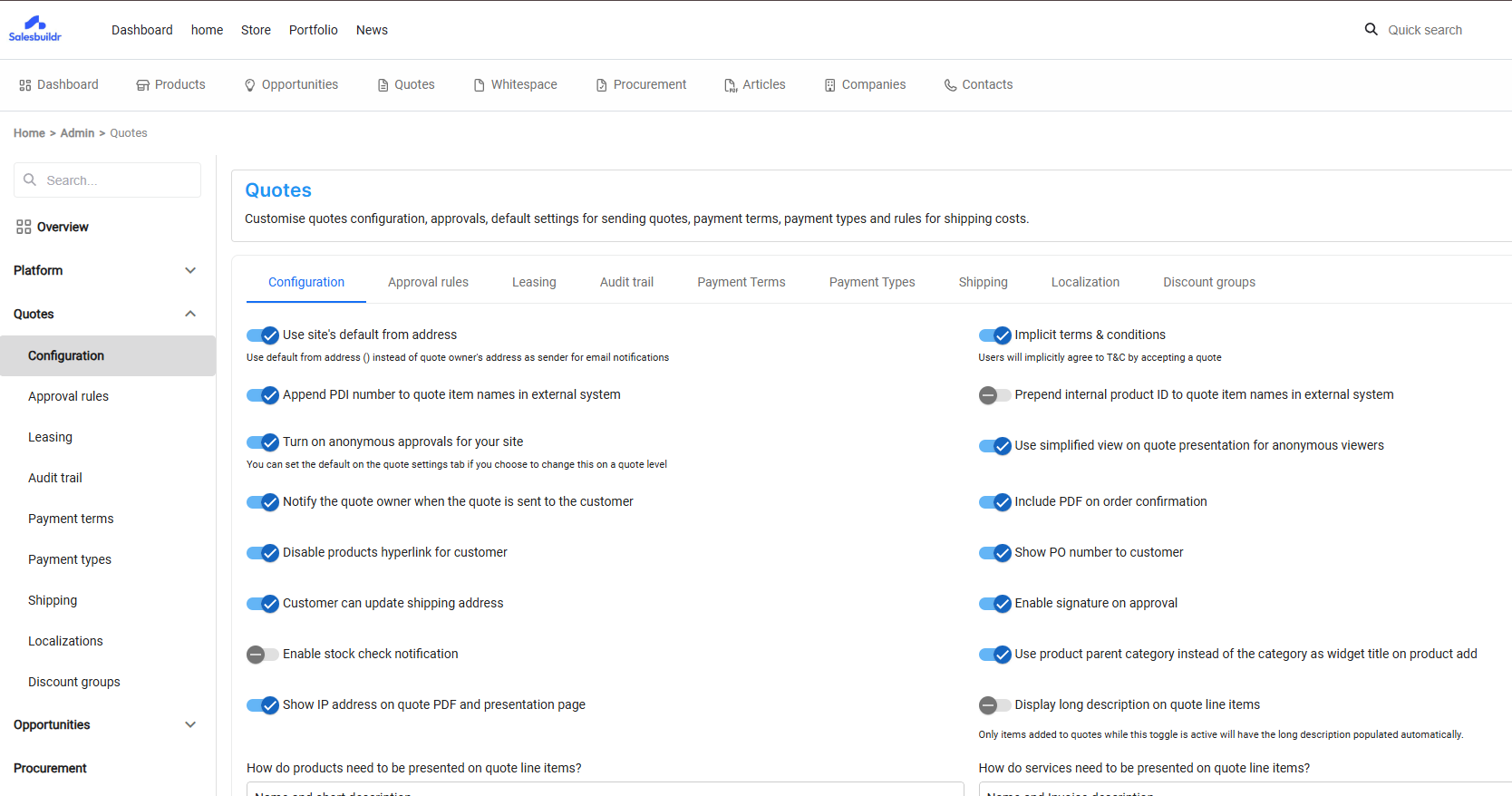
Quote configuration page with global toggle settings for approvals, notifications, and display options Feb 20, 2026
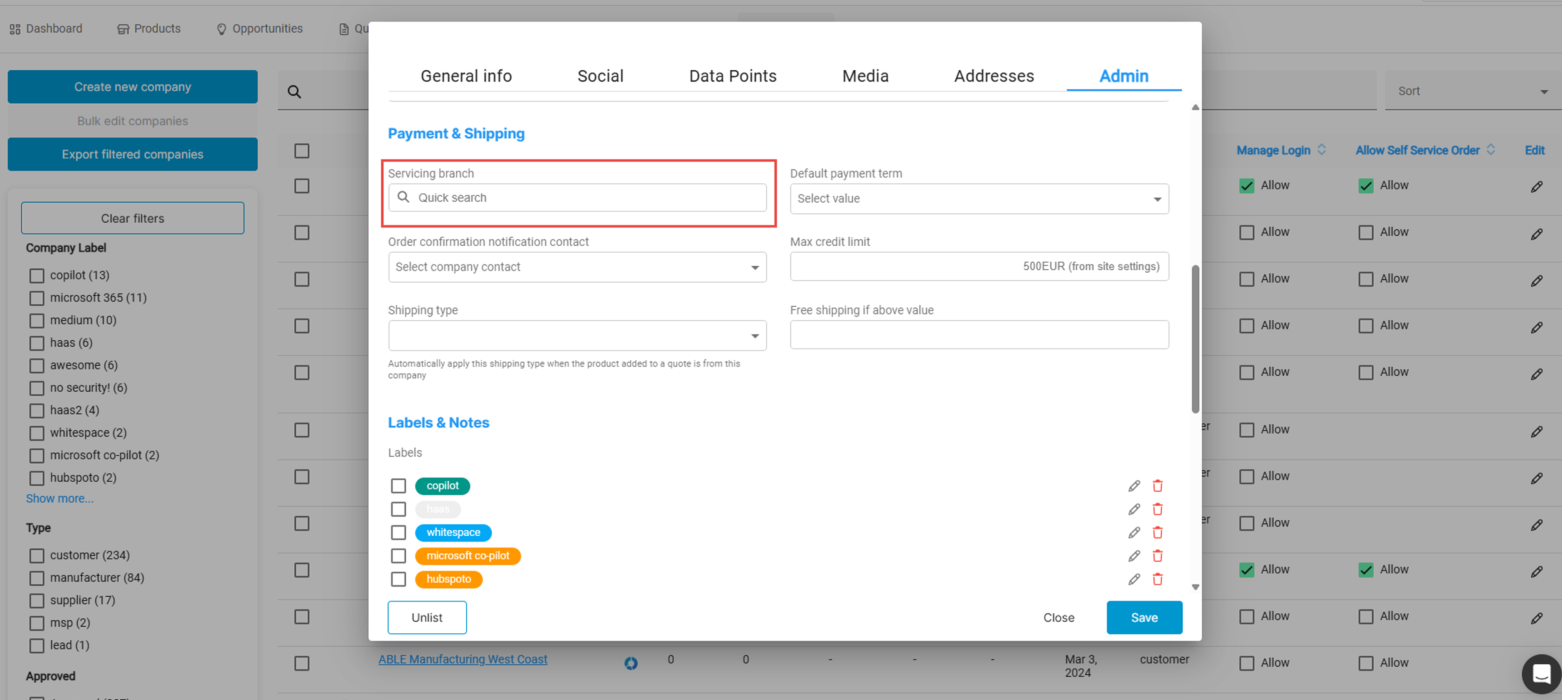
Company admin modal showing payment terms, shipping type, credit limit, and label settings Feb 20, 2026
- Template defaults — Override company defaults per template. In the template editor, open the settings tab (cog icon) in the right-hand side pane.
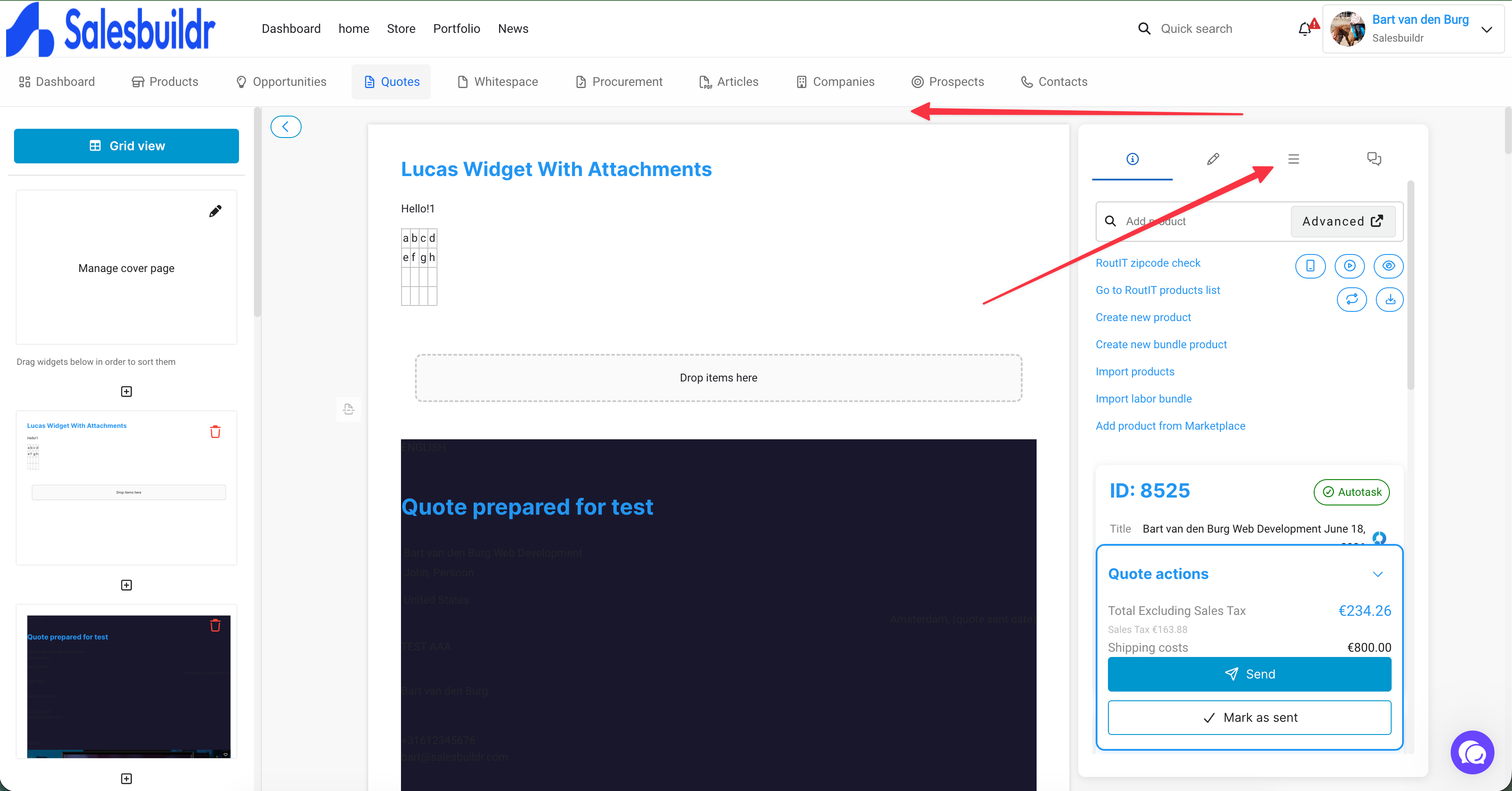
Template-level settings in the side-pane cog tab — payment terms, display toggles, and localization Aug 2026
- Per-quote overrides — Override template defaults on an individual quote
This means a template can set its own payment terms, contract duration, or currency, and a sales rep can still adjust those values on a specific quote.
Template variables
All templates support Handlebars merge fields in cover pages, content widgets, and email templates. Click the variables panel in the editor to browse available fields. Variables are grouped by category:
To insert a field without typing it, copy it from Available template variables. See HTML content, variables, languages, and starter templates for the copy-and-paste workflow, custom fields, and the templates a new account starts with.
See Email for the email-template variable list.
Template settings reference
Templates can override the following settings:
Anonymous approvals
The Anonymous approval setting controls how clients authenticate when approving a quote. Because this directly affects the signing experience, it's worth understanding the tradeoffs before choosing a default.
Anonymous approvals ONAnyone with the quote link can approve without logging in. When they do, they are asked to enter their name, and their IP address is logged throughout the entire signing thread. This gives you a practical audit trail without putting any obstacles in front of your client at the moment they're ready to sign.
This is the right choice for most cases — straightforward hardware quotes, deals sent directly to the decision-maker, or any situation where you're not dealing with a large or untrusted CC list. Someone will rarely place an order in someone else's name when their IP address is on record.
Anonymous approvals OFFWhen this is disabled, clients must log in with a verified Salesbuildr account before they can approve. This gives you certainty that the person signing is exactly who they say they are, but introduces friction:
The client must log in with the exact email address you have on file. Aliases won't work — j.doe@company.com and john.doe@company.com are treated as two separate accounts.
Many Microsoft environments block third-party SSO connections by default. The client's IT team may need to explicitly whitelist Salesbuildr before anyone can sign, which can delay deal closure.
Use this setting when your process requires verified identity beyond what IP logging provides.
Per-template configurationThis setting can be configured independently per template. A common approach is to leave anonymous approvals on for transactional templates (hardware, renewals) and turn them off for templates used on higher-value or compliance-sensitive deals.
Quote Localization
Send quotes in your customer's language. Create localization profiles at Settings > Quotes > Localizations — each profile defines a locale and overrides for all customer-facing labels. Assign a primary localization to a template; quote creators can switch it per quote before sending.
See also
HTML content, variables, languages, and starter templates — Quotes
Quote Editor — Quotes
Cover Pages — Quotes
Leasing — Quotes
After Onboarding — Getting Started
Was this helpful?
Still need help? Ask the team