Quote Editor
The complete quote workflow — build a proposal with widgets and products, send it to your customer, collect approval and signatures, and track every interaction.
Written By Victor Raessen
Last updated 11 days ago
The quote editor is the heart of Salesbuildr — it's where you build, polish, send, and manage every proposal.
Once your portfolio, templates, and widgets are set up, creating and sending a quote takes under a minute. This article starts with that everyday workflow, then covers everything the editor can do in detail.
Send a quote in 60 seconds
If your templates, products, and widgets are already set up, creating a new quote is fast:
Press Q from anywhere in the app (or click New Quote on the Dashboard, from an opportunity, or from the Quotes list)
Pick a template — it pre-loads your widgets, styling, and default settings
Add products — search or browse right inside the editor, and they land in your product table
Hit Send — choose your recipient, review the email, and your customer gets an interactive branded proposal
That's the day-to-day loop. The rest of this article covers everything behind those four steps — how to customize every detail, what your customer sees, and what happens after they respond.
The philosophy: standardize first, then fly
The reason sending a quote can be so effortless is that Salesbuildr is designed around standardization. The idea is simple: invest the time upfront to set up your building blocks, and then every proposal writes itself.
Here's how the pieces fit together:
Products — Your catalog of everything you sell: hardware, software, services, bundles. Set pricing, add-ons, and descriptions once. Products can sync from your PSA, import from distributors, or be created manually.
Widget templates — Reusable content blocks — a service description, a terms section, an intro letter — that you save once and insert into any proposal. Browse the widget marketplace for ready-made options.
Quote templates — Full proposal layouts with pre-arranged widgets, styling, and default settings. A "Managed Services" template and a "Hardware Refresh" template can look and feel completely different — but both take seconds to use.
Styling & cover pages — Company-wide fonts, colors, margins, and branded covers. Set them at the company level and every template inherits them automatically.
Pricing books and dynamic pricing — Customer-specific or rule-based pricing that applies automatically when you create a quote for a particular company.
When a rep creates a new quote, they select a template — and all of this flows in. They add products, maybe tweak the intro letter, and send. No formatting, no chasing prices, no starting from a blank page.
Getting started? If you haven't set up your portfolio and templates yet, check out Your first quote for a guided walkthrough.
Quotes list
Open Quotes from the main navigation to see every proposal for your tenant. No filters are selected by default on this list.
Creating a new quote — step by step
Step 1 — Start a new quote
There are several ways to start:
From the Dashboard, click the New Quote tile under Quick Actions (or press Q on your keyboard from anywhere in the app)
From an opportunity, click New Quote
From the Quotes list, click New Quote
The New Quote dialog opens:
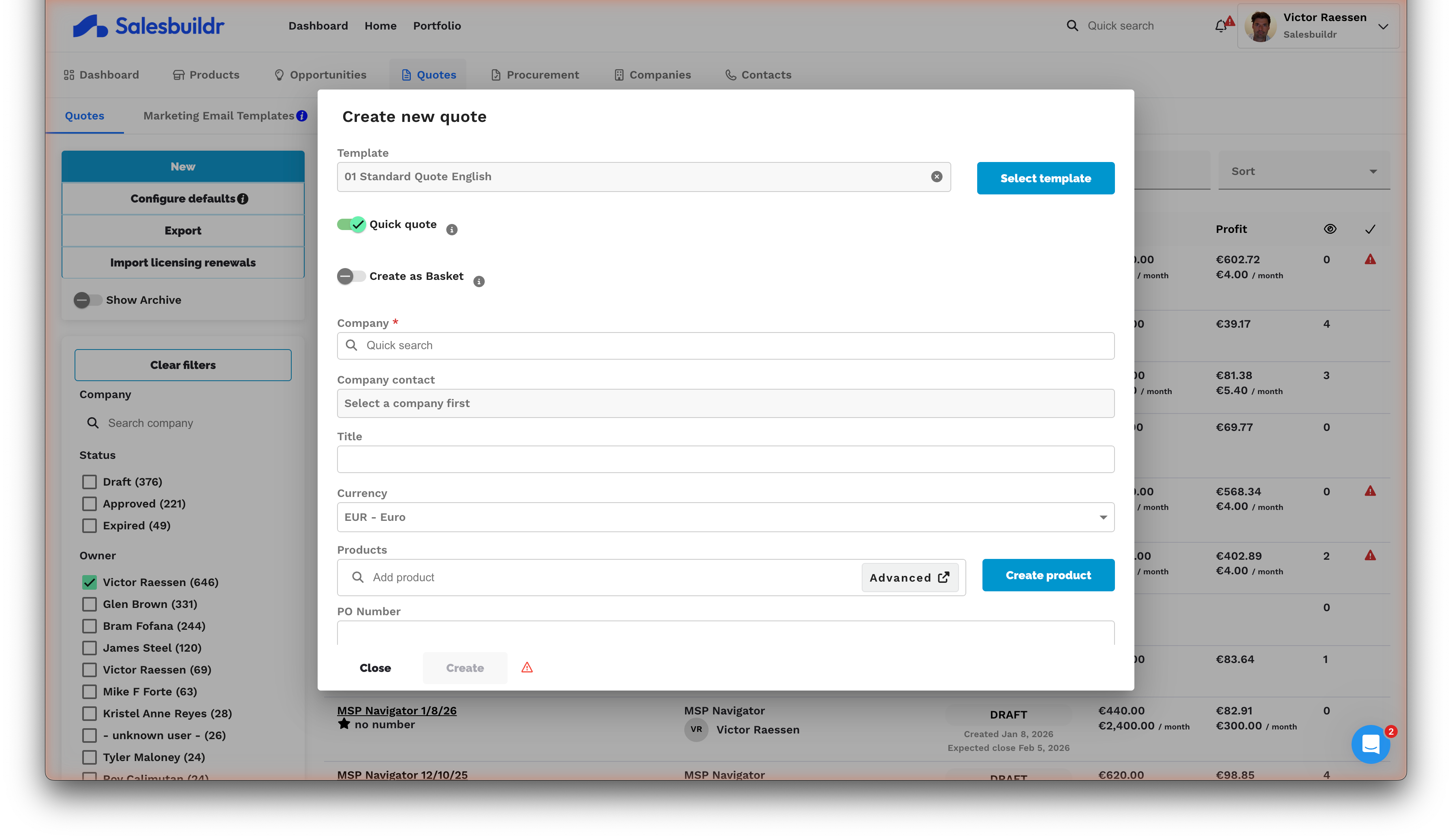
Create new quote dialog with template, company, and currency fields Feb 27, 2026
Select a template — pick from your internal templates or browse the template marketplace
Confirm the company (pre-filled when you start from an opportunity) and currency
Click Create — the editor opens with the template's pre-configured widgets, styling, and settings
Every quote belongs to an opportunity and a company. Don't have an opportunity yet? No problem — you can create one on the fly right from the New Quote dialog.
Quick-Quote Flag
The quick-quote flag controls how quotes are created and linked to opportunities in Salesbuildr. Understanding this setting helps you choose the right workflow for your quoting needs.
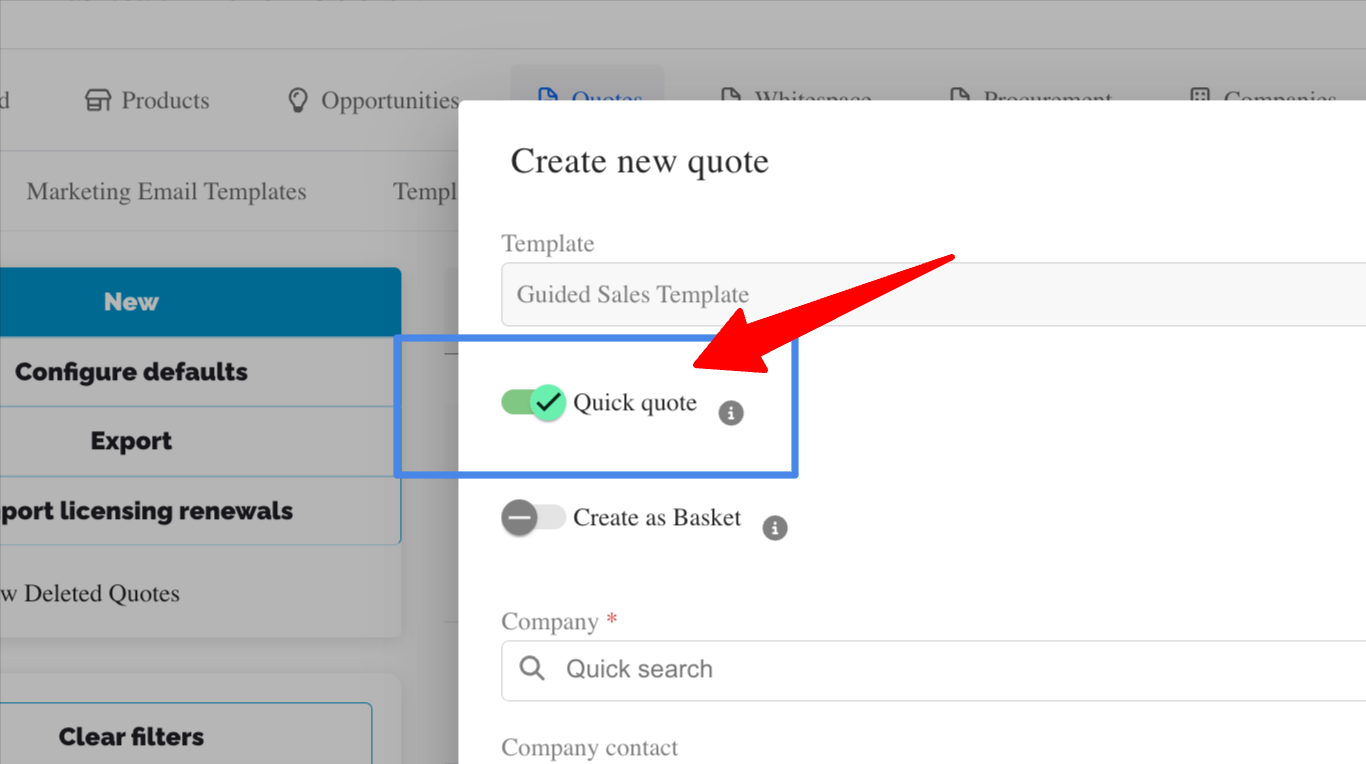
What the Quick-Quote Flag Does
When the quick-quote flag is enabled (on), creating a new quote will automatically create a new opportunity at the same time. The quote and opportunity will share the same name, streamlining the process when you need both created together.
When the quick-quote flag is disabled (off), you can create a new quote and assign it to an existing opportunity using a dropdown selector. This approach is useful when you're adding quotes to opportunities already in your pipeline.
When to Use Each Setting
Enable the quick-quote flag if:
You're creating a quote for a new opportunity that doesn't yet exist in your system
You want the quote and opportunity created as a single action
Disable the quick-quote flag if:
You have an existing opportunity and need to create or copy a quote for it
You're adding multiple quotes to the same opportunity
Creating a Quote with the Quick-Quote Flag Enabled
When the quick-quote flag is enabled, follow these steps:
Navigate to Quotes
Click New Quote
Complete the quote details
Save
A new opportunity will be created automatically with the same name as your quote.
Creating a Quote for an Existing Opportunity
To assign a quote to an opportunity that already exists:
Disable the quick-quote flag [confirm with dev: where this toggle is located and exact steps]
Navigate to Quotes
Click New Quote or you may alo copy an existing quote using the Copy Quote icon
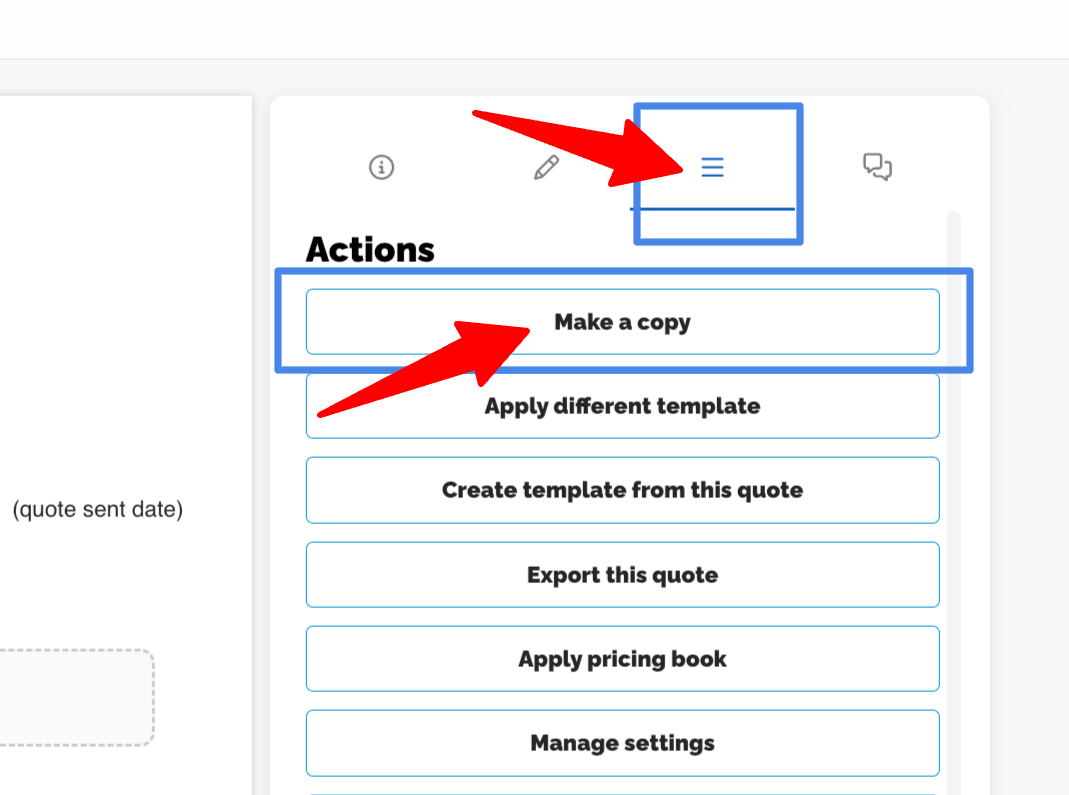
Complete the quote details
In the Opportunity dropdown, select the existing opportunity you want to link this quote to
Save
Your quote is now associated with the selected opportunity.
Step 2 — Add and arrange widgets
Your proposal is built from widgets — modular content blocks that you stack vertically. Think of them as building blocks: a text introduction here, a product table there, a video demo in between.
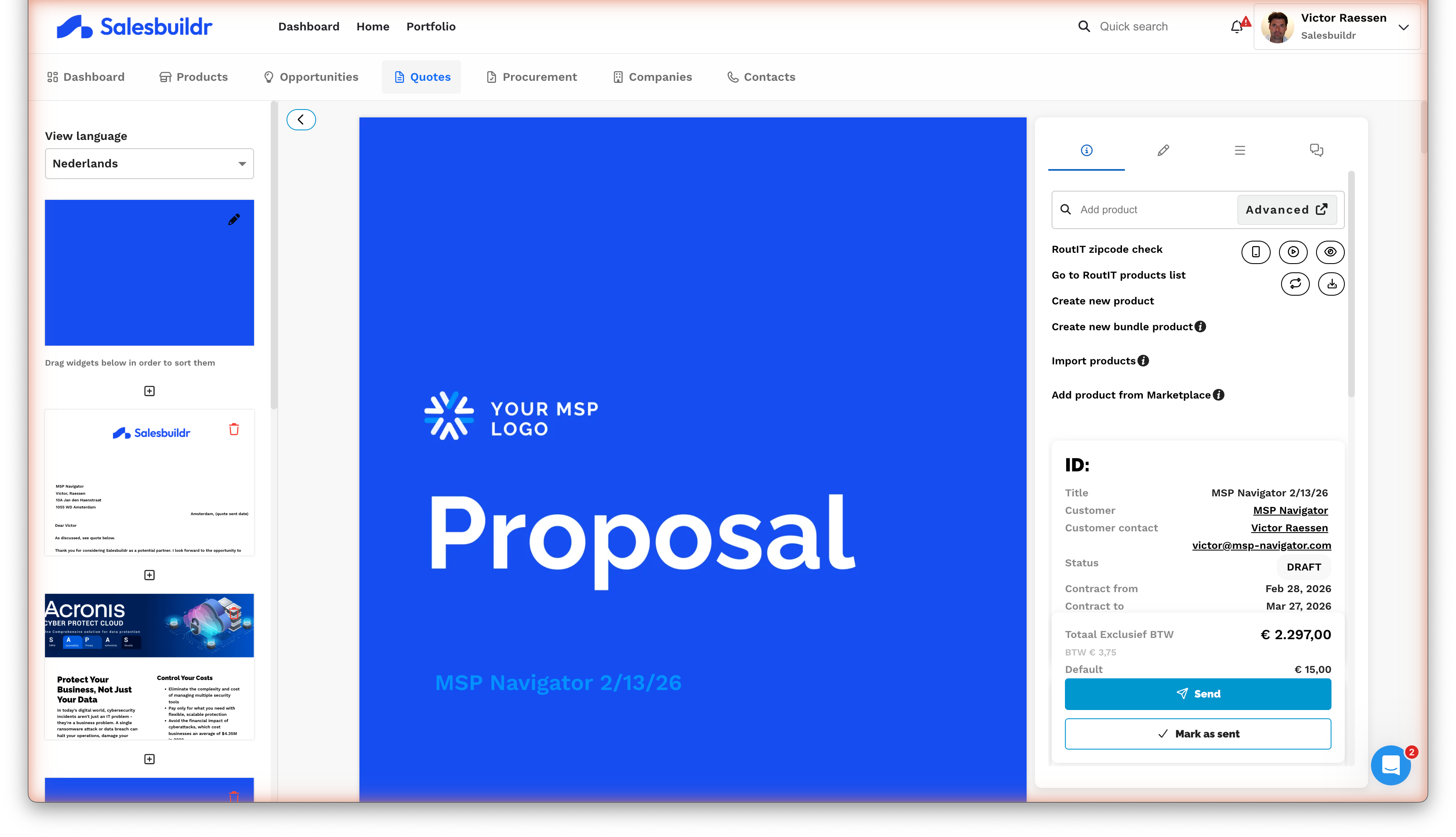
Quote editor with widget insertion panel and Send button Feb 27, 2026
If your template already has the right widgets, you can skip straight to adding products. Otherwise, click the + button between any two widgets to insert a new one. The insert dialog shows all available widget types grouped by category.
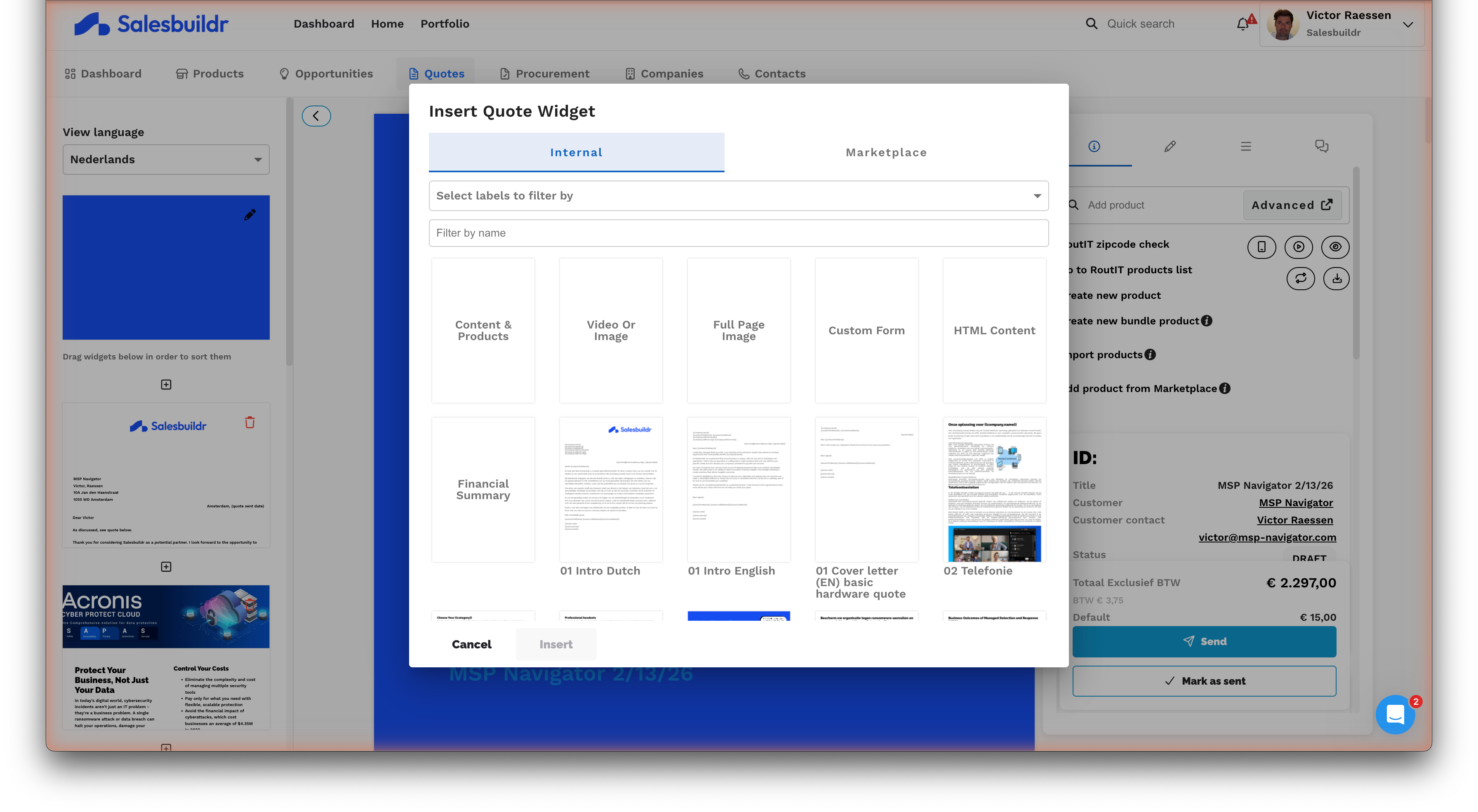
Insert Widget dialog with category tabs (Content, Video/Image, Full Page Image, Custom Form, Financial Summary) and template previews Feb 27, 2026
Drag any widget by its handle to reorder. Use the widget menu (⋯) to set page breaks, lock the widget to prevent accidental changes, or delete it.
Step 3 — Add products
Click Add product (or the search bar) on the right-hand panel to open the product picker. You'll find it just below the panel tabs.
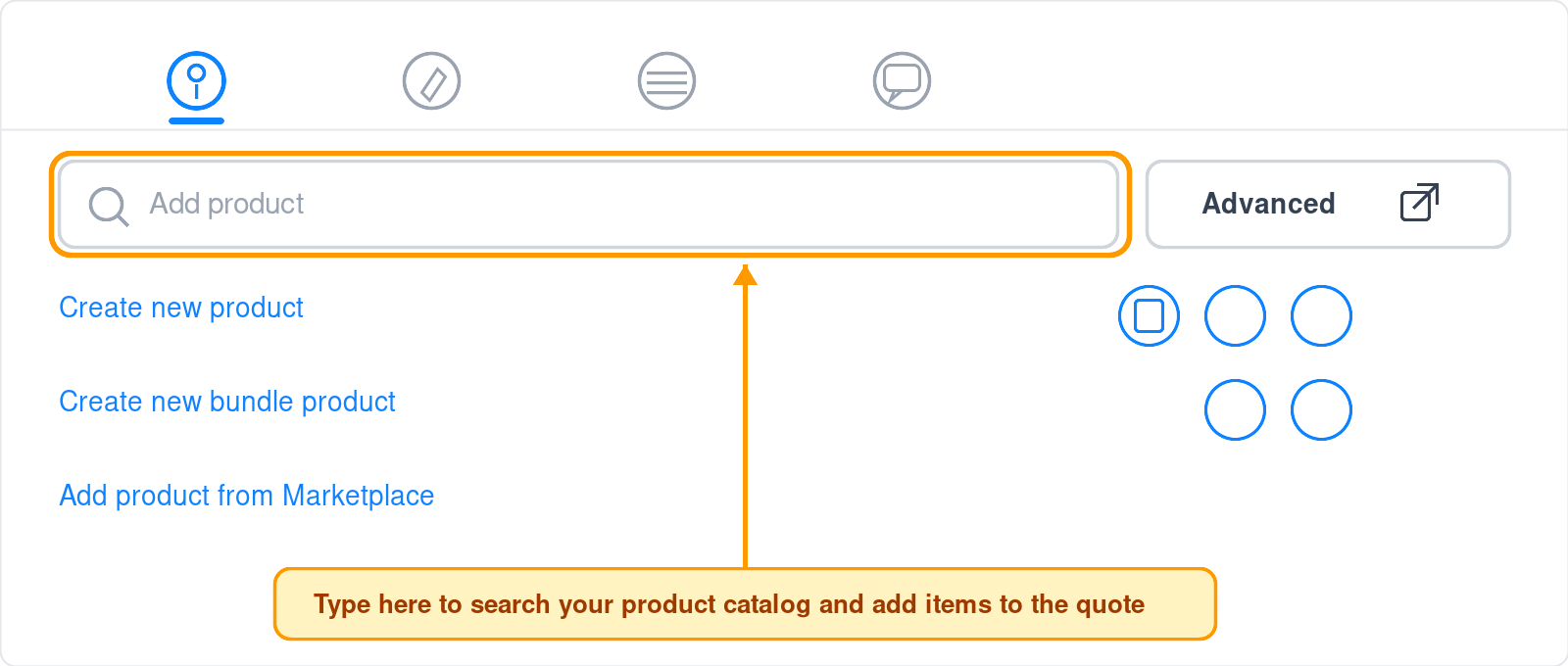
Product selector on the right panel — search bar, Advanced button, and create/marketplace links Feb 27, 2026
You can add products in several ways:
For each line item, set the Quantity, Price (override the catalog price if needed), Cost, and Discount. Mark items as Optional to let customers toggle them on or off in the interactive proposal.
Tip — Add-ons: When you add a product that has required add-ons configured, they're automatically included. Suggested add-ons appear as recommendations you can add with one click.
Choice selections: Set a minimum and maximum on a product group to let customers pick from a set of options — for example, offer 5 laptop models and require the customer to choose exactly 1.

Configuring product choice options (single or multiple choice) on a widget Feb 27, 2026
Line item notes: Add notes to individual line items — these sync back to your PSA when the quote is accepted, so your service team gets the context they need.
Overall discount: Apply an overall percentage discount to all one-time items in a product table, perfect for quick negotiations without adjusting each line individually.
Zero-quantity items: Include items with zero quantity as placeholders — including required add-ons used as a checklist. When you send the quote, you'll be asked whether to remove them or keep them visible.
Step 4 — Personalize the content
Your template likely includes a Text block or HTML content widget for the introduction. Click into it to open the rich-text editor.
Use template variables to personalize the content automatically — Salesbuildr replaces them with your customer's actual data when the quote is viewed.

Product table with stock badges, form fields, and template variables sidebar showing available merge fields Feb 27, 2026
Common variables include {{company.name}}, {{contact.firstName}}, {{quote.expiresAt}}, and {{quote.signatures}}. The variables sidebar in the right panel's Edit tab lists every available field.
Step 5 — Review settings
Before you send, take a moment to confirm the quote's key settings. Open Manage Settings from the actions menu (⋯ in the top right). The most important fields for first-time senders:
Expires At — Set a deadline to create urgency
Contract Duration — Number of months, used for recurring totals and leasing calculations
Currency — Confirm it matches your customer's billing currency
Approval Email Template — Which email template to use when sending
If your template already has these configured, you may not need to touch them at all. For the full list, see All quote settings below.
Step 6 — Send for approval
Click the Send button in the bottom bar. The send dialog opens:
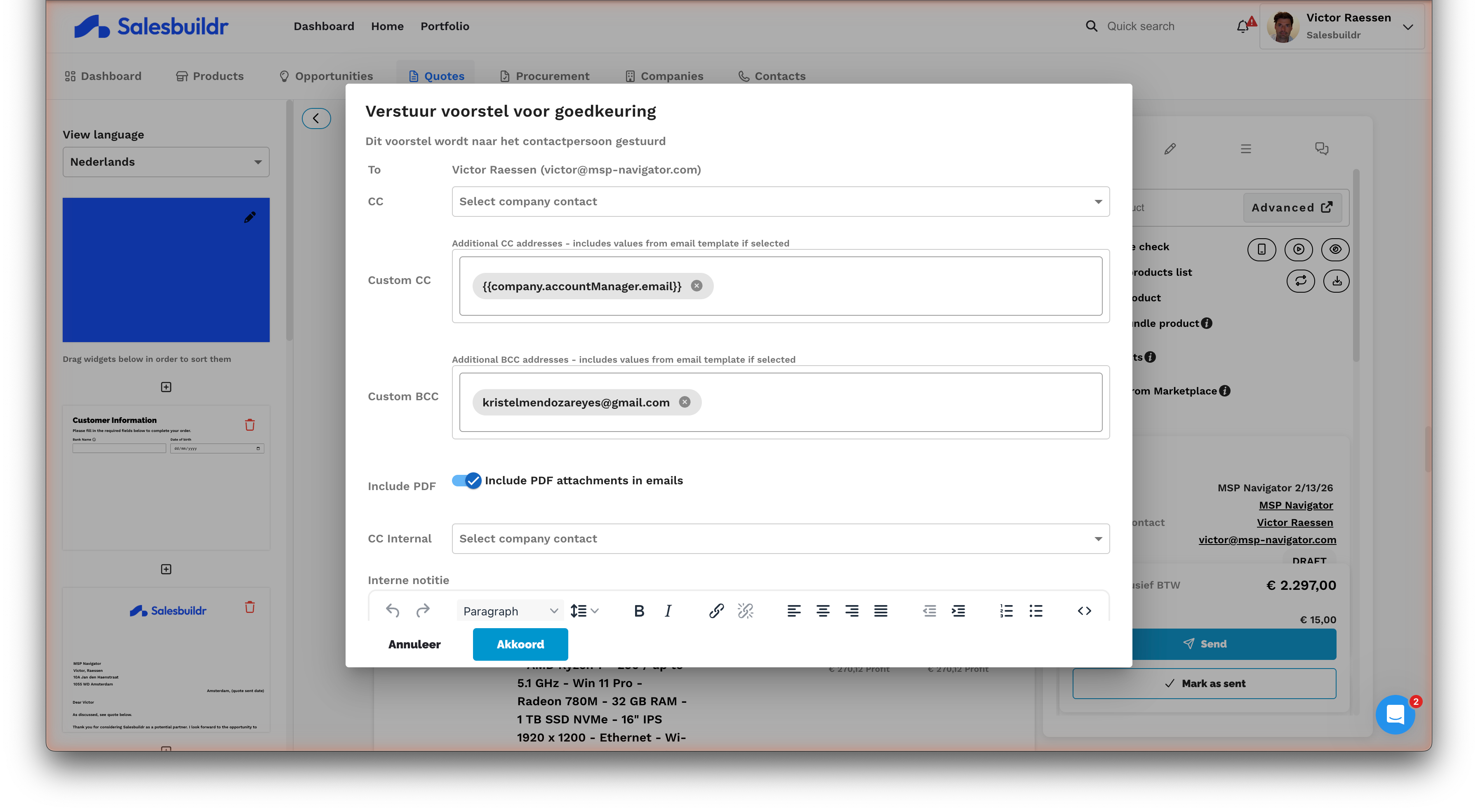
Send quote for approval dialog with recipient, CC, expiry, and shipping fields Feb 27, 2026
Set the recipient — the contact who will receive and approve the quote
Add CC contacts from the company, or type in custom email addresses
Customize the email subject and email content if needed
Click Send — your customer receives a branded email with a link to the interactive proposal
Before the email goes out, Salesbuildr automatically validates that choice widget minimums are met, pricing book items haven't expired, and any required form fields are completed.
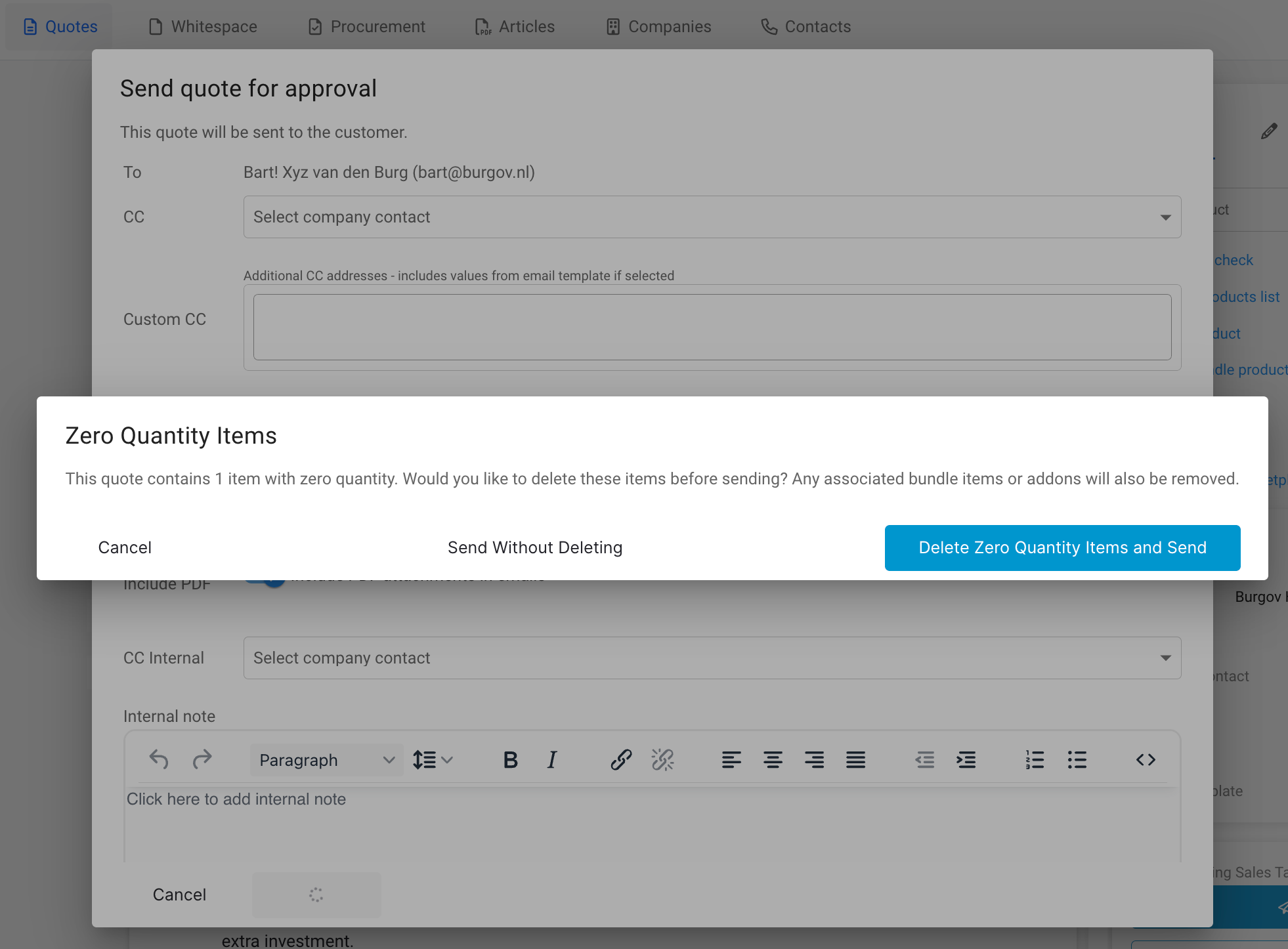
Zero quantity items warning when sending a quote Feb 27, 2026
If zero-quantity items exist, you're prompted to either remove them or keep them in the sent quote.
That's it — your proposal is on its way. Track when your customer opens it in the Details tab, and respond to questions via quote chat.
The editor layout
The editor is divided into three main areas:
Toolbar buttons
The top-right toolbar gives you quick access to viewing and export tools:
Actions menu
The ⋯ menu in the top right gives access to all secondary operations. The available actions depend on the quote's current status — for example, "Create Sales Order" only appears for approved quotes.
Widget reference
Template-creatable widgets
These widgets can be saved as reusable widget templates and shared via the marketplace:
Quote-level widgets
These widgets are added directly within a quote (not saved as templates):
Summary table billing periods
When the Summary widget's optional summary table is enabled, each line is shown under a monthly or yearly column. Products on extended billing periods — for example 6-month, 2-year, or multi-year service licenses (common with HaloPSA) — are prorated into the matching column so the totals always reconcile:
A 6-month line is divided by six to show its monthly figure.
A multi-year line is divided across the yearly column.
Whenever a value is prorated, a second line appears under the cell showing an asterisk (*), the full-period line total, and a configurable label — so anyone reading the PDF can reconcile the figure without hovering for a tooltip.
System-generated widgets
Page layout
Page breaks — Set page breaks on any widget (before or after) to control how content flows across pages
Page order — Drag widgets to reorder. The widget sorter in the left panel shows the full page outline
Cover pages — Add a full-page cover with background image, colors, and template zones (see Styling & Cover Pages)
Widget locking — Lock widgets to prevent accidental changes
Custom form widgets
Need to collect information from your customer as part of the proposal? The form widget embeds a fillable input form directly into the proposal that customers complete when reviewing.
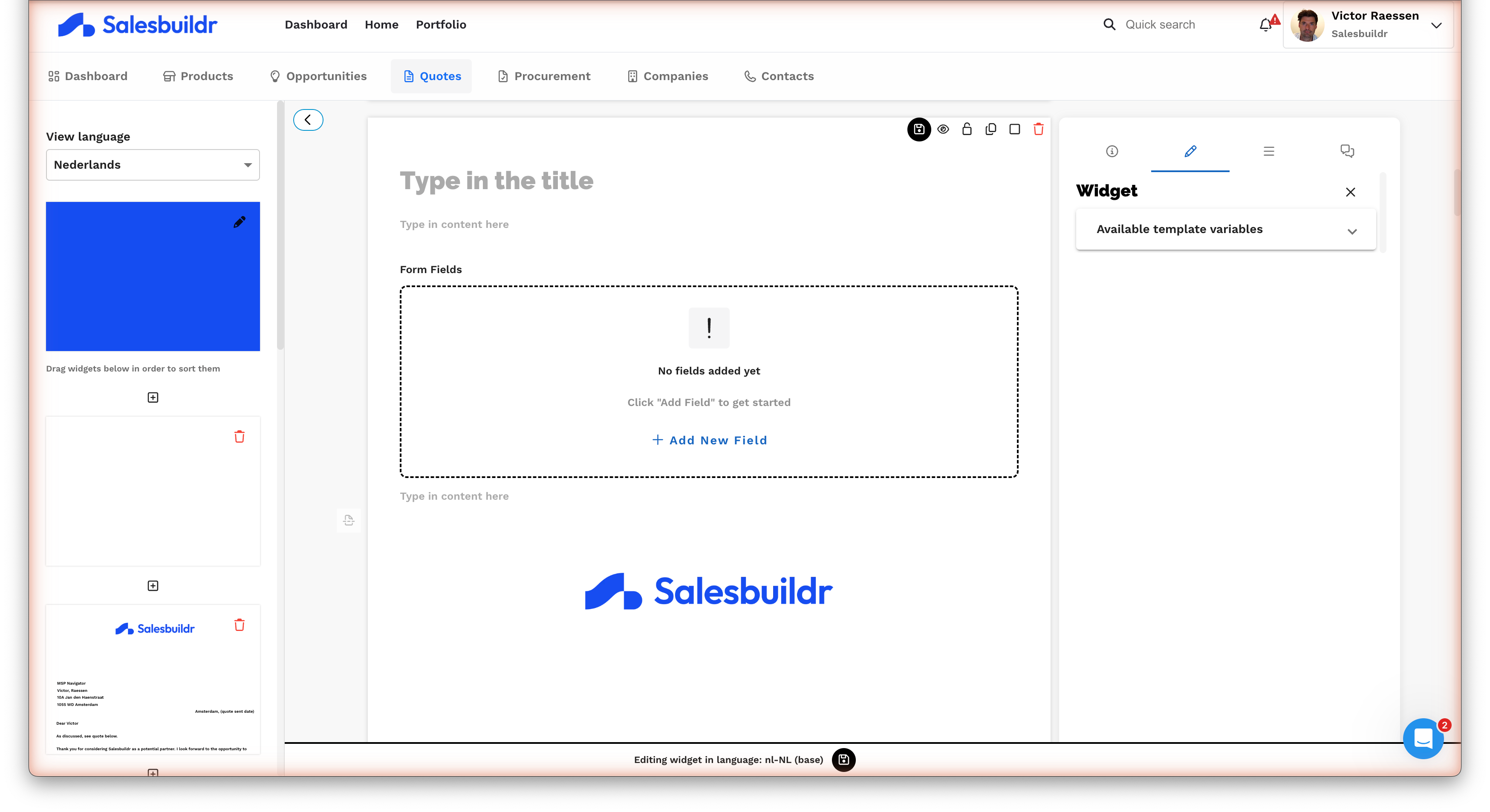
Empty custom form widget with title placeholder, content area, and Add New Field link Feb 27, 2026
Click the widget to open its editor, where you can add a description and start building your form fields.
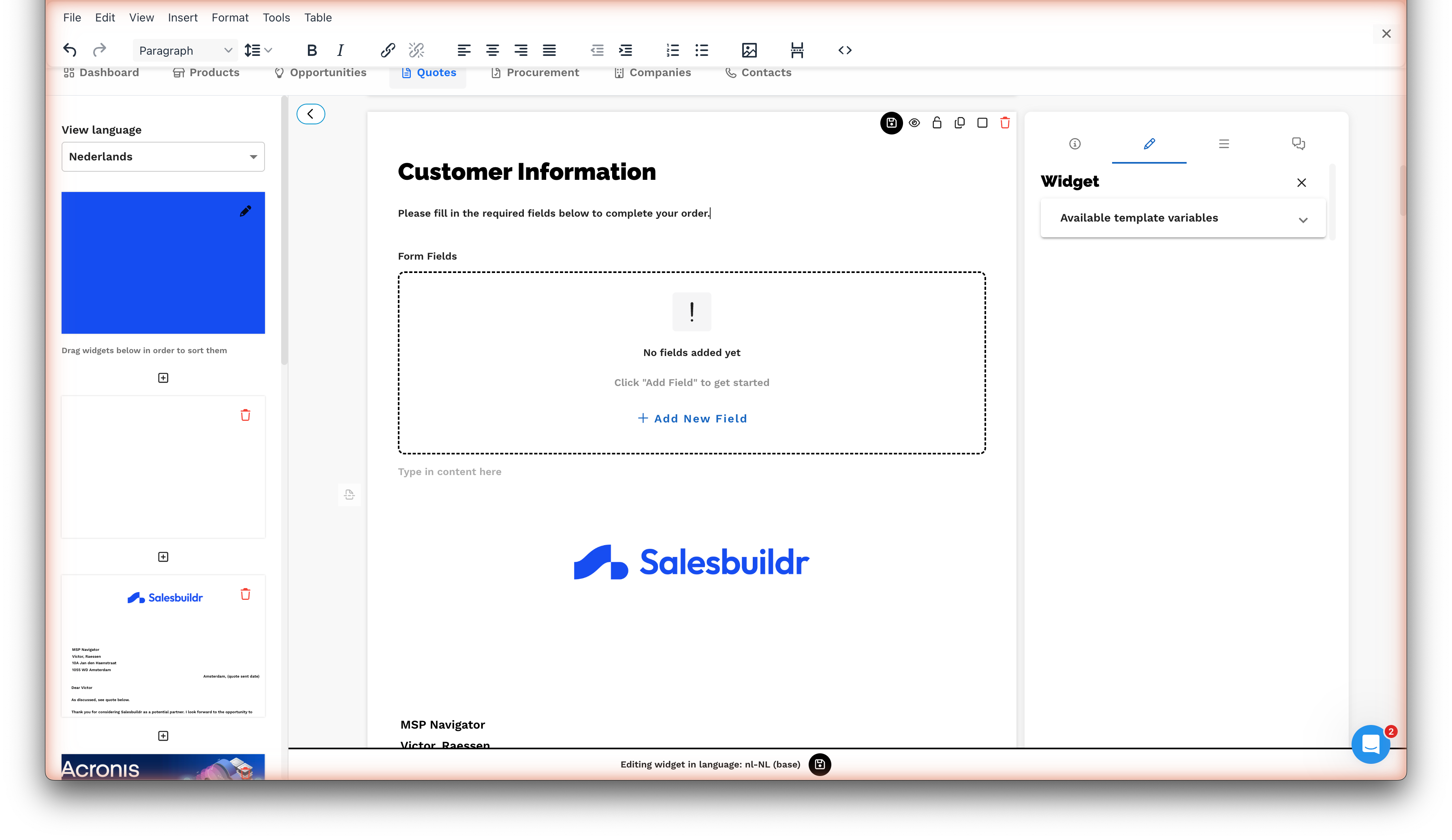
Form widget editor with rich text toolbar, description text, and Add New Field button Feb 27, 2026
Field types
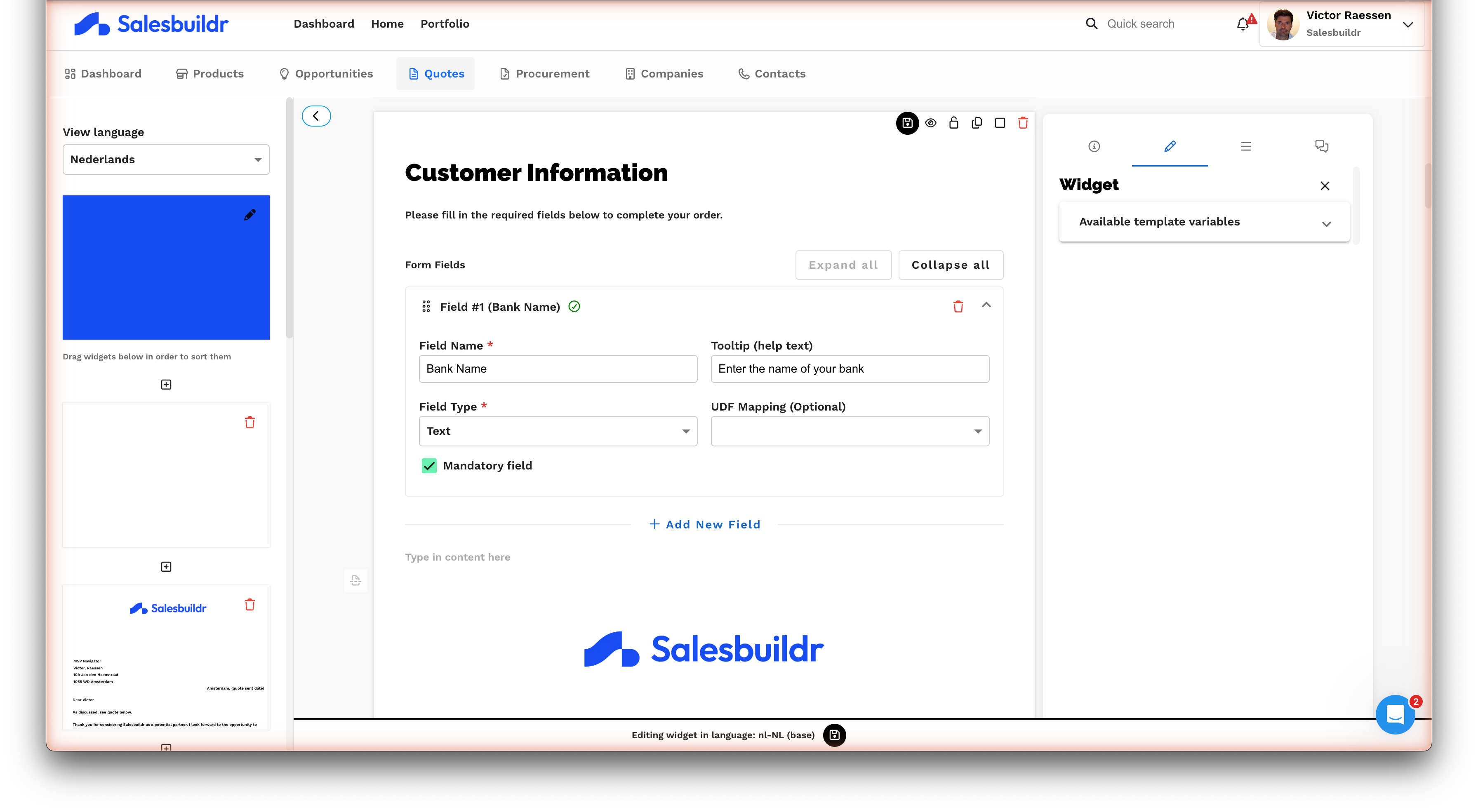
Form field configuration showing field name, tooltip, type selector, UDF mapping, and required field toggle Feb 27, 2026
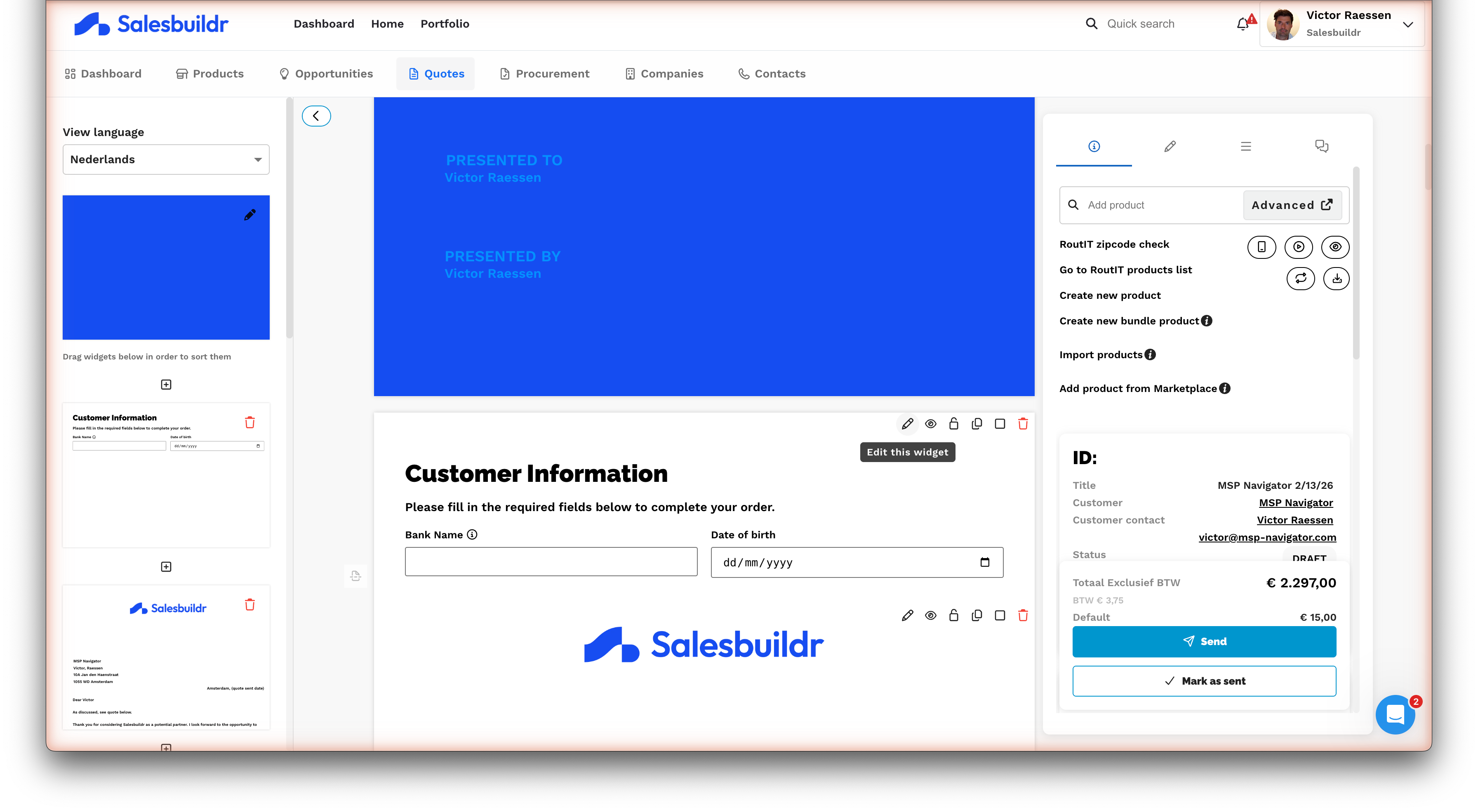
Rendered form preview with Bank Name and Date of birth input fields Feb 27, 2026
Mark fields as required — customers must complete them before they can approve the quote. Fields can include predefined options (dropdown/select) and link to custom fields (UDFs) to sync values back to your PSA automatically.
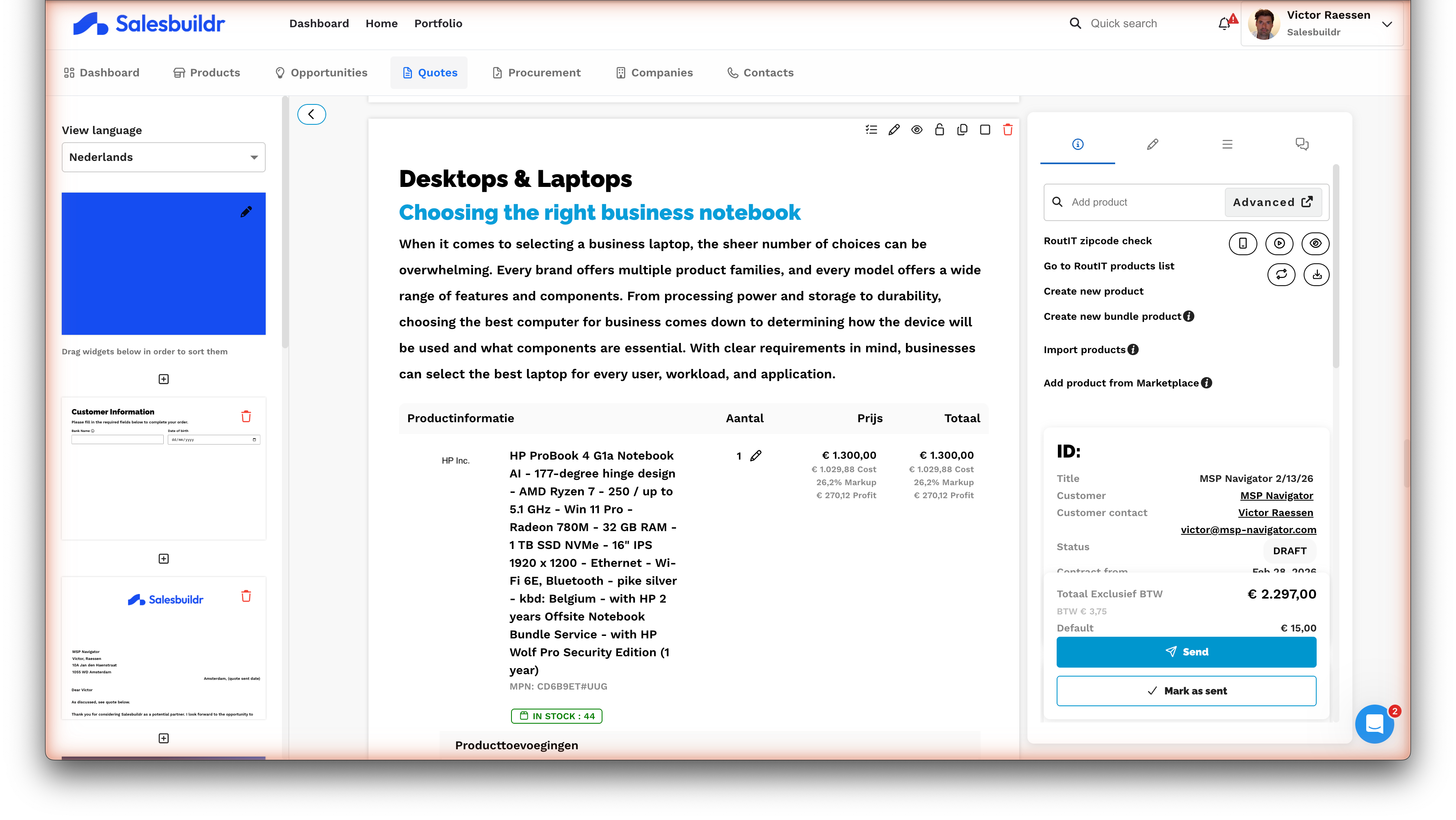
Quote editor showing product table, custom form widget, and summary section with pricing breakdown Feb 27, 2026
Quote settings
Open Manage Settings from the actions menu (⋯) to access all quote settings. Most of these inherit from your quote template, so you only need to touch them when you want to override the defaults for a specific quote.
Identity and pricing
Schedule and duration
Display options
Attachments and PDF
Recipient options
Language and localization
Workflow
Sending
The send dialog
Clicking Send (or Resend, or Mark as sent) opens the send dialog. Here's what each field does:
Before sending, Salesbuildr also checks for unverified products (items added without confirmed pricing) and stock availability.
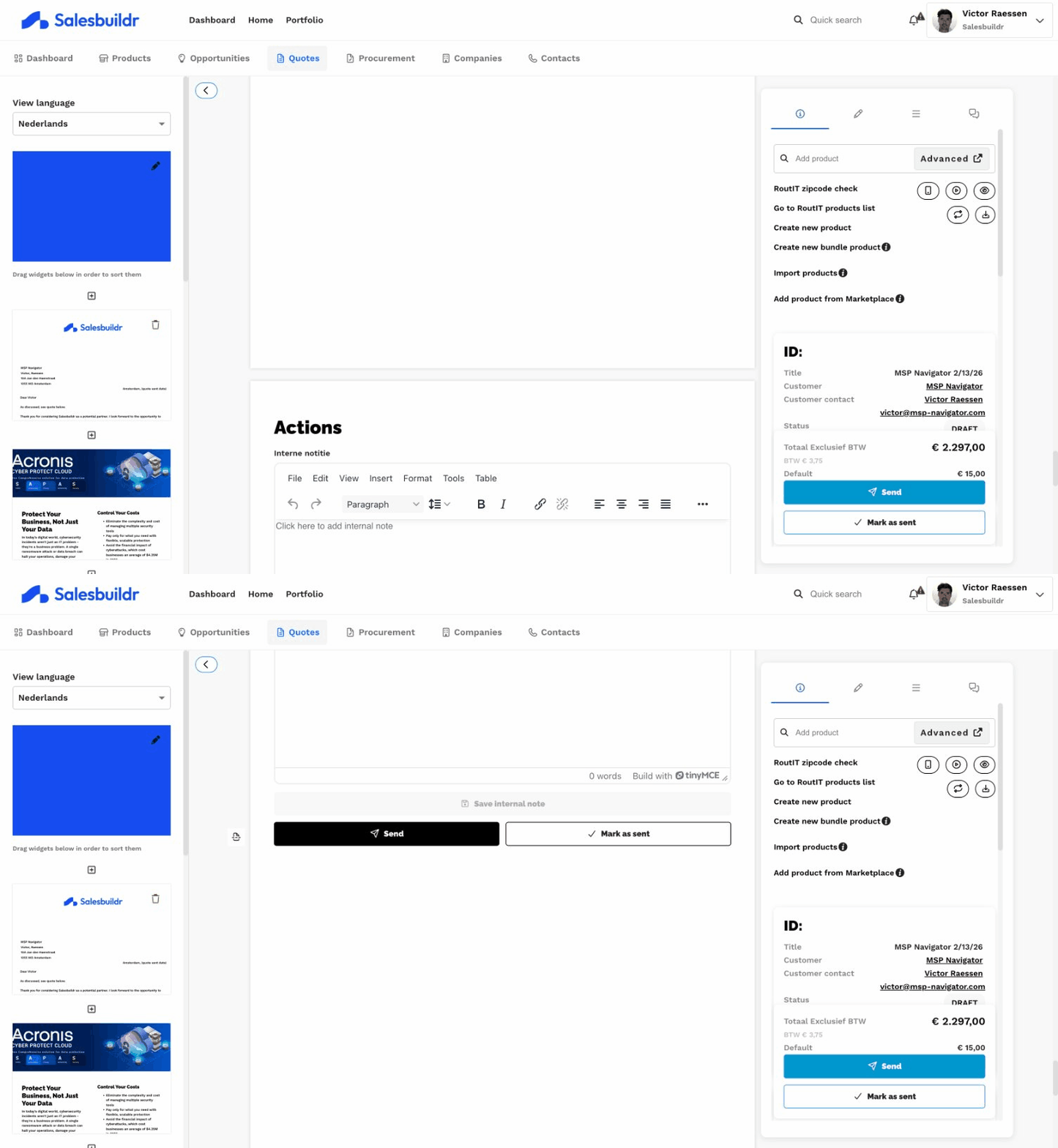
Send and Mark as sent buttons with pricing summary Feb 27, 2026
Mark as sent
Use Mark as sent instead of Send when you've already delivered the quote through another channel — email, printed copy, or in-person meeting. This updates the status to Sent without triggering an email, so your pipeline stays accurate.
Changing the recipient: Need to send the quote to a different contact? Update the contact on the linked opportunity (click the pencil icon next to the contact name), and the quote recipient will update automatically.
Approval configuration
Configure approval settings from Manage Approvals in the actions menu.
Recipient
Select the primary approver — the contact the quote is addressed to. This person receives the quote email and is the default signer.
Advanced approval
Enable Advanced external approval to configure a multi-approver workflow:
Add multiple approvers from the company's contacts
Enable Set approver order to require sequential approval — each approver is notified only after the previous one approves
Drag approvers to reorder the approval sequence
Internal approval
Quotes can require internal approval before the customer can act. This is useful when you need a manager or technical lead to sign off before the proposal goes out. Configure approval rules (who must approve, in what order) under Settings > Quotes > Approval Rules.
Quote statuses
Status updates happen automatically based on events. Status changes can also trigger Before Your First Call if you've configured the mapping.
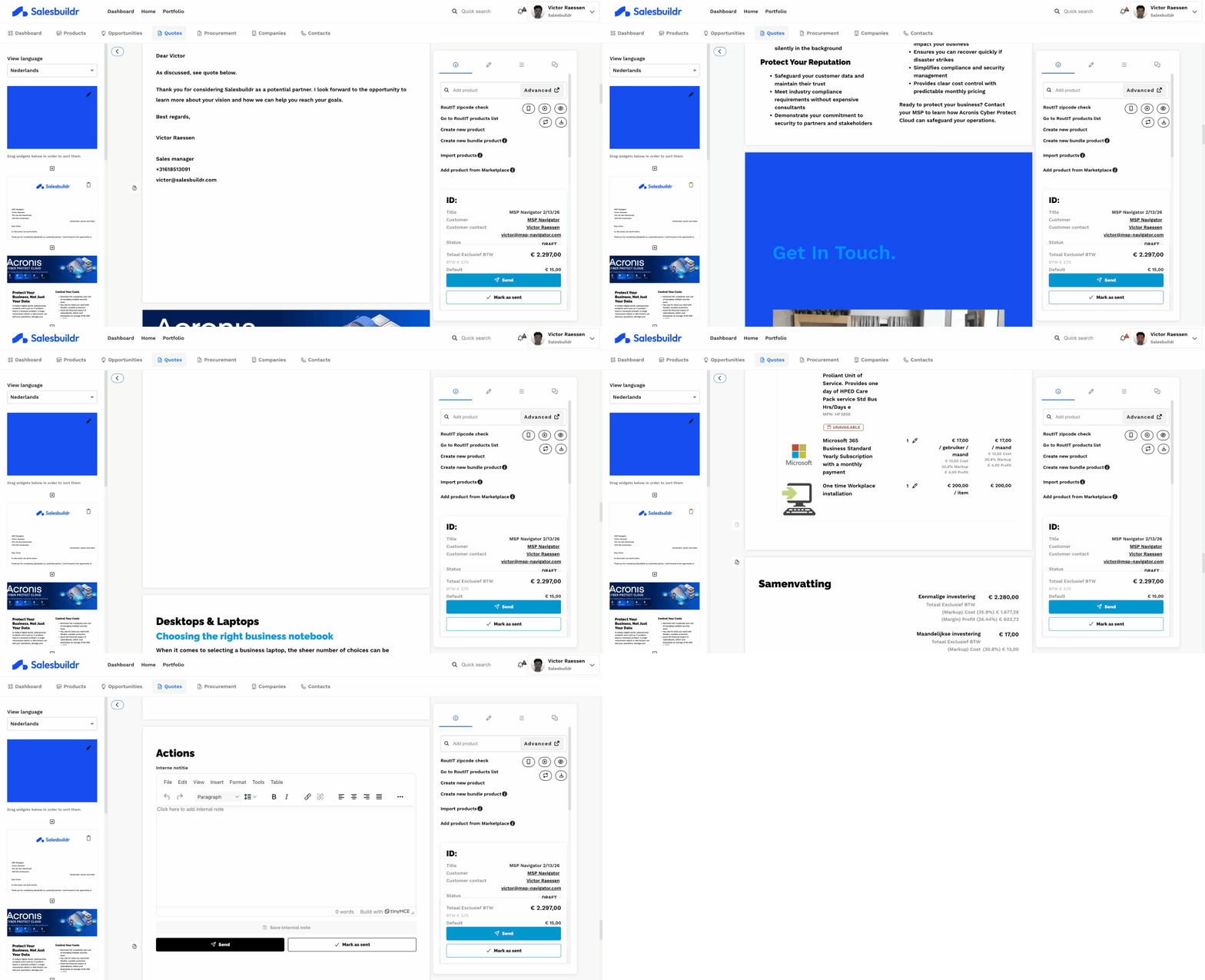
Draft quote in the editor ready to send Feb 27, 2026
Actions by status
Not every action is available at every stage. Here's what you can do depending on where the quote is in its lifecycle:
Automatic expiry reminders
Salesbuildr can send your customer a reminder email before a quote expires. The default timing comes from Settings > Quotes > Configuration (Days before expiry to send reminder). When you send the quote, the send dialog shows Expiry notification at — pre-filled from that default unless you clear it.
To change the timing for one quote, edit Expiry notification at in the send dialog (or Manage Settings after send). To skip the reminder for a quote, clear Expiry notification at before sending.
For the full workflow — defaults, per-quote overrides, short-expiry behaviour, and what to do when you need reminders off entirely — see Managing (or disabling) quote expiry reminder emails.
What your customer sees
Your customer receives a professional, branded proposal page — not a static PDF attachment. The interactive proposal lets them:
Review all line items and pricing at their own pace
Toggle optional items on or off to see how the total changes
Make choice selections (pick from product options you've offered)
Fill in custom form fields
Leave comments via quote chat
Accept the proposal with a signature
Download a PDF version at any time
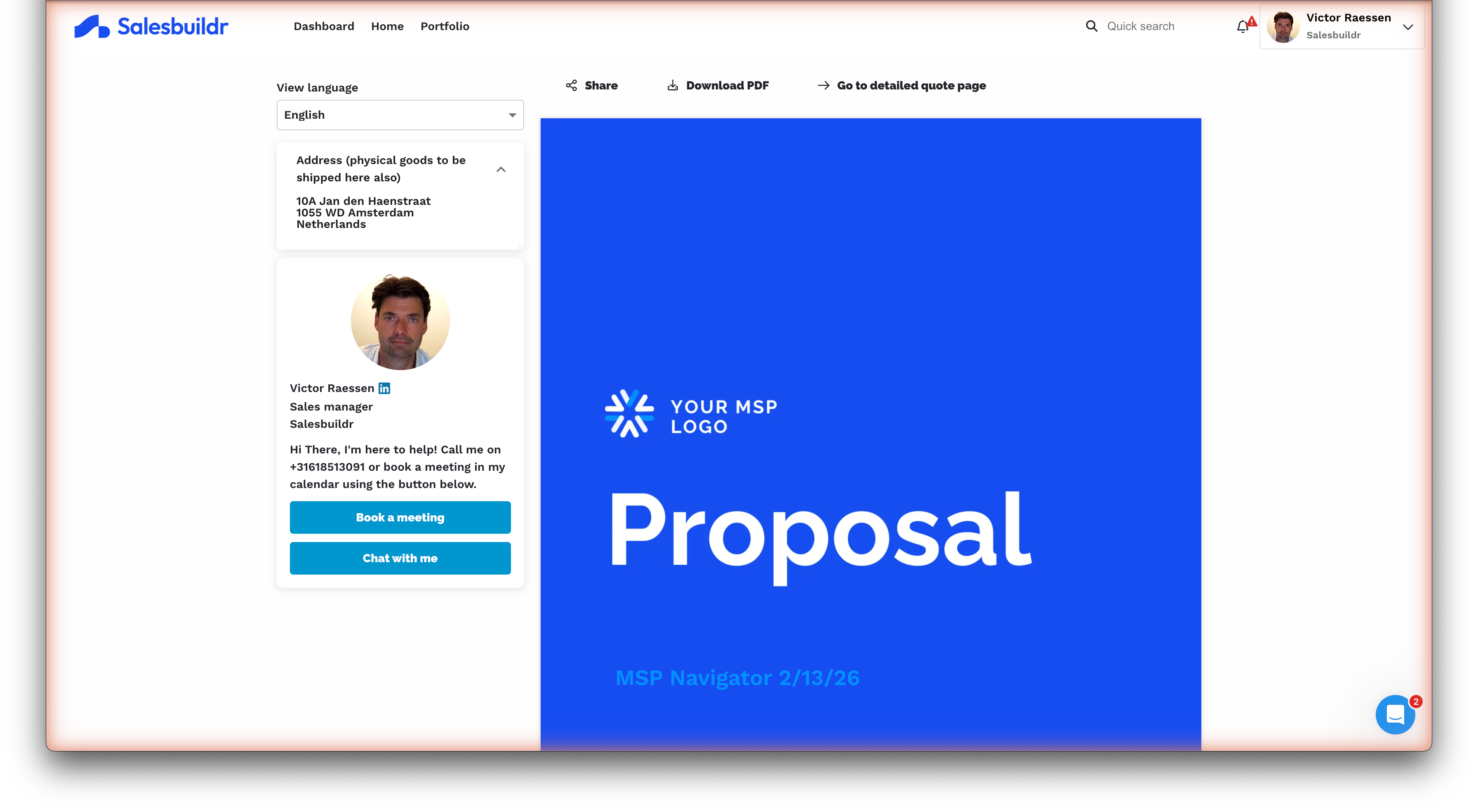
Customer-facing quote landing page with cover, sharing, and meeting options Feb 27, 2026
The interactive proposal is fully responsive and adapts to any screen size — your customer gets a great experience whether they're on a laptop, tablet, or phone.

Customer scrolling through the quote presentation page Feb 27, 2026
Customer acceptance
Customers can approve in three ways:
Logged in — Sign in with Microsoft or Google SSO, then approve
Anonymous — Approve without an account (if anonymous approval is enabled in the quote settings)
On behalf of — An admin approves in place of the customer from within Salesbuildr
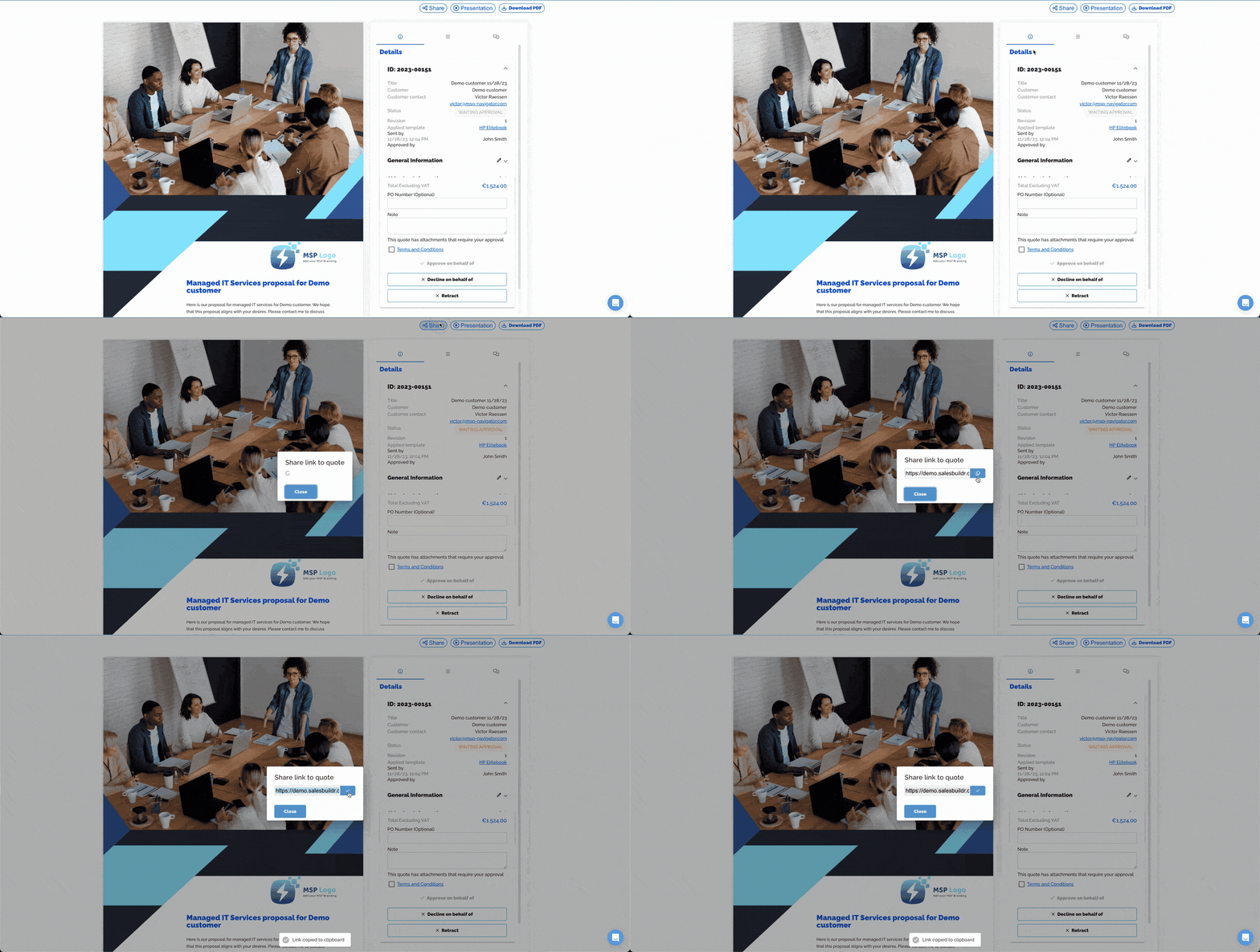
Customer-facing approval page with approve, decline, and retract buttons Feb 27, 2026
Admins can also act on the customer's behalf directly from the quote detail view:

Approving or declining a quote on behalf of the customer Feb 27, 2026
When approving, the customer must:
Accept terms and conditions (if configured)
Approve any attachments marked as requiring approval
Provide a signature image (if Use Signature Image is enabled)
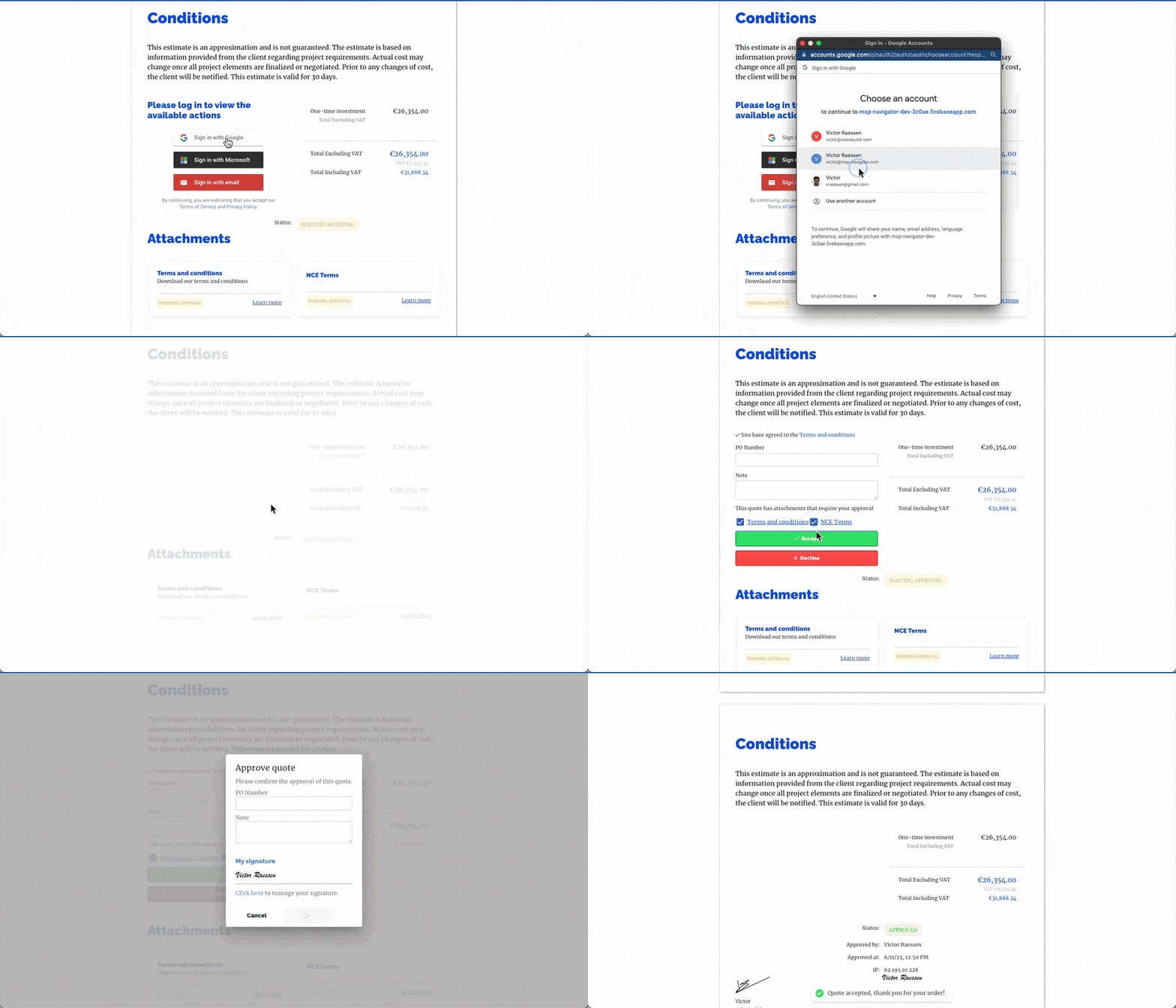
Customer sign-in options (Google, Microsoft, email) and attachment approval Feb 27, 2026
After acceptance
When a quote is accepted, several things happen automatically:
The opportunity stage updates (if Before Your First Call is configured)
Line items and pricing sync to your PSA
The audit trail records the approval with timestamp, IP address, and approver details
Post-approval workflows trigger (contracts, agreements, fulfillment tickets — based on your configuration)
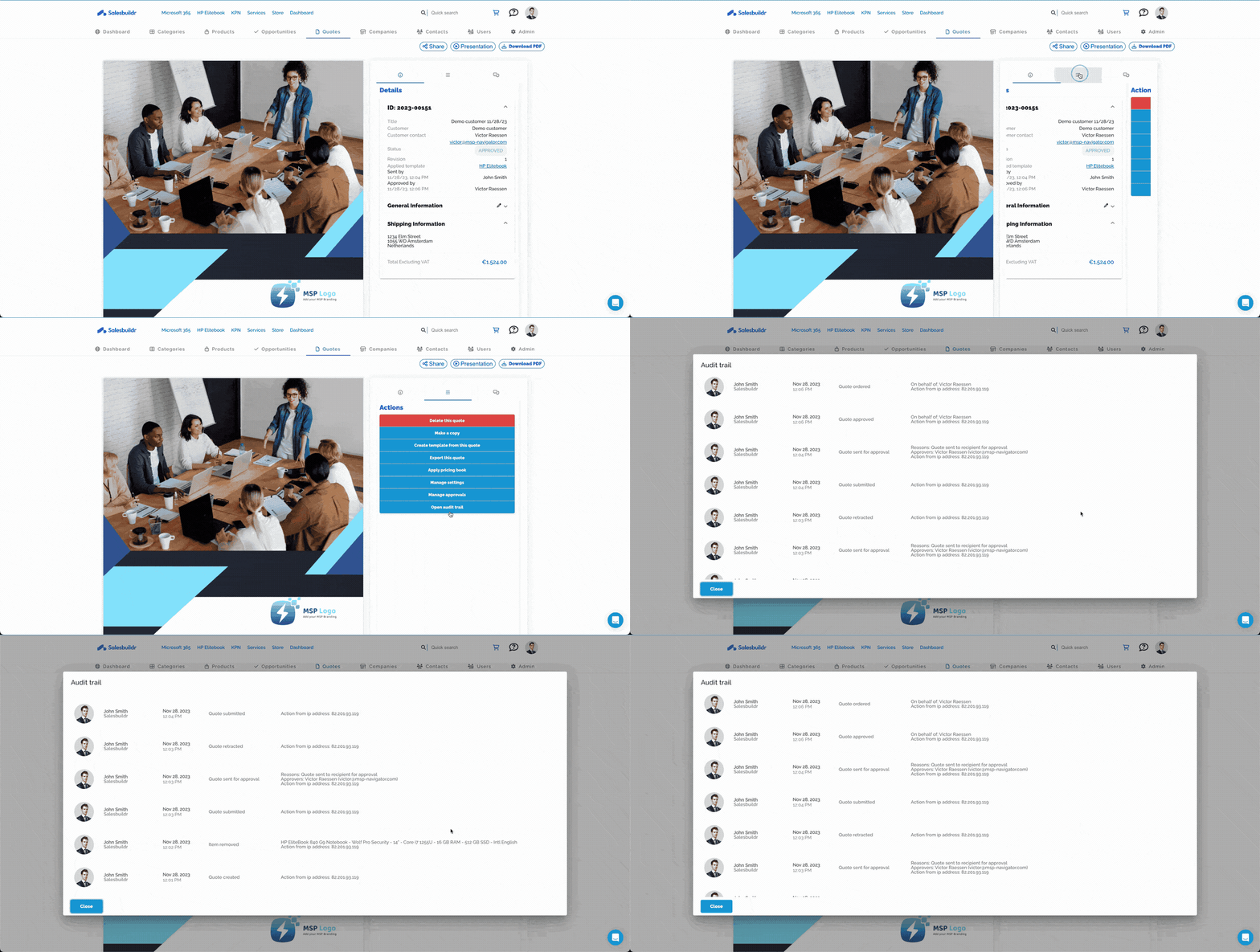
Sent quote presentation view with details panel Feb 27, 2026
The details panel tracks all quote metadata — from sent-by and approved-by timestamps to financial summaries:
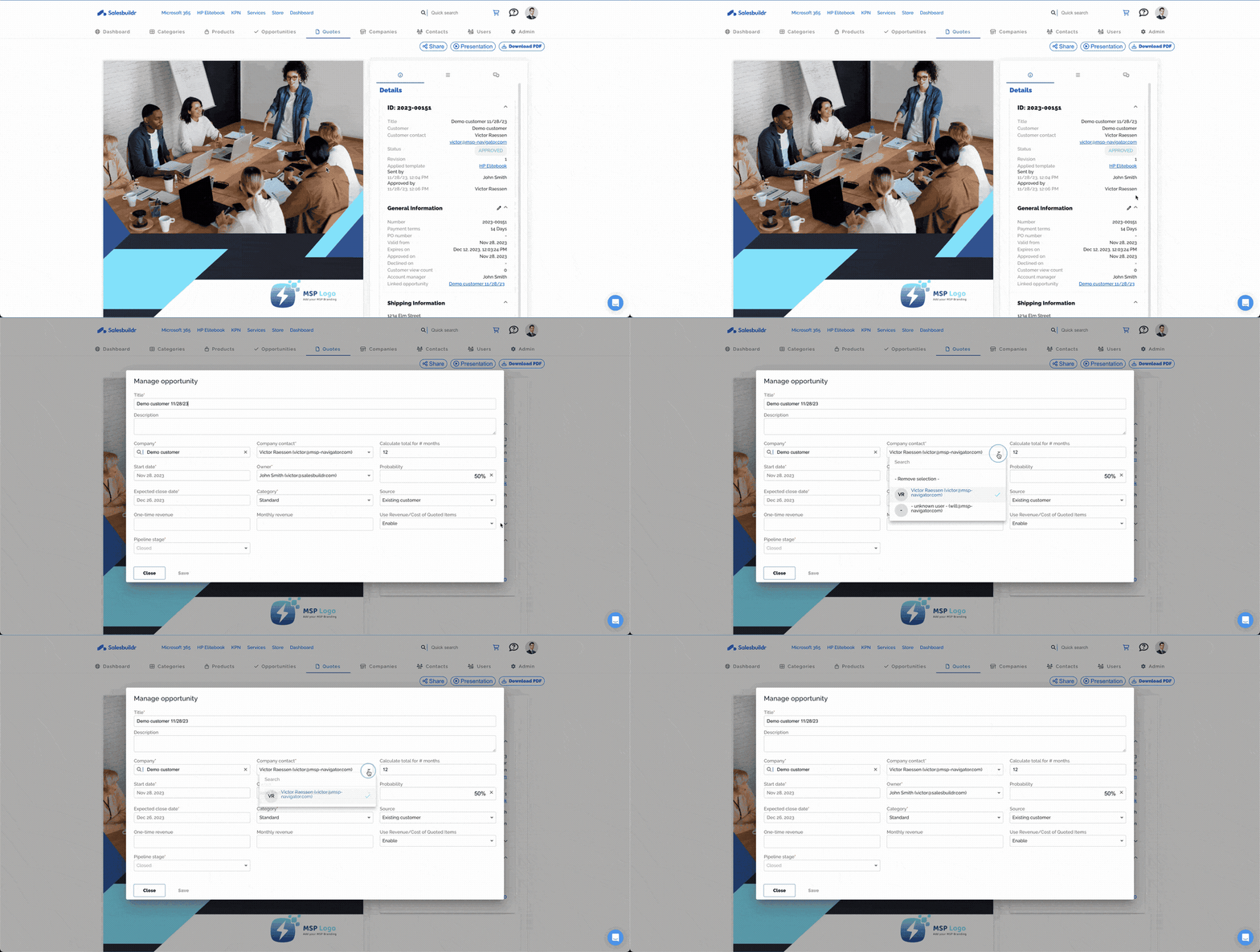
Quote metadata and general information after sending Feb 27, 2026
Editing after sending
We all make mistakes — or maybe the customer asked for a change. Either way, editing a sent quote requires retracting it first.
To make any changes to a sent quote, you must retract it first.
Open the sent quote
Click the Retract button located on the lower section of the Quote Editor Panel
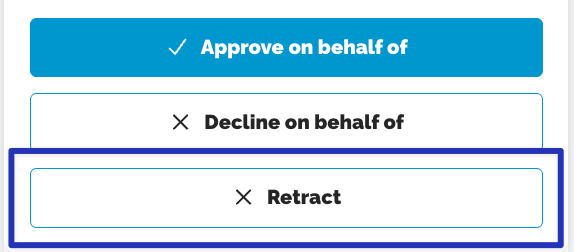
When you select 'Retract' you have the option of sending a Retraction Notification.
Once the quote is retracted it returns to 'Draft' status. Make your changes (add or remove items, update pricing, modify widgets, change quantity, or edit descriptions)
Click Resend - the customer will receive an email to view the quote.
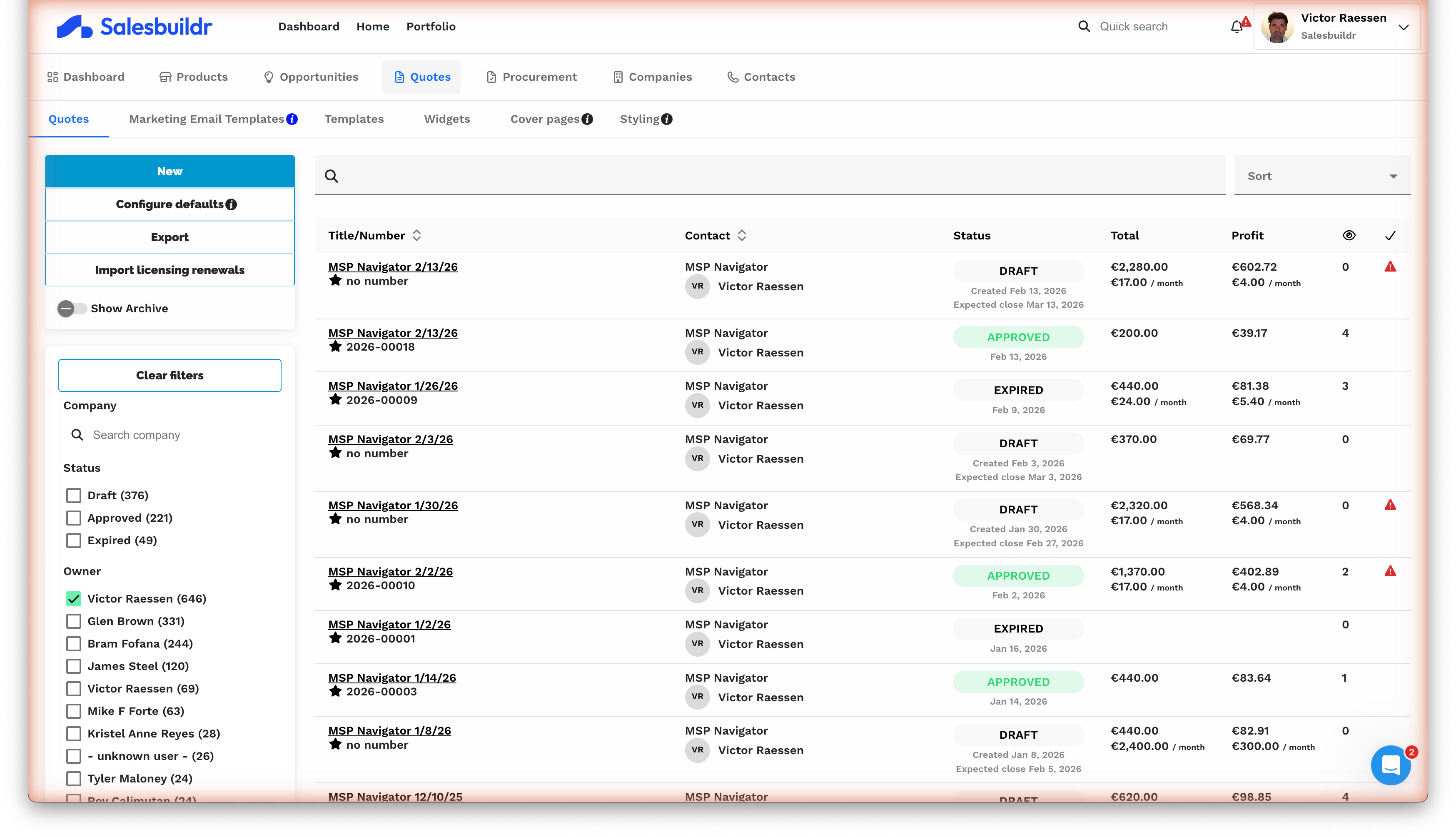
Quick-action icons on the quotes list for viewing and editing
The previous version is preserved in the revision history, so you never lose the original. Resending resets the approval status — the customer must re-approve the updated version.
Use Retract to pull the quote back to Draft without resending. This is useful when you need to make substantial changes before deciding whether to resend or start over.
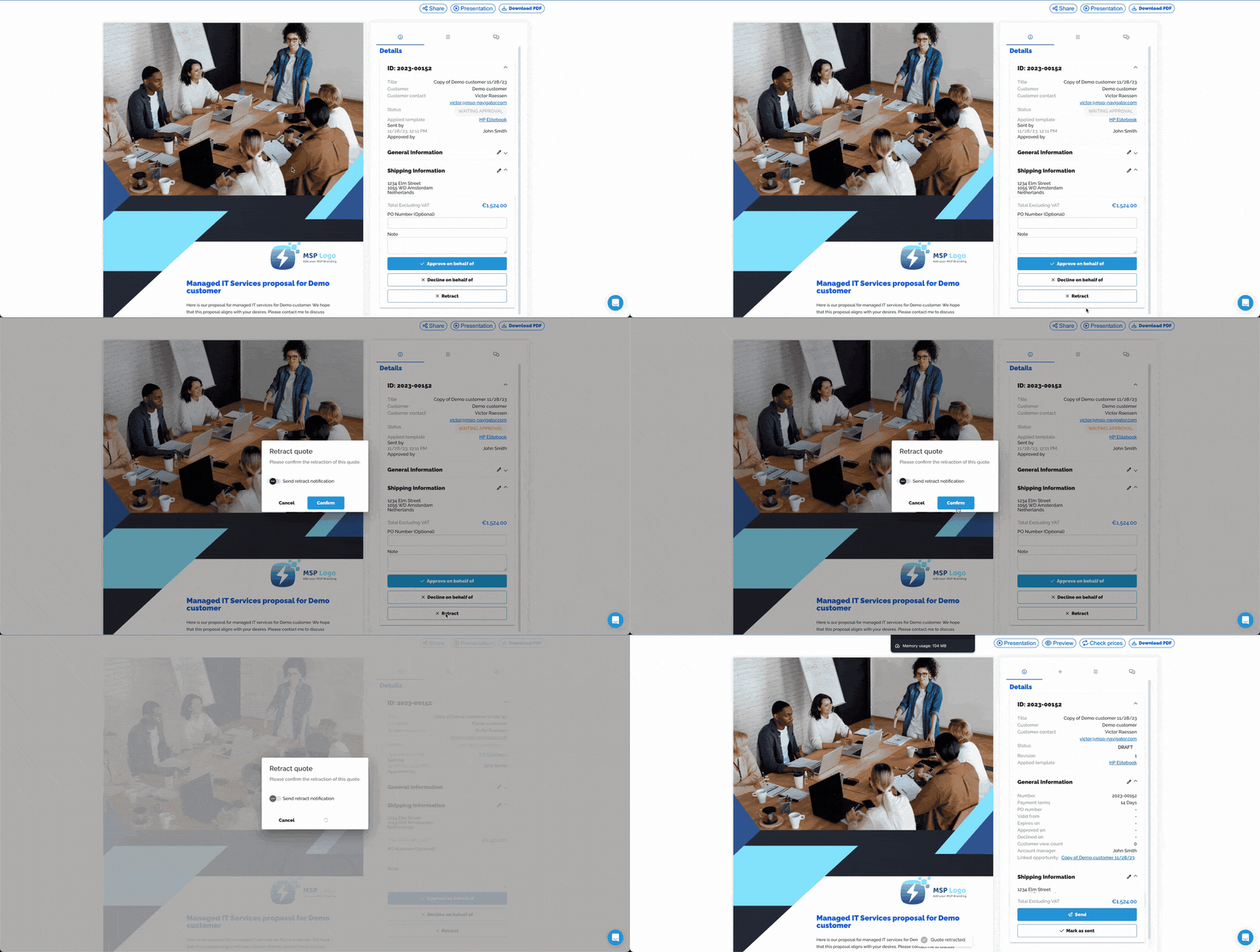
Quote in WAITING APPROVAL status with approve, decline, and retract buttons
When resending, you get the same full send dialog with the complete email preview:
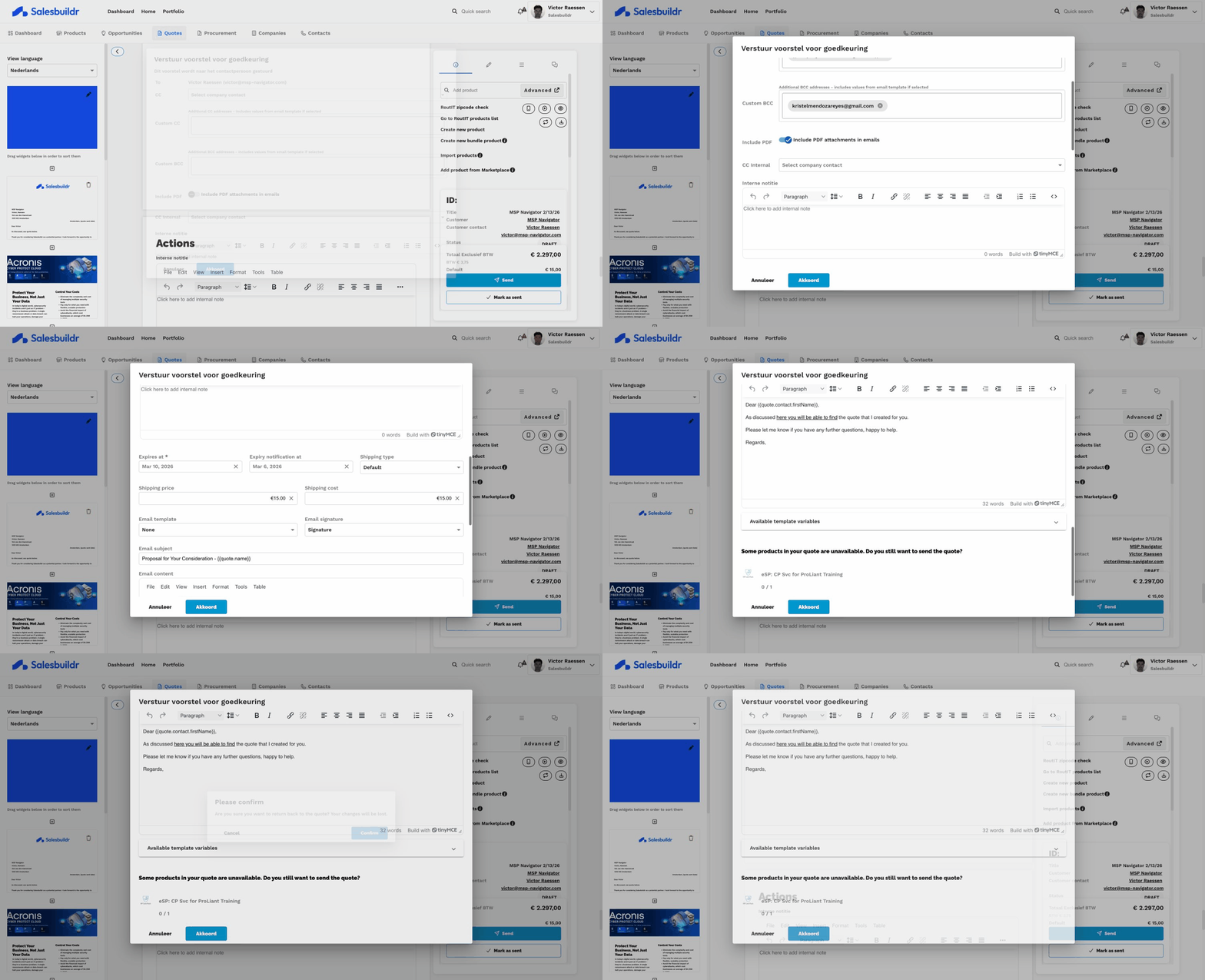
Full send panel with email preview before sending
Signatures
Salesbuildr has a built-in signature system so both parties can sign the proposal electronically.
For the salesperson (quote creator)
Upload a signature image in your profile settings. It appears on outgoing quotes in the designated signature section of your template.
For the approver (customer)
When Use Signature Image is enabled in the quote settings, the approver must have a signature uploaded to their profile before they can approve. The signature is stored permanently with the approved quote for your records.

Customer portal menu with Manage your profile link Feb 27, 2026
From their profile page, the customer can draw or upload a signature image:
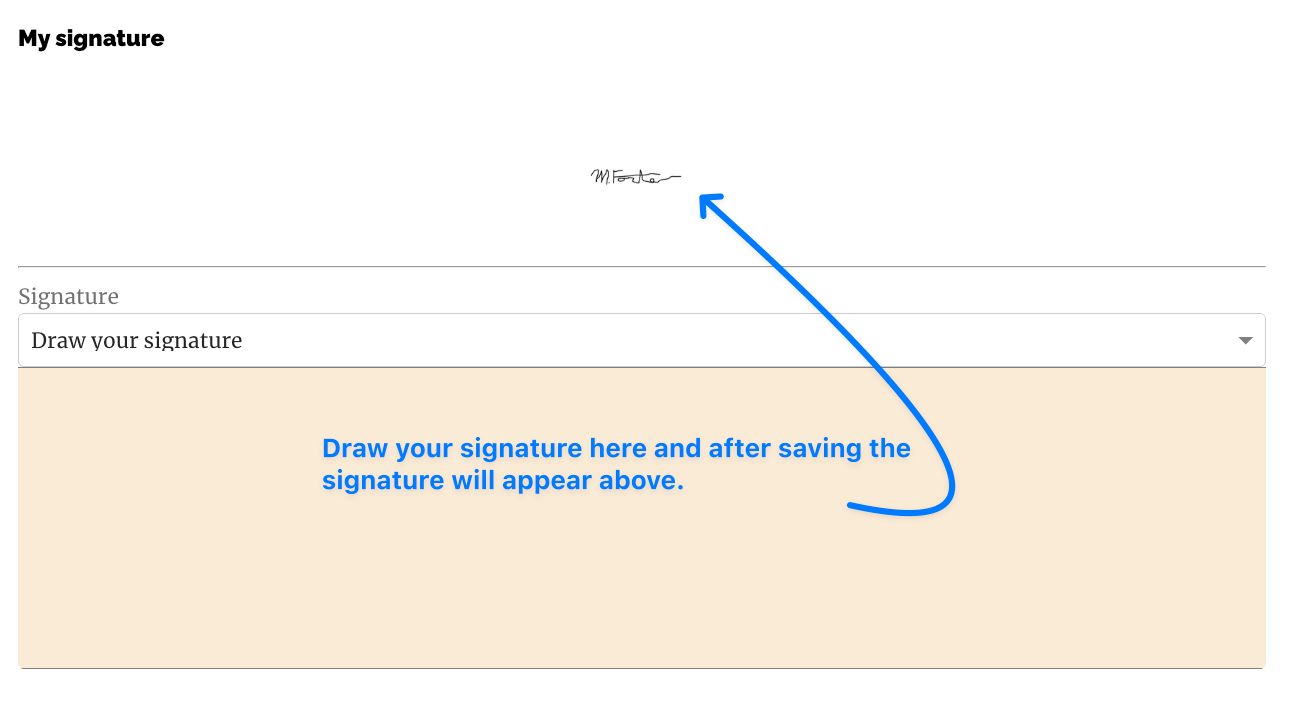
Customer signature drawing canvas in profile settings Feb 27, 2026
Adding the signature to your template
Use the {{quote.signatures}} variable to place the signature block in your quote template.
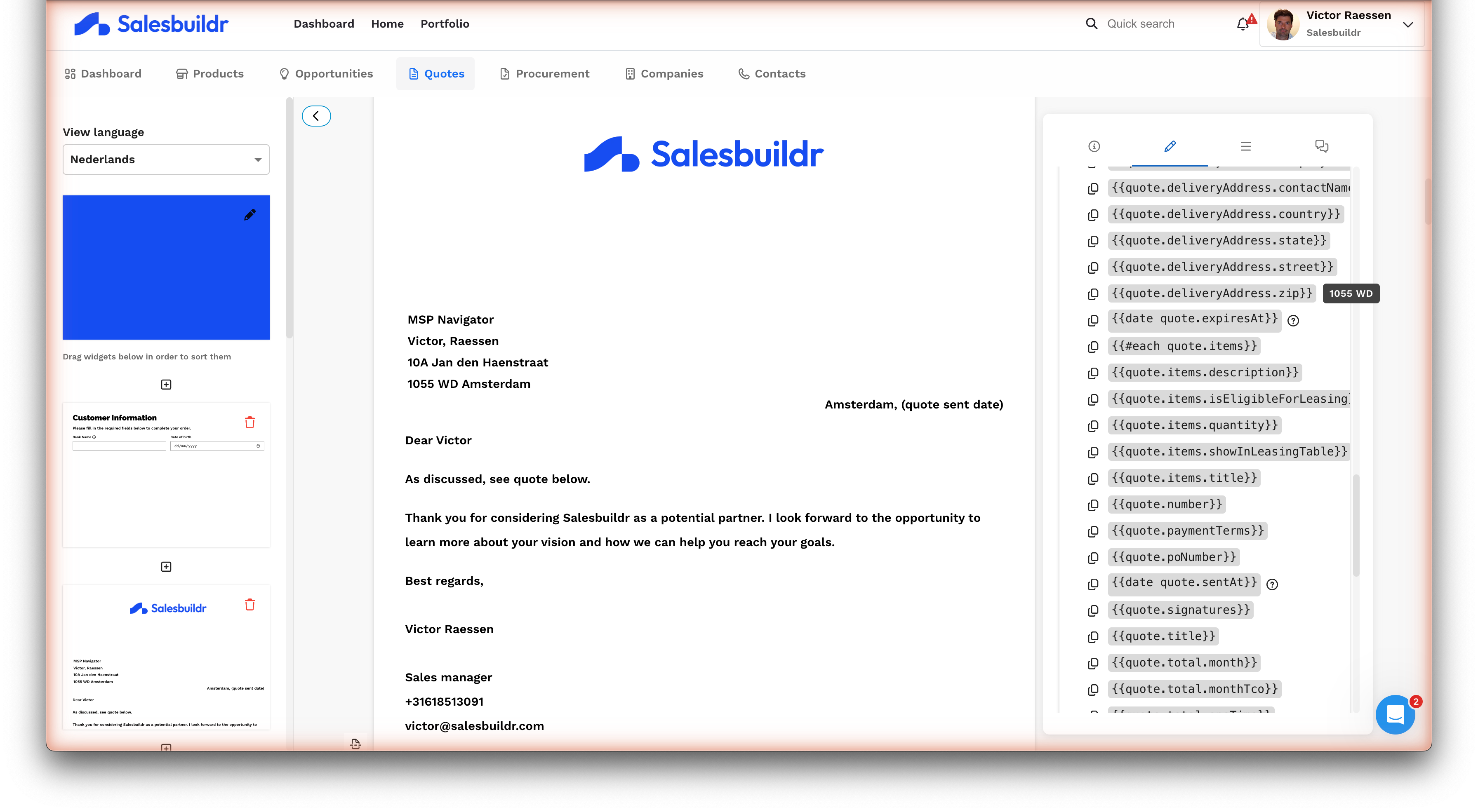
Adding the quote.signatures variable in a content block Feb 27, 2026
Once placed, the signature block appears as a placeholder until both parties have signed:
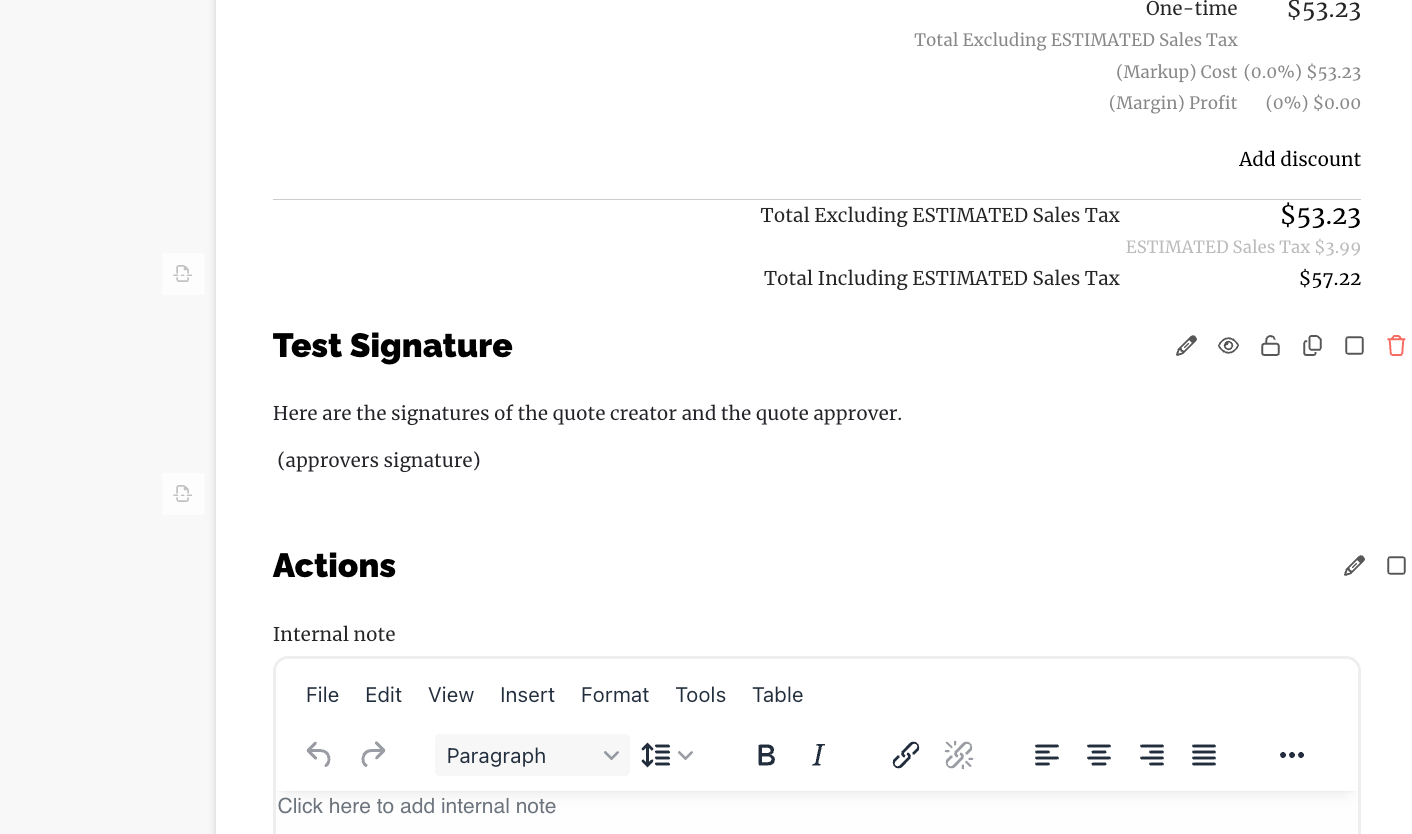
Signature block preview in the quote editor (placeholder state) Feb 27, 2026
After both parties sign, the signature block shows both signatures side by side:
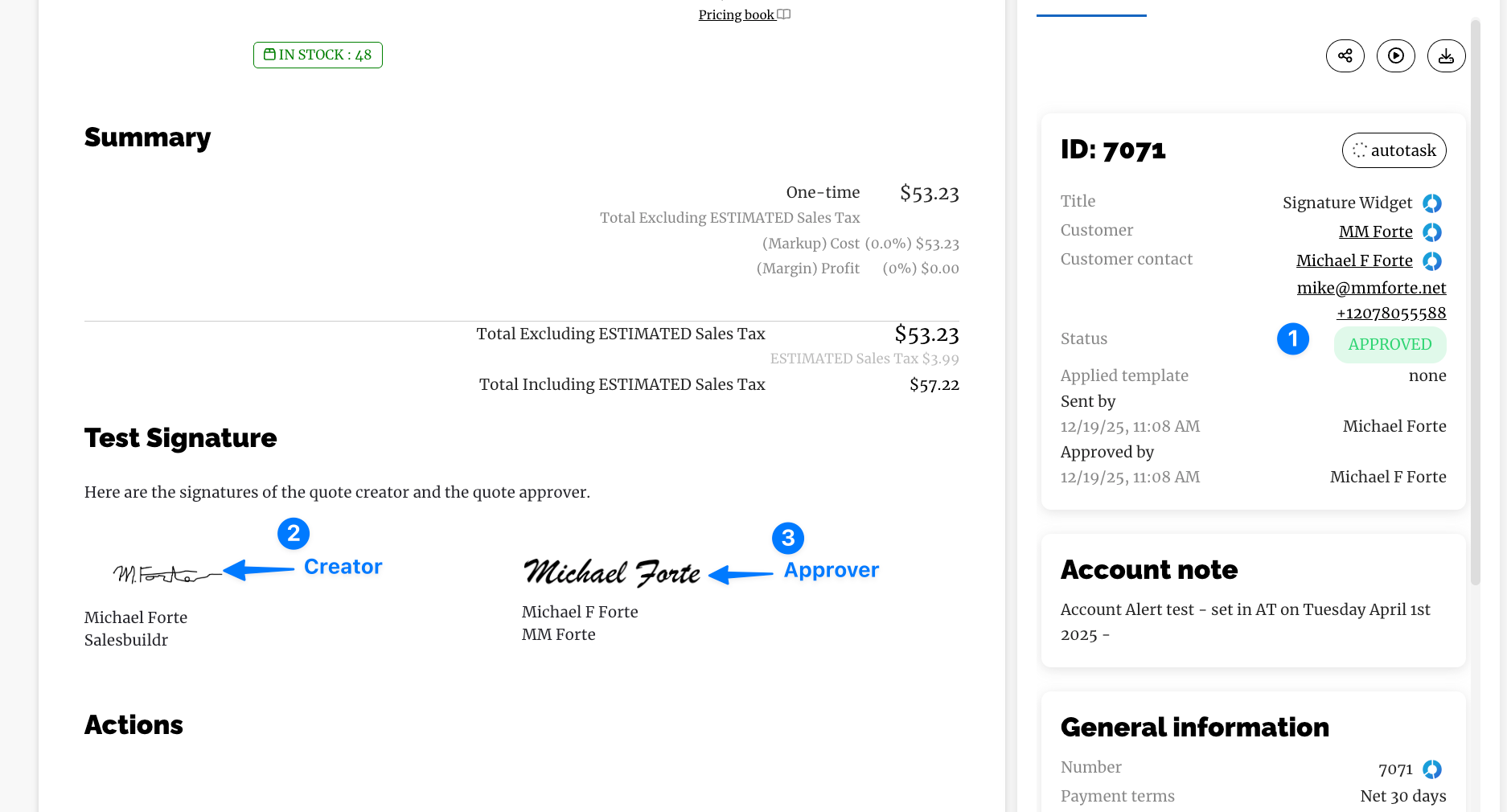
Approved quote with annotated creator and approver signatures Feb 27, 2026
The customer sees the same signatures from their end, alongside the pricing totals:
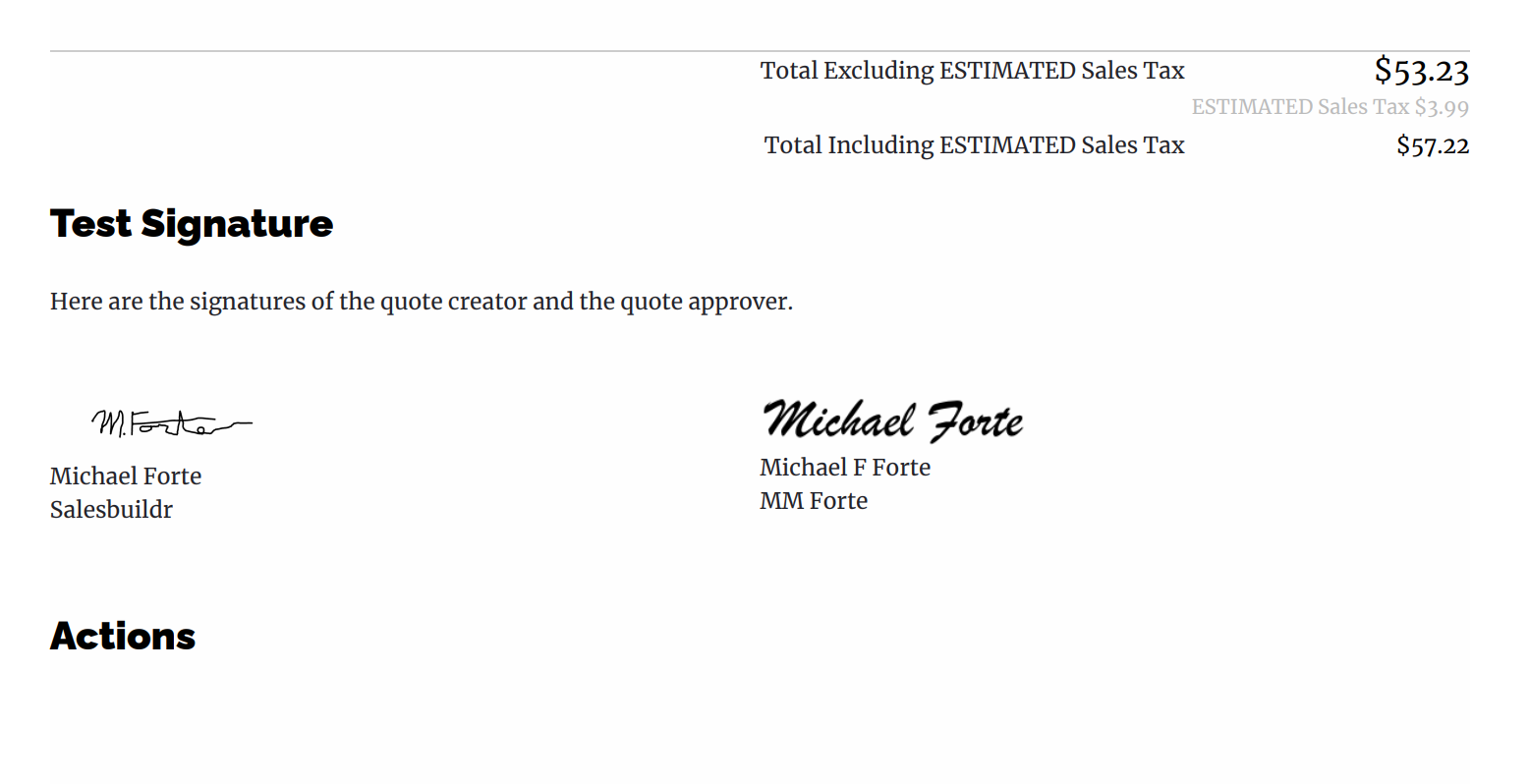
Customer-facing view of completed dual signatures with pricing totals Feb 27, 2026
Tracking
Quote details panel
The right panel's Details tab shows a full summary of the quote:
Quote ID, revision number, status, applied template, and applied pricing book
Customer, contact, and opportunity link
Payment terms, PO number, valid from/to, approval and decline dates
View count and who last viewed
Shipping address
Purchase orders linked to this quote
Financial summary: revenue, cost, profit, and margin for both one-time and recurring products
View count and who last viewed
Views from recipients who aren't logged in are recorded as Anonymous — see Email & Notifications.
Quote chat
Built-in messaging between your team and the customer — no need to switch to email for quick questions. Both parties get real-time notifications for:
Quote opened (first view)
Quote viewed (repeat visits)
New comments
Quote approved or declined
Private messages: Check the Private message checkbox to send a message visible only to your internal team. This is great for internal notes like "Customer seems interested, let's offer 10% if they push back on price" — without the customer ever seeing it.
Audit trail
Every action is recorded: creation, edits, sends, views, approvals, declines, retractions, and payment events. Each entry includes the user, timestamp, and IP address (for customer approvals). Open it from Actions > Open Audit Trail whenever you need a complete history of what happened with a quote.
Contracts
The quote editor gives you direct access to a customer's existing PSA contracts. This lets you inspect current services, build renewal proposals, and track churn — all without leaving the editor.
Opening contracts
Click Open Contracts in the quote editor toolbar to view all active contracts for the customer associated with the quote. The contracts dialog shows:
Contract name and number
Start and end dates
Service items with quantities, pricing, and costs
Service bundles
Estimated revenue, hours, and costs
You can group contract items by vendor/service, customer/service, or service code. Use the refresh button to pull the latest contract data from your PSA.
Contracts dialog showing contract items with service names, quantities, pricing, and Add to quote buttons
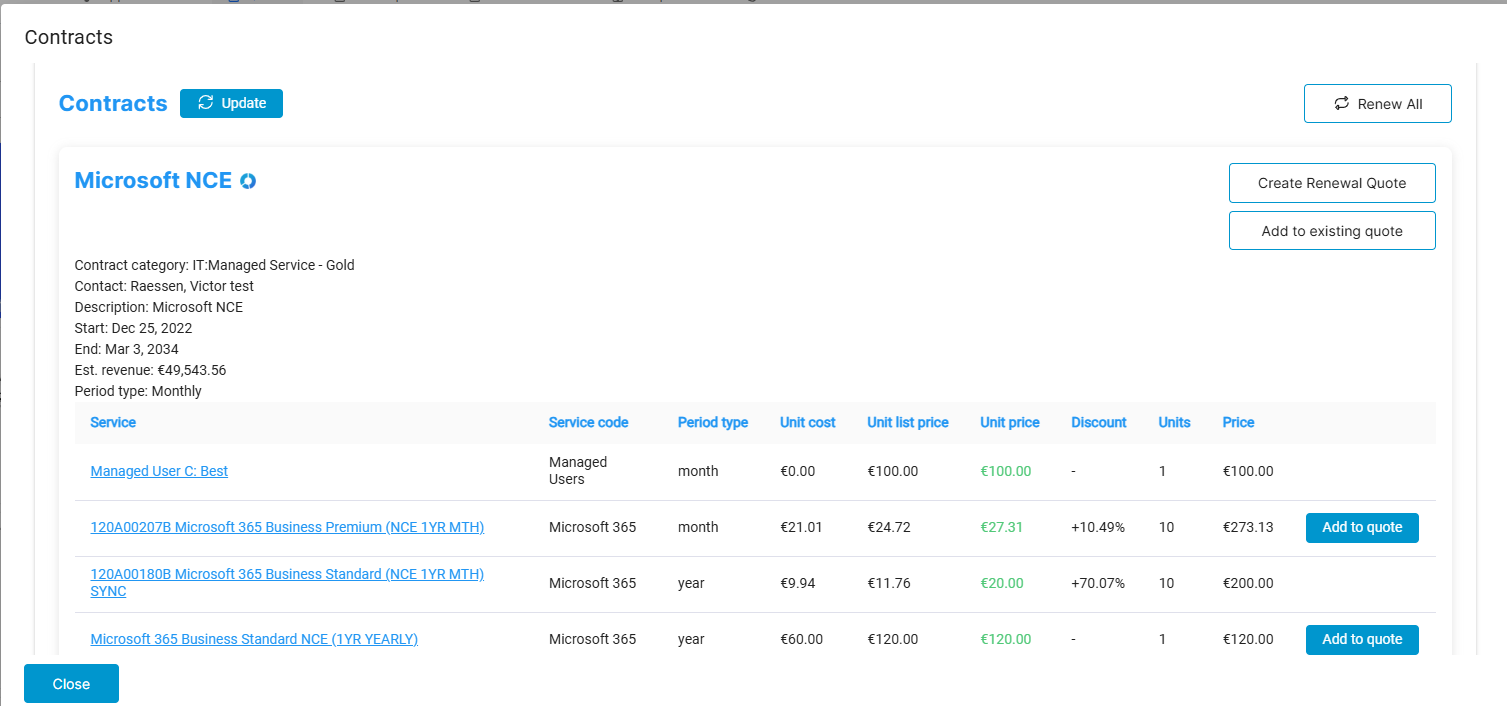
PSA contract view showing line items grouped by period type with quantities, unit prices, and markup columns
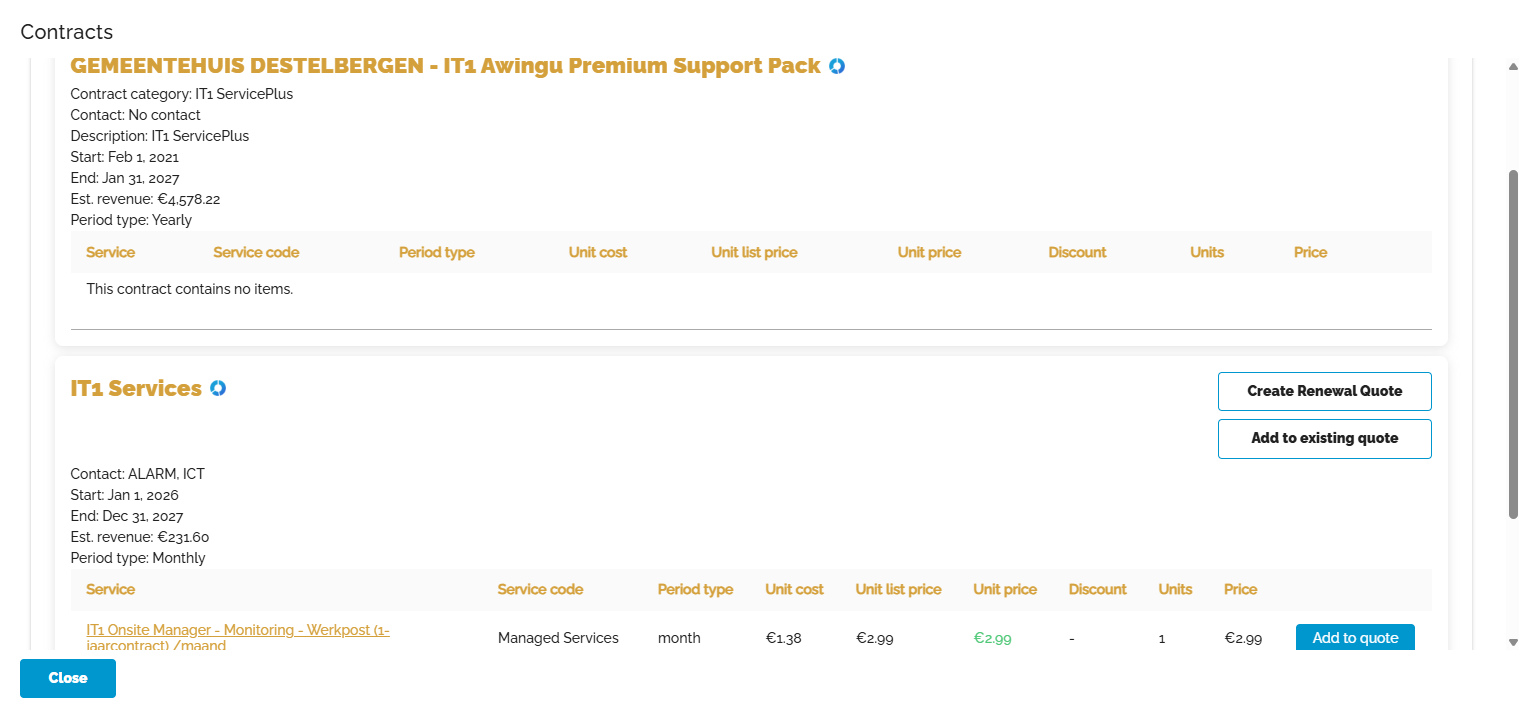
PSA contract detail with monthly and yearly product totals, subtotals, taxes, and profit indicators
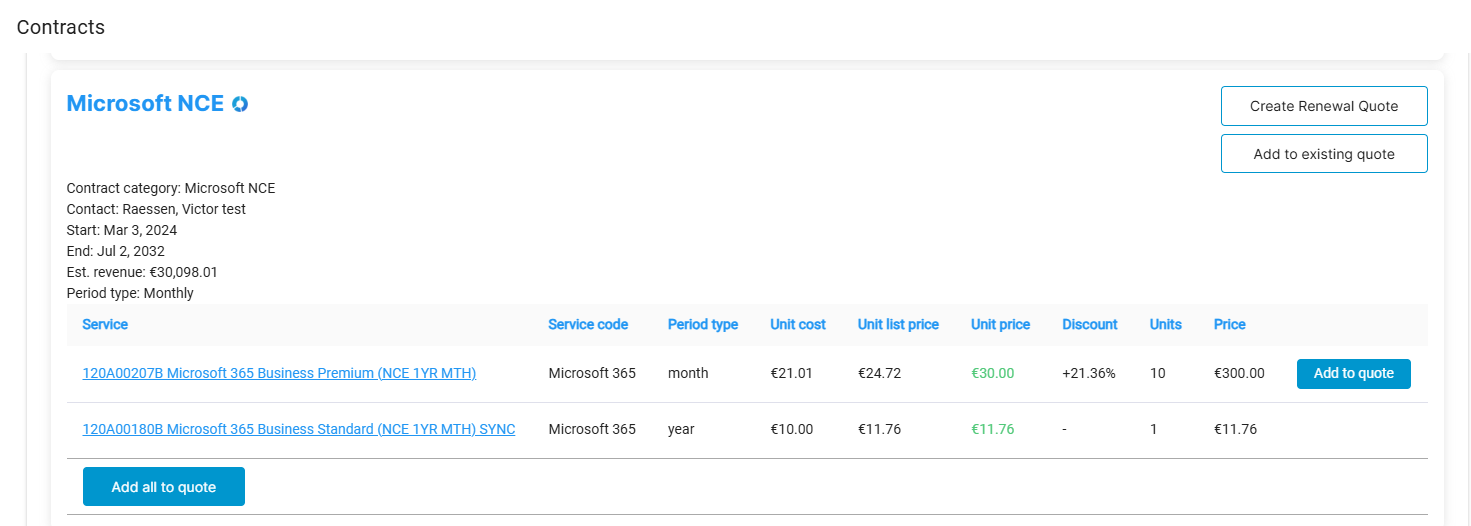
Adding contract items to a quote
From the contracts dialog, you can add existing contract items to your quote. This is used in two scenarios:
Churn tracking — Select services being terminated or replaced. They are added with negative quantities, and a churn widget is automatically inserted to show service terminations alongside new items. This gives the customer a clear view of the net change in recurring revenue.
Renewal proposals — Click Renewal proposal to create a new quote pre-populated with the contract's services, ready for renegotiation or extension.
Displaying contract items on the proposal
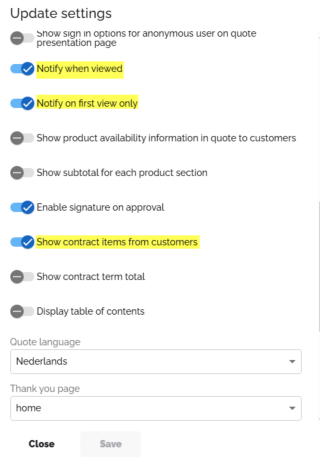
Two quote settings control how contract information appears to the customer:
These settings are available in the quote's Settings dialog under display options.
Update settings dialog with toggles for showing contract items, bundle products, totals, and notification options
Creating contracts from approved quotes
After a quote is approved and a fulfillment ticket is created, you can push approved service items back to your PSA as new contract lines. This creates or extends contracts with the recurring services the customer just purchased.
Note: Only service-type items (recurring) can be added to contracts. One-time products go through procurement instead.
How contract creation works per PSA:
Contracts created from Salesbuildr are linked back to the original quote for audit trail purposes.
Related articles
Products — Managing your product catalog, importing, pricing, and bundles
Widget templates — Creating and reusing content blocks across proposals
Quote templates — Full proposal layouts with the settings hierarchy
Styling & Cover Pages — Fonts, colors, margins, and branded covers
Pricing Book — Customer-specific pricing overrides
Dynamic Pricing — Automatic price derivation from distributor feeds
Fulfillment & Tickets — Post-approval ticket and sales order creation
Email Templates — Customizing the emails your customers receive
Storefront — Self-service quote portal with payment collection
Opportunities — Managing your pipeline and linking quotes to deals