Site
Site branding, landing pages, footer, custom fonts, custom domains, and terms & conditions.
Written By Victor Raessen
Last updated 24 days ago
Portal & Branding
Configure your customer-facing portal pages, company-wide branding, footer, and terms & conditions.
Footer
The portal footer appears on your customer-facing pages. Configure it at Settings > Site Settings > Footer.
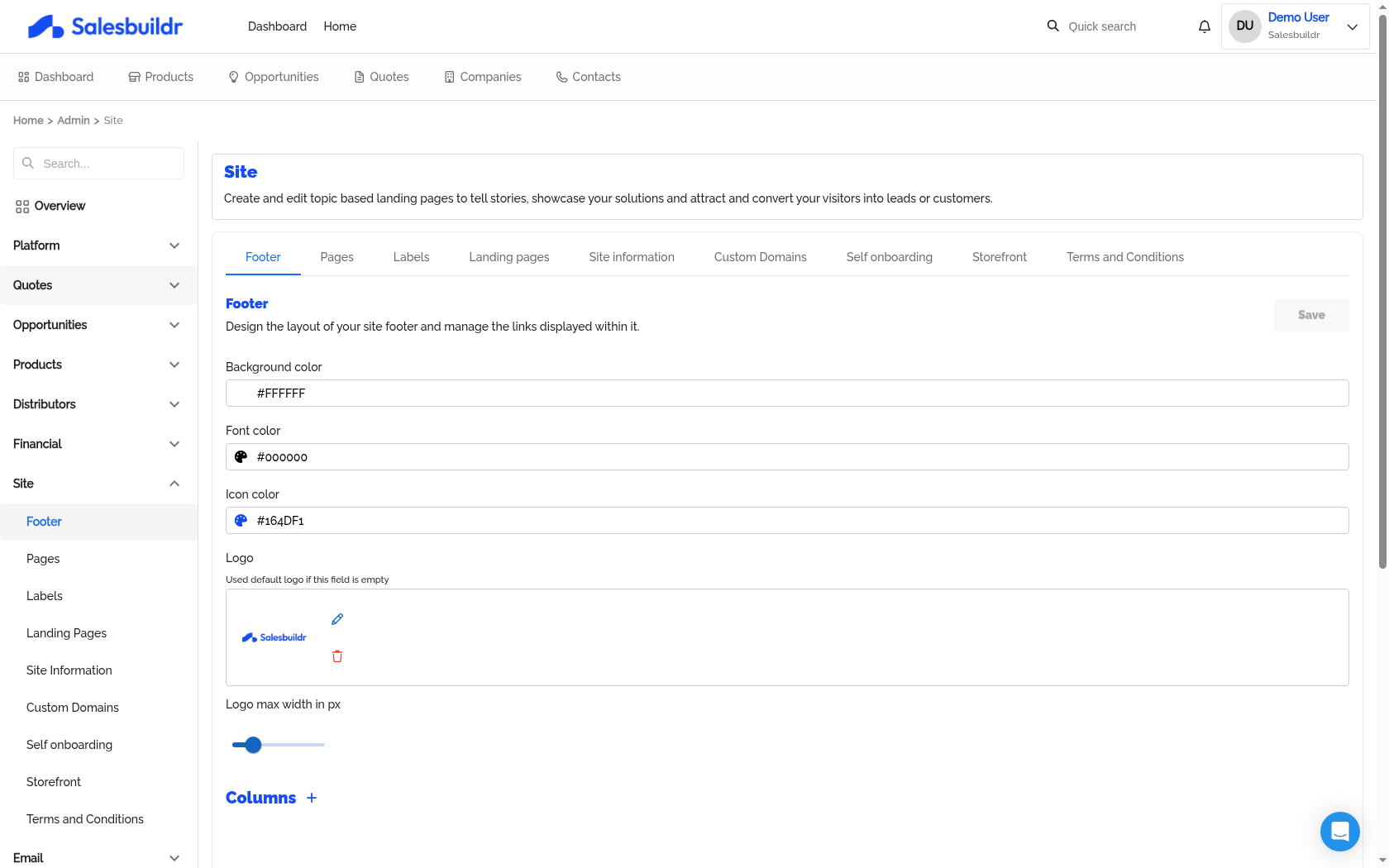
Settings > Site Settings > Footer — Mar 1, 2026
Footer options
Background color and font color
Icon color for social/link icons
Footer logo with configurable max width
Columns — Multi-column layout where each column has a label and a list of link elements (label + URL)
Landing pages
Landing pages are the customer-facing portal pages that your customers see when they visit your Salesbuildr portal. They are customizable content pages for showcasing your product catalog, company news, videos, and more.
Note: Landing pages are portal pages — they are separate from the proposal/quote presentation page that customers receive when you send them a quote.
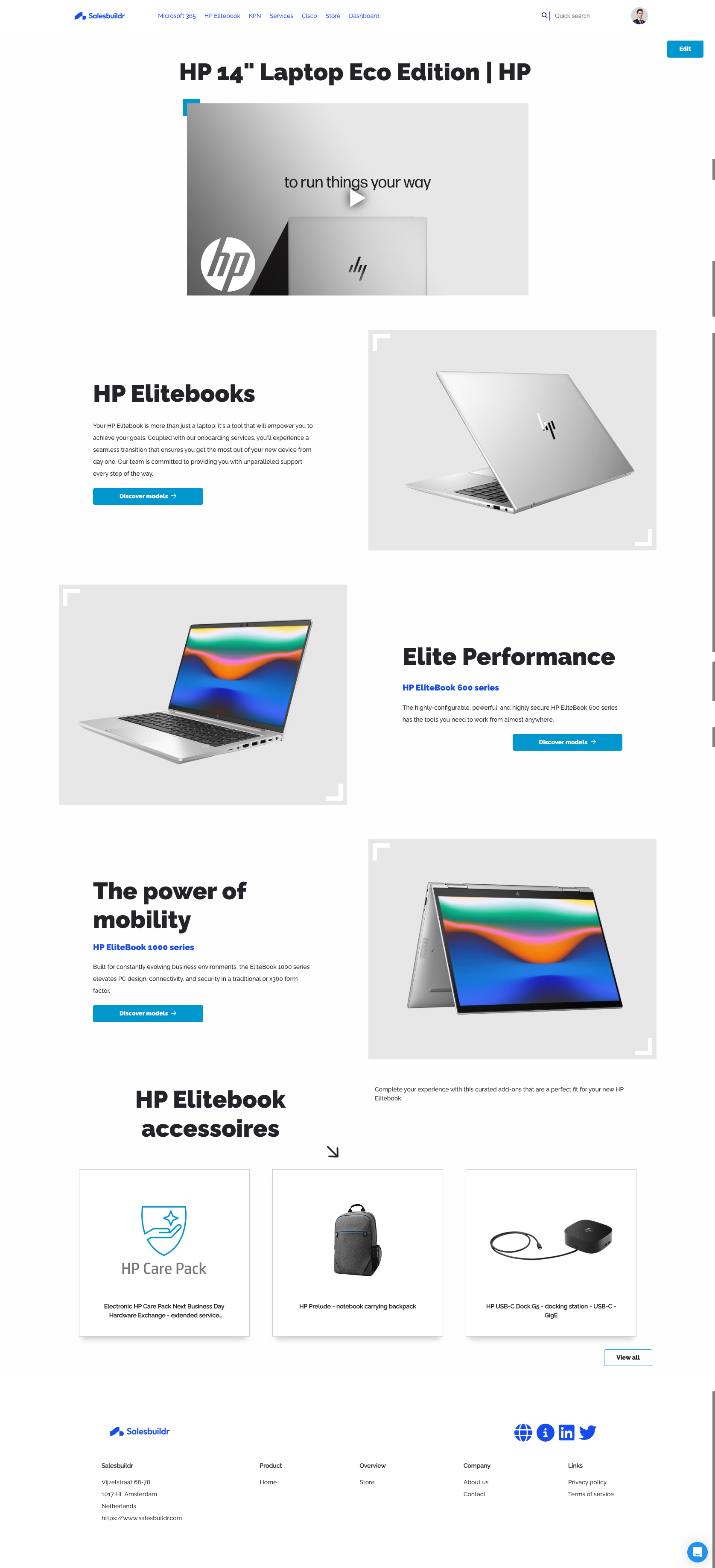
Customer-facing landing page showing product catalog with HP Elitebooks, accessory cards, and company footer Feb 20, 2026
Managing landing pages
Navigate to Settings > Site Settings > Landing Pages to create and manage landing pages. You can:
Create new landing pages
Copy existing pages
Reorder pages (drag-and-drop) for the navigation menu
Toggle page visibility in the menu
Delete pages
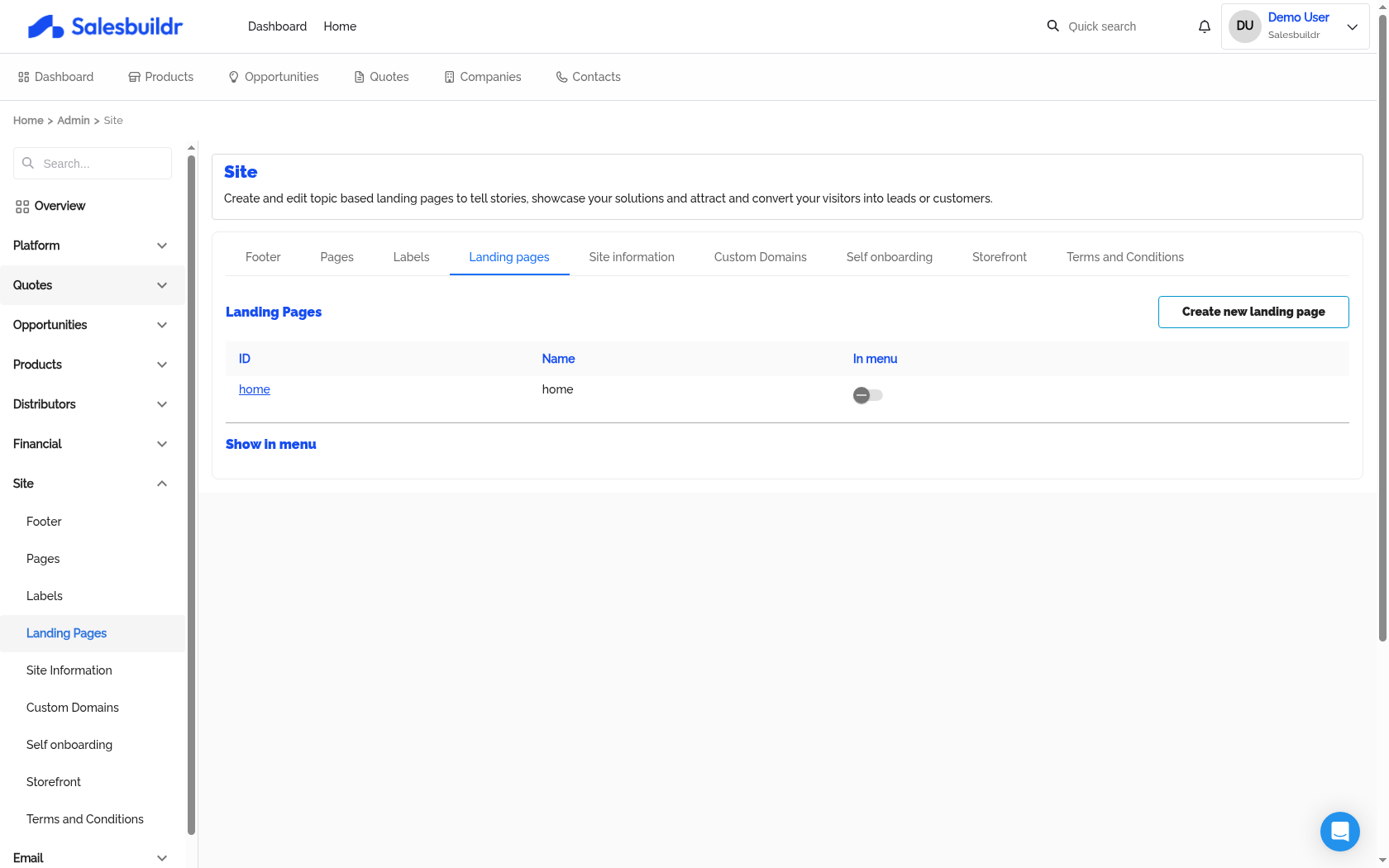
Settings > Site Settings > Landing Pages — Mar 1, 2026
Page structure
Each landing page has a header and one or more content blocks.
Header options:
Title and subtitle with custom font sizes and colors
Banner image with aspect ratio and color settings
Quick search toggle
Summary display toggle
Video content
Hide header option
Content block types:
Content blocks support buttons with labels, links, and three styles (primary, secondary, ghost).
Landing pages as thank-you pages
Landing pages can also serve as order confirmation / thank-you pages. When a customer approves a quote, they can be redirected to a specific landing page. Configure this per template or per quote in the quote settings.
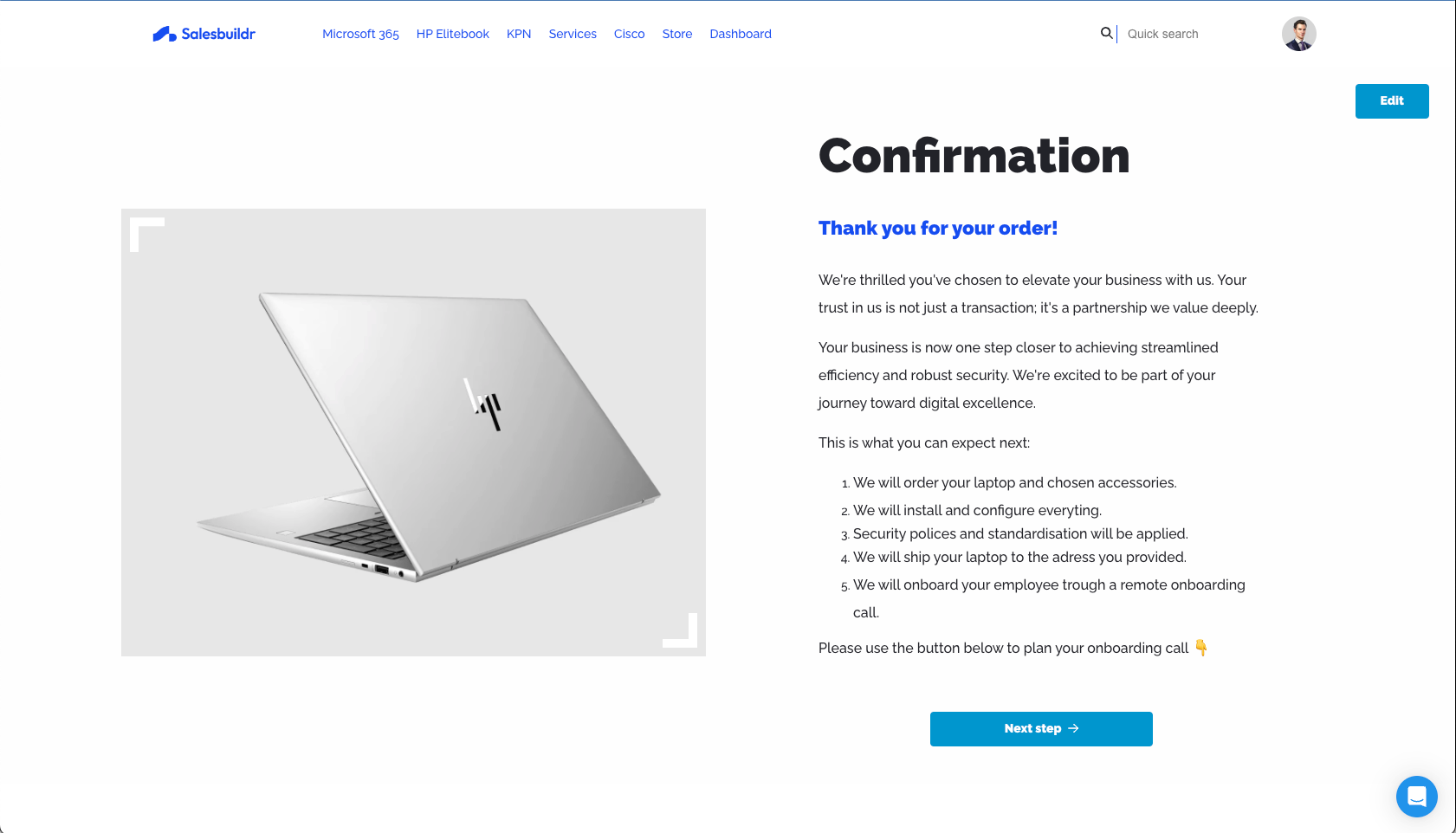
Thank you page showing order confirmation with product image, next steps, and call-to-action button Feb 20, 2026
Branding (site information)
Company-wide branding is configured at Settings > Site Settings > Site Information. These settings affect both the customer portal and quote documents.
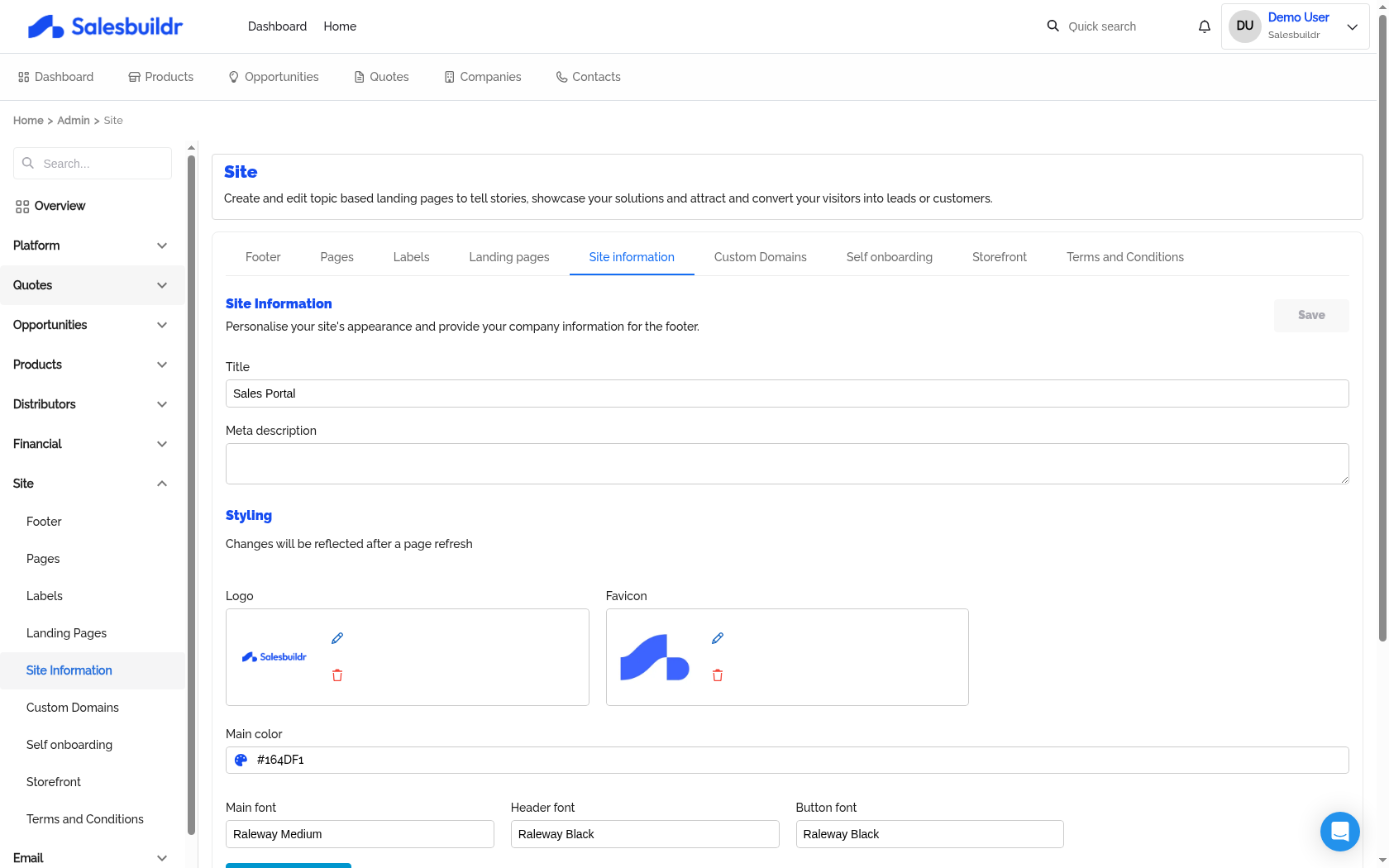
Settings > Site Settings > Site Information — Mar 1, 2026
Branding options
Custom fonts
You can upload custom font files to use across your portal and quote documents. Navigate to site information and upload your brand fonts. Each uploaded font can specify a style (normal, italic) and weight (400, bold, etc.).
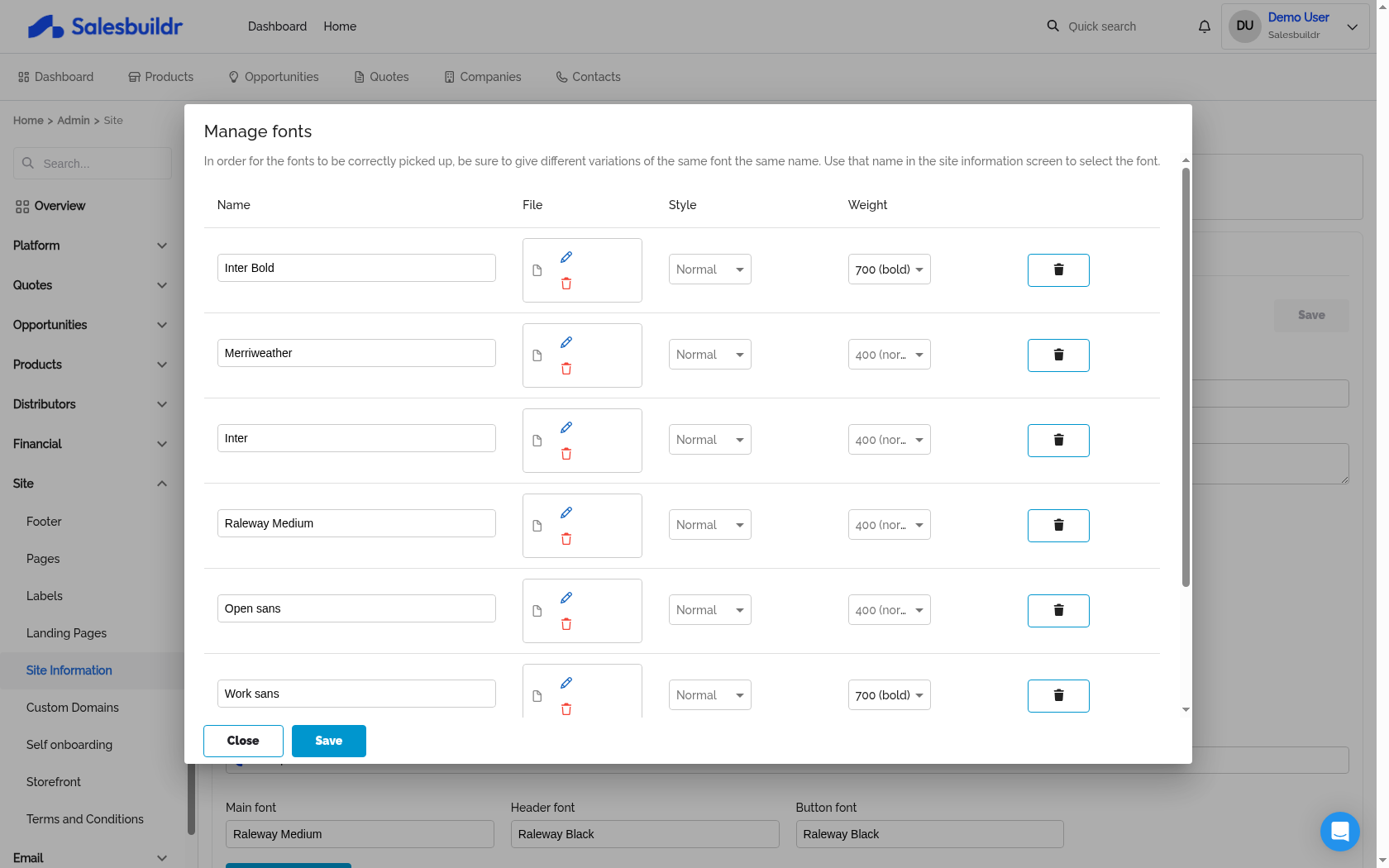
Settings > Site Settings > Site Information > Manage Fonts — Mar 1, 2026
Custom Domains
You can configure a custom domain for your Salesbuildr portal at Settings > Site Settings > Domain Names.
To set up your domain, create a CNAME record pointing your subdomain (e.g. salesportal.yourdomain.com) to app.eu1-salesbuildr.com (or the relevant regional endpoint for your tenant).
Important: The CNAME record must be set to DNS only — do not enable proxying. If you use Cloudflare, make sure the proxy toggle is set to the grey cloud (DNS only) rather than the orange cloud (Proxied). Enabling the Cloudflare proxy will prevent Salesbuildr from verifying your domain, even if the portal appears to load correctly.
Terms & conditions
Terms and conditions are configured globally for your tenant — they apply to all quotes, not per template or per quote.
Setup
Navigate to Settings > Site Settings > Terms and Conditions and enter your T&C content using the rich-text editor.
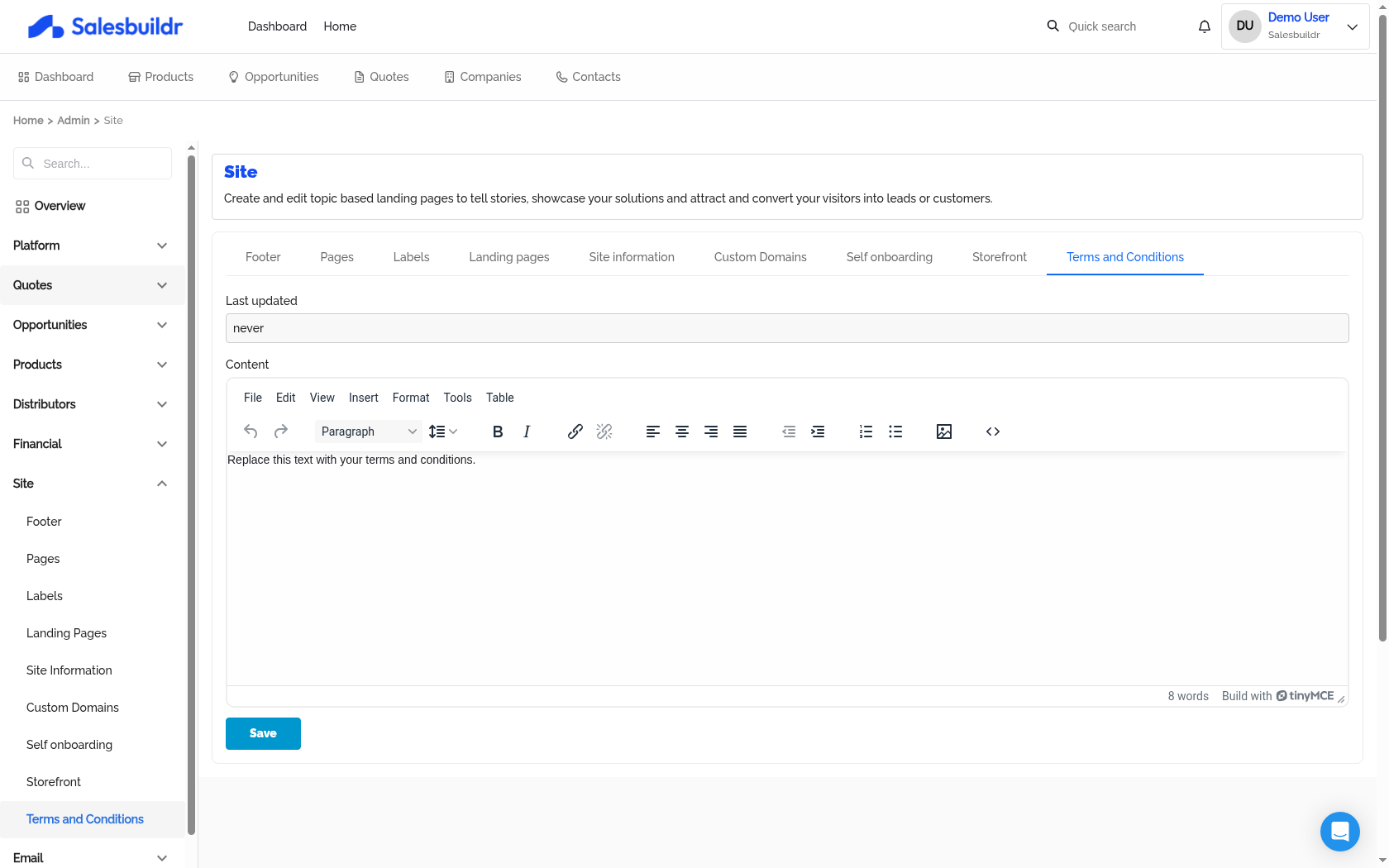
Settings > Site Settings > Terms and Conditions — Mar 1, 2026
How it works
When a customer company is reviewing a quote for the first time, they are shown the terms and conditions. Consent is tracked per company — once a company accepts, they don't see the T&C prompt again on future quotes (unless the T&C content is updated).
Consent modes
Configure the consent mode at Settings > Quotes > Configuration.
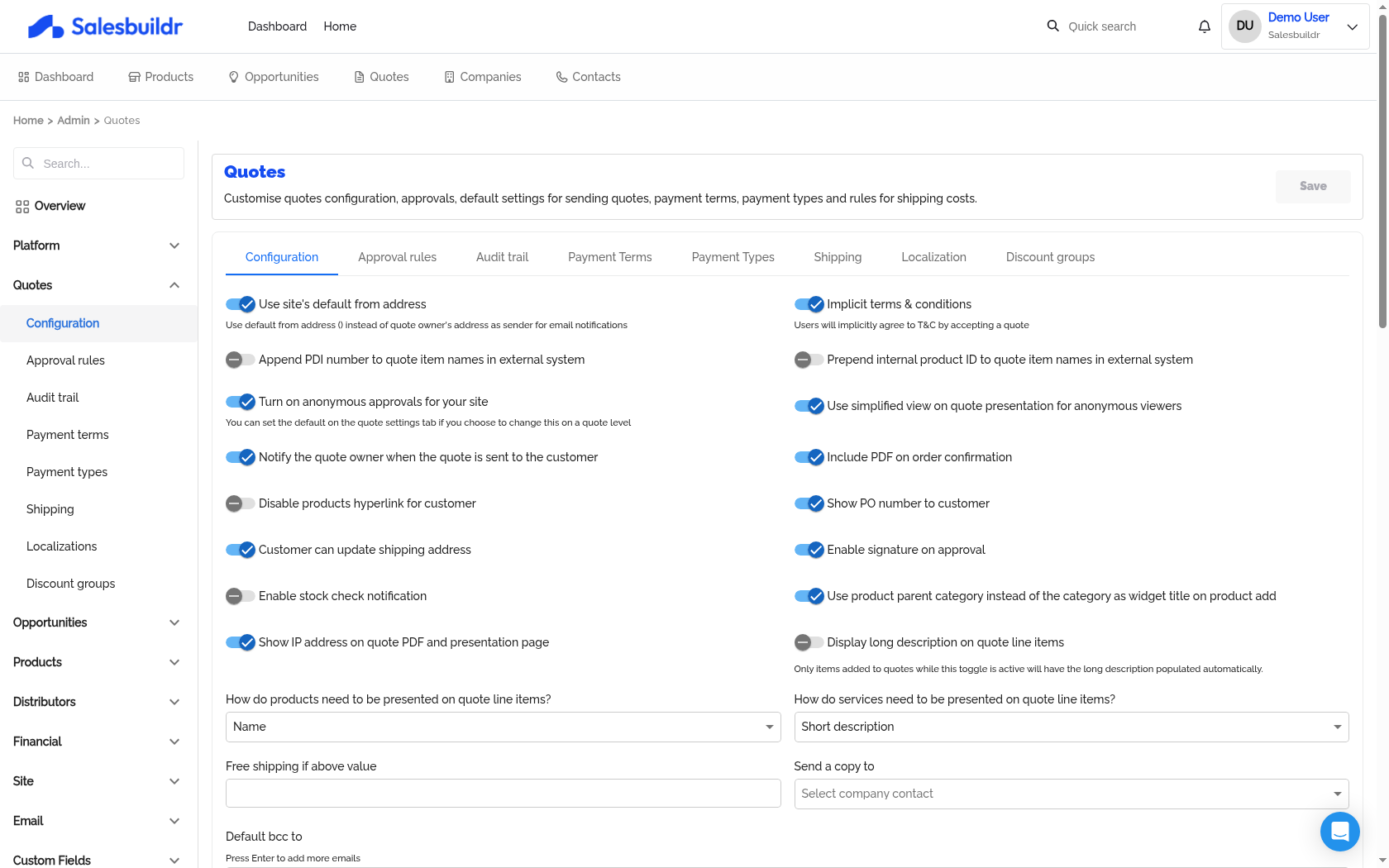
Settings > Quotes > Configuration — Mar 1, 2026
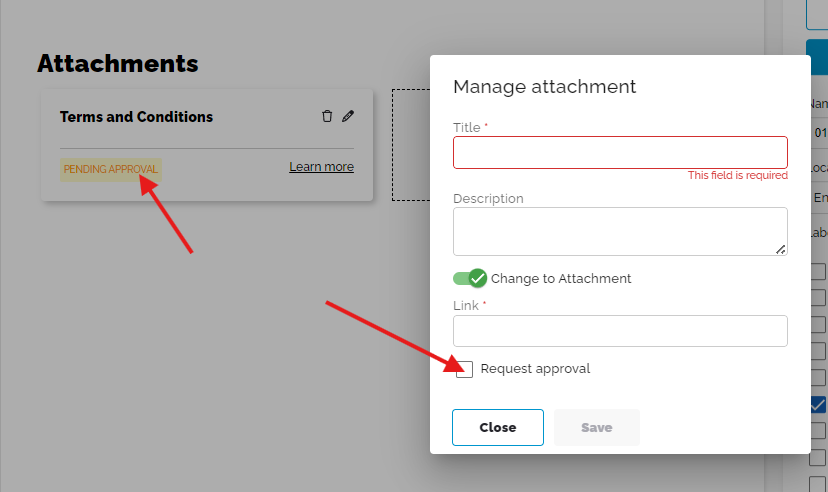
Manage attachment dialog with title, description, attachment toggle, and approval request option Feb 20, 2026
See also
Products — Settings
Quotes — Settings
About Salesbuildr — Getting Started
Custom Fields — Settings