Quotes
Quote configuration, approval workflows, audit trail, payment options, shipping, and discount groups.
Written By Victor Raessen
Last updated 24 days ago
Quotes
Configure how quotes are created, approved, priced, and sent across your organization.
Quote Configuration
Navigate to Settings > Quotes > Configuration to set the global defaults that apply to all new quotes.
Changes here affect the defaults on every new quote. Individual quotes can override most of these settings at the quote level.
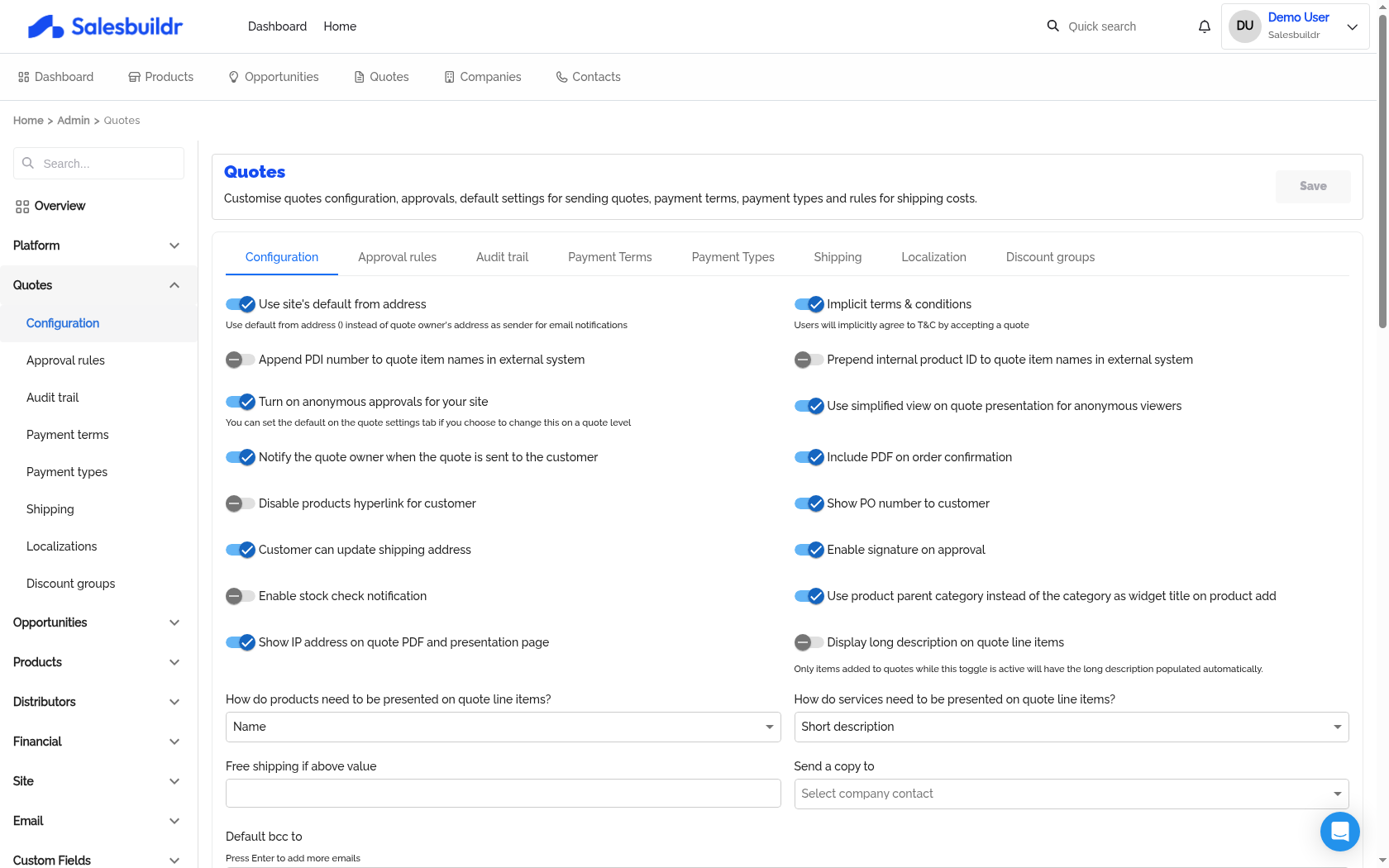
Settings > Quotes > Configuration — Mar 1, 2026, 5:30 PM UTC
Email & notification settings
Quote presentation defaults
These settings control what customers see when they open a quote.
Allowing recipients to modify quantities
The 'Recipient can modify quantities' option must be enabled on the individual quote, not only at the template or global level. If you have enabled this setting globally or on a template but recipients still cannot adjust quantities when viewing the quote, check the quote's own settings panel and confirm the toggle is active there. To test the behaviour, use the 'Mark as sent' preview — the quantity controls will only appear in that view, not in the normal editor.
Quote expiration time and timezone behaviour
Expiration dates and times in Salesbuildr are stored in UTC. If your account timezone differs from UTC, the displayed expiration time may appear to shift after saving. For example, a user on UTC-5 who sets an expiration of 12:00 PM local time may find the quote expires at 7:00 AM local time because the system saved the value as 12:00 UTC.
Line item display
Quote defaults
Quote naming
Approval Rules
Configure who needs to approve quotes before they reach the customer. Salesbuildr supports two approval modes: simple threshold-based rules and advanced multi-step workflows.
For the day-to-day sending and approval experience, see Sending.
Simple approval
Configure basic approval rules under Settings > Quotes > Approval Rules:
Above value — Require approval when quote total exceeds a threshold
Above discount percentage — Require approval when discount exceeds a percentage
Category filter — Trigger approval for specific product categories (include or exclude)
Approver list — Fixed list of internal approvers
Advanced approval
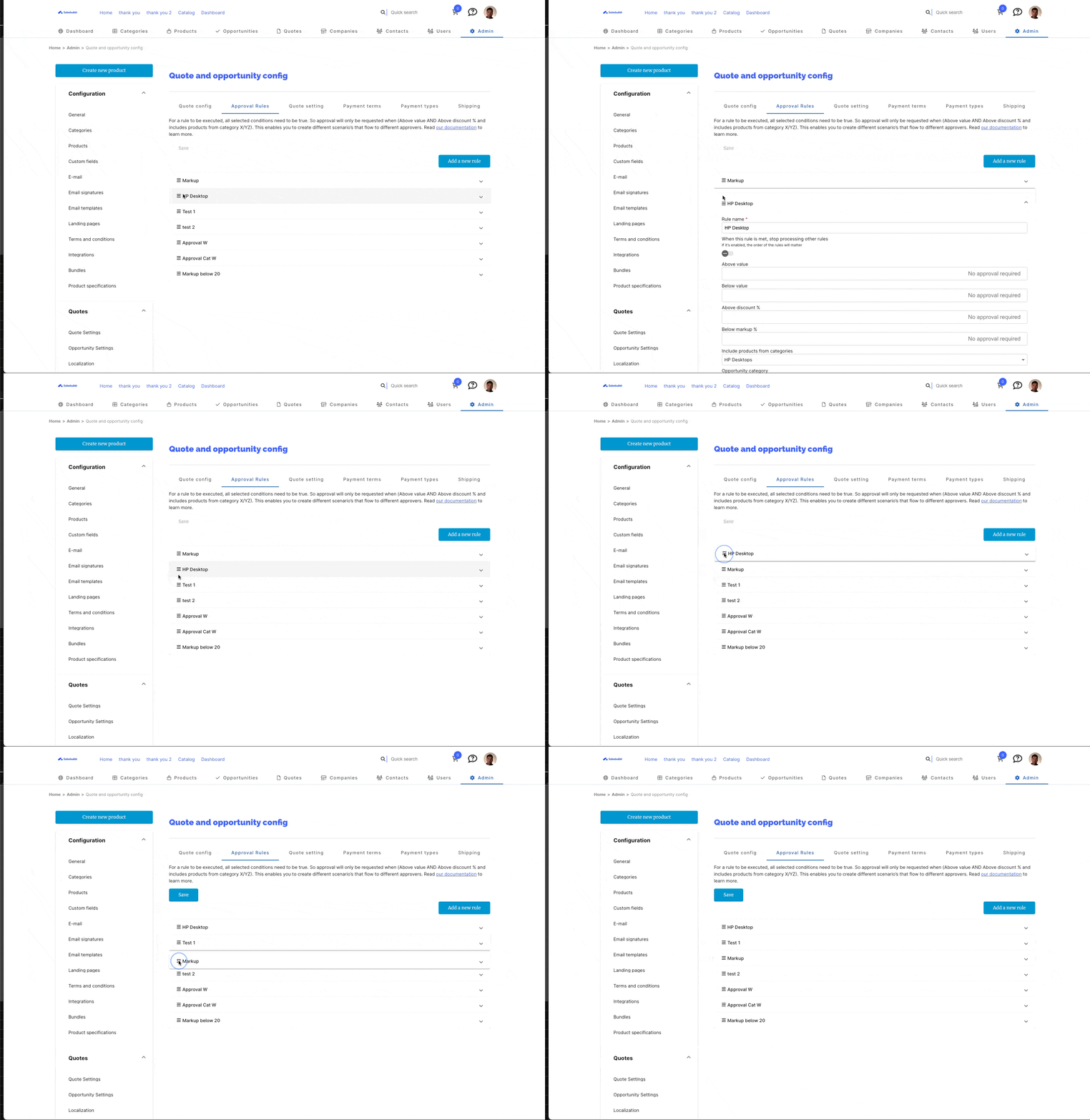
Enable the Advanced Approval Workflow feature for rule-based, multi-step approvals.
Each advanced rule can include:
Rule name — Descriptive label
Value thresholds — Above and/or below quote total
Discount thresholds — Above discount percentage
Markup thresholds — Below markup percentage
ARR thresholds — Above/below annual recurring revenue
Category filters — Opportunity or product category
Quote owner filter — Specific quote owners
Manager approval — Route to the quote sender's primary/secondary manager
Stop other rules — Prevent subsequent rules from being evaluated
Approval chain order
Internal approval — Evaluates rules, routes to internal approvers
Recipient approval — Sends to the opportunity contact
External approval — Routes to company-configured approvers (with optional minimum value threshold) or advanced external approvers in a defined order
Customer approval
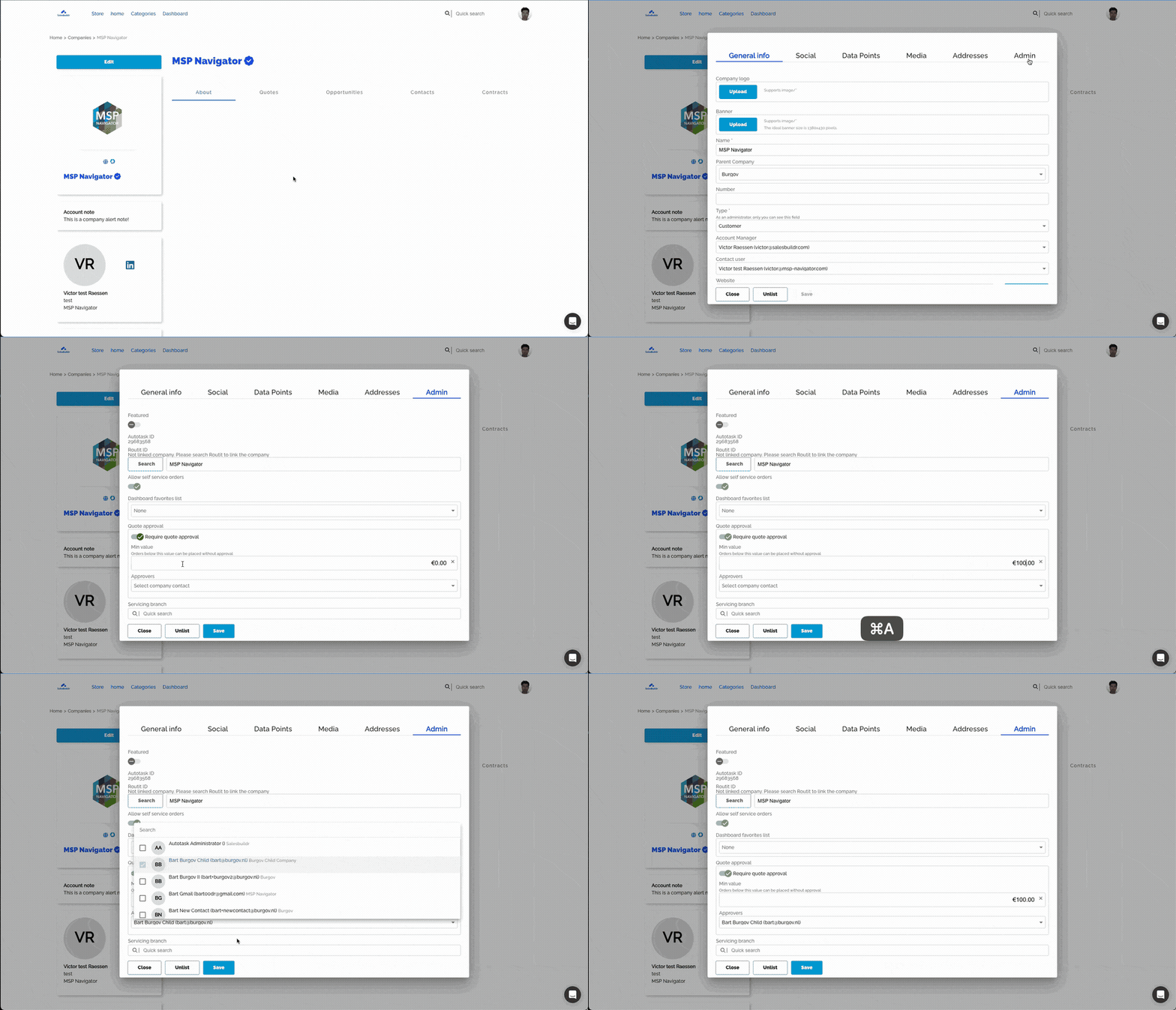
Configure per-company approval rules that require approval from specific contacts before a quote is considered accepted. Set minimum value thresholds and choose ordered or unordered approval chains. You can also set a custom contact as the approver and require explicit approval for attachments.
Email notifications
Salesbuildr sends automatic email notifications at each stage of the approval workflow. Customize templates under Settings > Email Templates.
See Email Templates for details on customizing notification content.
Quote expiry reminders
Separate from approval emails, Salesbuildr can email the customer a reminder before a quote expires. The default lead time is Days before expiry to send reminder in Configuration (see Quote defaults above). Each quote stores its own Expiry notification at date when sent.
To change timing for one quote, or to turn off the reminder for a single quote, see Managing (or disabling) quote expiry reminder emails. There is no organization-wide off switch today; customers can follow this Featurebase request for updates.
Leasing
The Leasing tab is available when the quoteLeasing feature is enabled for your tenant. For the full leasing guide, see Leasing.
Navigate to Settings > Quotes > Leasing to configure:
Leasing calculation enabled — Master toggle for leasing on quotes
Layout option — Simple or Advanced. Advanced mode adds downpayment and final payment options
Show price for leasing items — Display unit prices on leasable line items
Show price for monthly services and labor — Display prices for recurring service items
Fixed leasing term — Lock all quotes to a specific term length
Available leasing periods — Define the term options (in months) available to users
Leasing costs — Configure tiered interest rates based on value ranges and lease periods
Audit Trail
Navigate to Settings > Quotes > Audit trail to manage the list of IP addresses that are excluded from quote presentation view tracking.
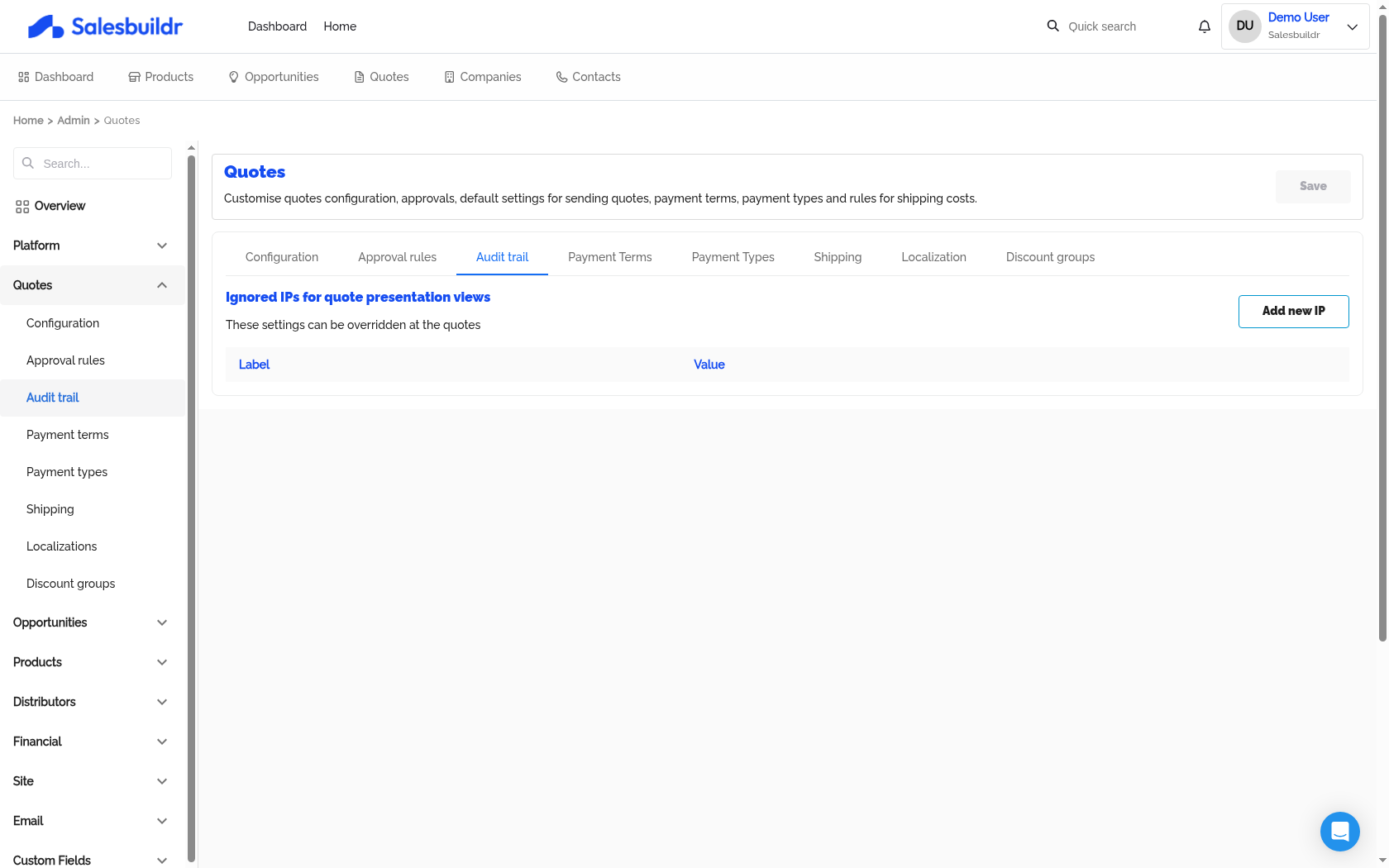
Settings > Quotes > Audit trail — Mar 1, 2026, 5:30 PM UTC
What is view tracking?
When a customer opens a quote presentation page, Salesbuildr records the view and can notify the quote owner. This helps your sales team know when a customer has engaged with a proposal.
However, if your team opens the same quote (e.g. to review it before sending, or to check the presentation), those internal views would also trigger notifications — creating noise and skewing your data.
Ignored IPs solve this: any view from an IP address on this list is silently excluded and does not trigger a notification or count as a customer view.
Managing ignored IPs
The ignored IPs table shows each entry with a Label (a descriptive name, e.g. "Head office") and an IP address.
Add an IP
Click Add new IP. Enter:
Label — a name to identify the IP (e.g. "Amsterdam office", "VPN exit node")
IP address — the IPv4 or IPv6 address to ignore
Edit or delete an IP
Use the edit icon to update an entry's label or IP address. Use the delete icon to remove it.
Note: These settings can also be overridden at the individual quote level.
Payment Terms
Payment Terms define the conditions under which payment is expected — for example, "Net 30" (payment within 30 days of invoice) or "Due on receipt."
Navigate to Settings > Quotes > Payment Terms.
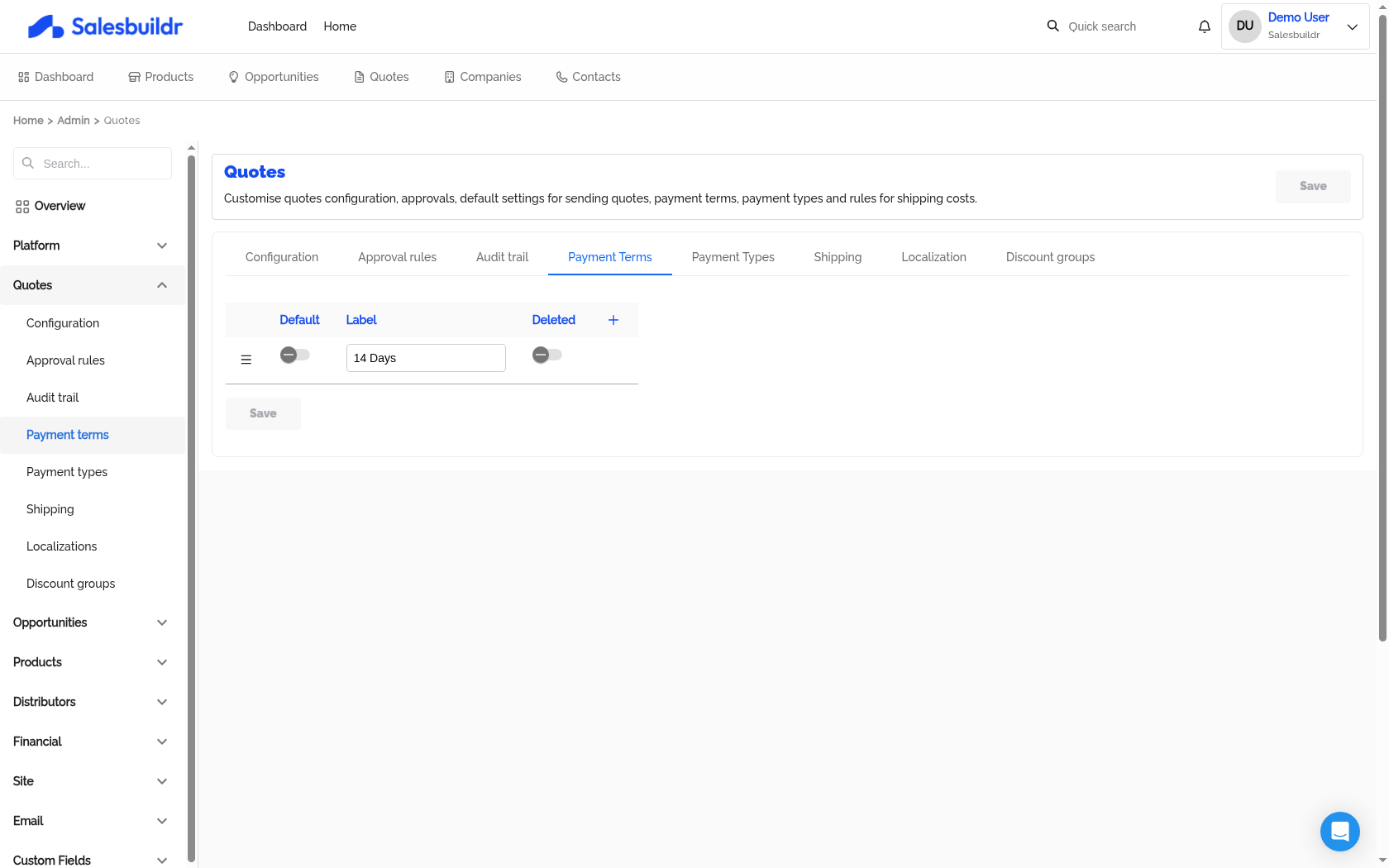
Settings > Quotes > Payment Terms — Mar 1, 2026, 5:30 PM UTC
Each payment term is a simple named entry. To add a new term:
Click Add (or the equivalent create button in the list)
Enter the name (e.g.
Net 30,Net 60,Due on receipt)Save
To edit an existing term, click its row in the list. To remove a term, use the delete action.
Using payment terms: The available terms appear in the Payment term field on quotes. You can also set a default payment term in Settings > Quotes > Configuration.
Payment Types
Payment Types define the accepted payment methods customers can use — for example, "Bank transfer," "Credit card," or "Direct debit."
Navigate to Settings > Quotes > Payment Types.
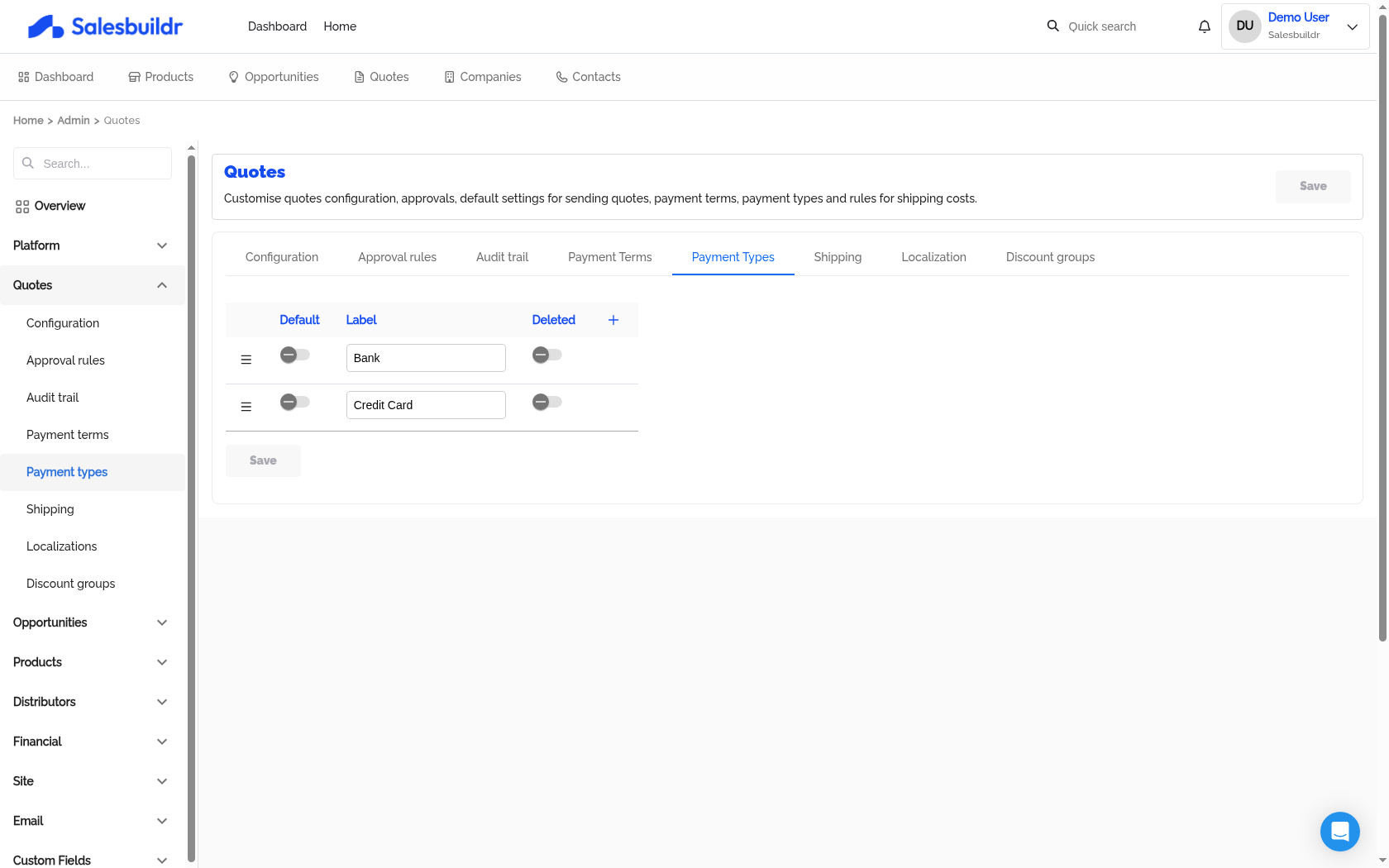
Settings > Quotes > Payment Types — Mar 1, 2026, 5:30 PM UTC
Like payment terms, each type is a named entry. Add, edit, and delete types in the same way.
Using payment types: The available types appear in the Payment type field on quotes, letting you record or communicate the expected payment method to customers.
Shipping
Navigate to Settings > Quotes > Shipping to manage the shipping methods available on quotes.
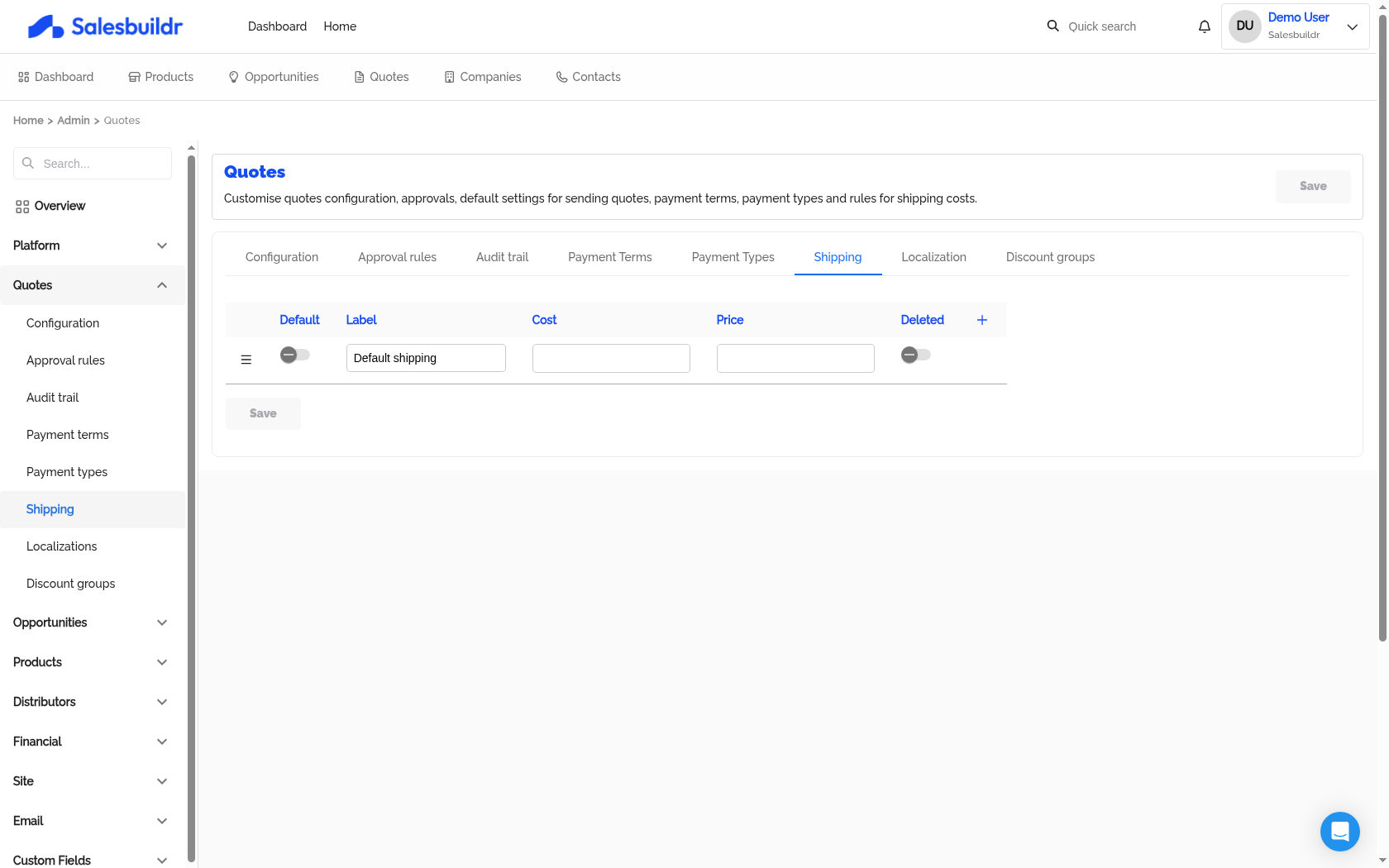
Settings > Quotes > Shipping — Mar 1, 2026, 5:30 PM UTC
What are shipping methods?
Shipping methods appear as selectable options when adding shipping to a quote. Each method has a name (e.g. "Free delivery", "Standard shipping", "Express"), an internal cost, and a price charged to the customer.
Managing shipping methods
The Shipping tab displays your existing methods in a list. To add a new method:
Click the Add button
Enter the fields:
Save the new method
To edit an existing method, click its name or the edit icon. To delete, use the delete action on the row.
Free shipping threshold
You can configure a free shipping threshold in Settings > Quotes > Configuration: when the quote total exceeds the threshold, shipping is automatically set to free. This works alongside the shipping methods defined here.
Localizations
Manage localized versions of quote content for different languages. Navigate to Settings > Quotes > Localizations.
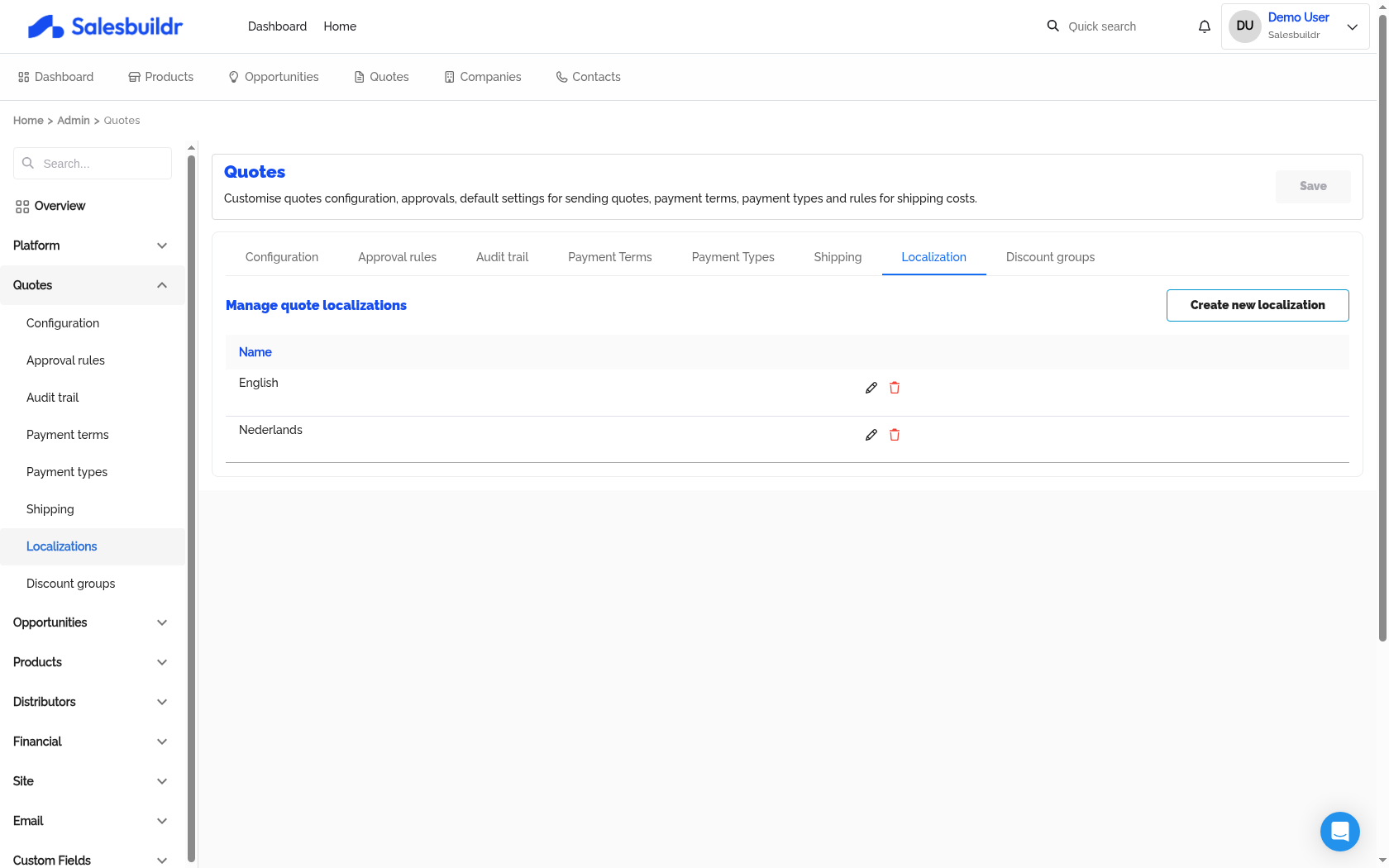
Settings > Quotes > Localizations — Mar 1, 2026, 5:30 PM UTC
For the full reference on creating and managing localizations, see Quote Localization.
Discount Groups
Tools for managing customer-specific pricing, custom data fields, and bulk operations across your company records.
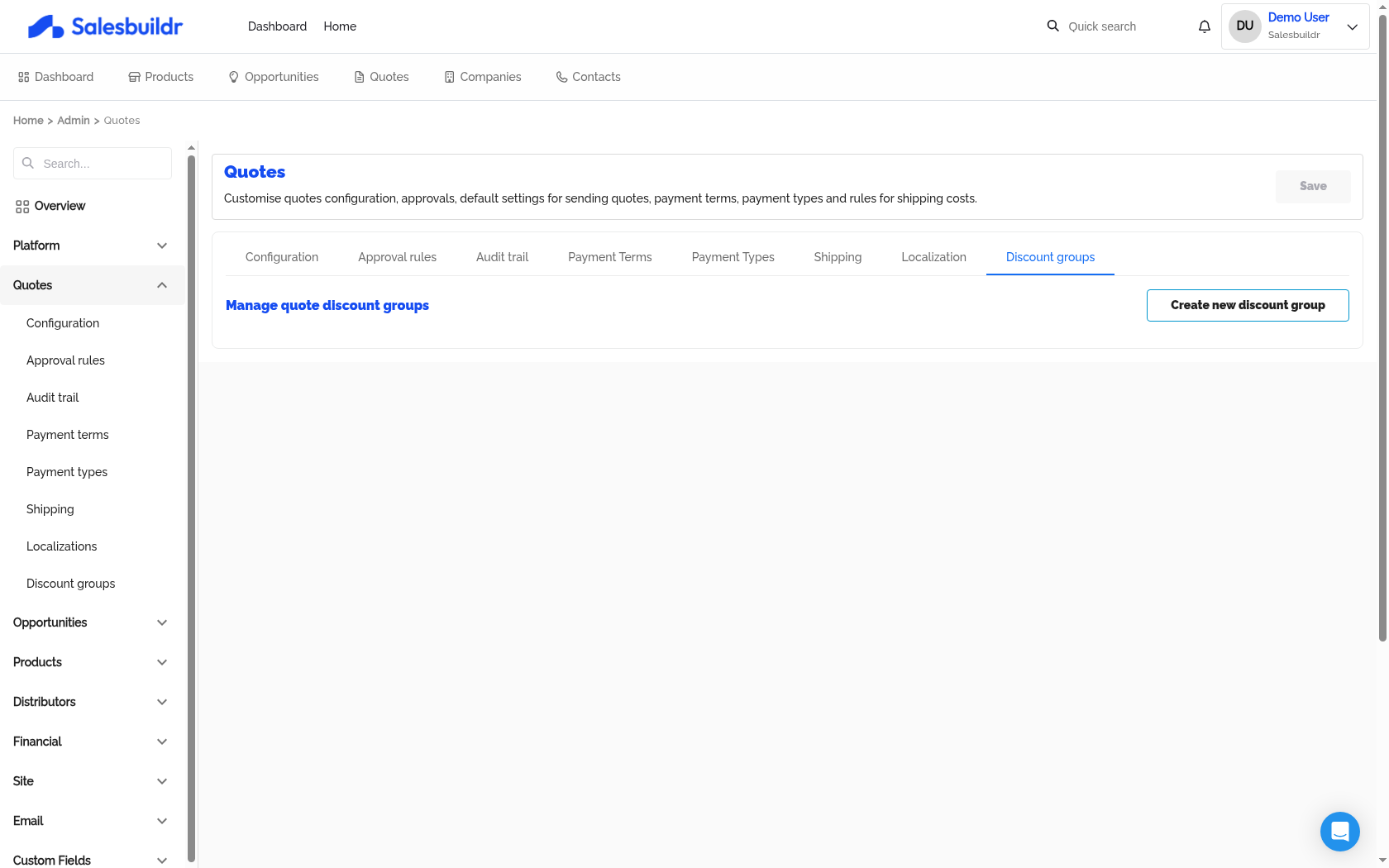
Settings > Quotes > Discount groups — Mar 1, 2026, 5:30 PM UTC
Customer discount groups
Discount groups let you apply consistent pricing rules across customer segments. Instead of setting discounts per quote, define them once and assign companies to the group.
How discount groups work
Each discount group contains one or more discount rules. Each rule specifies:
When a quote is created for a company in a discount group, matching product categories automatically receive the configured discount.
Creating a discount group
Navigate to Settings > Quotes > Discount Groups
Click Create New
Enter a name
Add discount rules — select the type, percentage, and product categories
Add companies to the group (search and select) or add by classification
Three pricing strategies
Salesbuildr supports three approaches to customer-specific pricing, which can be combined:
Discount groups — Percentage-based rules applied by product category
Pricing books — Fixed prices per product per customer (see Pricing Rules)
Import-to-quote — Manual pricing adjustments when adding products to a quote in the quote editor
Assigning companies
Companies can be added to a discount group in two ways:
Individual — Search and add specific companies
By classification — Add all companies with a specific classification tier
You can also assign a discount group from the company manage dialog or via bulk edit.
See also
Opportunities — Settings
Users & Access — Settings
Products — Settings