Email settings, domain names, email signatures, and notification templates.
Written By Victor Raessen
Last updated 24 days ago
Messaging
Salesbuildr sends automated emails when quotes are delivered, approved, declined, or when customers are invited to log in. All templates are fully customizable with merge fields. You can also send marketing emails directly to contacts.
Email settings
The Settings tab configures the default email addresses used when sending emails from Salesbuildr.
Default 'from' address — The sender address shown on outgoing emails (e.g.,
demo-victor@salesbuildr.com)Default recipient for leads — Where lead notifications are sent
Admin contacts — Company contacts who receive admin-level notifications
Note: The Default 'from' address field accepts only a single value. You cannot configure multiple default sender addresses here — all outgoing emails use the one address defined on this tab.
Click Send test email to verify your configuration.
Settings > Email > Settings — Mar 1, 2026
Domain names
The Domain Names tab manages the email sending domains for your Salesbuildr instance. Adding and verifying a custom domain improves email deliverability and prevents outgoing emails from being flagged as spam.
Click Create New to add a domain. Each domain shows its verification status — you may need to add DNS records (SPF, DKIM, DMARC) to complete verification.
Settings > Email > Domain Names — Mar 1, 2026
Email signatures
Email signatures are added to outgoing quote emails. They are managed at the company level — not per user.
Managing signatures
Navigate to Settings > Email > Signature to create and manage signatures. Each signature has:
Name — A label to identify the signature
Header — HTML content that appears above the quote content in the email
Footer — HTML content that appears below (the actual signature block)
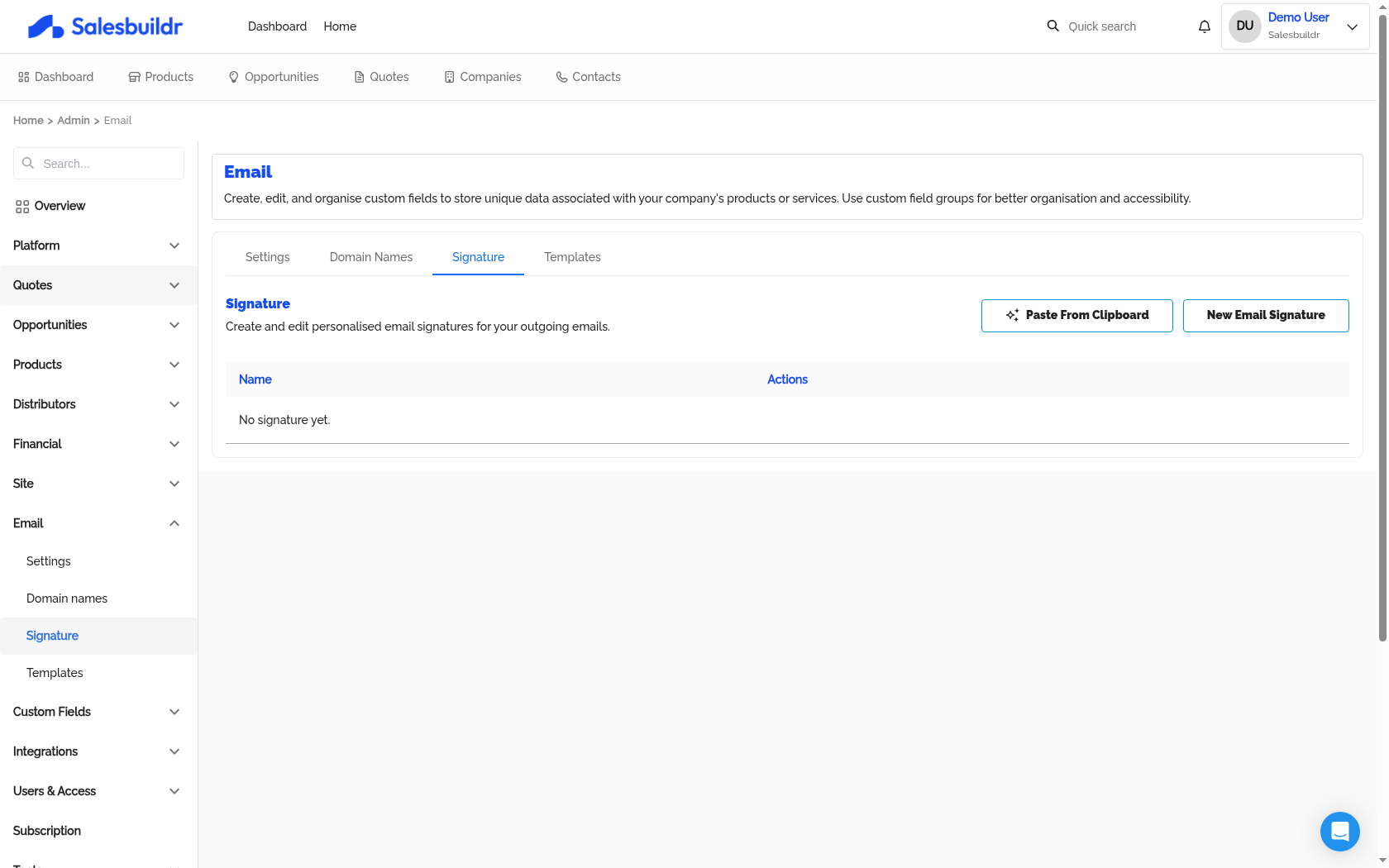
Settings > Email > Signature — Mar 1, 2026
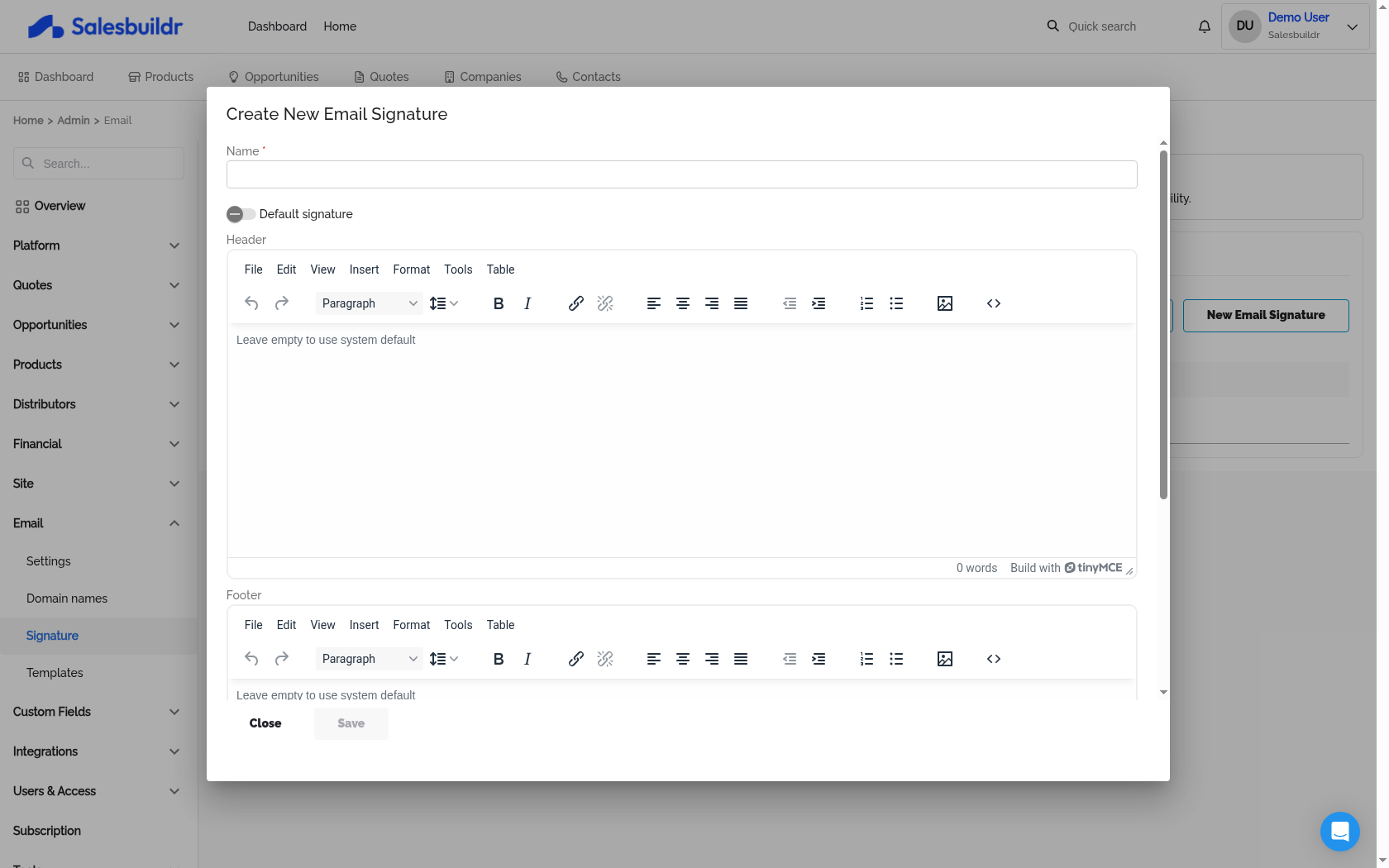
Settings > Email > Signature > New — Mar 1, 2026
You can create multiple signatures for different purposes (e.g., formal vs. informal) and set one as the default. When sending a quote, the default signature is pre-selected but can be changed.
Tip: Avoid duplicating information that's already in your outgoing email template. If your email template includes your name and company, the signature should complement it — not repeat it.
AI-generated signatures
If OpenAI is enabled for your account, you can paste an existing email signature and Salesbuildr will reformat it automatically using AI.
Email templates
Salesbuildr sends emails at various points in the quote lifecycle. Each email type has a default template that you can customize.
Built-in email categories
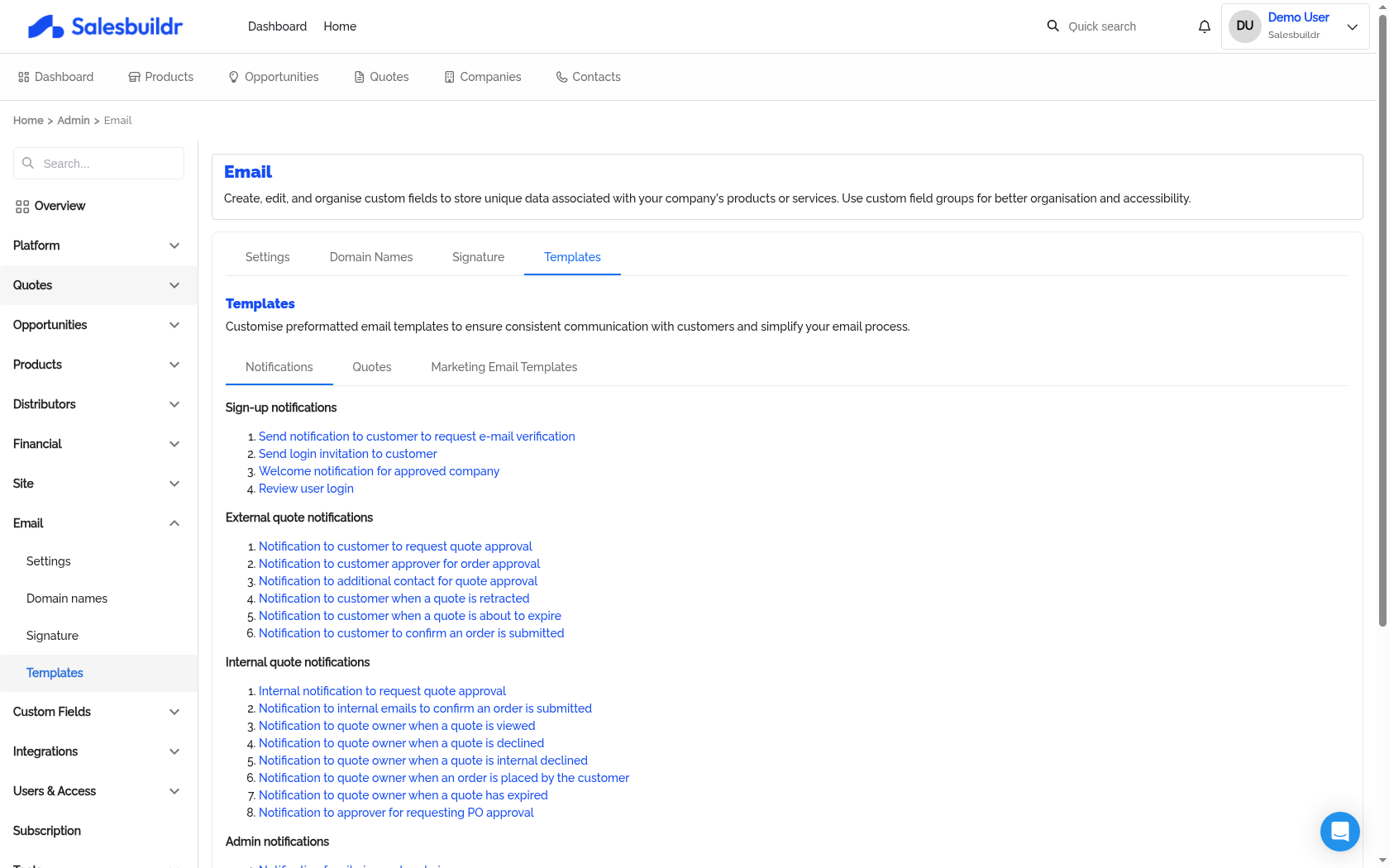
Settings > Email > Templates > Notifications — Mar 1, 2026
Customizing email templates
Navigate to Settings > Email > Templates to edit built-in templates. Each template has:
Subject — Supports merge fields (e.g.,
{{quote.name}})Body — Rich text HTML with merge fields
CC / BCC — Additional recipients
Attach PDF — Toggle to include a PDF version of the quote
Localization — Translate subject and body per language
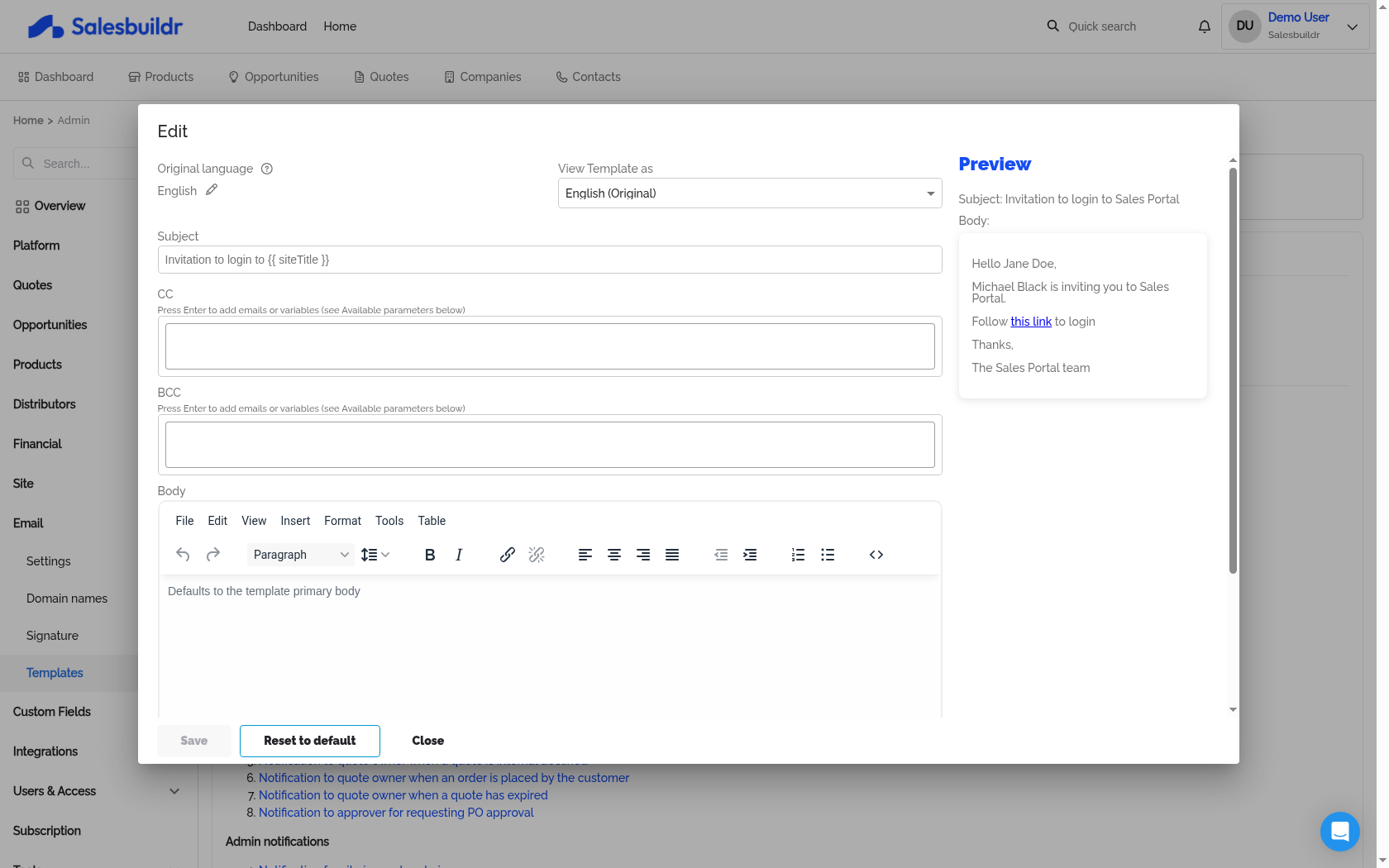
Settings > Email > Templates > Edit template — Mar 1, 2026
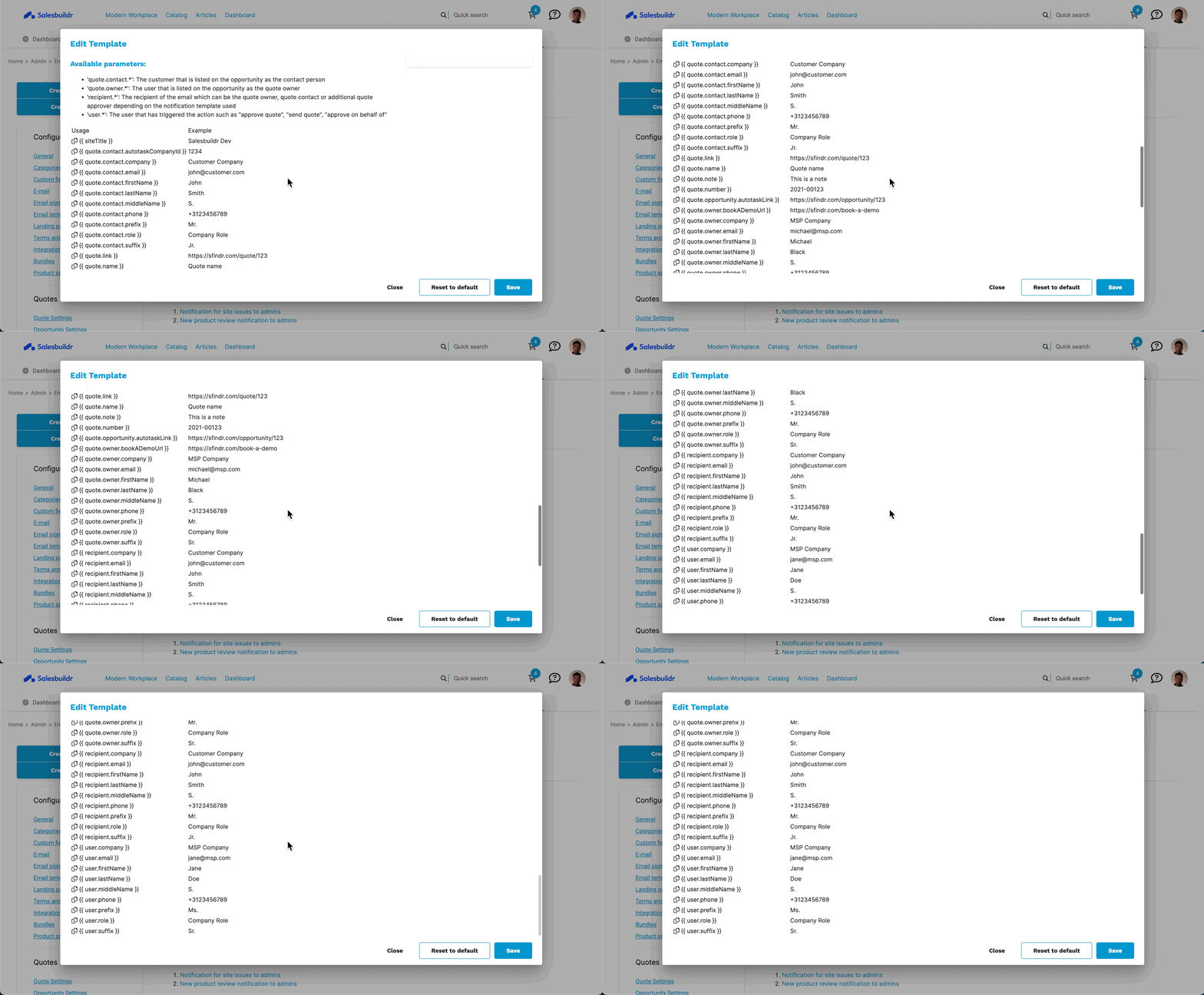
Available template parameters with variable names and example values Feb 20, 2026
Custom email templates
You can create custom email templates for two purposes:
Custom approval emails — Override the default approval notification with a branded email
Marketing emails — Create promotional or informational email templates to send to contacts (see Snippets)
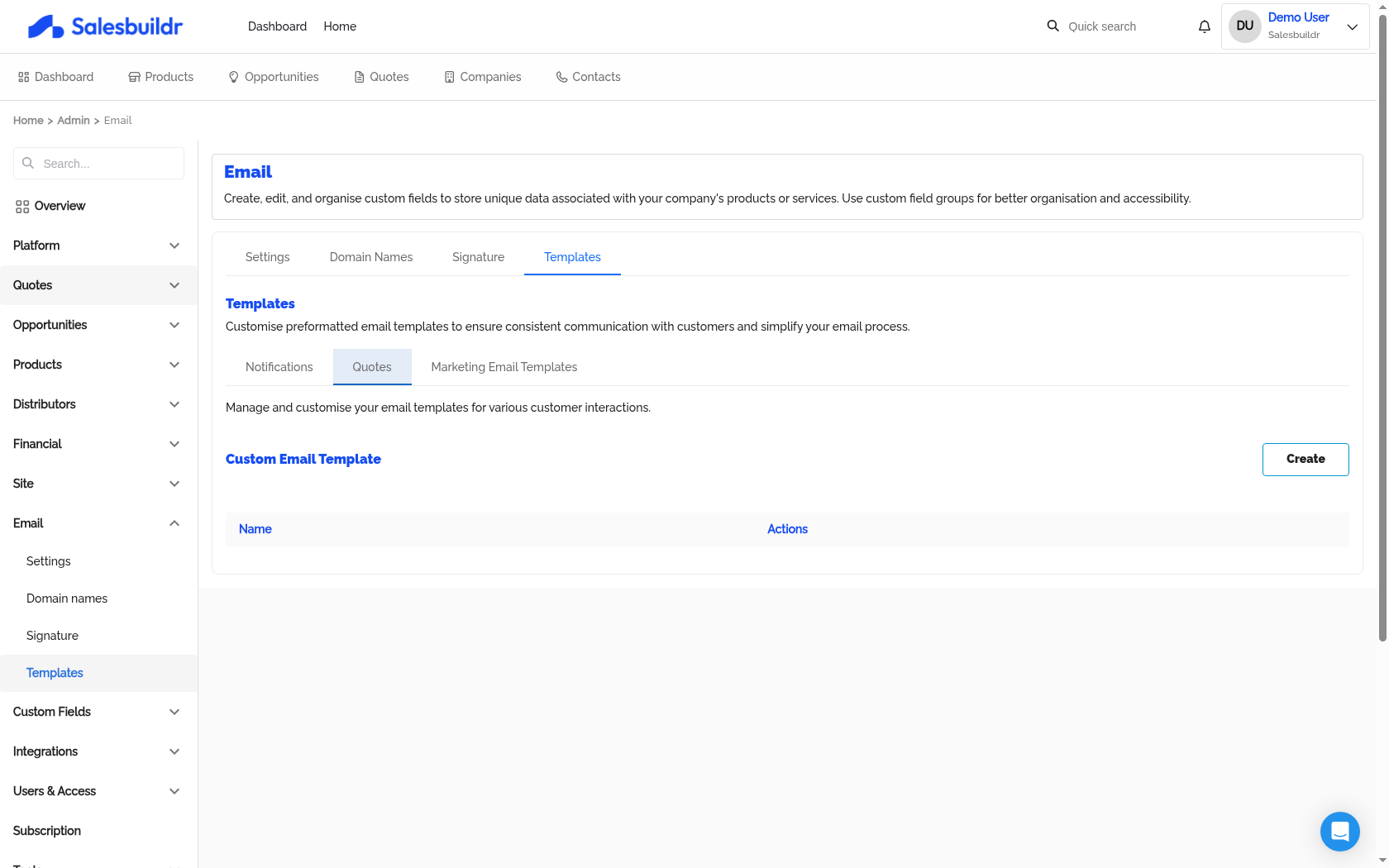
Settings > Email > Templates > Quotes — Mar 1, 2026
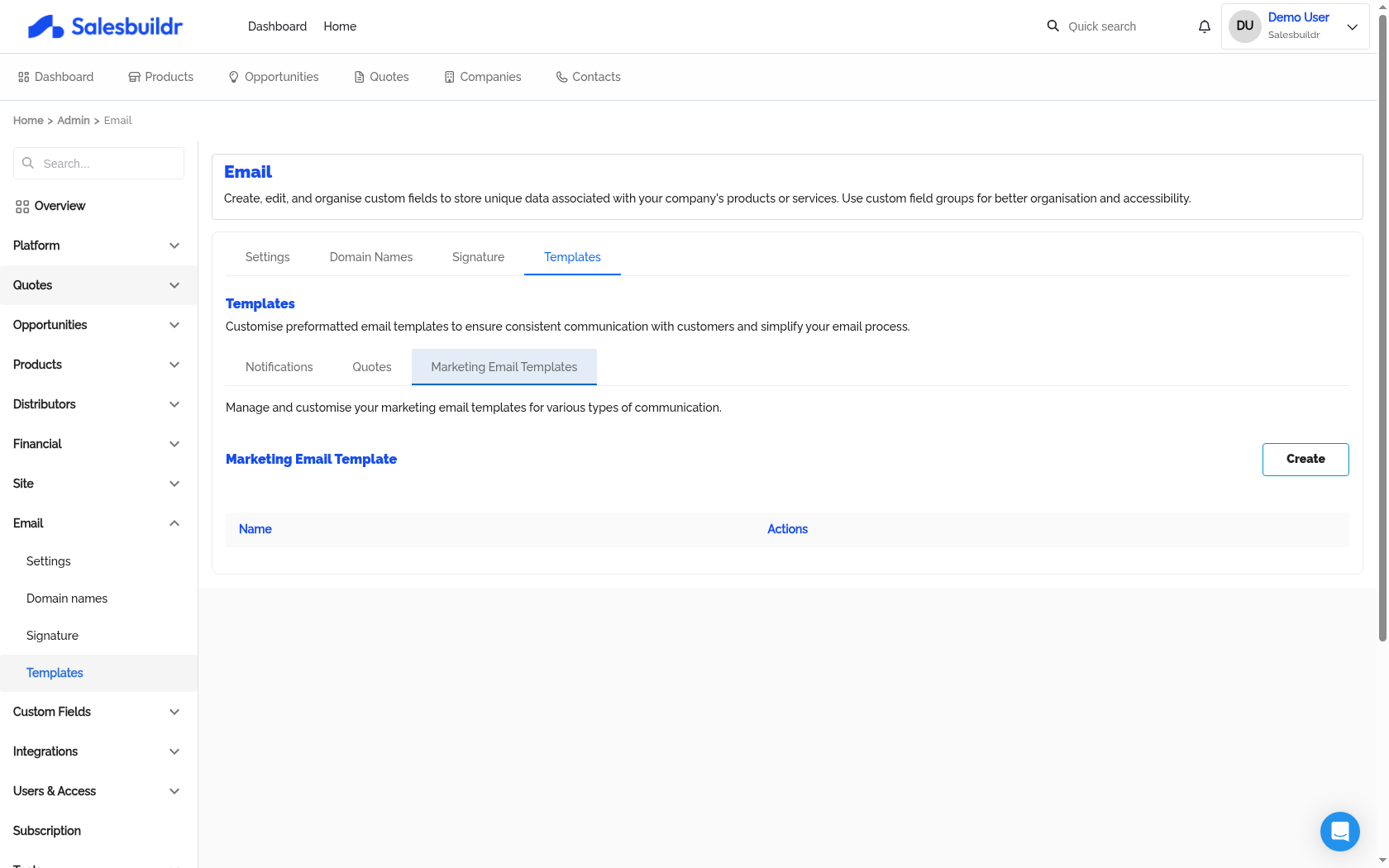
Settings > Email > Templates > Marketing Email Templates — Mar 1, 2026
Manage marketing email templates at Quotes > Marketing Email Templates.
Logging outgoing emails to your HaloPSA opportunity
If you want outgoing Salesbuildr emails (quote sends, approval requests, etc.) to appear on the linked opportunity in HaloPSA, you can use HaloPSA's inbound mailbox logging feature.
How it works: HaloPSA monitors a configured inbound mailbox and threads any incoming email onto the matching opportunity when the email subject contains a reference tag in the format ##[ID]##, where [ID] is the HaloPSA opportunity ID.
Setup in Salesbuildr:
Find your HaloPSA inbound mailbox address in HaloPSA under Configuration > Email > Mailbox Setup.
In Salesbuildr, go to Settings > Email > Templates and open the relevant template (e.g. the approval request).
In the BCC field, enter your HaloPSA inbound mailbox address.
In the Subject field, append the following at the end of your subject line:
##{{quote.opportunity.externalIdentifier}}##
This will automatically tag each outgoing email with the correct opportunity ID, and HaloPSA will log it against the right record.
Note: This requires a HaloPSA inbound mailbox to be set up and actively monitored. The subject tag format (##[ID]##) is the default HaloPSA pattern — verify this matches your instance's configuration if emails are not logging as expected.
Template variables (merge fields)
All email templates, cover pages, and content widgets support Handlebars merge fields. Click the variables panel in the editor to browse available fields and click to insert.
Available variable categories:
Handlebars helpers:
Conditional:
{{#if quote.total.month}}...{{/if}}If/else:
{{#if user}}{{user.fullName}}{{else}}an anonymous user{{/if}}Iteration:
{{#each quote.items}}<li>{{quantity}}x {{title}}</li>{{/each}}Date formatting:
{{date fieldName "format"}}
See also
Quotes — Settings
Cover Pages — Quotes
After Onboarding — Getting Started
Multi-Entity & Currency — Quotes