Importing Products
Import from PSA (ConnectWise, HaloPSA, Autotask), distributor marketplace, CSV, and manual entry.
Written By Victor Raessen
Last updated 24 days ago
Import products from your PSA, distributor marketplace, CSV upload, or create them manually.
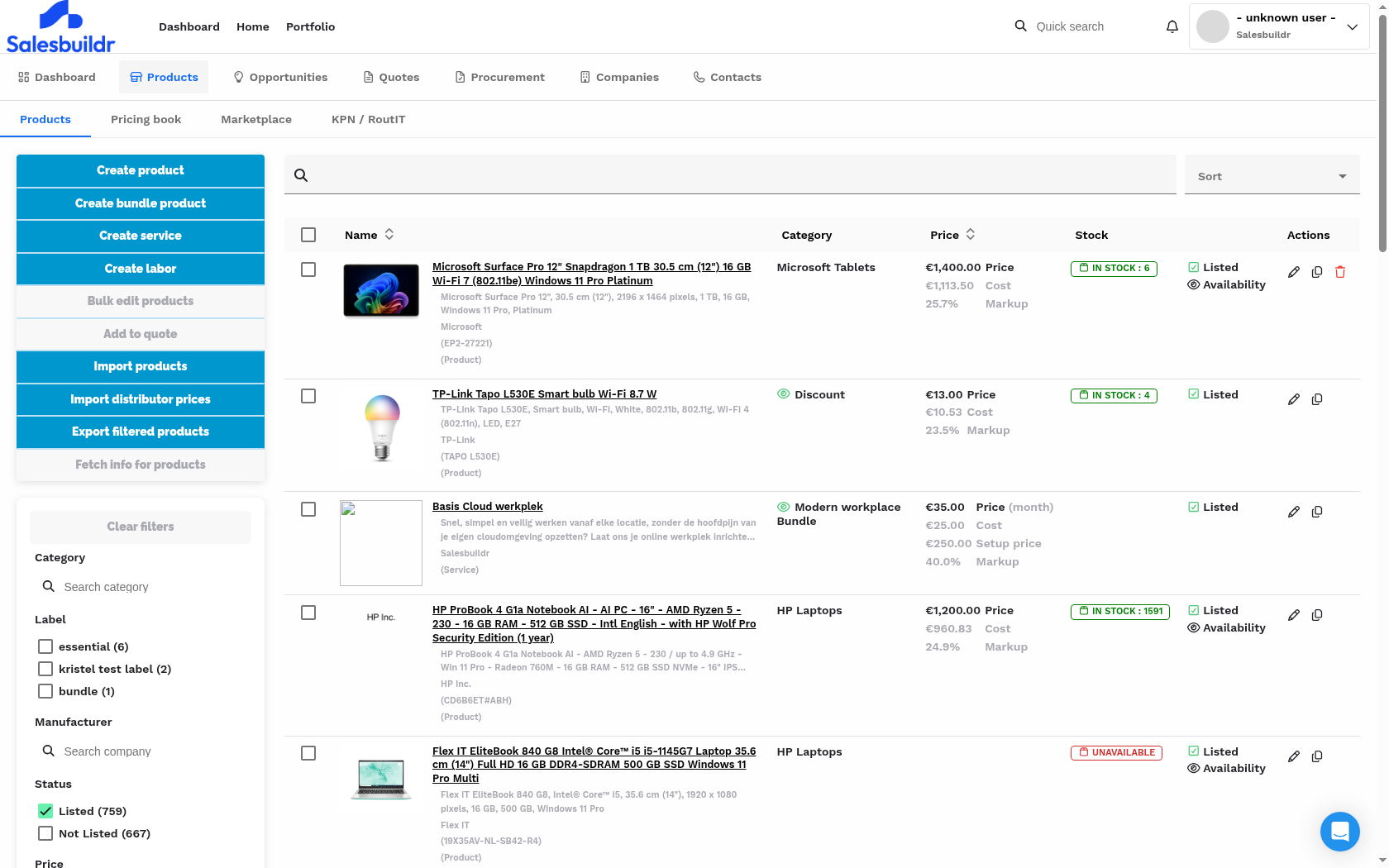
Product list overview Feb 20, 2026
Importing products from your PSA
Products can be imported from your connected PSA. The import works through category mapping — you map your PSA's product categories to Salesbuildr categories, and products in those categories are automatically imported during sync.
ConnectWise
Navigate to Settings > Integrations > ConnectWise > Products. The Defaults tab lets you enable bidirectional sync and configure MPN enrichment. The Map Categories tab shows your ConnectWise product categories mapped to Salesbuildr categories.
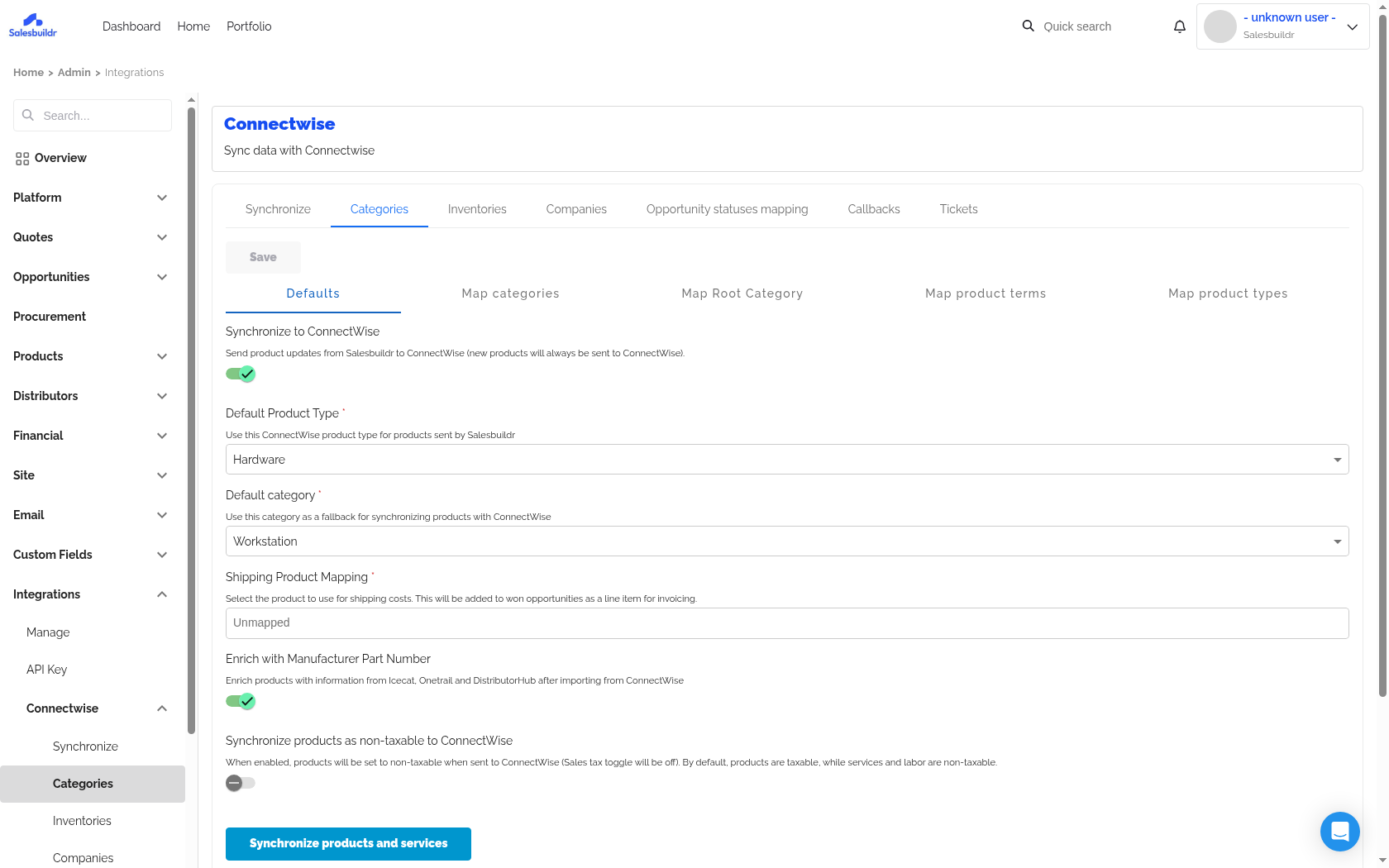
ConnectWise product import settings Feb 20, 2026
Key ConnectWise-specific settings:
Synchronize to ConnectWise — Toggle to send product updates back to ConnectWise
MPN Enrichment — Auto-populate product data from distributor feeds based on MPN
Non-Taxable Sync — Sync tax-exempt status from ConnectWise
Map Categories — Map ConnectWise categories to Salesbuildr categories
Product Terms — Configure term length mappings for recurring products
HaloPSA
Navigate to Settings > Integrations > Halo > Products. The Defaults tab has the sync toggle and Halo-specific settings. The Categories tab maps HaloPSA Product Groups to Salesbuildr Root Categories.
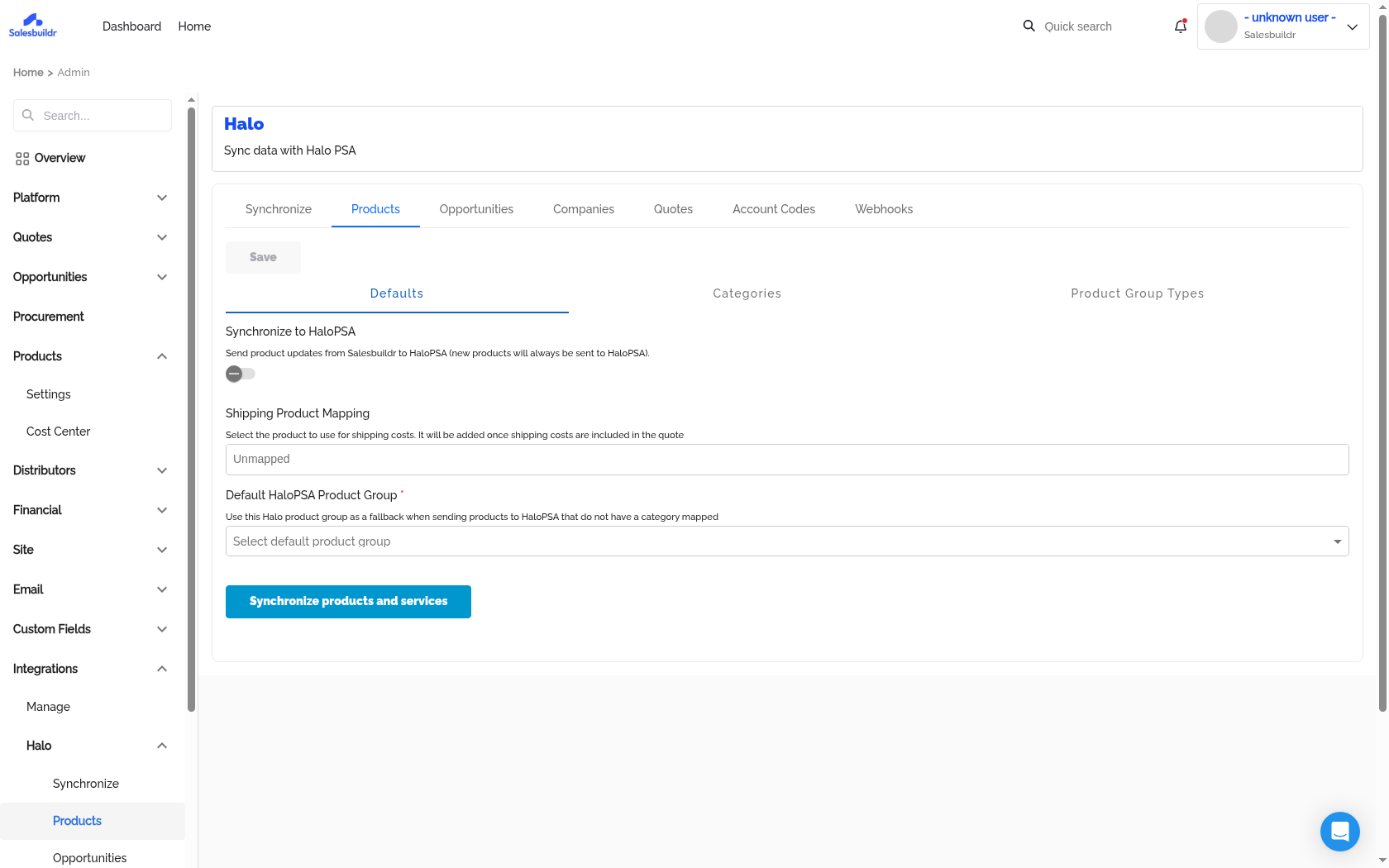
HaloPSA product import — Defaults tab Feb 20, 2026
Key HaloPSA-specific settings:
Synchronize to HaloPSA — Toggle to send product updates back to HaloPSA (new products always sync)
Shipping Product Mapping — Select which product to use for shipping costs on quotes
Default HaloPSA Product Group — Fallback group for products without a category mapping
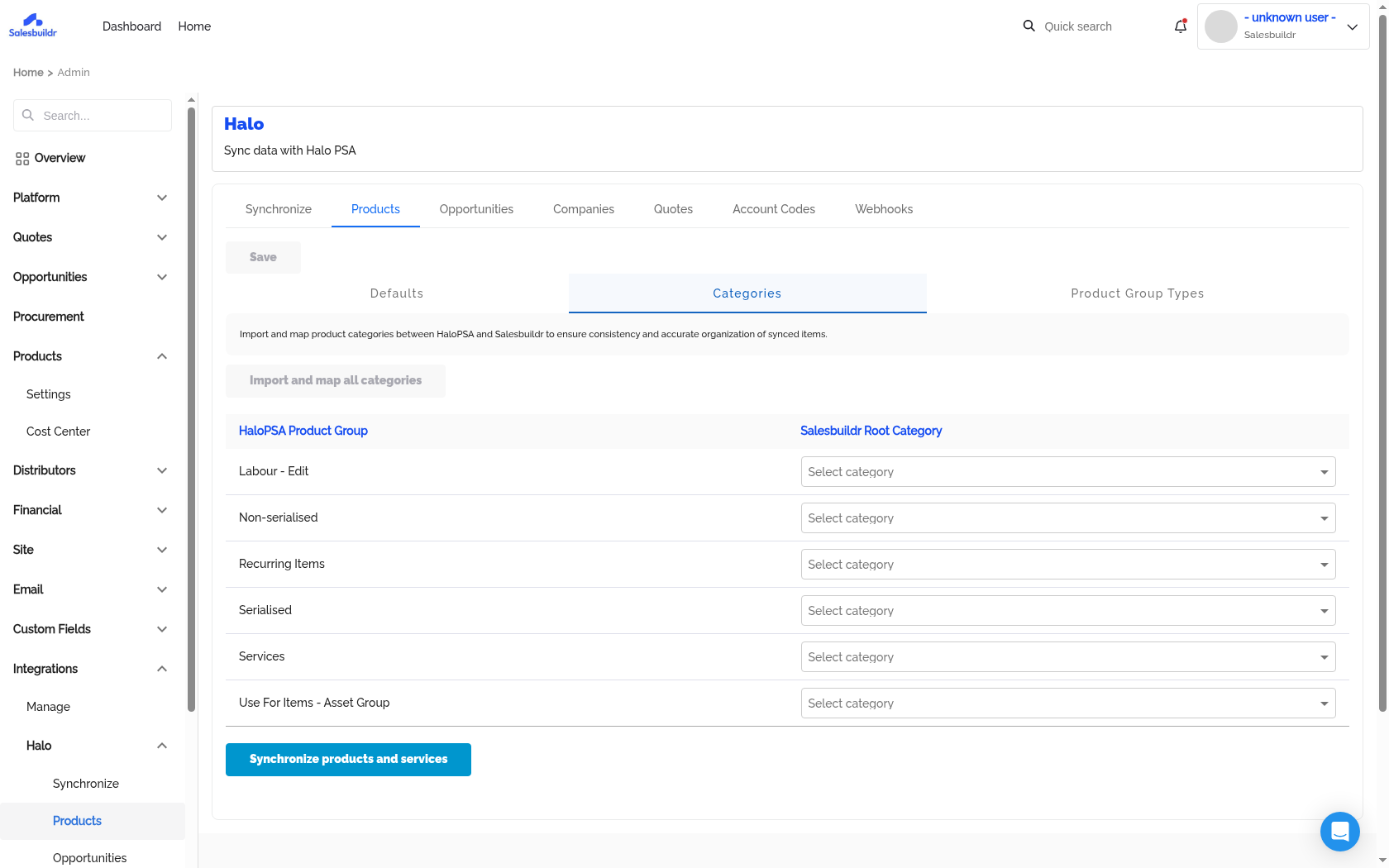
HaloPSA category mapping Feb 20, 2026
The Categories tab shows your HaloPSA Product Groups (Labour - Edit, Non-serialised, Recurring Items, Serialised, Services, etc.) mapped to Salesbuildr Root Categories. Click Import and map all categories to pull in your Halo categories, then assign each one to a Salesbuildr category.
Autotask
Navigate to Settings > Integrations > Autotask > Products. Autotask uses three separate mapping tables for different product types:
Roles → Categories — Map Autotask roles to Salesbuildr categories
Non-recurring Products → Categories — Map hardware and one-time products
Recurring Services → Categories — Map managed service and subscription items
Key Autotask-specific settings:
Synchronize to Autotask — Toggle to send product updates back to Autotask
Enrichment options — Auto-populate product data from distributor feeds
Import All Mapped Categories Products and Services — Manual trigger to pull all mapped products
How sync works across all PSAs
Product import follows the same pattern regardless of your PSA:
Map categories — Assign your PSA categories to Salesbuildr categories
Run initial sync — Click the sync button to pull in products from mapped categories
Ongoing sync — New or updated products in mapped categories sync automatically on a schedule
Sync direction — Import (PSA → Salesbuildr) is always active for mapped categories. The "Synchronize to [PSA]" toggle controls whether updates made in Salesbuildr are pushed back to the PSA. New products created in Salesbuildr are always sent to the PSA regardless of the toggle.
Other import methods
Distributor marketplace
Browse and import products from connected distributors (Pax8, Ingram Micro, TD Synnex) directly within Salesbuildr. Distributor products come with live pricing, descriptions, and MPN data.
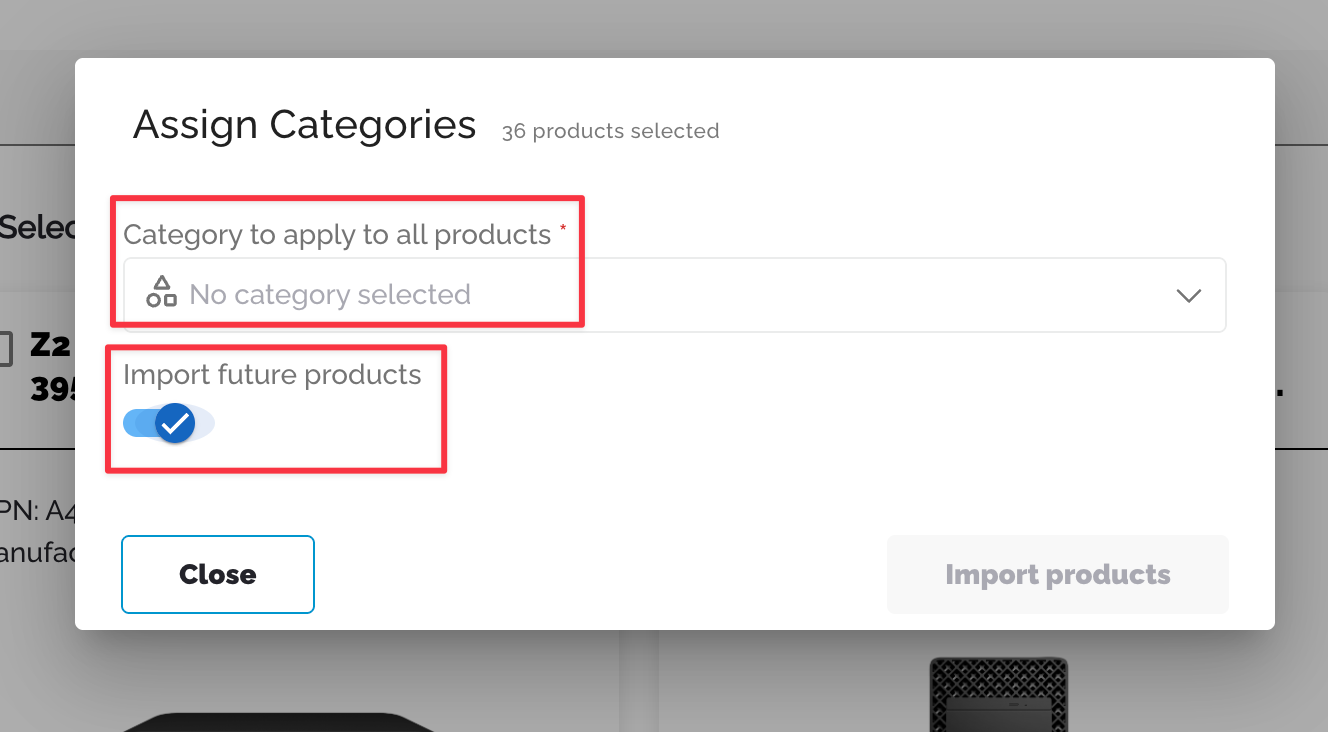
You can also import future products from connected distributors by doing the following:
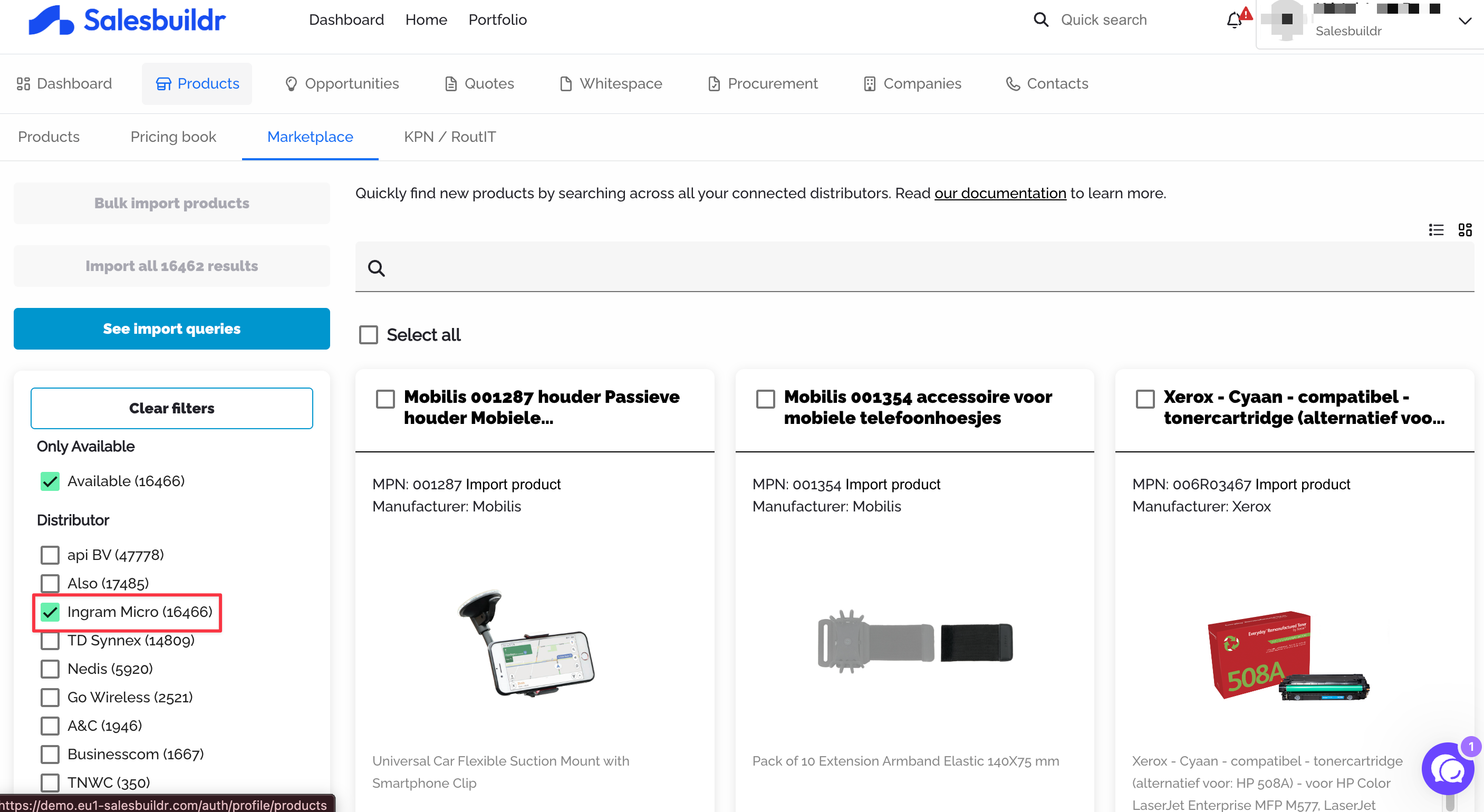
Select a distributor.
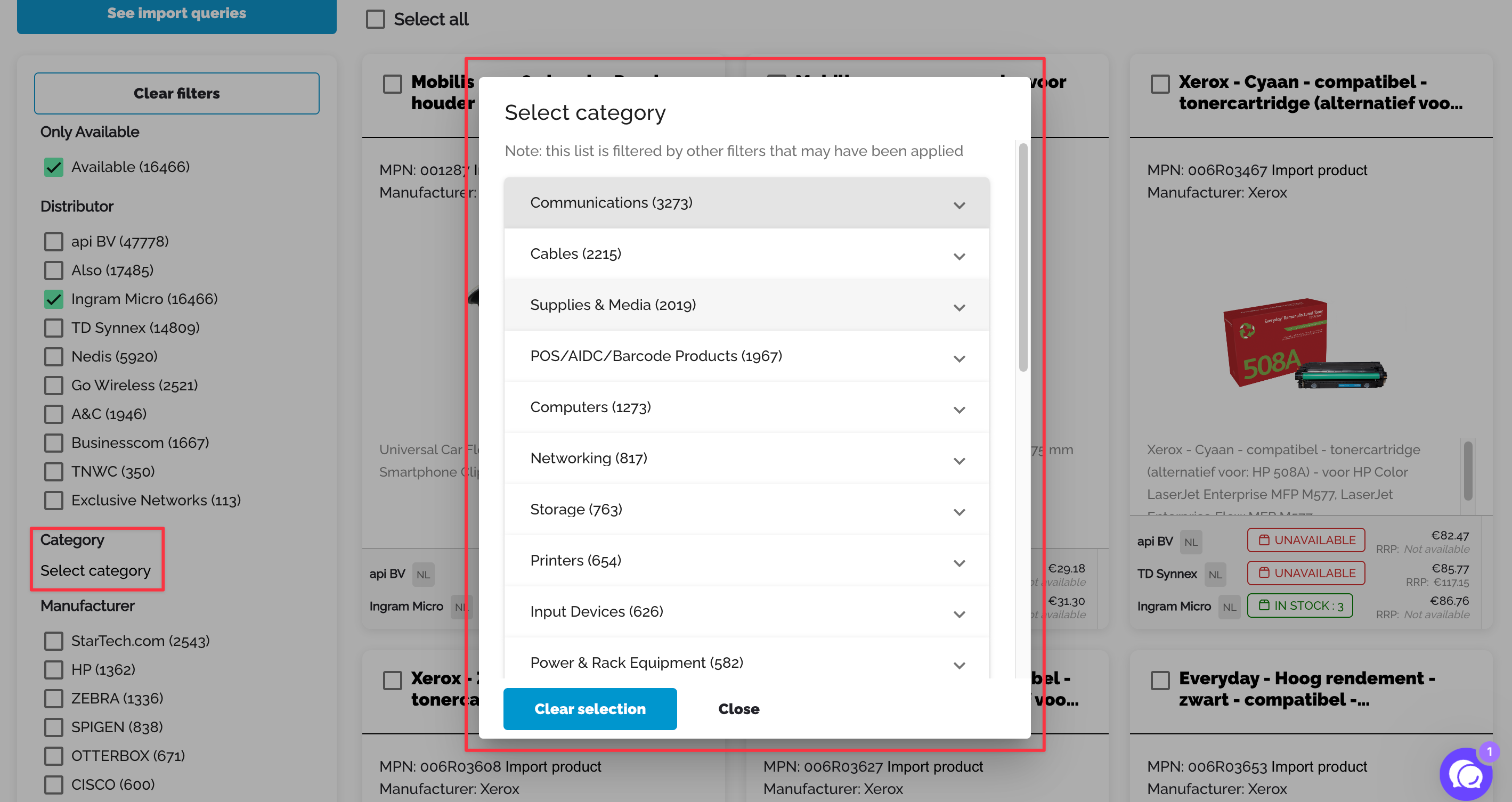
Select a category.
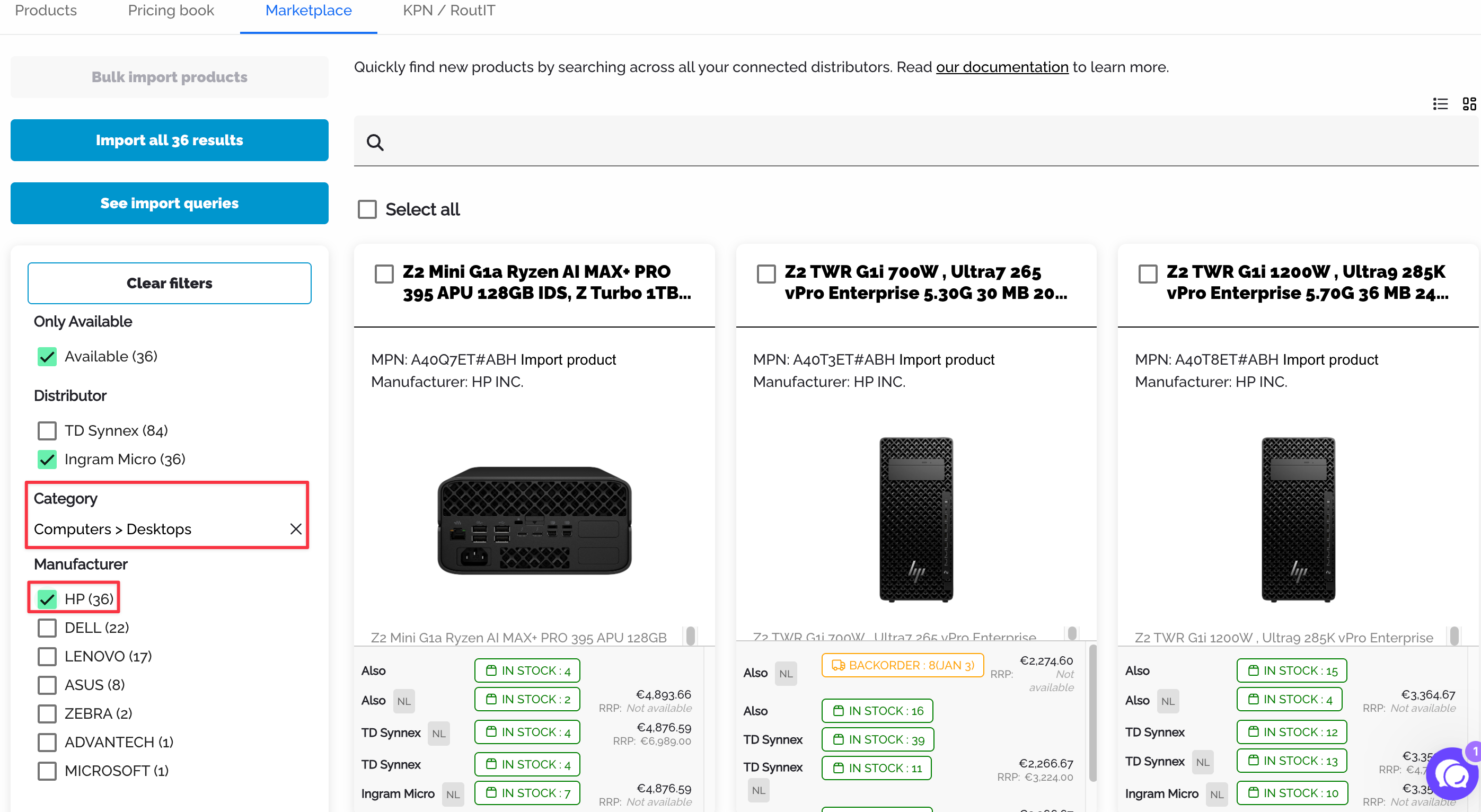
In this example, I selected the category Computers > Desktops. Next, select a manufacturer.
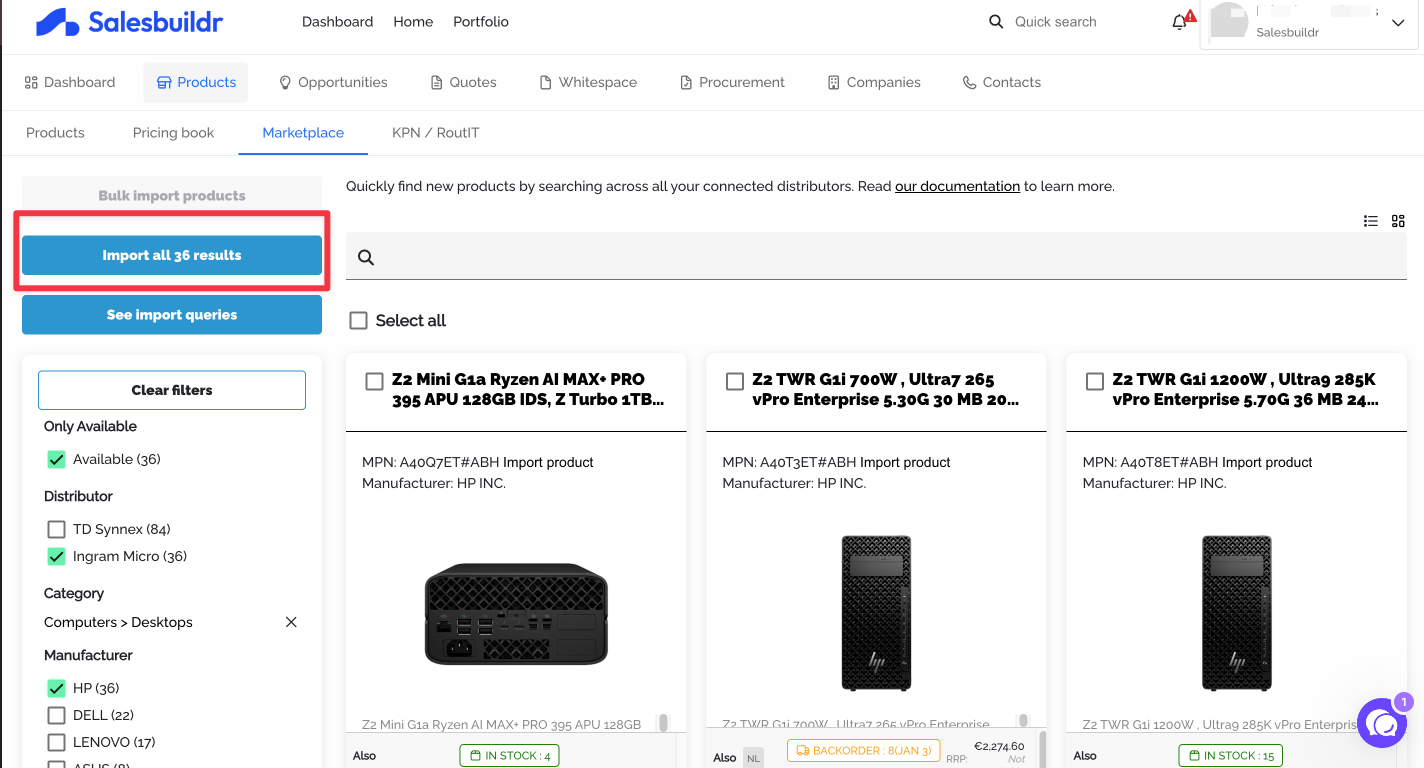
Click on ‘Import all x results’.
Select the category in your Salesbuildr environment to where the selected products will be imported to. Then, enable ‘Import future products’. This is to ensure that whenever there are new products which meet the filters selected previously, those will be imported to the selected Salesbuildr category.
CSV import
Bulk upload products via spreadsheet. Download the CSV template from the import page, fill in your product data, and upload. CSV import supports all product types and fields.
Download SAMPLE TEMPLATE spreadsheet
Note: Spreadsheet contains several ‘sheets’ - please select the appropriate sheet. Pro Tip: If you import special pricing regularly you can create an AI ‘Project’ to migrate your file to the Salesbuildr friendly format. Run your project then copy/paste your data directly to Salesbuildr to import your special pricing, deal reg, or renewal pricing.

Manual entry
Create individual products directly in the catalog. Click Add Product, select the product type, and fill in the details.
For global product display settings, serialization defaults, and cost center configuration, see Settings > Products.
See also
Products — Products
Marketplace — Products
Integrations — Integrations
Quotes — Settings