Marketplace
Browse products across all your connected distributors — live pricing, availability, and one-click catalog import.
Written By Mike Forte
Last updated 11 days ago
The Marketplace tab gives you a unified view of products across all your connected distributors. Browse, search, and compare live pricing and availability — then add products directly to your Salesbuildr catalog.
Marketplace requires at least one distributor to be connected. Configure your distributor connections at Settings > Distributors.
Marketplace page overview showing search bar, category filters, and live pricing results from connected distributors Feb 23, 2026
Browsing the marketplace
Navigate to Products > Marketplace to open the distributor marketplace.
Product viewer access: Users with the Product viewer permission can open the Marketplace tab to browse and search distributor catalog results. Import actions — per-product import, bulk import, import all, selection checkboxes, and saved import queries — require the Product editor permission (
product.manage).
Search — find products by name, MPN, or keyword across all connected distributors
Filter by distributor/category — narrow results by distributor and category using the combined filter panel
Live pricing — prices and stock levels are fetched in real time from distributor APIs
View modes
Switch between two display modes using the icons in the toolbar:
List view — table showing MPN, product image, product name and description, and distributor availability with prices per distributor
Column view — card grid showing product image, name, MPN, manufacturer, description, and availability
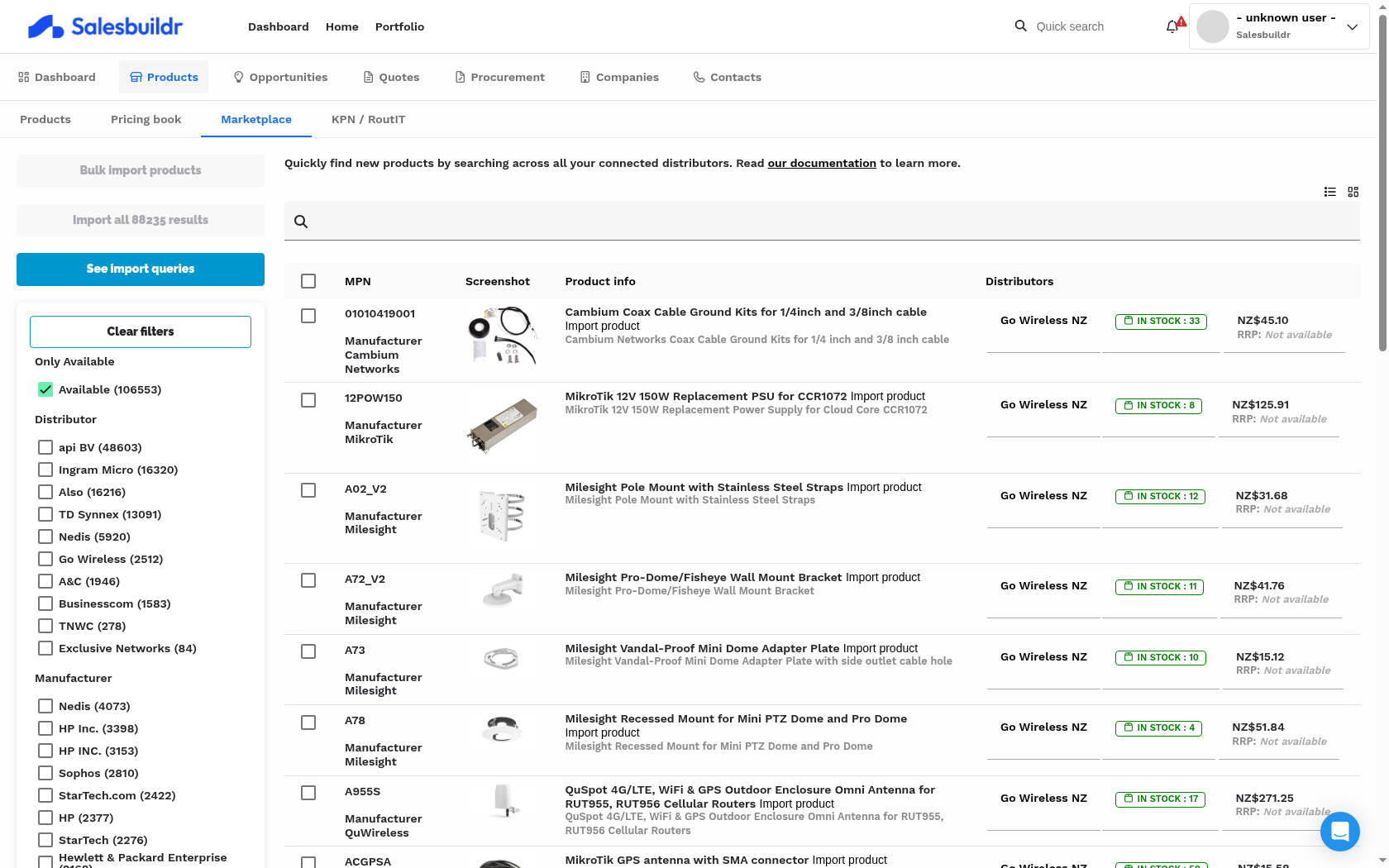
Marketplace in list view showing MPN, product image, product name and description, and distributor availability with pricing columns Feb 23, 2026
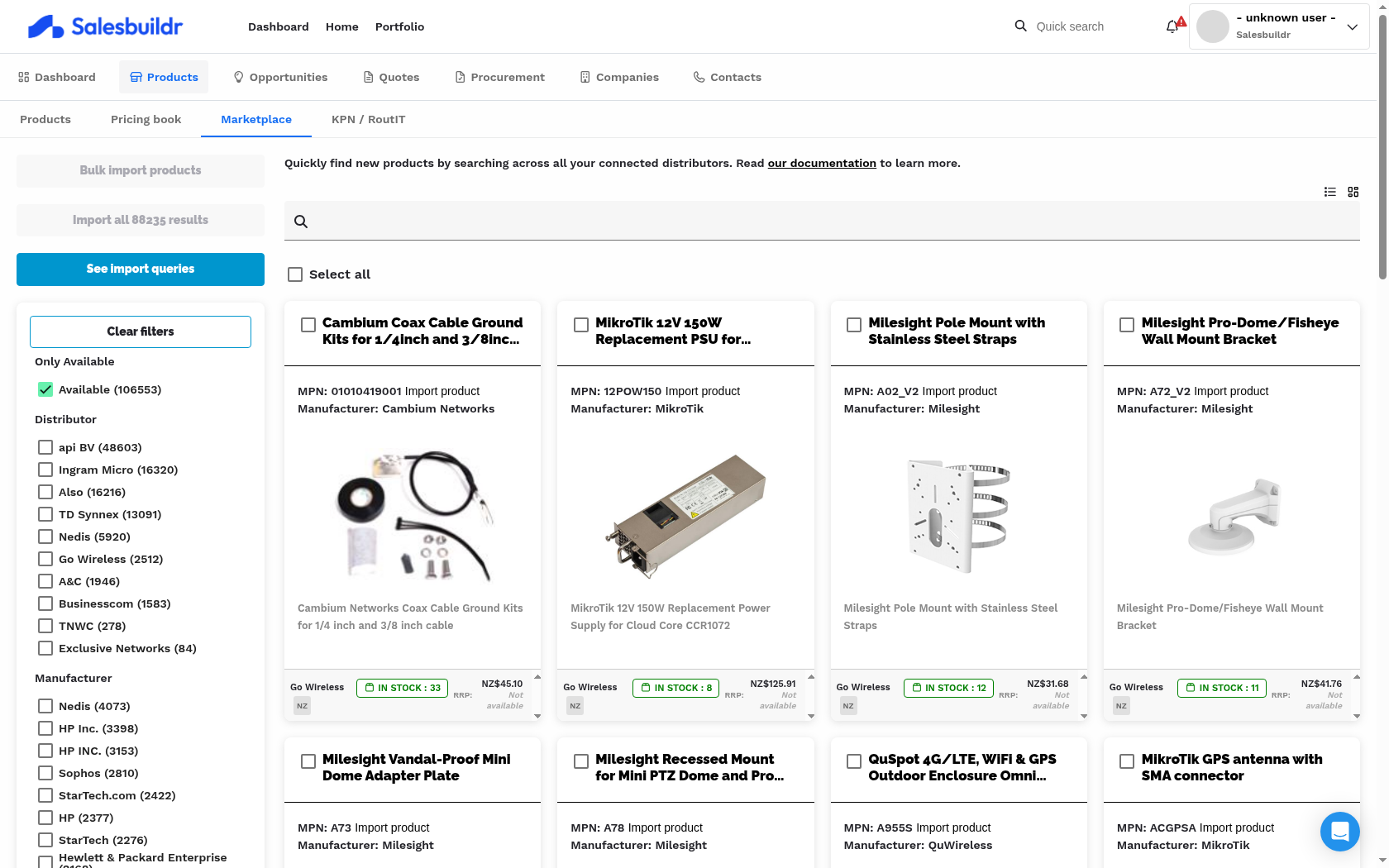
Marketplace in column view showing product cards with image, name, MPN, manufacturer, description, and distributor availability indicators Feb 23, 2026
Adding products to your catalog
Import features in this section require the Product editor permission. Product viewer users can browse the Marketplace but do not see import buttons, bulk-selection checkboxes, or See import queries.
Import a single product
Click Add to catalog (or Import) next to any product to import it into your Salesbuildr catalog. The product is pre-filled with description, specifications, images, and manufacturer data from the distributor feed, and you are prompted to assign it to a category.
If a product is already in your catalog, a link to the existing product appears instead of the import button.
Bulk import selected products
Select multiple products using the checkboxes and click Bulk import to import them all at once. Bulk import is available to users with the product.manage permission.
After you start a bulk import, the Assign Categories dialog opens. You can assign one category to every product (Apply to all products) or choose a category per product (Select per item).
In Select per item mode, each product row includes a Remove product control (✕). Use it when a product was selected by mistake or you are not ready to assign a category yet. Removed products are excluded from the import, the selected count updates, and you can continue with the remaining products without leaving the dialog. If you remove every product, Import products stays disabled until you close the dialog and adjust your Marketplace selection.
Import all results
Click Import all to import every product in your current search results into your catalog. This button:
Requires a PSA integration to be configured
Has a maximum product limit — the button is disabled if the result count exceeds that limit
Requires the
product.managepermission
A results dialog shows the import progress and outcome for each product.
Import Queries
Import Queries let you save a search configuration (category, distributor, manufacturer, and other filters) as a reusable import rule. Access them via the See import queries button.
Each saved query shows:
The target category
Distributor, manufacturer, and other active filters
The search query text
Date created
A preview of how many products would be imported
You can delete queries (requires product.manage). Queries are useful for regularly refreshing your catalog with products from a specific distributor and category.
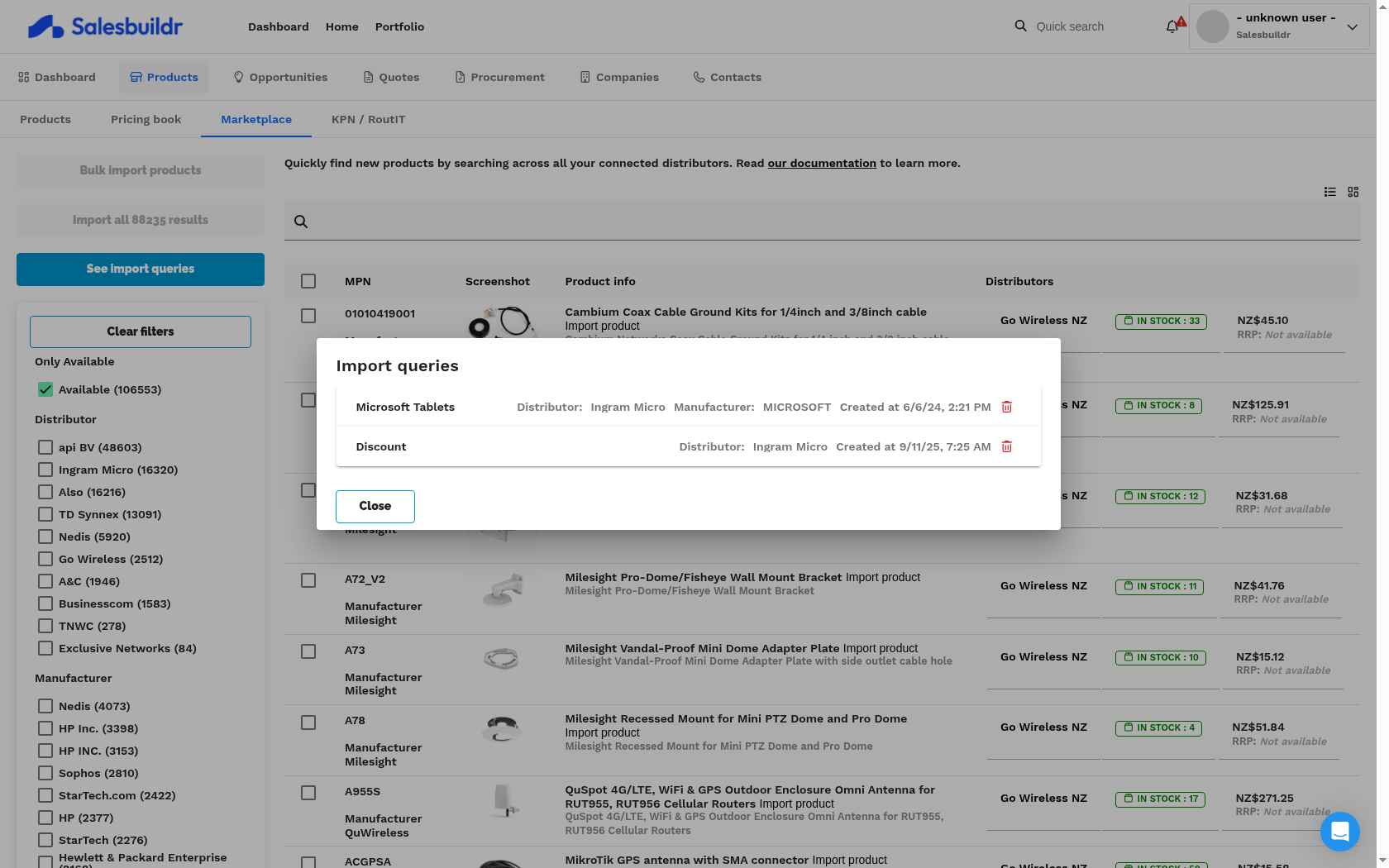
Import Queries dialog showing saved search configurations with target category, distributor filter, manufacturer filter, and query text Feb 23, 2026
Pricing priority
When the same product is available from multiple distributors, Salesbuildr applies your distributor priority settings to determine the default price shown. The marketplace shows live availability and pricing from each connected distributor side by side, so you can compare before importing.
Understanding Marketplace search results and MPN availability
The Salesbuildr marketplace searches across active distributor data feeds. If a product does not appear when you search by MPN, this typically means one of the following:
The product is not present in the current distributor feed.
The MPN may appear in your own product catalogue (showing as 'unavailable') but this is not the same as appearing in the live marketplace feed.
Some distributors only include products in their feed if the item is currently orderable or in stock.
Troubleshooting steps:
Check whether the product appears in your own catalogue vs. the marketplace — these are separate sources.
Confirm which distributor you expect to stock the product (e.g. Exclusive Networks) and verify that this distributor is connected and its feed is active under Settings > Distributors.
Try a partial MPN or product name search — some distributor feeds may index the product under a slightly different identifier.
If the product should be in the feed but is not appearing, contact support with the expected distributor name and MPN so the feed data can be checked.
See also
Products — Products
Cloud Marketplaces — Products
Importing Products — Products
Products — Settings
KPN / RoutIT — Integrations