Widgets
Widget types, widget templates, the widget marketplace, and creating reusable content blocks.
Written By Victor Raessen
Last updated 16 days ago
Widgets are the drag-and-drop building blocks inside quote templates and individual quotes. Each widget is a content section — text, a product table, an image, a form, a total summary, and more.
Formatting widget content
Widget types include a rich text editor for customizing content. Use the formatting toolbar above the content area to style your text and add elements.
Text formatting
- Font size and style (Heading, Paragraph, Inline, Blocks)
- Bold, italic, underline
- Text alignment
- Line spacing
Lists and structure
- Numbered lists
- Bullet points
- Horizontal lines
- Page breaks
Links and media
- Hyperlinks
- Insert images
Advanced options
- Tables
- Source code editing (for HTML)
These formatting options let you create polished, professional content that matches your brand without needing custom code.
Widget templates
Widget templates are reusable building blocks — individual widgets saved as templates that can be inserted into any quote or quote template. For example, save a product table layout as a widget template and reuse it across multiple quote templates.
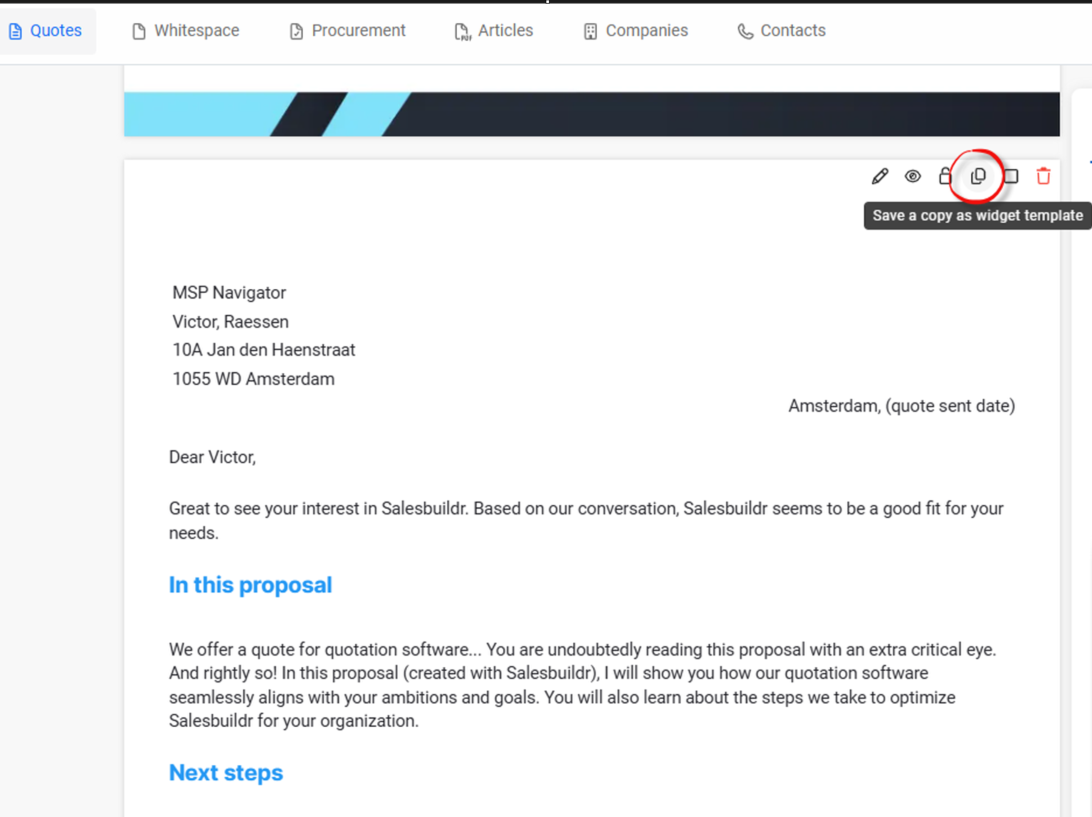
Quote preview with Save a copy as widget template tooltip on a content section Feb 20, 2026
Manage widget templates at Quotes > Widgets. Widget templates support the following types: product table, text block, image, single media, custom form, and HTML content. System-generated widgets (total, summary, leasing summary) cannot be saved as templates. Widget templates can be categorized with labels and support localization.
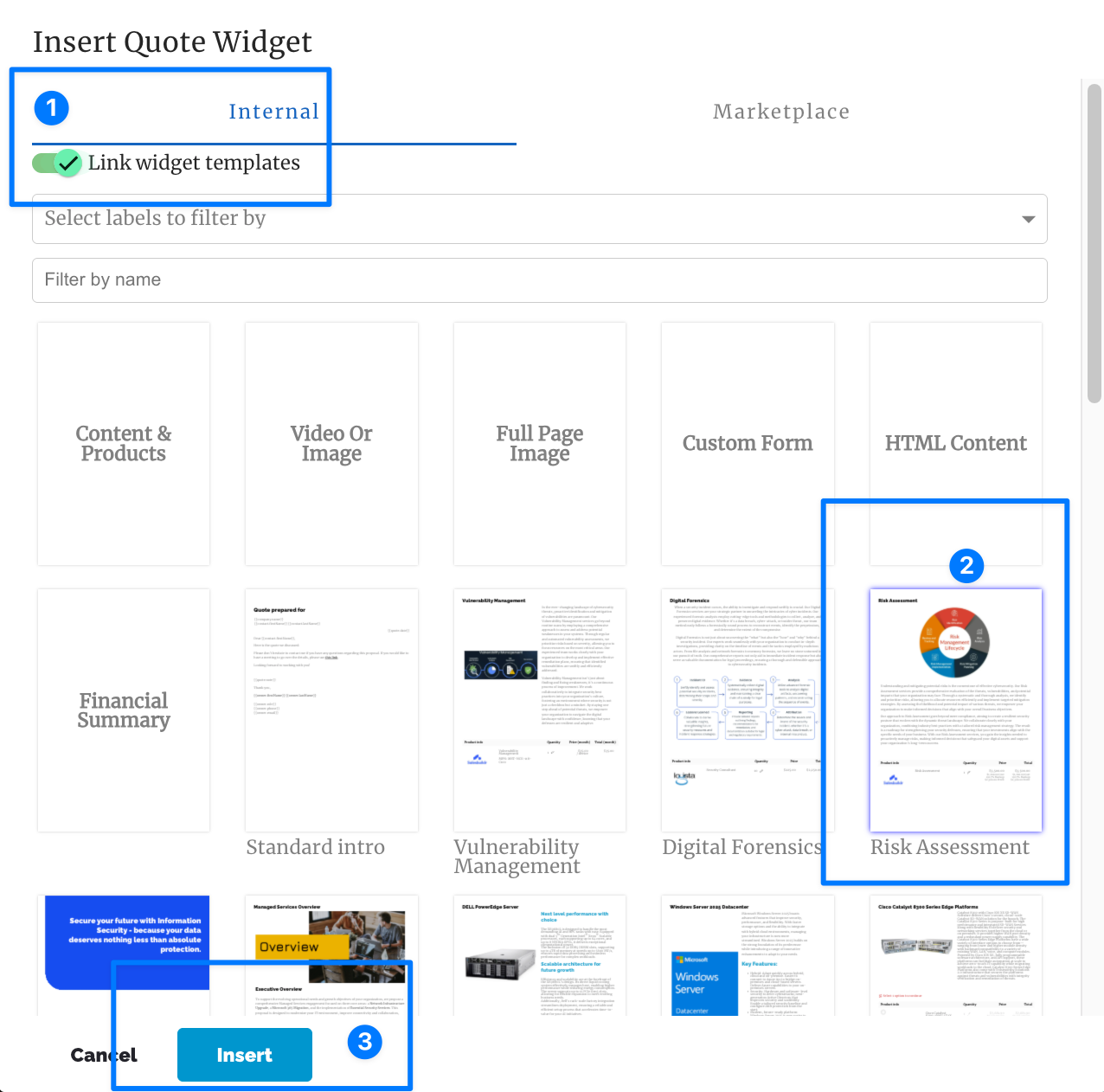
Insert Widget dialog with Internal and Marketplace tabs, widget categories, and template previews Feb 20, 2026
Widget marketplace
The widget marketplace provides pre-built widget templates you can import. Browse at Quotes > Widgets > Marketplace.
Note: The marketplace is a feature that must be enabled for your account.
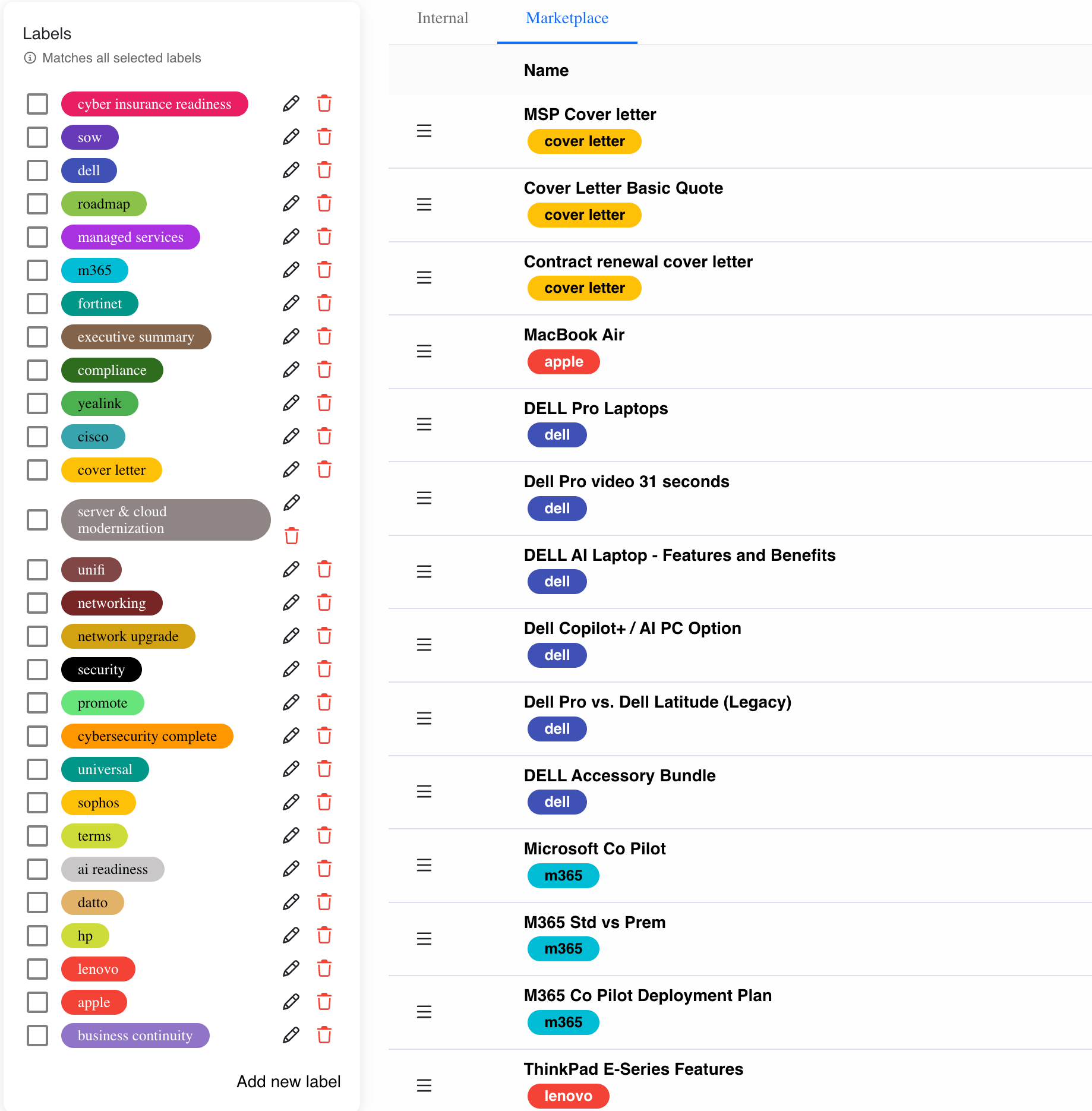
Widget types
For the full list of widget types and what each does, see the Quote Editor. Widget templates support all widget types.
Creating a widget template
In any quote or quote template, build the widget you want to reuse
Hover over the widget and click Save a copy as widget template
Give it a name and optional category label
The widget template is now available in the Insert Widget dialog
Using widget templates
In the quote editor, click Insert Widget
Switch between Internal (your saved templates) and Marketplace tabs
Filter by category or search by name
Click to insert — the widget is added to your quote with all its content and settings
When inserting a widget template, you can copy or link it. A copied widget is independent — changes to the template do not propagate. A linked widget stays connected to its source template, so editing the template updates all linked instances across quotes.
Churn widget
The churn widget tracks service terminations directly in your proposals. When a customer is replacing or canceling existing services, it shows what is being removed alongside what is being added — giving an accurate picture of the net change in recurring revenue.
Note: The churn widget is currently supported with Autotask contracts only.
How churn works
Open a quote and click Open Contracts in the Quote Editor to view the customer's existing PSA contracts
Select contract items you want to terminate or replace and click Add to quote
These contract items are added with negative quantities, representing services being removed
A churn widget is automatically inserted into the quote displaying the terminated services under a "Service Terminations" heading
The quote summary shows both new revenue and churned revenue, giving you the net-new recurring value
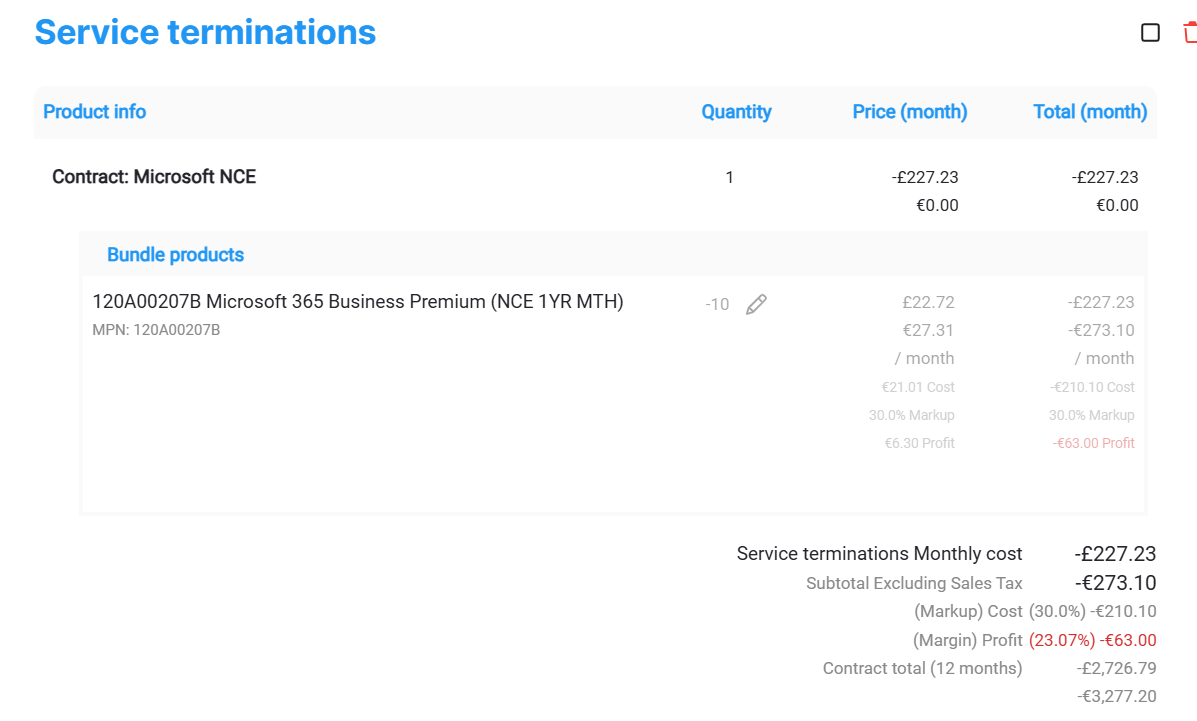
What the customer sees
The churn widget displays:
Items being replaced or terminated
The contract they belong to
Negative line values (representing credits or removals)
The quote total reflects the net value: new items minus churned items. The total summary widget shows a breakdown including the churned amount.
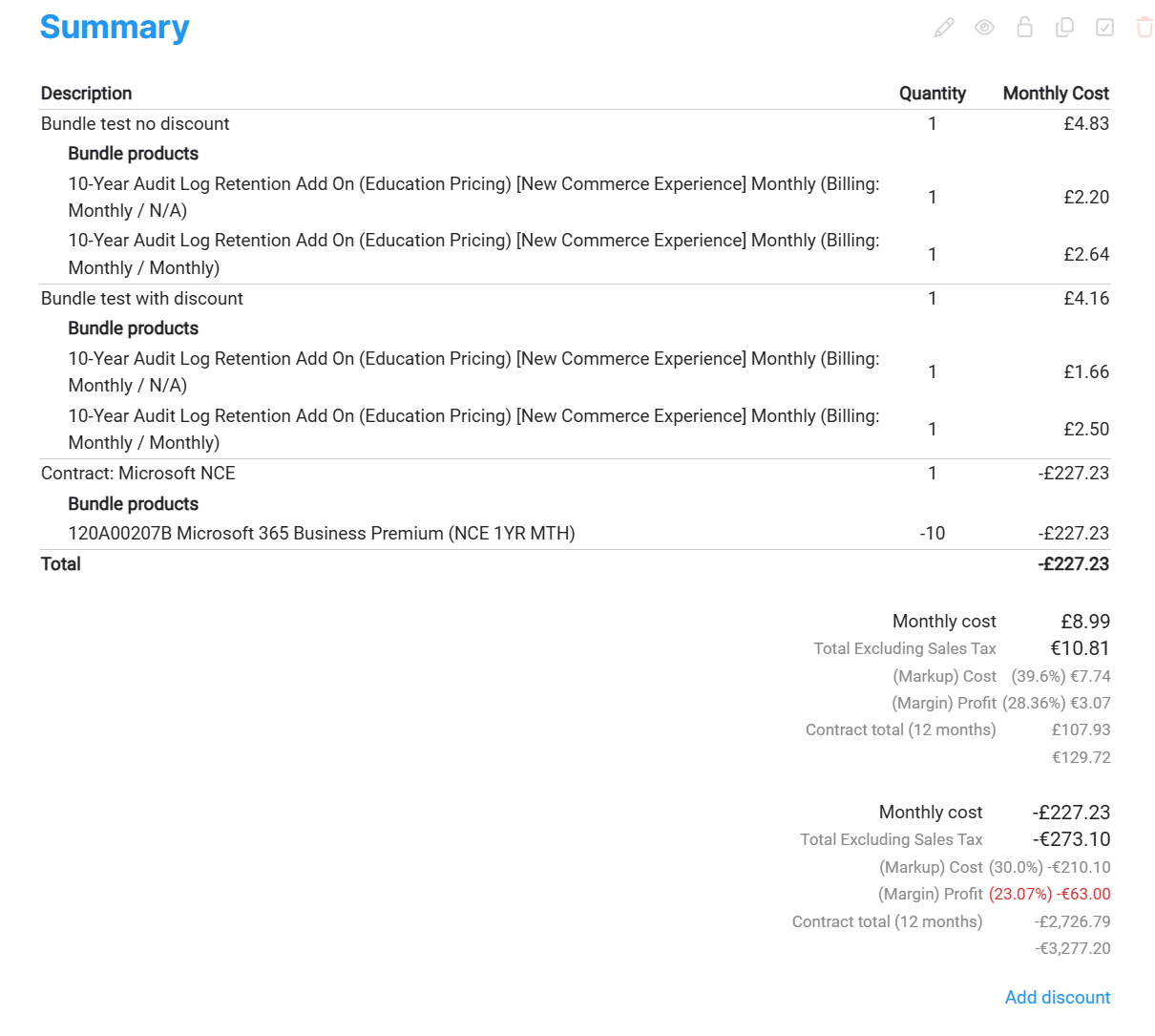
Opportunity churn tracking
The opportunity record tracks the monthly churn amount from linked quotes, giving you visibility into churn across your pipeline. This feeds into forecasting and reporting on the dashboard.
See also
Quote Templates — Quotes
Leasing — Quotes
Styling — Quotes
Onboarding Call 2 — Getting Started
Your First Quote — Getting Started