HaloPSA Setup
Register an OAuth API application and configure product group mappings.
Written By Victor Raessen
Last updated 24 days ago
Part of the PSA Setup Guides. See also: Autotask | ConnectWise
HaloPSA uses OAuth-based authentication. You'll register an API application in Halo and provide the credentials to Salesbuildr.
Prerequisites
Administrator access to HaloPSA
Permission to create agents and API applications
Access to your Salesbuildr dashboard
Your HaloPSA domain URL
Step 1: Create a HaloPSA API agent
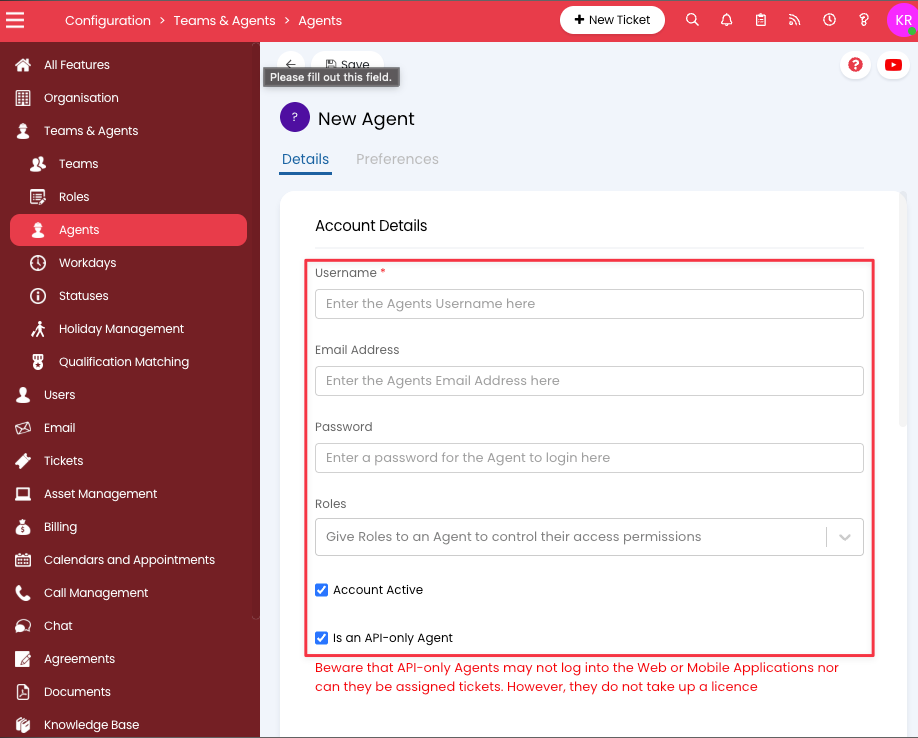
In HaloPSA, go to Configuration > Teams & Agents > Agents
Click New
Enter a Username, Password, and Email
Assign the Administrator role
Enable API-only Agent
Click Save
Step 2: Register an API application
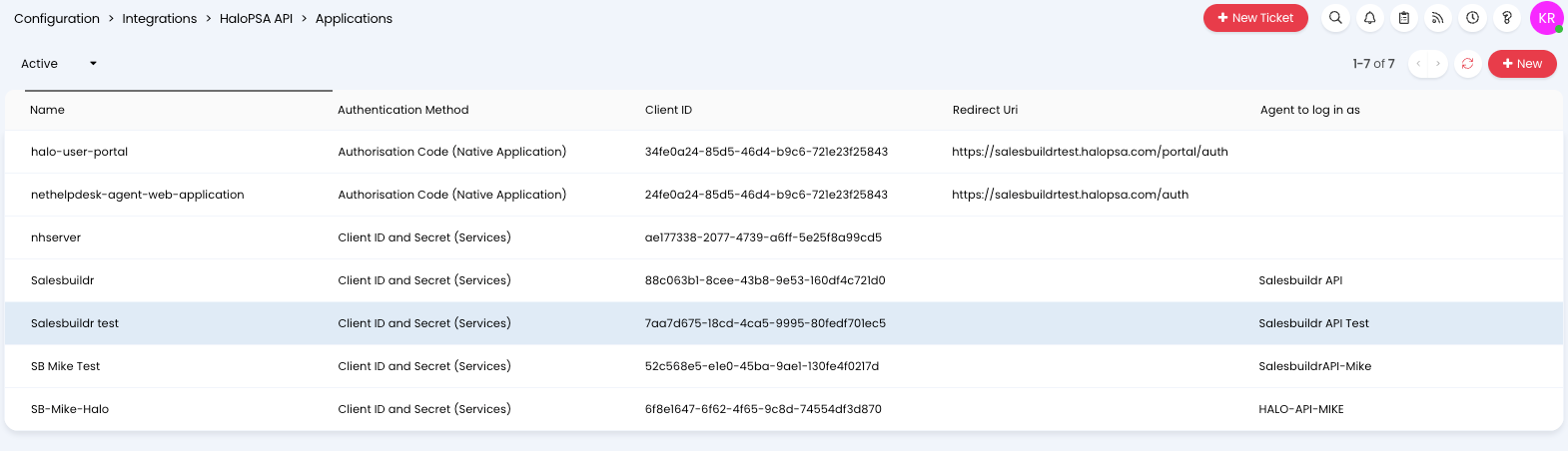
Go to Configuration > Integrations > HaloPSA API > View Applications
HaloPSA API applications list
Click New Application and configure:
Application Name: Salesbuildr Integration
Authentication Method: Client ID and Secret
Login Type: Agent
Agent to log in as: Select the agent you created in Step 1
Permissions: Check
all:standard,all:teams, andadmin:webhooks
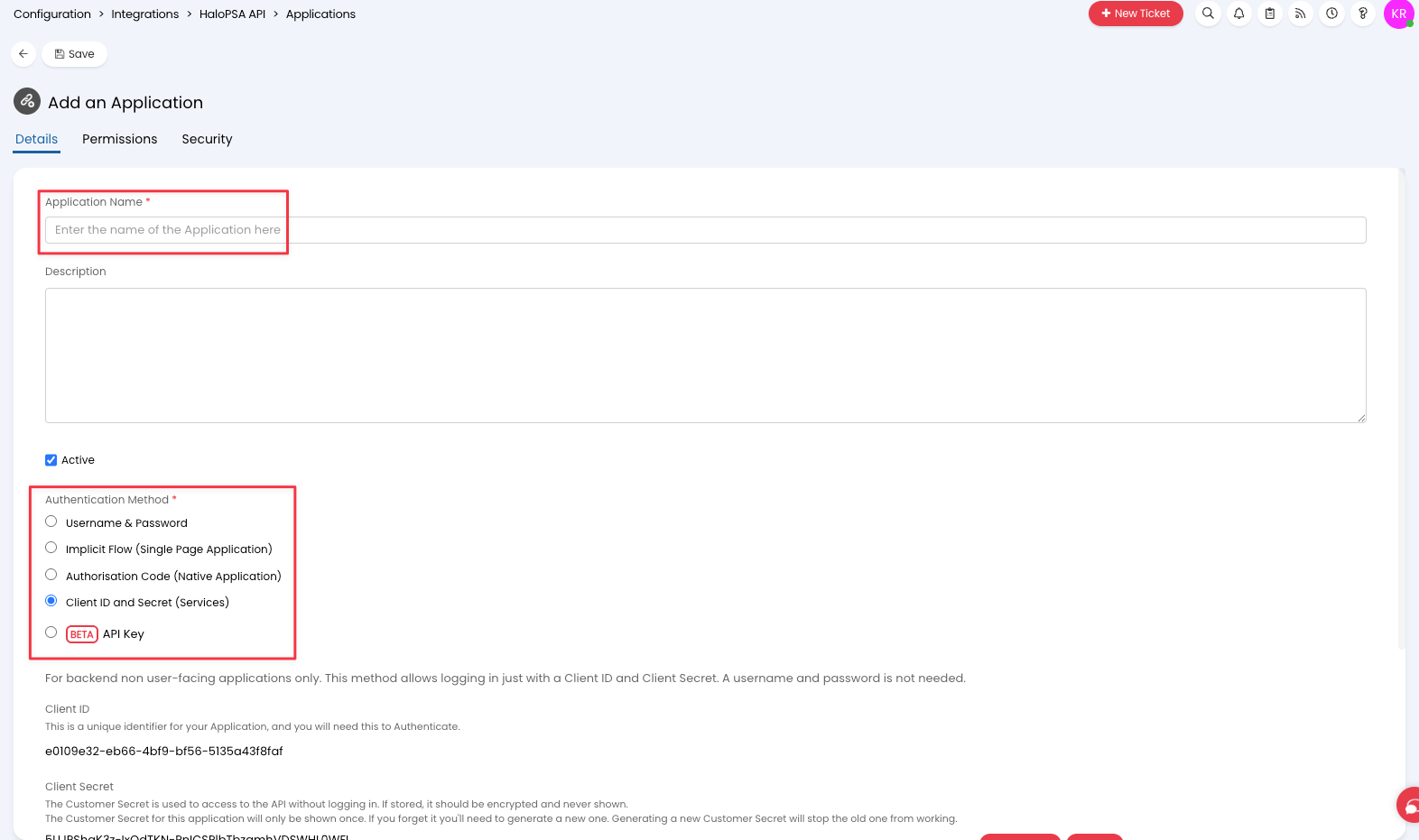
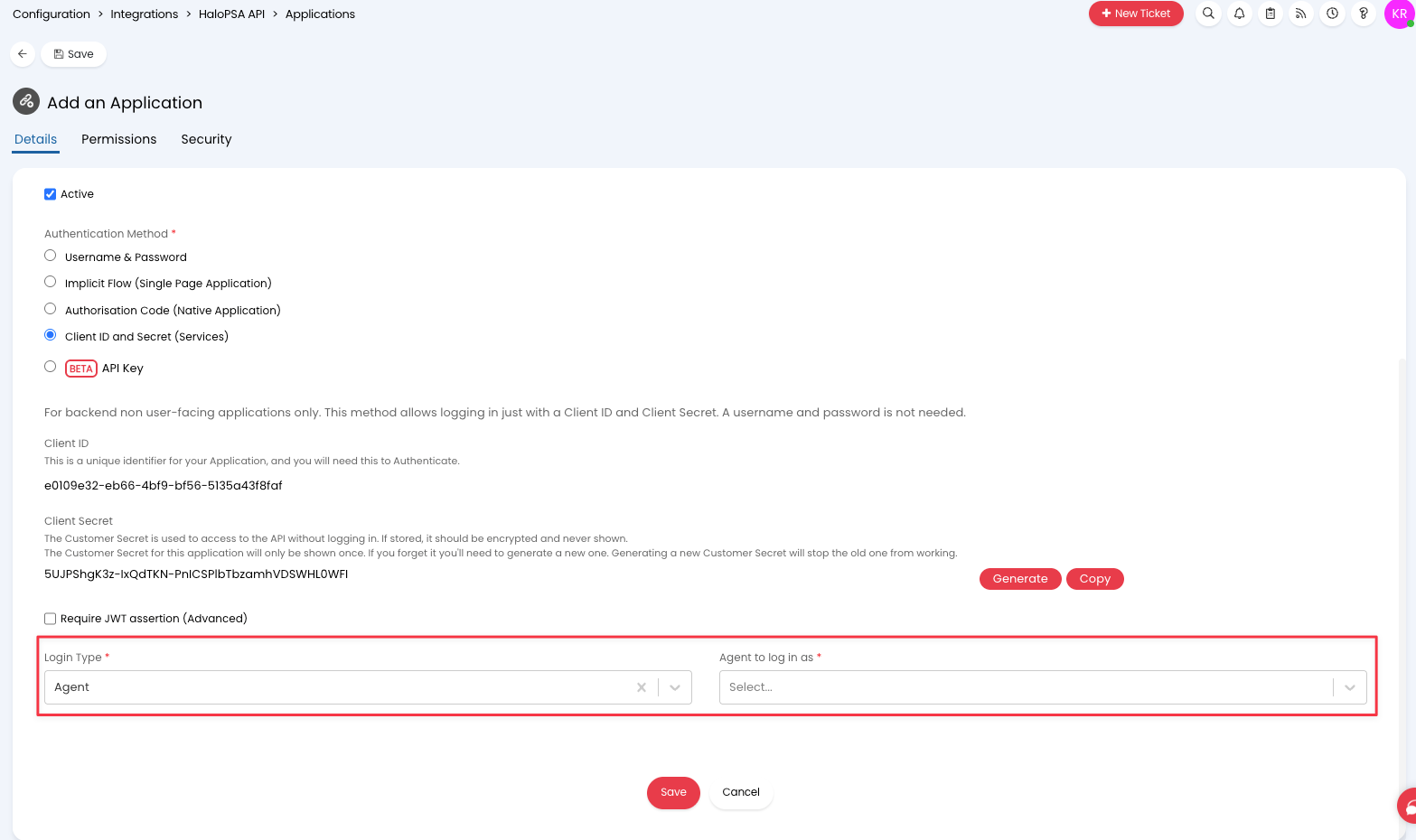
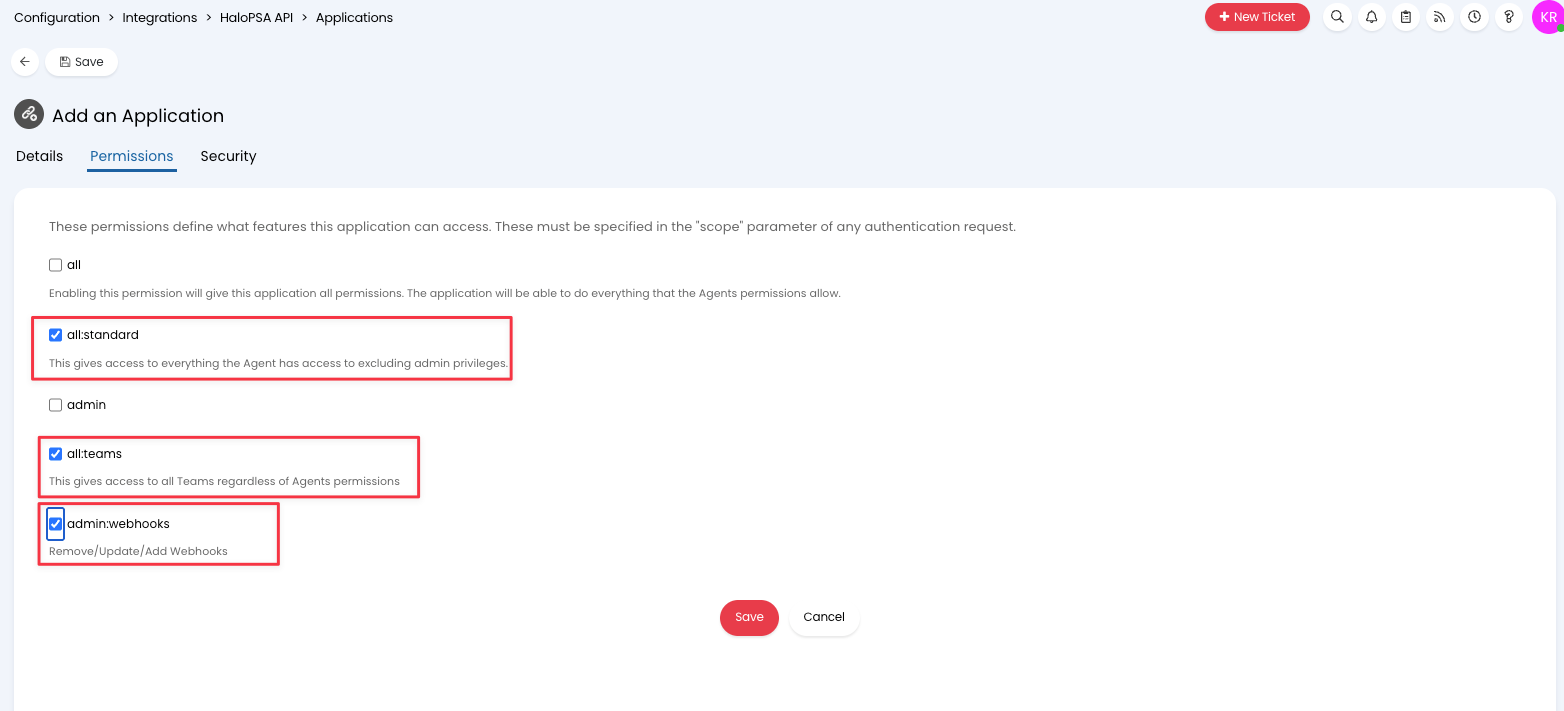
Save the application. Note the Client ID and Client Secret.
Step 3: Additional HaloPSA configuration
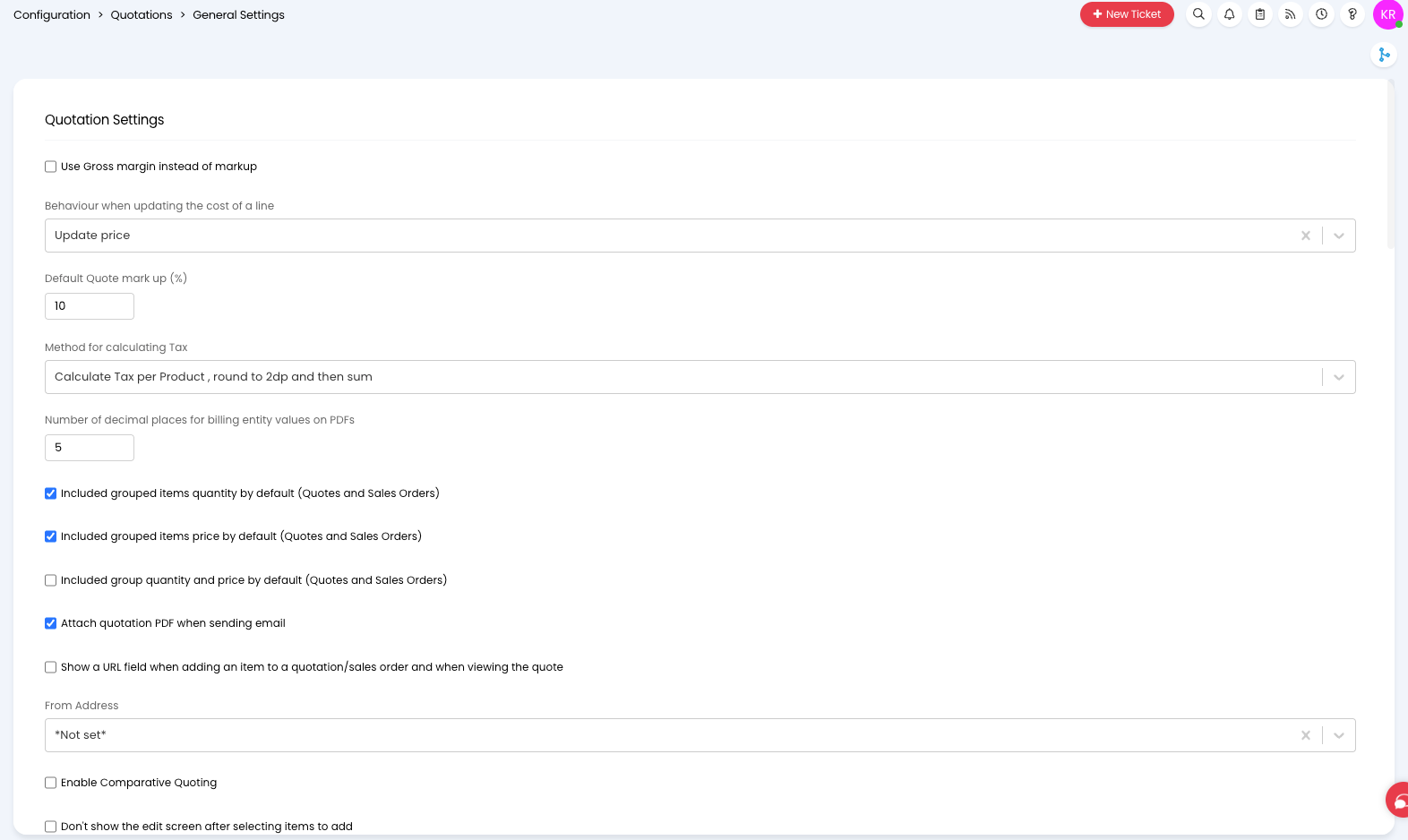
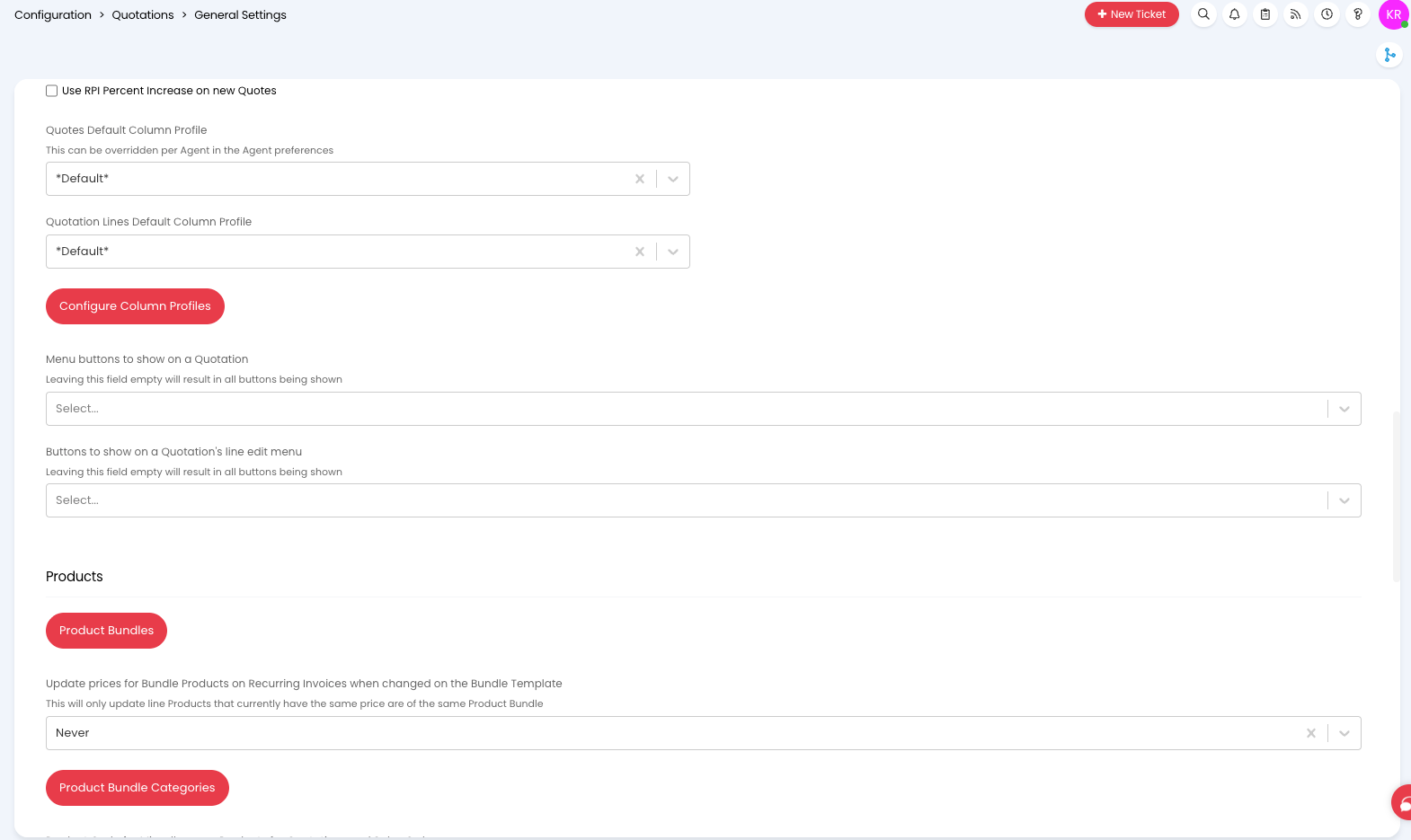
Quotation settings (optional): Go to Configuration > Quotations and review automations. Disable any automations that conflict with Salesbuildr quote handling.
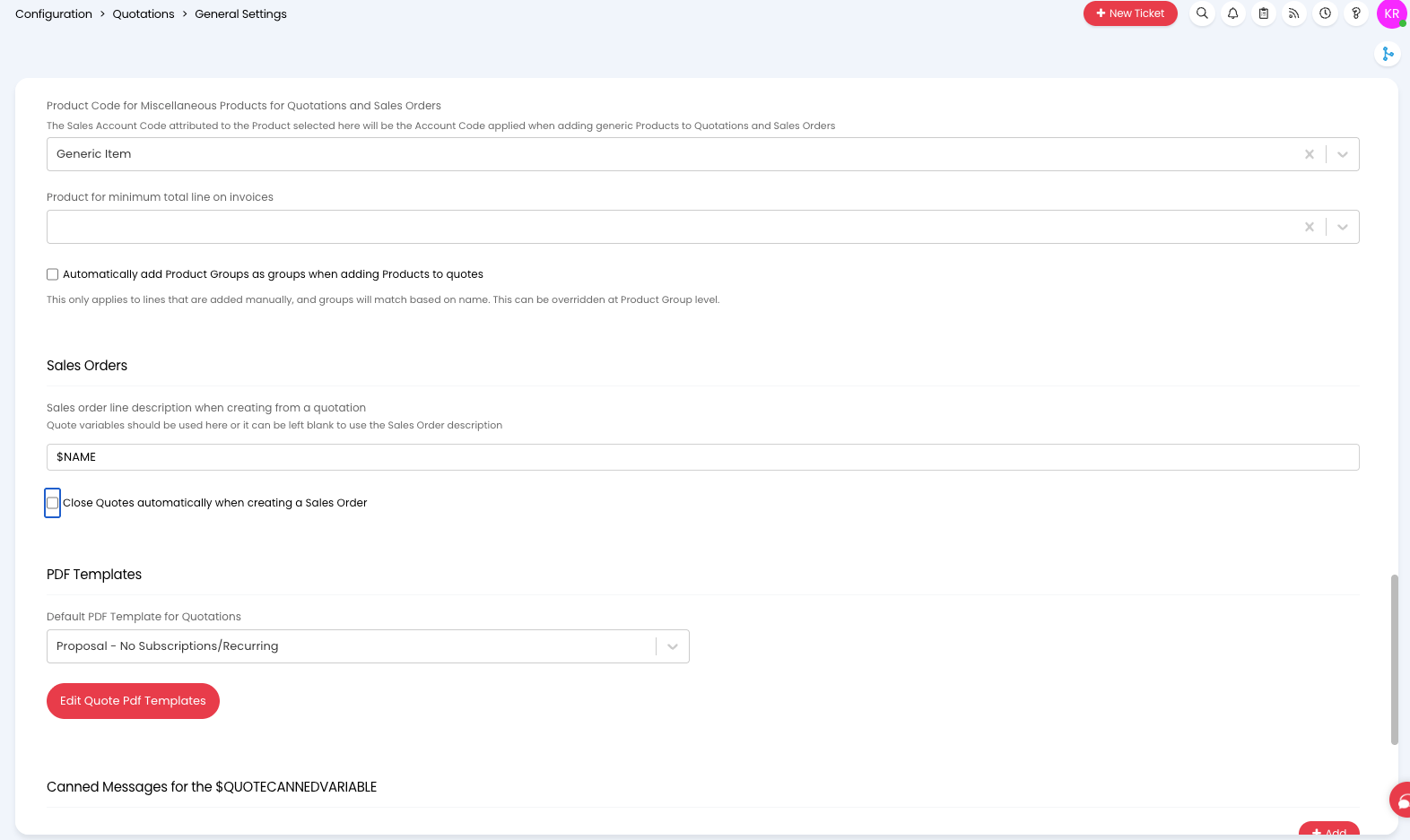
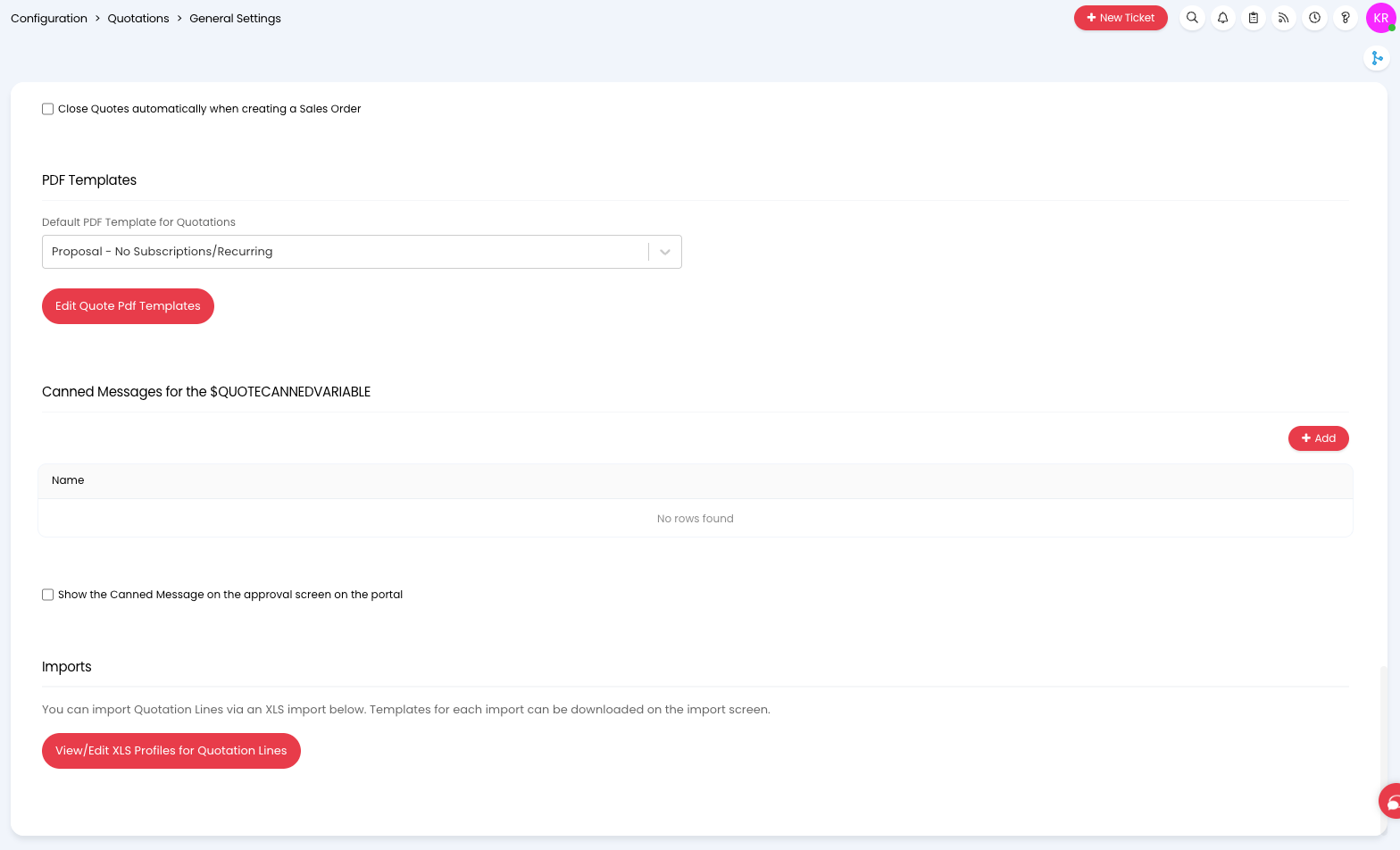
Pipeline stages: Go to Configuration > Sales > General Settings and ensure Enable Pipeline Stages is checked.
Step 4: Connect in Salesbuildr
Note: The website must be configured in Halo for the primary customer and must match the MSP company created in Salesbuildr.
Go to your Salesbuildr Dashboard and click Configure your PSA Integration (or Settings > Integrations > Manage and configure HaloPSA)
Toggle HaloPSA and click Configure
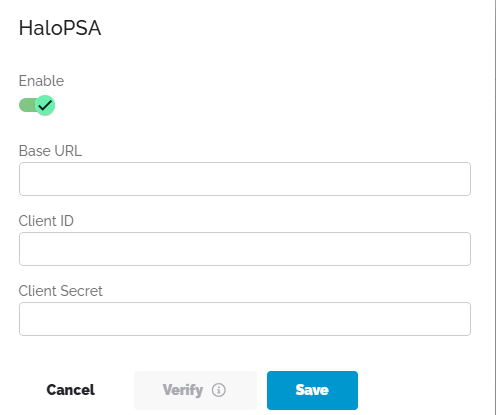
Enter your credentials:
Base URL: Your HaloPSA instance URL (e.g.
yourdomain.halopsa.com)Client ID: From Step 2
Client Secret: From Step 2
Enter HaloPSA credentials
Click Save.
Step 5: Complete field mapping
After saving, configure the mapping:
Primary client: Select the primary client for synchronization, linked to your MSP company in Salesbuildr.
Product group mappings: Map HaloPSA product groups (Asset Groups marked as Items) to Salesbuildr product types.
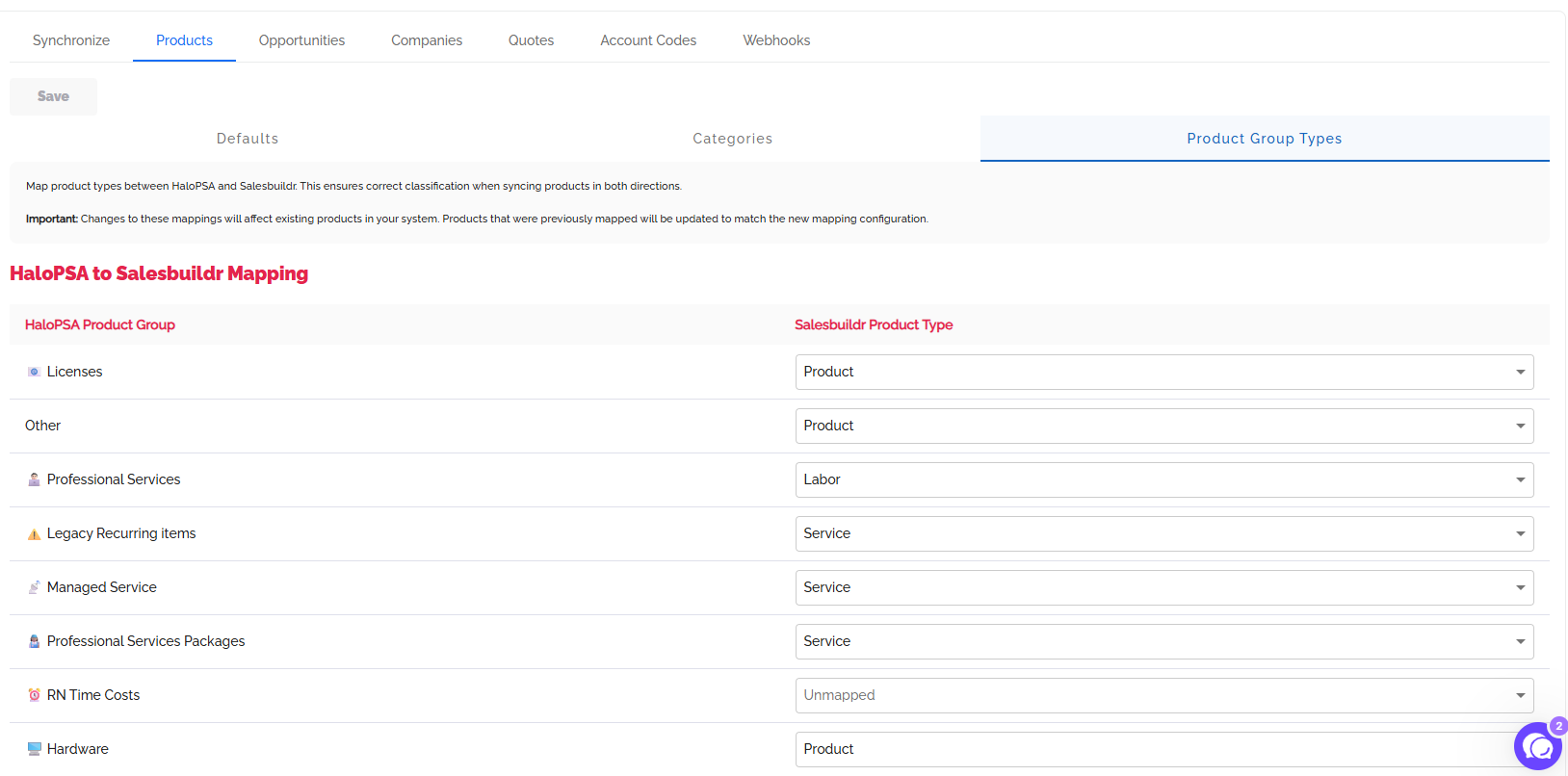
Note: Only Halo Asset Groups marked as Items are shown, as these correctly map to Salesbuildr categories.
Opportunity mapping: Set the default Opportunity Type, select which opportunity types to import, and map statuses between platforms.
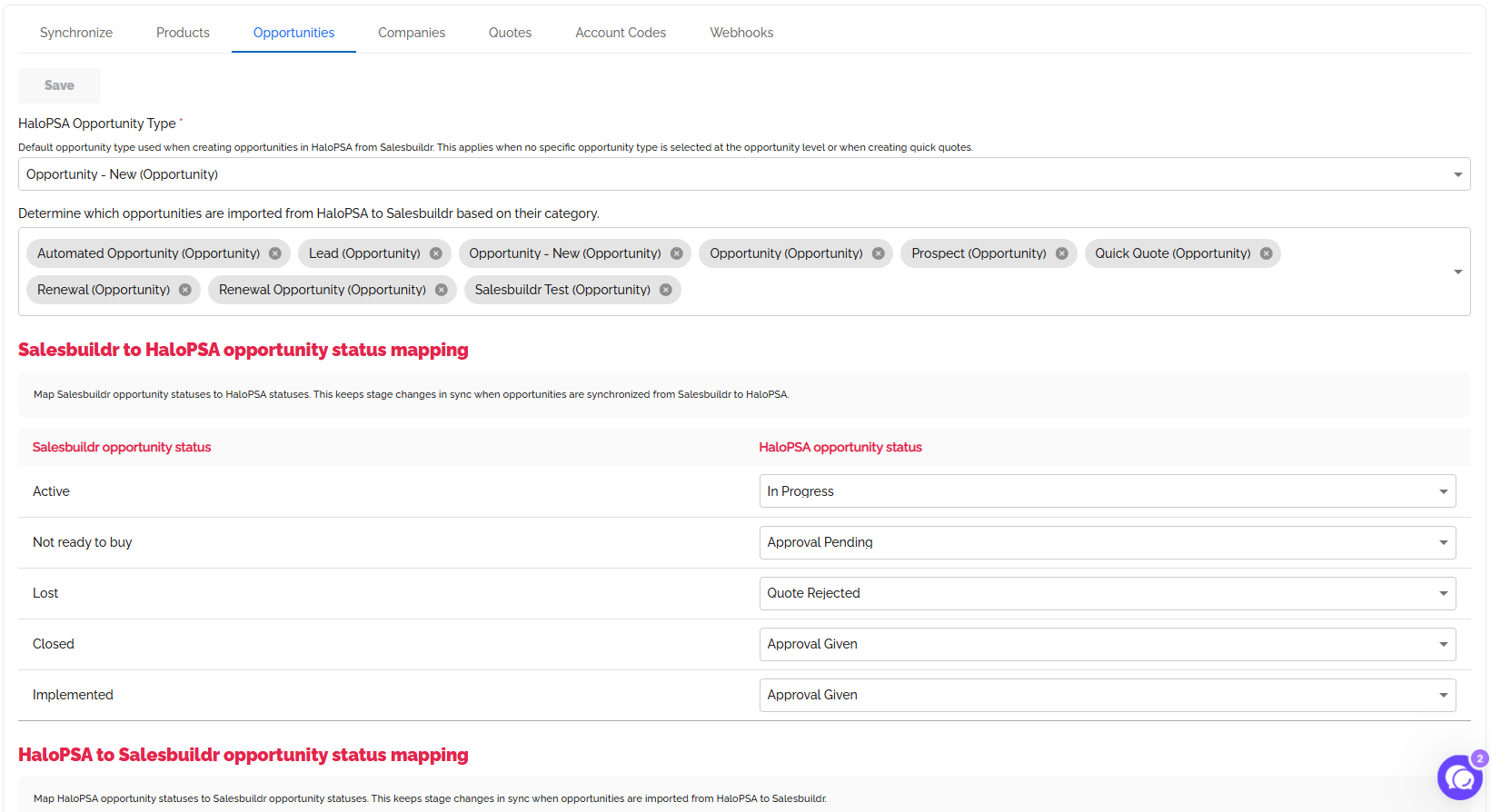
Company type: Select the company prospect type for importing HaloPSA Accounts. On the Companies tab, use Halo Address Mapping to map Salesbuildr street, city, apartment, and state fields to HaloPSA site delivery address lines (Address Line 1–4).
By default, State is imported from HaloPSA's region code field. If your HaloPSA sites store state or province in an address line instead, map State to the matching line — Salesbuildr will read and write state from that line instead of the region code.
Quote status mapping: Match quote statuses between Salesbuildr and HaloPSA (Draft, Sent, Approved, Declined).
Step 6: Configure defaults and run sync
Shipping product: Go to Settings > Integrations > Halo > Products > Defaults tab and select the product that represents shipping costs. This product will appear as a separate line item on quotes when shipping is added.
Default product category: Select a fallback HaloPSA category to use when sending products to HaloPSA that don't have an explicit category mapping.
Account codes: Go to Settings > Integrations > Halo > Account Codes and configure account codes per product group. Account codes can also be set on individual products — if not set at the product level, the group-level configuration applies as the default.
Webhooks: Go to Settings > Integrations > Halo > Webhooks to verify all webhooks are installed. Salesbuildr supports the following webhook events:
Note: Product update webhooks are not yet supported by HaloPSA. Some opportunity field updates (type, name, pipeline stage, team, agent) may not trigger via webhook — only status updates are supported.
Run full sync: Go to the Synchronize tab and click Synchronize.
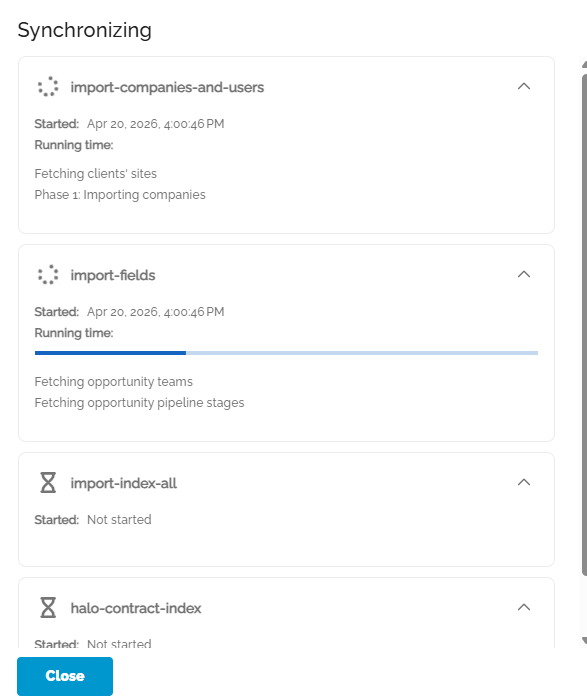
Tax settings
After completing the integration, review and configure your Sales Tax & VAT Settings in Salesbuildr (Settings > Financial > Tax) to ensure proper tax handling in quotes and orders. See Tax & Products for details on the multi-level tax hierarchy.
What syncs
Companies — All active customer records from HaloPSA (Clients/Accounts)
Contacts — Contact records (Users/Prospects) linked to companies
Products / Items — Your Halo item catalog. Note: Halo uses the term "Items" rather than "Products"
Quotes — Accepted quotes sync to Halo as quotations. Sales orders are a separate entity created from post-sale ticket items.
Opportunities — Ticket-based opportunities sync both ways
Important: All items in Halo must have a category assigned. Items without categories will not sync to Salesbuildr.
Verify your integration
Companies (Clients/Accounts) have synced
Contacts (Users/Prospects) are visible and linked
Products and services are available in your catalog
Opportunity mappings are configured
Product group mappings are completed
Webhooks are installed and active
Initial full sync is completed
Test real-time sync: In HaloPSA, update a contact's phone number or email. Wait 1-2 minutes and check that the change appears in Salesbuildr.
Note: Some opportunity field updates (type, name, team, agent) may not trigger via webhook. Status updates are supported.
Common issues
Connection failedVerify your Base URL, Client ID, and Client Secret. Confirm the API Application is set to Login Type: Agent. Ensure the API-only agent is active. Check that permissions include all:standard, all:teams, and admin:webhooks. Try re-saving the integration in Settings > Integrations > Halo.
Quote sync timeout errorsThis is the most commonly reported issue with HaloPSA. If you see a "synchronized timeout" error, retry the operation — it's often transient. If it persists after 3+ retries, contact support.
Products not syncing — missing categoriesHalo requires every item to have a category assigned. Items without categories cannot sync. Create categories in Halo first, assign them to all items, then re-sync. Verify product groups are marked as Items — otherwise they will not map to Salesbuildr categories.
Data not syncingWait for the initial synchronization to complete. In Salesbuildr, go to Settings > Integrations > Halo > Synchronize and run a full sync. Confirm the data exists in HaloPSA and is not archived. Check that pipeline stages are enabled in Halo (Configuration > Sales > General Settings).
Opportunity sync errorsEnsure pipeline stages are enabled in HaloPSA. Verify opportunity type and status mappings are configured. Confirm the primary client is correctly selected. Avoid automation rules in Halo that auto-close opportunities before sync.
Wrong cost or margin showingIf Halo's cost is overriding distributor pricing, clear (X out) the Halo cost on the product. The dynamic pricing from your distributor feed will take over.
Bundles not syncingBundles created in Salesbuildr don't currently sync to Halo as bundles. As a workaround, create bundle items in Halo manually. Improved bundle sync is planned.
Webhooks not workingGo to Settings > Integrations > Halo > Webhooks and confirm all are installed. Verify the API application includes admin:webhooks permission. If errors are shown, reinstall from the integration page and run a full sync. Note that product update webhooks may not be supported depending on your Halo version.
Recurring item confusionHalo handles recurring items differently from other PSAs. Make sure the billing frequency (monthly vs. annual) is set correctly on the item in Halo. You may need to configure recurring templates specifically for your billing setup.
Per-line item description not appearing on Halo quotation linesThe description entered via "Edit Description" on a quote line in Salesbuildr does not sync to the Halo quotation. This is a current limitation of HaloPSA's API: the "Description" column on a Halo quotation line maps to the product name, and Halo does not yet expose a writable per-line description field on quotations.
The description you enter in Salesbuildr will still appear on the quote your customer receives. If you need this detail to flow into Halo, upvote the open feature request in Halo's ideas portal: Add 'Sales Description' as an editable field when adding to a quote. Once Halo exposes this field via their API, Salesbuildr can map to it.
Verify your defaults
After the initial sync, Salesbuildr pre-populates the default pipeline stage. However, the quote status mapping must be configured manually. This mapping determines how quote lifecycle changes (draft, sent, approved, declined) update your HaloPSA opportunity pipeline.
Look for the Default Settings tile on your dashboard under Finish Actions, or go to Settings > Integrations.
Next steps
Your HaloPSA integration is connected. Here's what to do next:
Return to the Provisioning Checklist to continue onboarding
Review your product catalog now that items have synced
Fine-tune product groups, opportunity mapping, and account codes on the PSA Configuration page
Set up pricing rules and category markups