Financial
Pricing rules, markup, rounding, payment terms, multi-currency, and tax/VAT configuration.
Written By Victor Raessen
Last updated 24 days ago
Financial
Configure financial settings that apply across quotes and orders — pricing rules, taxes, and multi-currency support.
Pricing Rules
Configure how prices are calculated — currency, rounding, markup/margin rules, and pricing strategy. For per-quote pricing settings that sales reps use daily, see Quote Editor.
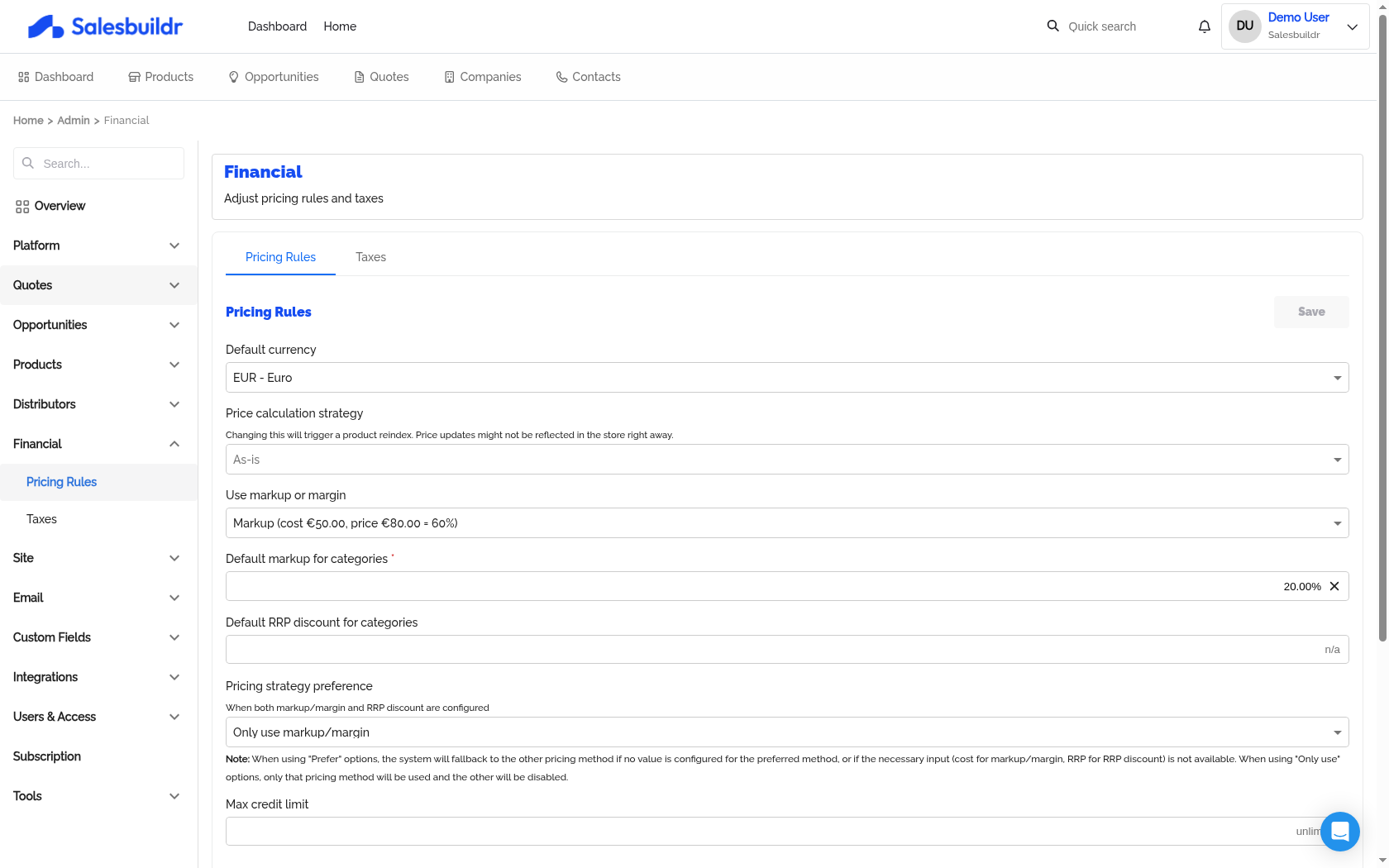
Settings > Financial > Pricing Rules — Mar 1, 2026, 6:15 PM UTC
Currency and rounding
Navigate to Settings > Financial > Pricing Rules. These settings control how prices are calculated across the platform.
Markup, margin, and discounts
Taxes
Navigate to Settings > Financial > Taxes to configure how Salesbuildr handles tax on quotes and orders.
The Taxes page has two sections:
VAT/Sales Tax — the global calculation method and individual tax rates
Taxes (federal surcharges) — country-level surcharges applied on top of the product price
Product-level tax settings (taxable toggle, VAT rate override) are configured per category in Settings > Categories.
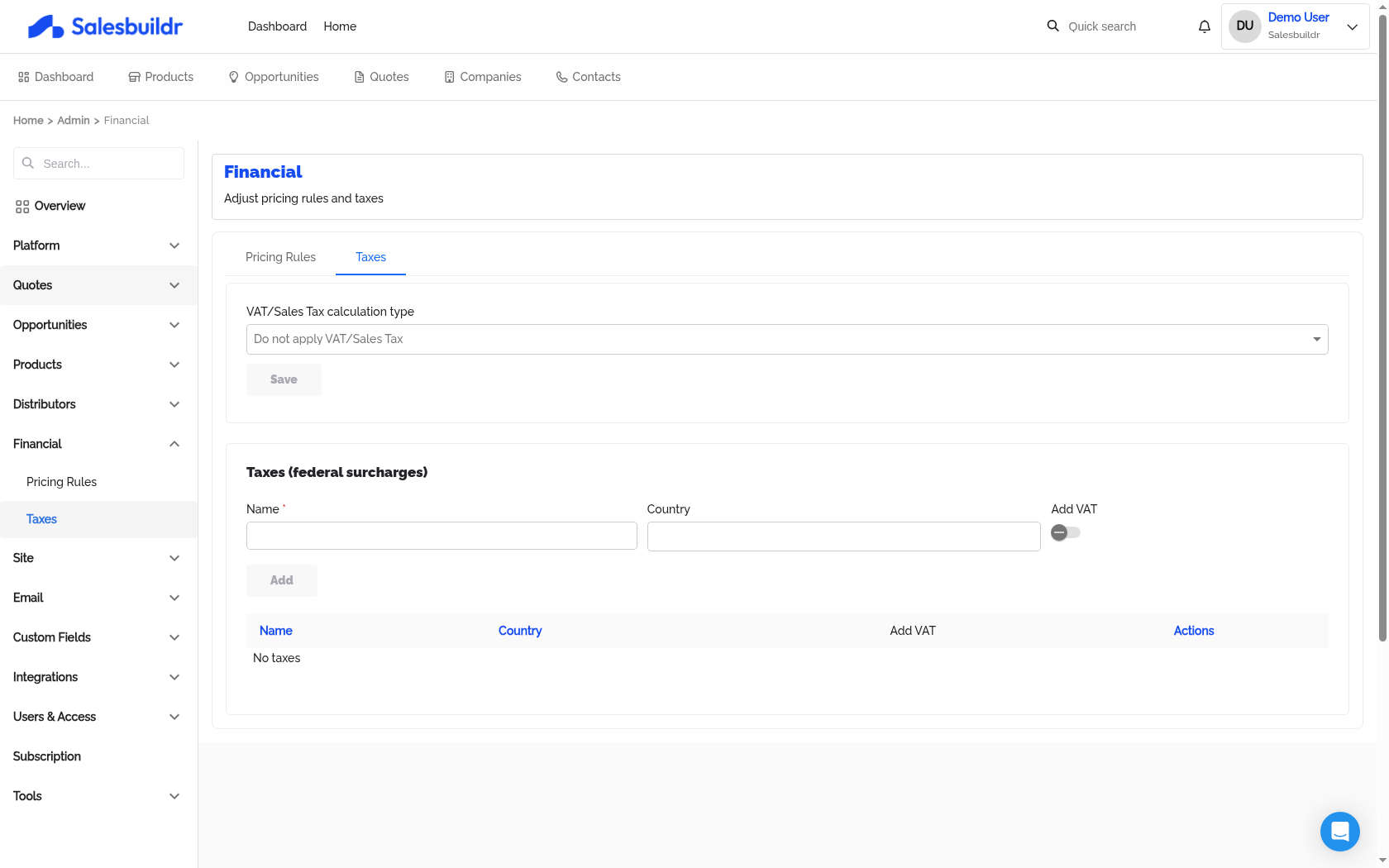
Settings > Financial > Taxes — Mar 1, 2026, 6:15 PM UTC
VAT/Sales Tax calculation type
Use the VAT/Sales Tax calculation type dropdown to select how tax is calculated:
PSA-specific options only appear if the corresponding PSA integration is configured.
Default VAT/Sales Tax rate
When using Salesbuildr-based calculation, select a Default VAT/Sales Tax rate to pre-apply to all new quotes. Individual products can override this via category-level settings.
VAT/Sales Tax rates
When the calculation type is set to Calculate Sales Tax in Salesbuildr, you can manage your tax rates directly.
Each rate has:
To add a rate, fill in the form at the top of the rates section and click Add. To update existing rates, edit the table inline and click Save. Delete a rate with the trash icon.
Taxes (federal surcharges)
Federal surcharges are country-specific taxes applied in addition to the product price. These are separate from VAT/Sales Tax rates.
Each surcharge has:
To add a surcharge, fill in the form at the top of the section and click Add. Existing surcharges are listed in the table below and can be deleted with the trash icon.
See also
Platform — Settings
Quotes — Settings
Products — Settings
Dynamic Pricing — Products
HaloPSA Setup — PSA Setup Guides