Styling
Three-level style cascade — margins, fonts, colors, letterhead, and page numbering for proposals.
Written By Victor Raessen
Last updated 24 days ago
Quote styling controls how your proposal document looks — margins, colors, fonts, letterhead images, and page numbering.
Three-level cascade
Styling follows a cascade so you only configure what needs to change at each level:
Company defaults — Set at Quotes > Styling — applies to all quotes
Template styling — Override company defaults per template
Per-quote styling — Override per individual quote
Each level inherits from the one above. A template only needs to define the values it wants to change.
Styling options
The styling editor has four tabs:
General
Page margins (top, right, bottom, left) in millimeters
Header letterhead image — appears at the top of every page
Footer letterhead image — appears at the bottom of every page
Heading
Heading color
Font sizes for H1 through H6 and widget headings
Line height and spacing
Text
Body text color
Font size, line height, and paragraph spacing
Paragraph alignment (left, center, right, justify)
Page numbering
Enable/disable page numbers
Include cover page in page count
Include full-page image widgets in page count
Number format template (e.g.,
{{page}} / {{total}})Position: top-left, top-center, top-right, bottom-left, bottom-center, or bottom-right
Color, font size, and margins
Reset to defaults
When editing a quote's styling, the Reset to Defaults button restores the styling from the quote's template. If the quote has no template, it resets to company-wide defaults.
Styling panel reference
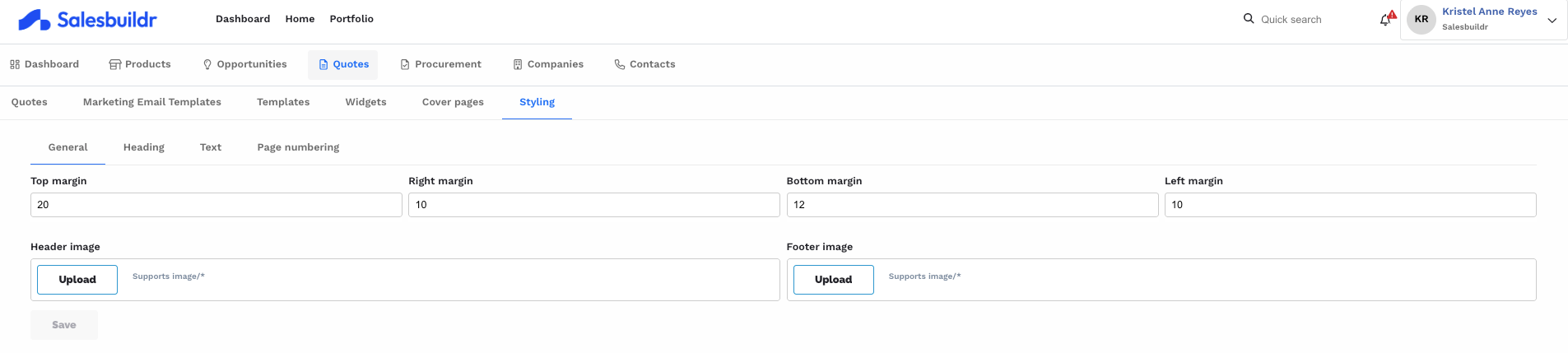
General styling tab with page margin controls and header/footer image uploads Feb 20, 2026
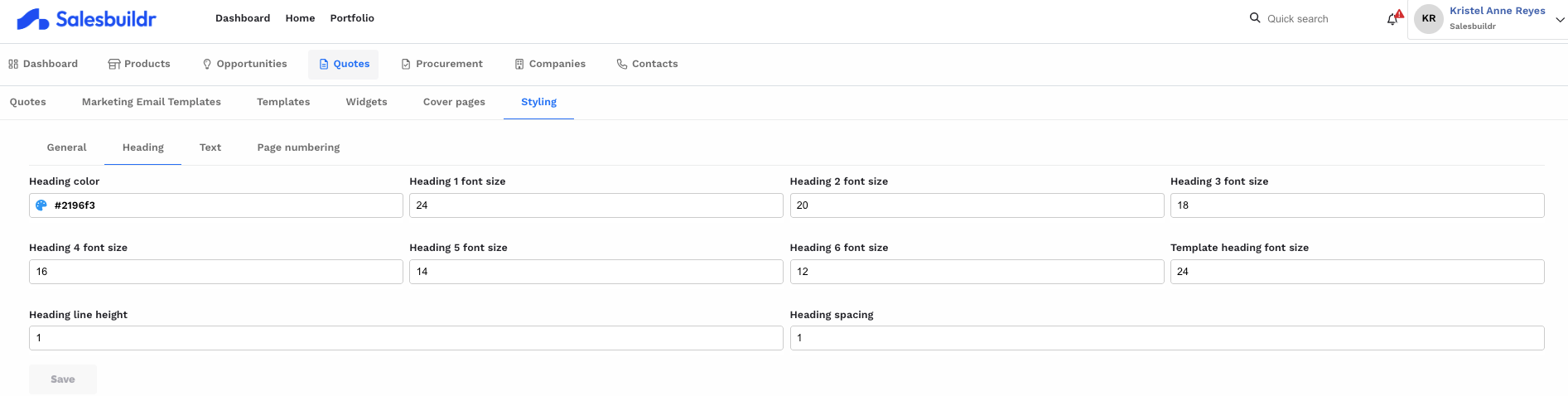
Heading styling with color picker and font size controls for heading levels 1 through 6 Feb 20, 2026
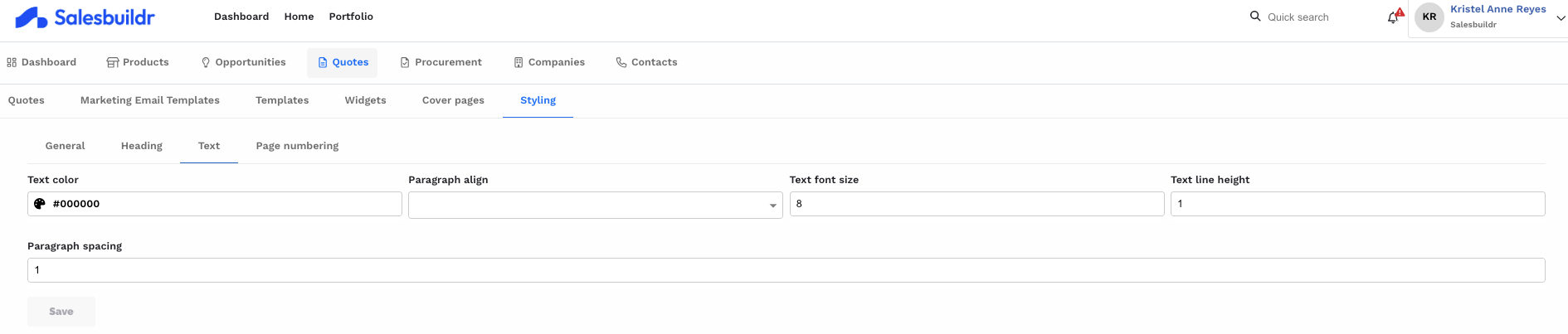
Text styling with paragraph color, alignment, font size, line height, and spacing controls Feb 20, 2026
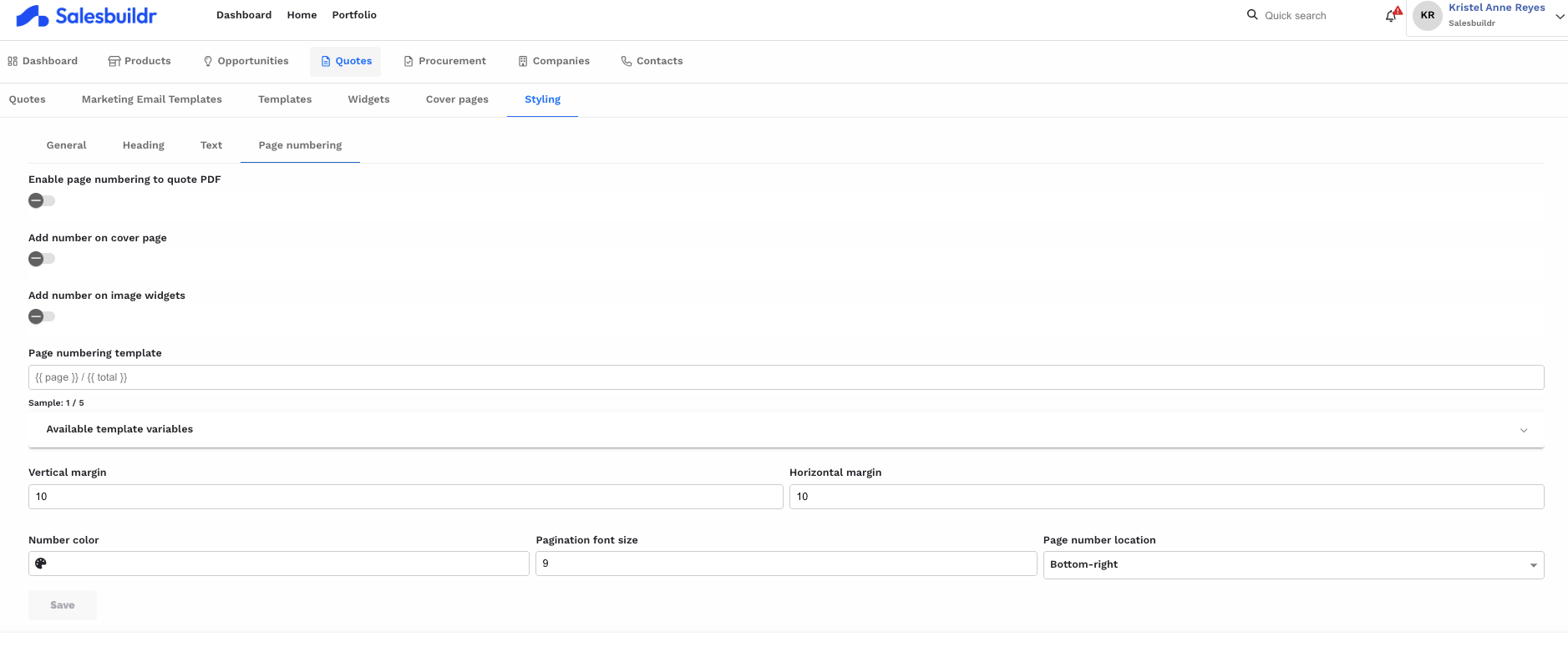
Page numbering settings with toggles for cover page and image numbering, position, and formatting template Feb 20, 2026
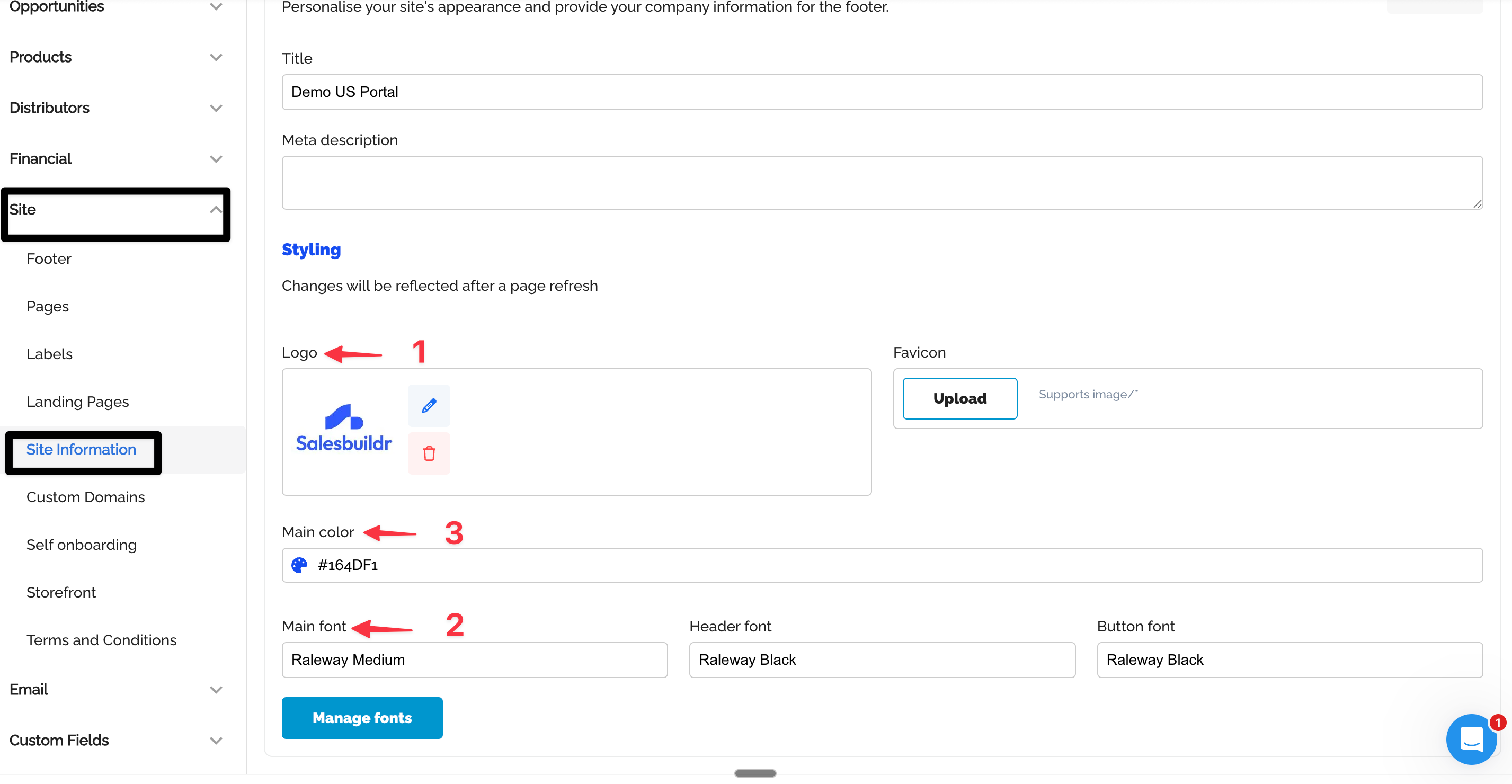
Site information page with logo preview, main brand color picker, and font selection for body, headers, and buttons Feb 20, 2026
Tips & Tricks
When using a header or footer, please add margin to the quote styling corresponding to the header/footer, so the quote content does not overlap it.
Another case is an example of how positioning works for quote, if the user wants a logo on the left top, they should add white padding on the right.
See also
Quote Templates — Quotes
Styling & Cover Pages — Quotes
Quotes — Settings